Using J2Commerce 4 in Joomla 6
This article is a guide to help you use J2Commerce v4 in Joomla 6. For a Joomla 6 native experience, download the new J2Commerce v6 extension. J2Commerce v6 is not an update to J2Commerce v4, you will need to use our migration tool to move your store to J2Commerce v6.
On a new Joomla 6 install, before installing J2Commerce v4.1.x, go to plugins, filter by the 'behavior' plugin type and enable the Backward Compatibility 6 plugin and all its options.
The following process assumes you already have an instance of J2Commerce v4.0.x running under Joomla 5.
Step 1: Update J2Commerce v4.0.x to v4.1.x under Joomla 5.
Step 2: Disable some or all J2Store/J2Commerce extensions under Joomla 5.
The safest way to update to Joomla 6 is to disable all J2Store/J2Commerce extensions before the update. This includes plugins, modules, and apps. This can be cumbersome if you have a lot of extensions, but it is the safest way to avoid fatal errors during the update process. To make it easier, we created a second version of the Migration Checker Utility that is compatible with Joomla 5 and can be used to disable all J2Store/J2Commerce extensions in a couple clicks.
Step 2a: Download and install the Migration Checker Utility.
- Go to github.com/j2commerce/j2store_migration_checker/releases. Download the latest v2.x version.
- Go to the Joomla 5 administrator console, System > Install > Extensions.
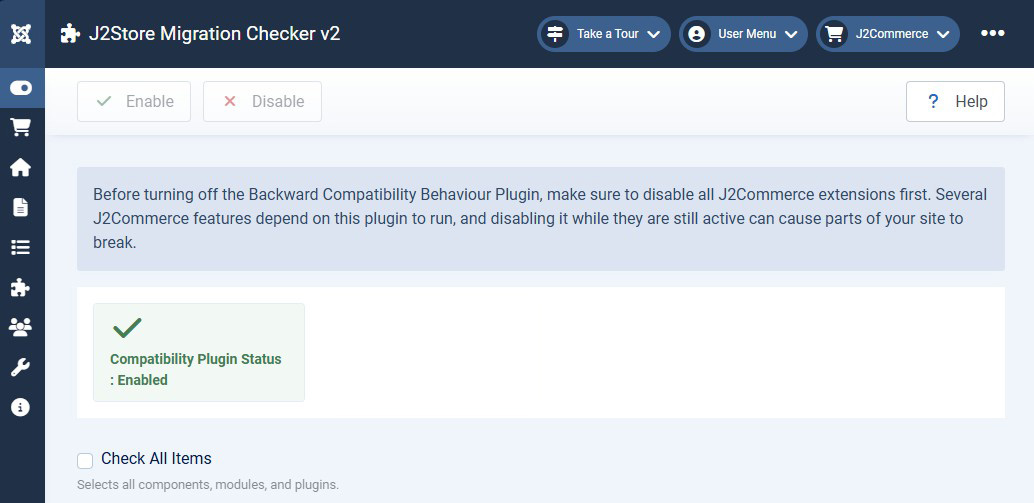
- Once installed, go to Components > J2Store Migration checker v2.
Step 2b:
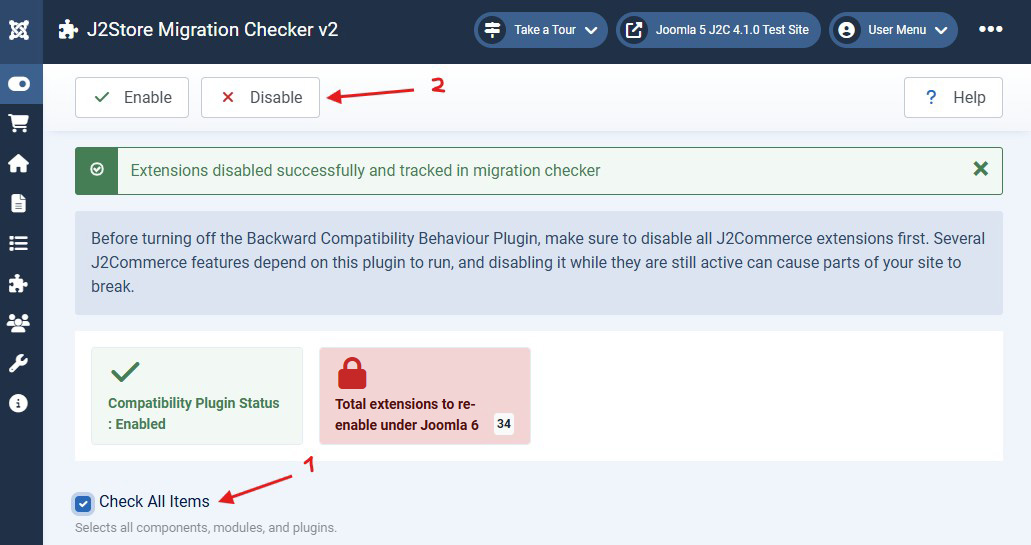
In the Migration Checker Utility, select the checkbox 'Check all items' then the 'Disable' button. This will disable all J2Store/J2Commerce extensions in 2 clicks. You can hand-pick the extensions you want to keep enabled, but we recommend disabling all of them to avoid potential conflicts during the Joomla 6 update process.
Step 3: Disable any other third-party extension that requires the backward compatibility plugin enabled.
Other third party extensions unrelated to J2Store/J2Commerce may also require the compatibility plugin to be enabled. If you have any such extensions, please disable them as well before proceeding with the Joomla 6 update.
Step 4: Start the update to Joomla 6 process.
Go to the Joomla update page System > Update > Joomla and launch the update.
Step 5: Disable the Joomla 5 Backward Compatibility plugin.
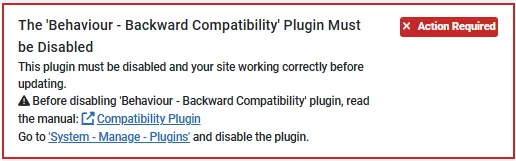
During the update process, the system will ask you disable the compatibility plugin used in Joomla 5 (compat). Follow the link for easy access to the plugin manager and disable the plugin.
Step 6: Resume and finish the update process.
Step 7: UNNECESSARY WHEN USING THE MIGRATION CHECKER UTILITY: Enable the Joomla 6 Backward Compatibility plugin.
Go to the plugins page, filter by the 'behavior' plugin type and enable the Backward Compatibility 6 plugin and all its options.
Step 8: Re-enable all J2Store/J2Commerce extensions that were disabled under Joomla 5.
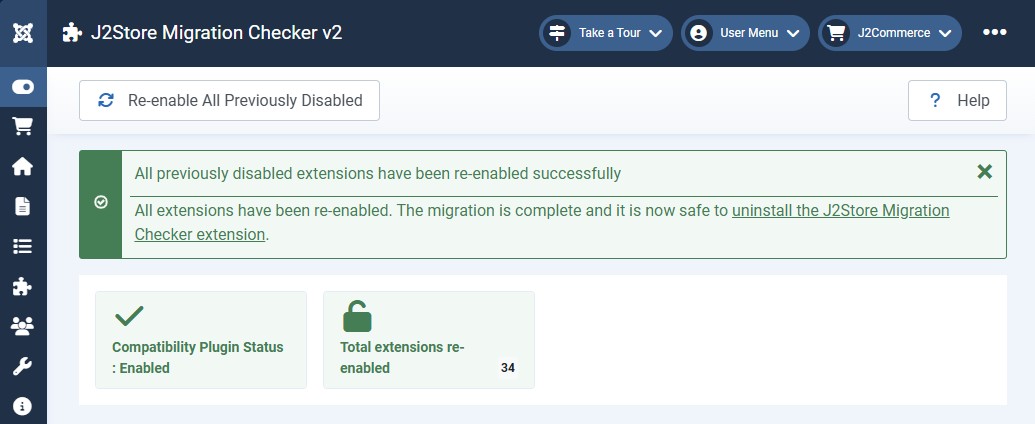
Select 'Re-enable All Previously Disabled'. This will first enable the Backward Compatibility 6 plugin and all its options then re-enable all the J2Store/J2Commerce extensions that were disabled in Step 2.
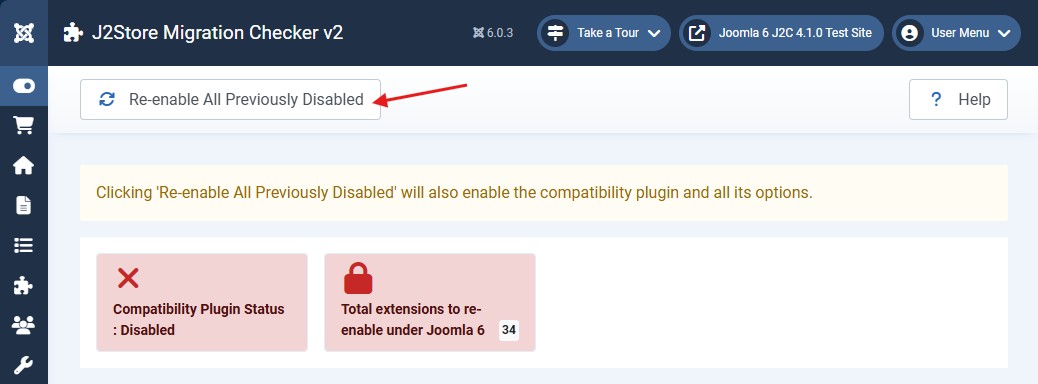
The Migration Checker will also give you the option to uninstall itself, which you can do as you don't need it anymore. Follow the link to the extensions manager and uninstall it.
Step 9: Re-enable all other third-party extensions that were disabled under Joomla 5
Make sure those extensions support Joomla 6. If not, please reach out to the respective vendors/developers for compatibility.