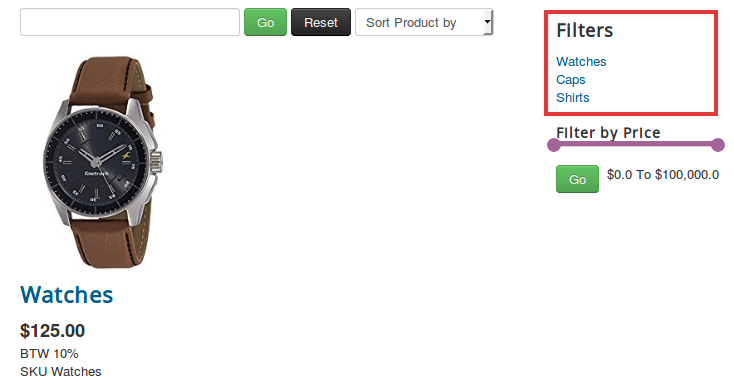
Category Tree for displaying filters
Sometimes you might want to display the filters in a tree structure. Or achieve a SEF URL for category filters. Here is what you can do to achieve that.
Steps to be followed:
-
Create a menu with the name filters by going under Menu > Manage.
-
Select New to create a new menu item named Filters with the Unique Name: filters (lower case)
-
Create menu items with the names of the categories.
-
Add the menu items to the Filters menu.
-
Navigate to Content > Site Modules > New > Menu Module.
-
Choose the Filters menu in the option “Select Menu”.
-
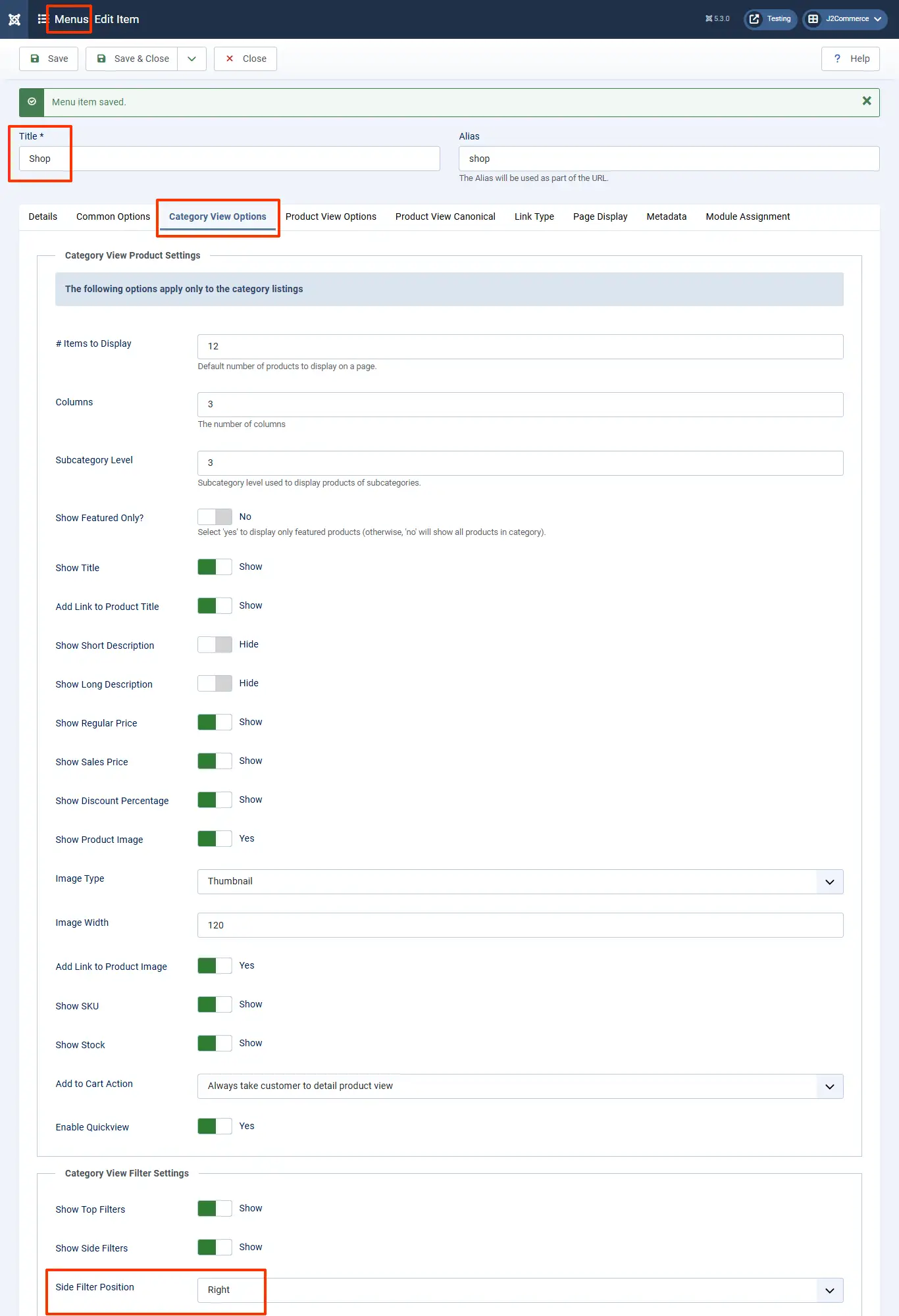
If your filters are displayed on the right, then set the position to
j2store-filter-right-top. If your filters are displayed on the left, then set the position toj2store-filter-left-top. -
Please note that you have to type this fully in the position field and then hit enter (it won't automatically display in the list of module positions).
-
If you're unsure where to see the filter positions, click here
- The first photo below is where you find the filter position
Relevant Screenshots
The following screenshots will be of help:
Create a Filter Menu
Go to Menus > Manage > New
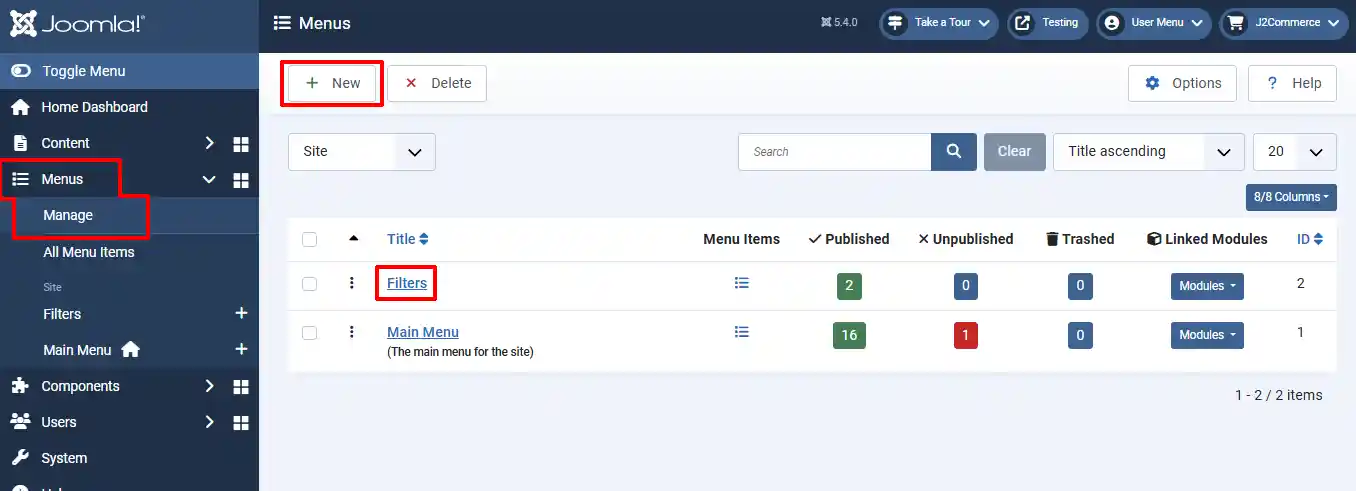
Title: Filters
Unique Name: filters

Add menu items with category names to the Filter menu:
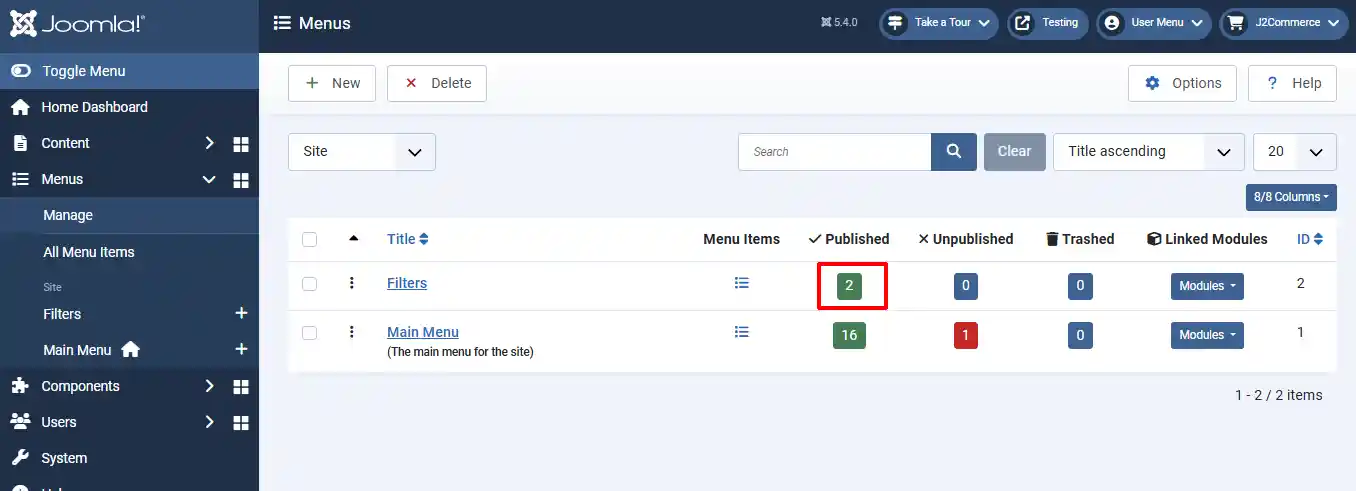
Create a new Filter Sub-Menu
You can either click where the sub-menu section is highlighted in the image above, or go to Menus > Filters > New
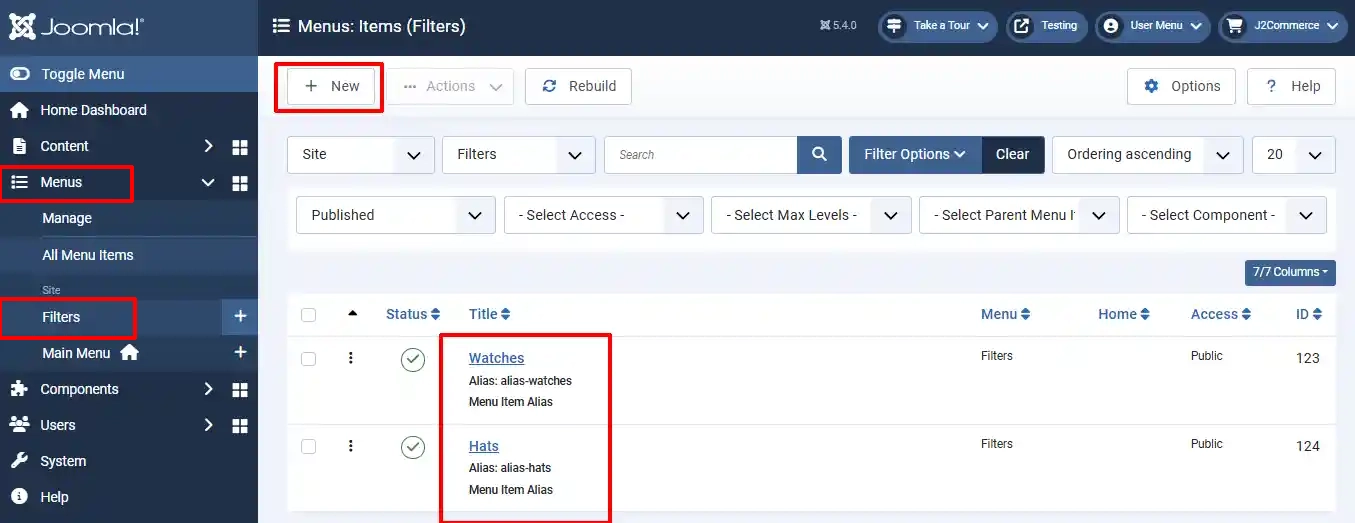
Setting up the Filter Categories Parameters
Step 4: Details Tab:
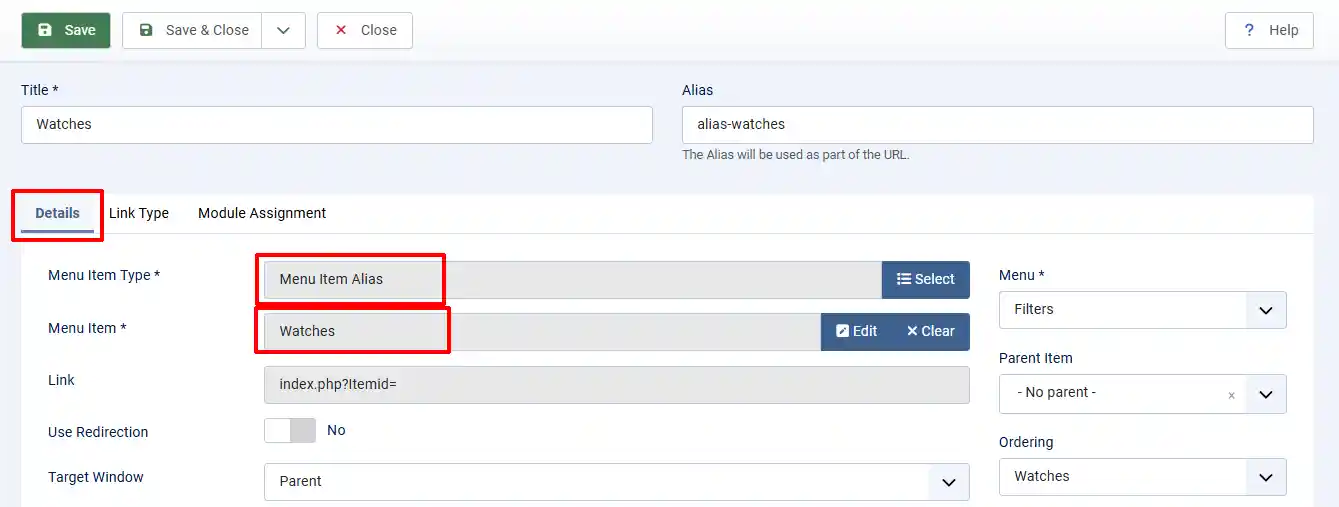
Title: Name the Filter Category
Menu Item Type: Select > System Links > Menu Item Alias

Menu Item: Assign the menu item
Save and Close
Create a Filter Menu Module
Go to Content > Site Modules > New
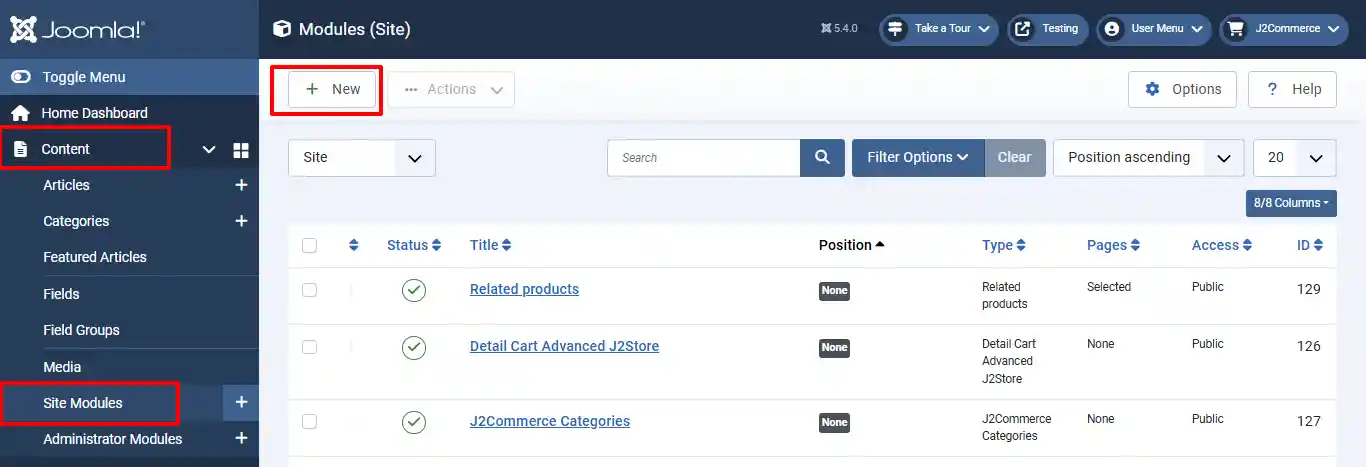
Setting up the Filter Module Parameters
Module Tab:
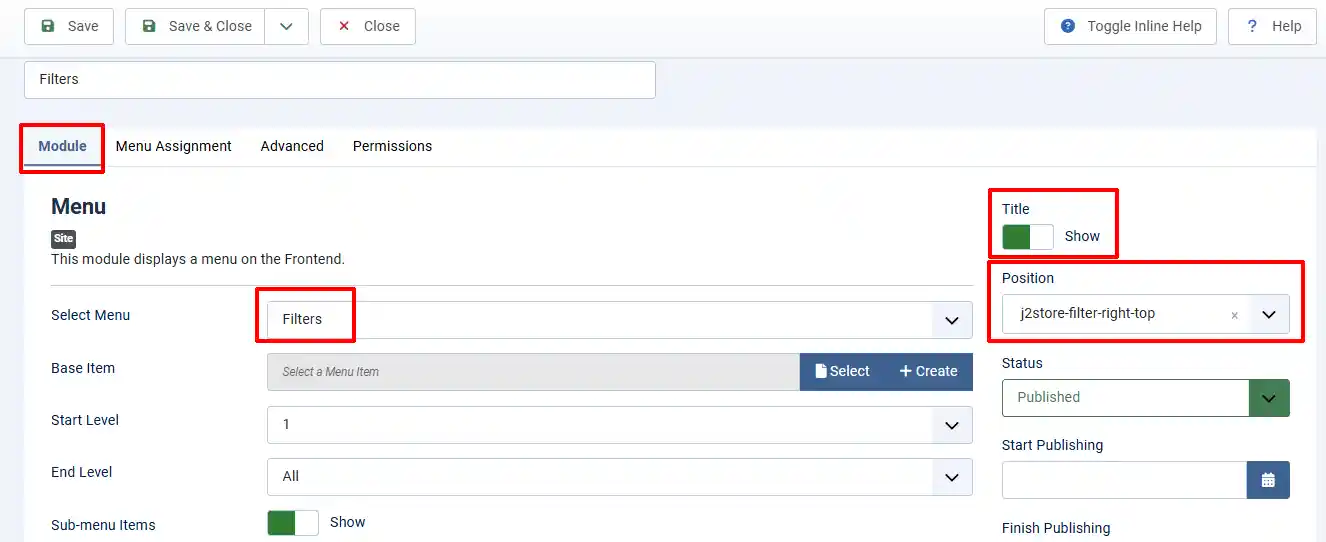
Title: Show
Select Menu: Filters
Position: type, j2store-filter-right-top
Frontend View
The frontend view will be as follows: