Recommended Tax configuration for US States
This is an example setting for stores in the United States. This also applies to many other countries that follow a US-style tax system. For detailed information on taxes, please consult an expert. J2Commerce is not held responsible VAT / Tax changes.
Note: Current US law requires you to collect taxes where you have an interest/ongoing concern — that is, where you have physical stores, distribution centers, headquarters, and so on. For many online stores, there is only one location. However, if you have stores that operate in many states or countries, or if you have revenues exceeding approximately $2M per year, we recommend that you use a third-party tax provider because there can be a considerable number of tax rules and tax zones to manage.
Important: No guarantee is offered with respect to any of the information given here. Please contact an expert before you make any decisions about tax matters
**The example given below assumes you have a store in Texas and you charge 8.5% tax on the goods sold to customers in Texas. All customers coming from other states are NOT taxed
Create a geozone for Texas
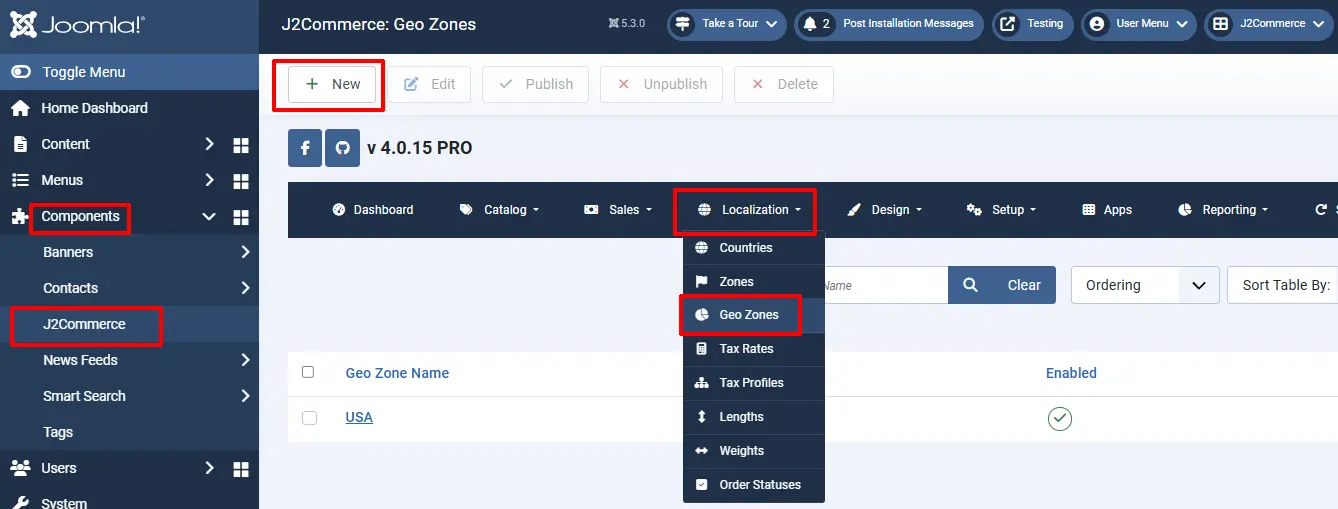
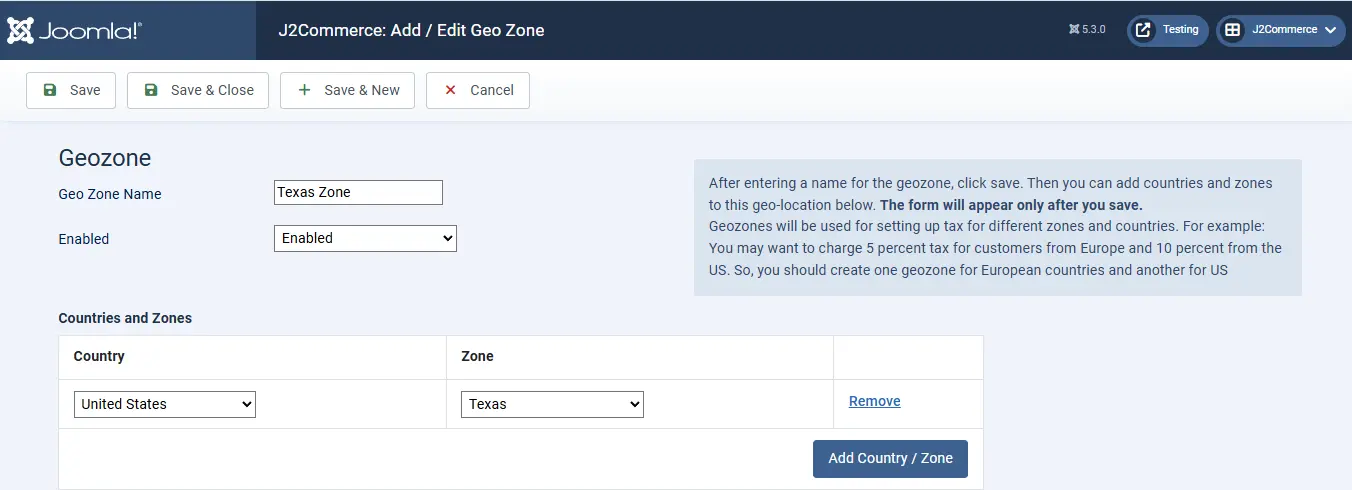
Go to J2Commerce > Localization -> Geozones -> New
Geozone Name: Texas Zone
Country: United States
Zone: Texas
Create a tax rate
Go to J2Commerce > Localization -> Tax Rates -> New
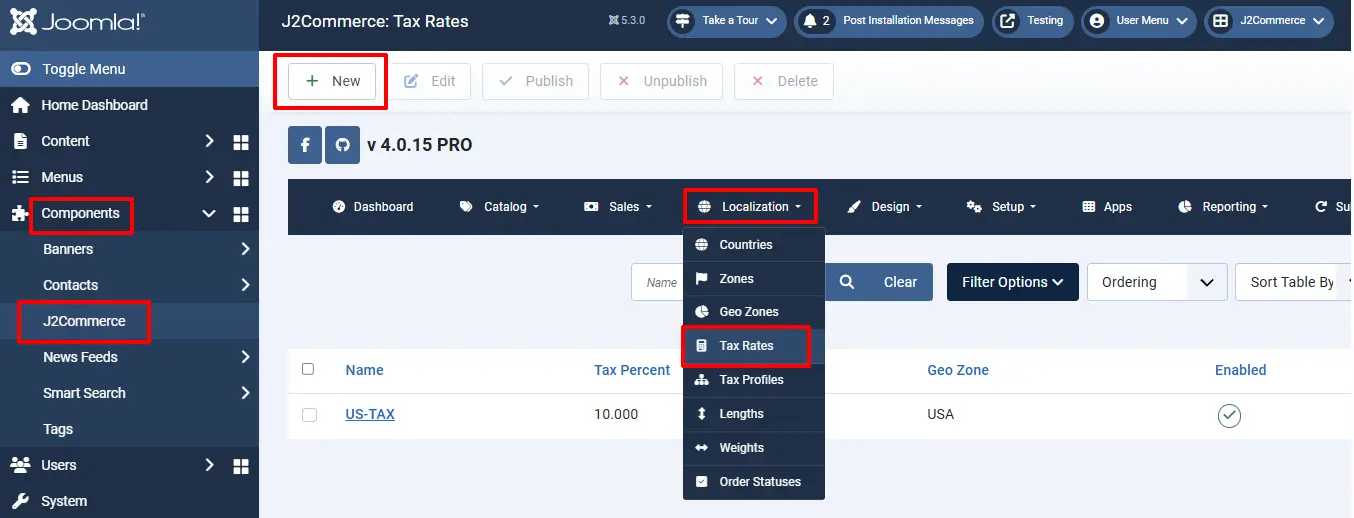
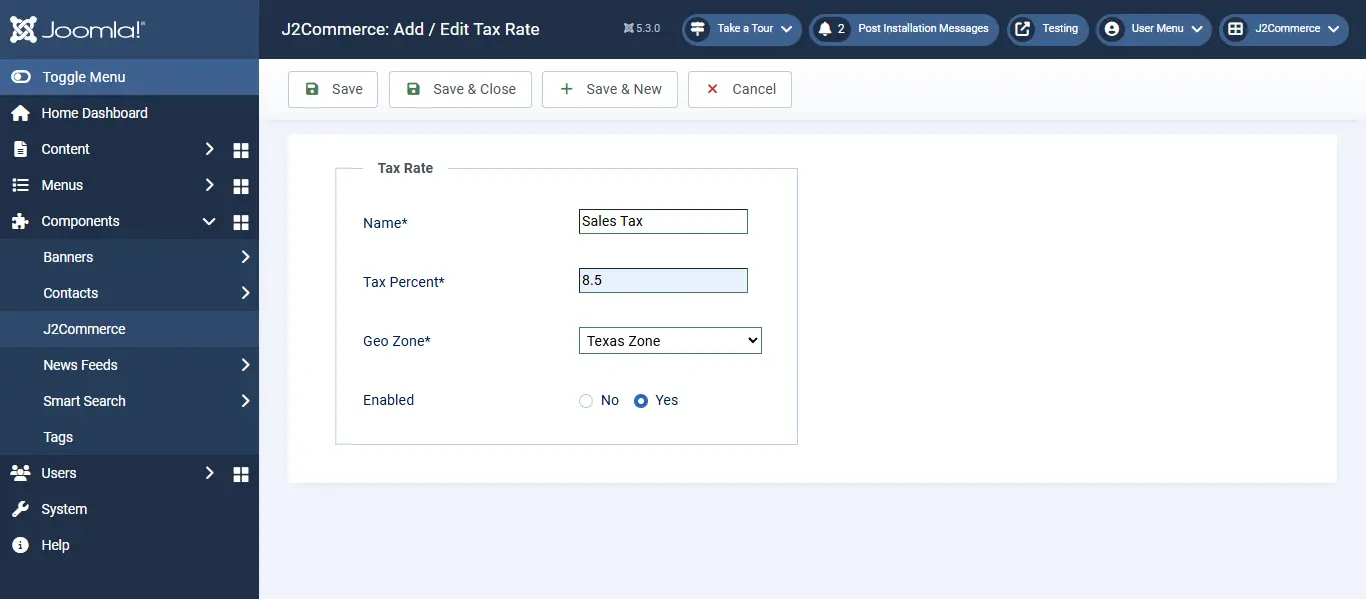
Name: Sales Tax (you can give any name here)
Tax Percent: 8.5
Geo Zone: Texas Zone
Enabled: Yes
Create a tax profile and rules
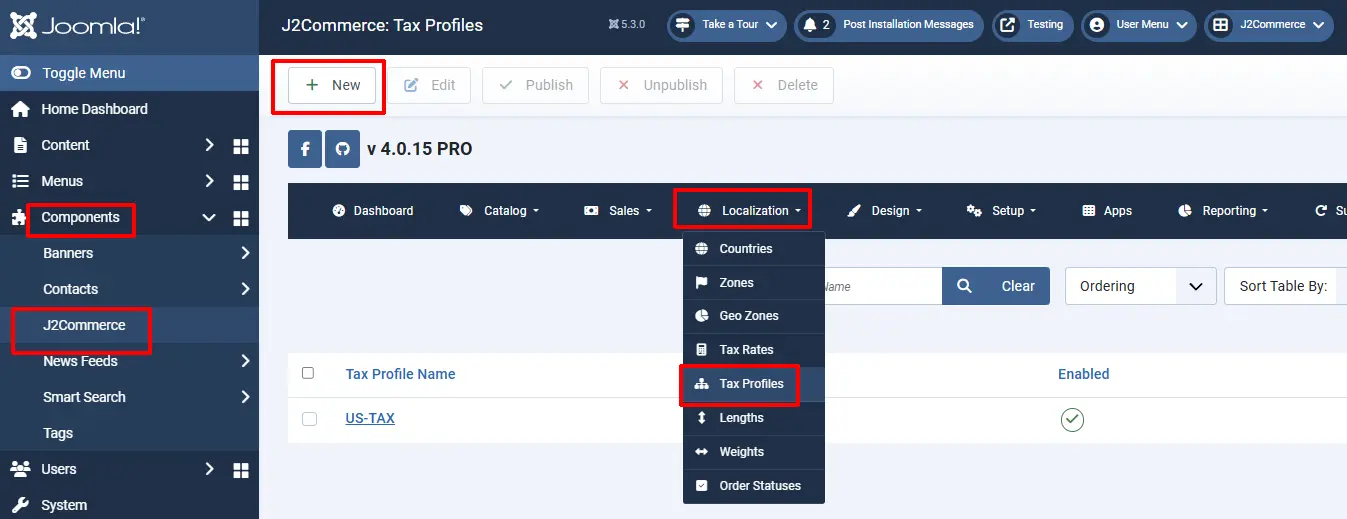
Go to J2Commerce > Localization -> Tax Profiles -> New
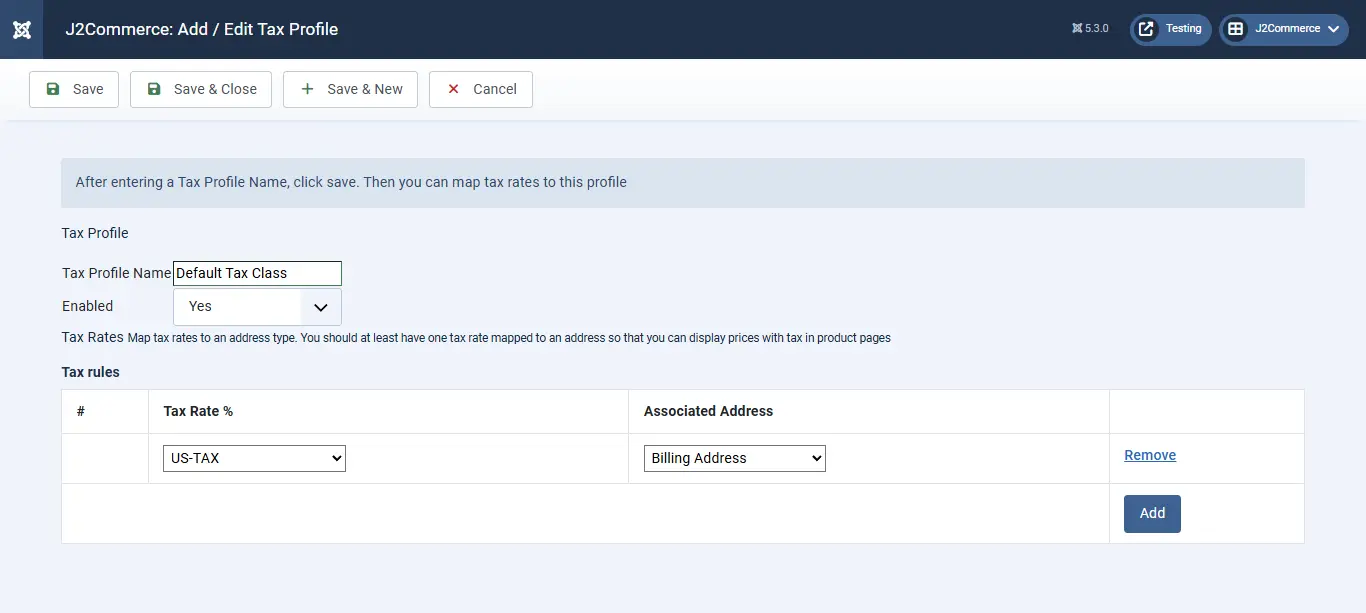
Name: Default Tax Class
Enabled: Yes
Tax rules: Click Add
Rate: Sales Tax
Associated Address: Shipping
Configure tax settings
Go to J2Commerce > Setup > Configuration > Tax tab
-109f7c06c19ce1f200e0d722703fffa6.webp)
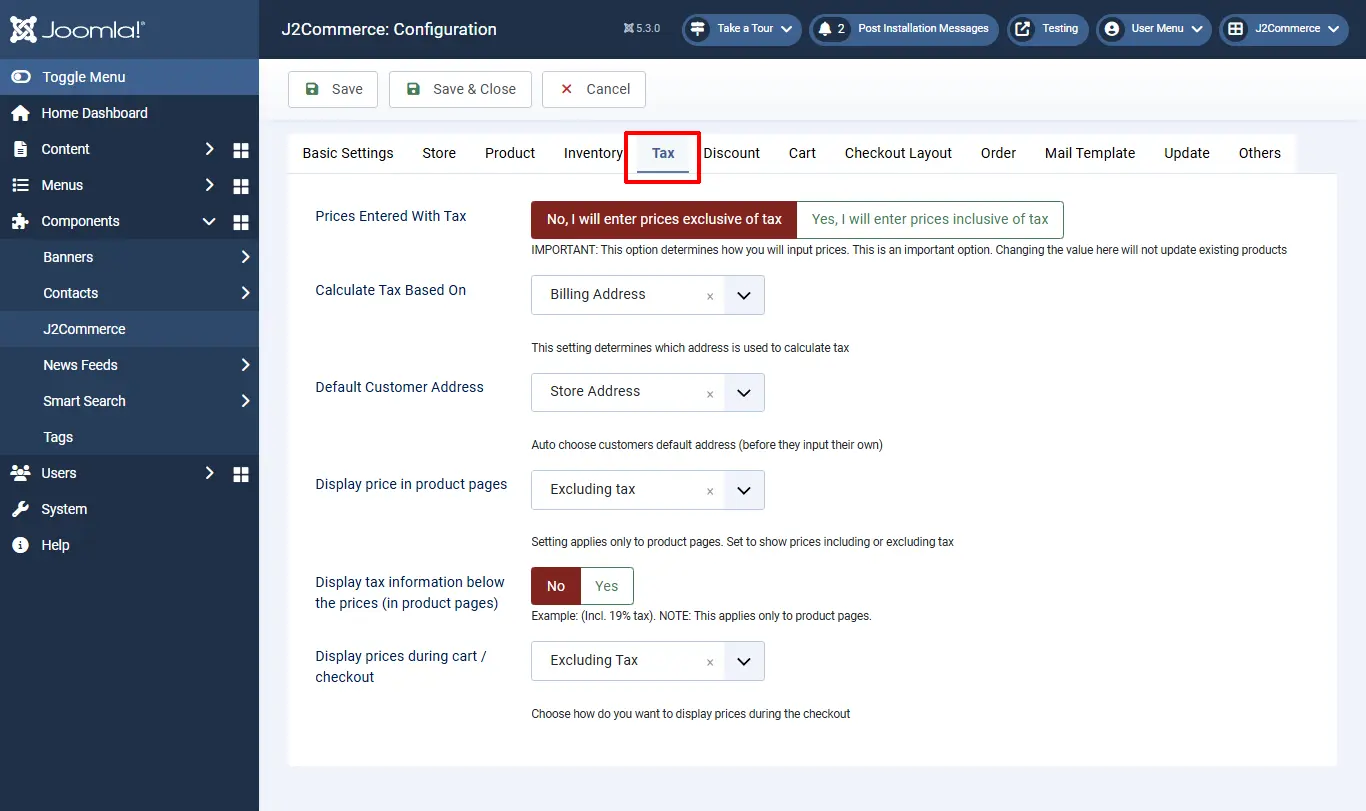
Prices entered with tax: No, I will enter prices EXCLUSIVE of tax
Calculate tax based on: Shipping address
Default customer address: Store address
Display prices in product pages: Excluding tax
Display tax information below the prices: Example: (Incl. 19% tax). NOTE: This applies only to product pages
Display prices in cart / checkout : Excluding tax
Apply discounts: Before tax
Save.
Add the tax profile to a product
J2Commerce uses Joomla! articles as products. So go to Article Manager and create a New Article / Product (If you use any other catalog source like Zoo or Sebold, you should head there).
Product creation steps are explained under the topic Products.
Here, let us just see how to choose the tax profile
Go to J2Commerce (or J2Store Cart) tab > General tab
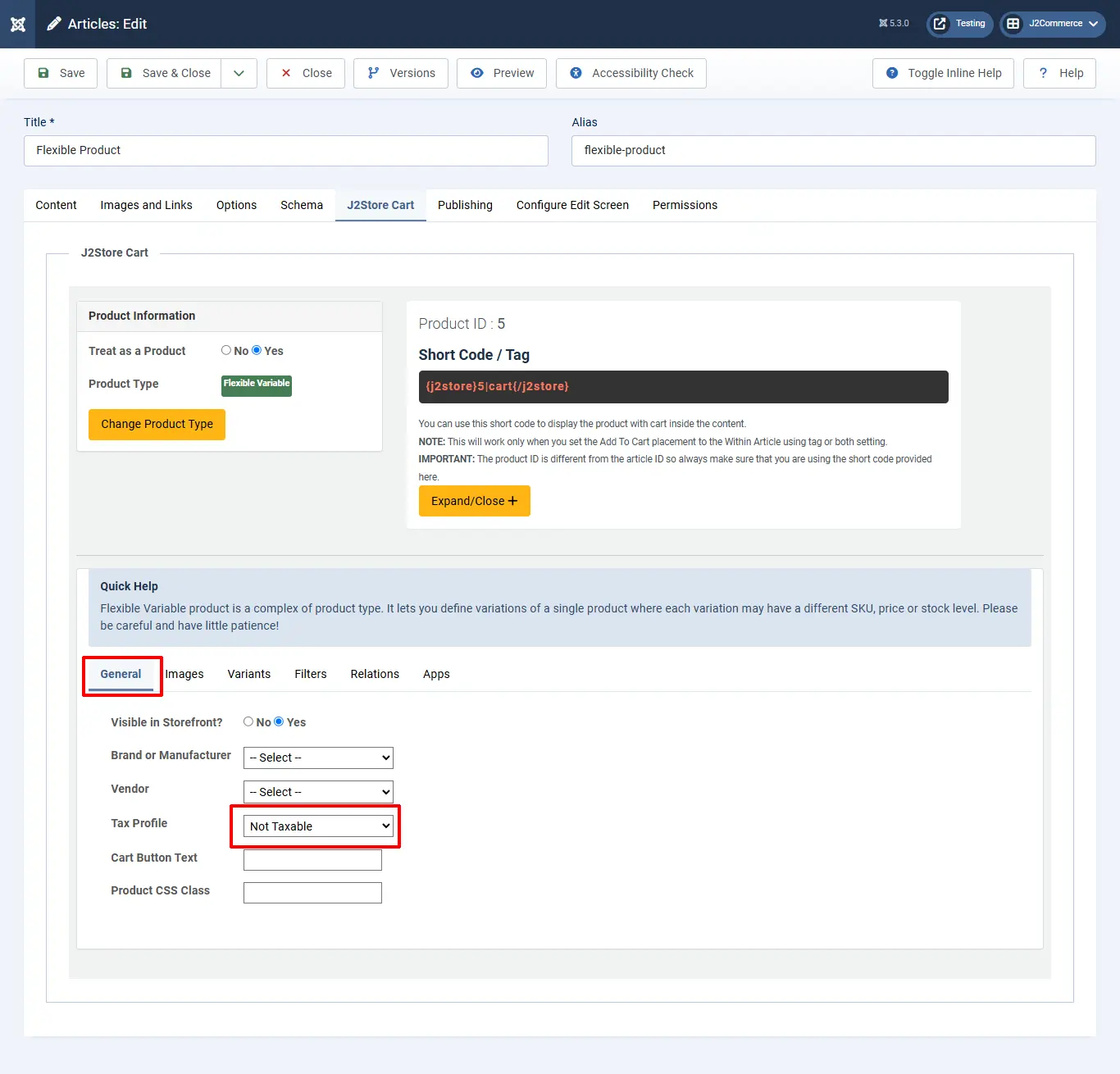
Tax Profile: Default tax class
IMPORTANT: If you do not choose the tax profile, then tax will not apply in the storefront.
Video Tutorial: