Box Builder
What is Box Builder?
The Box Builder product type lets you create "Build-A-Box" products where customers can choose items to fill a box of a specific size. Think of it like a custom gift box, snack pack, or sample set where your customer picks what goes inside!
Example Uses
-
Gift boxes (pick 6 chocolates)
-
Sample packs (choose 4 skincare products)
-
Party packs (pick 12 treats)
Requirements <a href="#requirements" id="requirements" />
- PHP 8.1.0 +
- Joomla! 4.x/ Joomla! 5.x +
- J2Commerce / J2Store 4.x +
Purchase the Product Type
Step 1: Go to our J2Commerce website > Extensions > Apps
Step 2: Locate the Box Builder App > click View Details > Add to cart > Checkout.
Step 3: Go to your My Downloads under your profile button at the top right corner and search for the app. Click Available Versions > View Files > Download Now
Install the Product Type
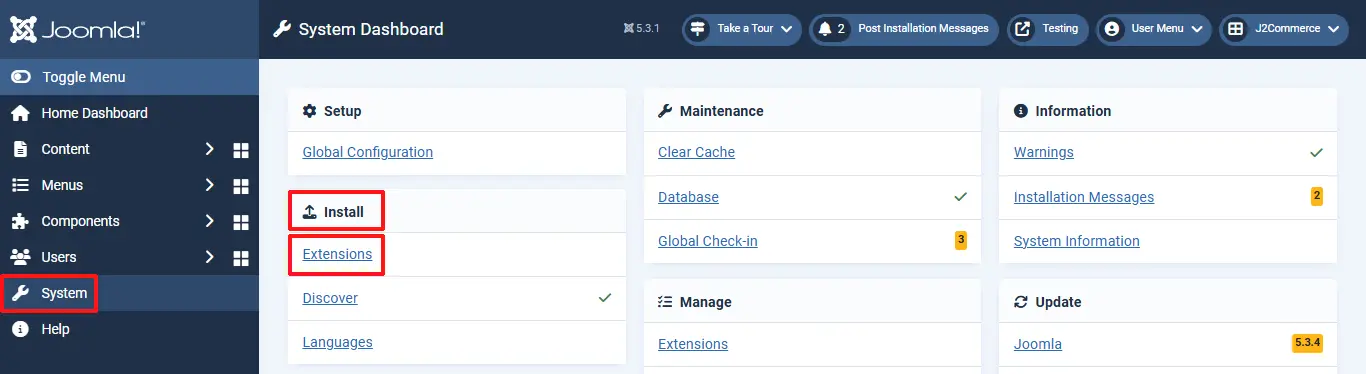
Go to System > Install > Extensions > Install the Product Type
Enable the Product Type
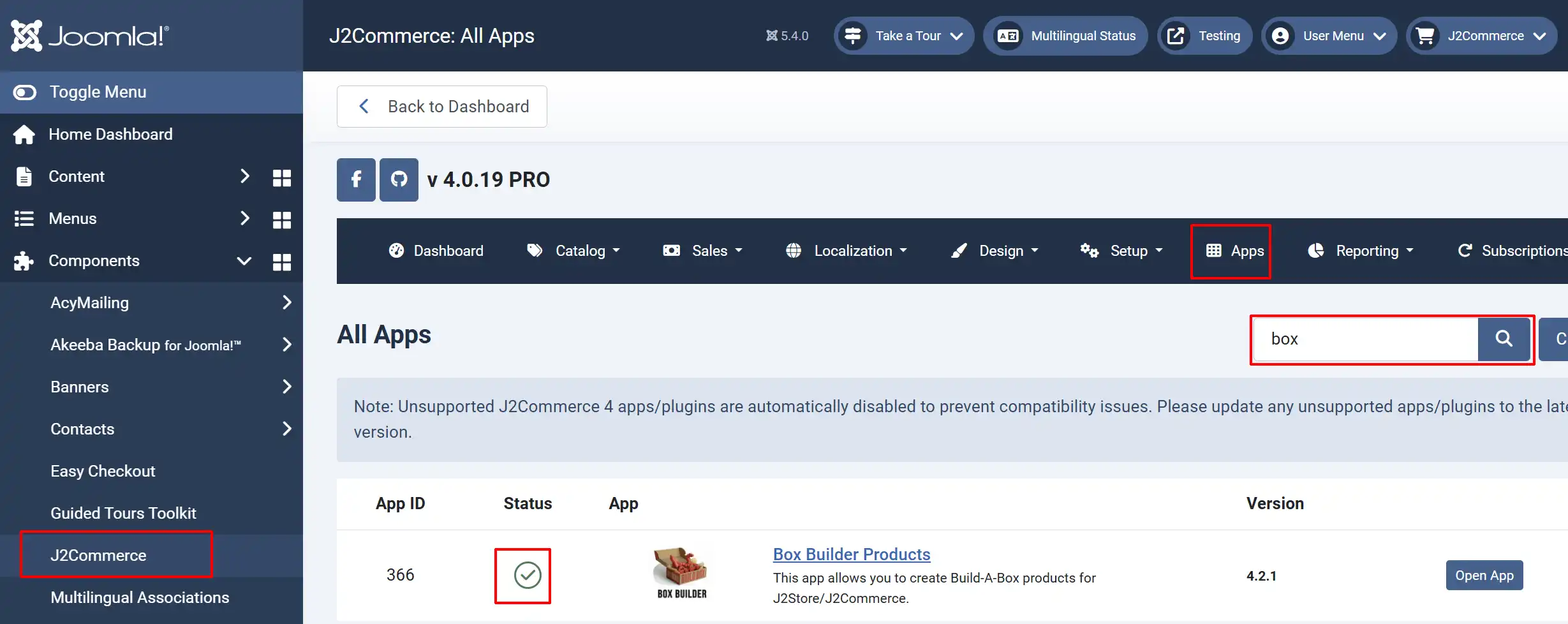
Select J2Commerce > Apps > Search for Box Builder
Enable the plugin by clicking on the 'X'. It will turn into a checkmark
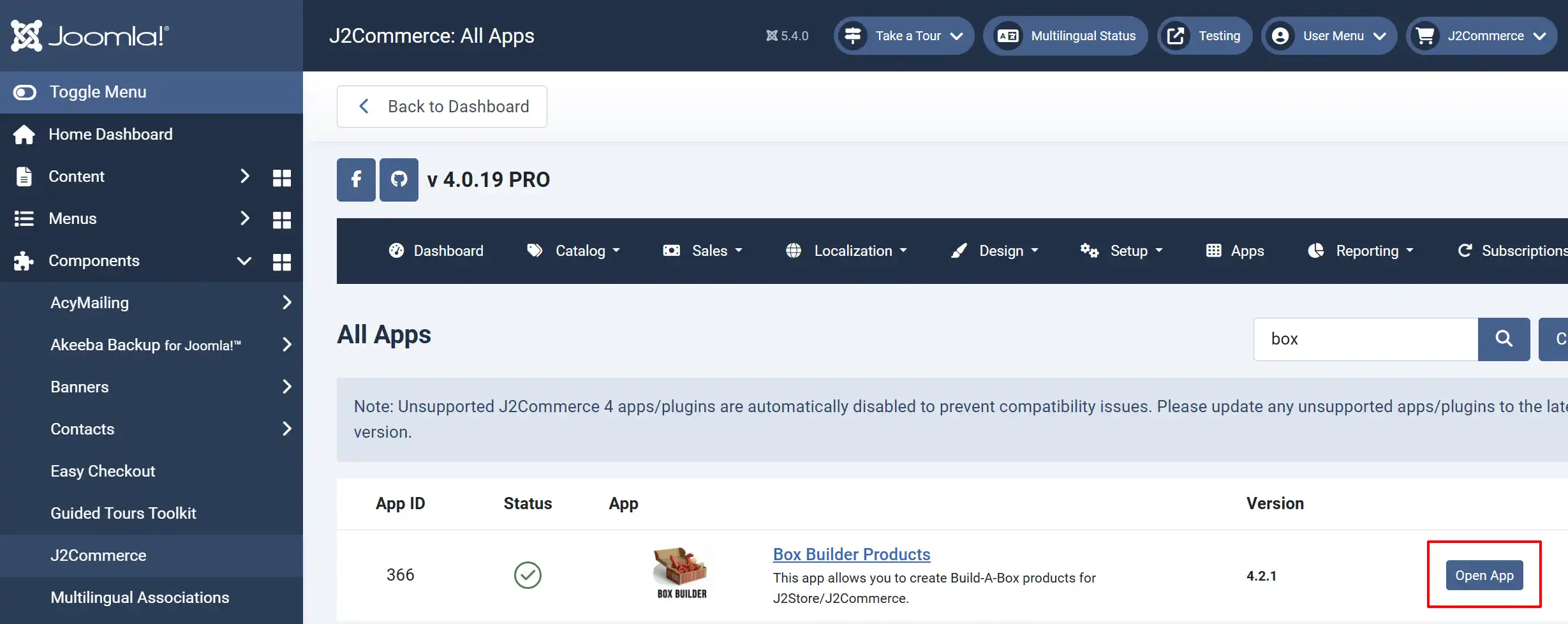
Click on "Open App" or the Title to start setting up the app
Setting up the App
Basic Settings tab
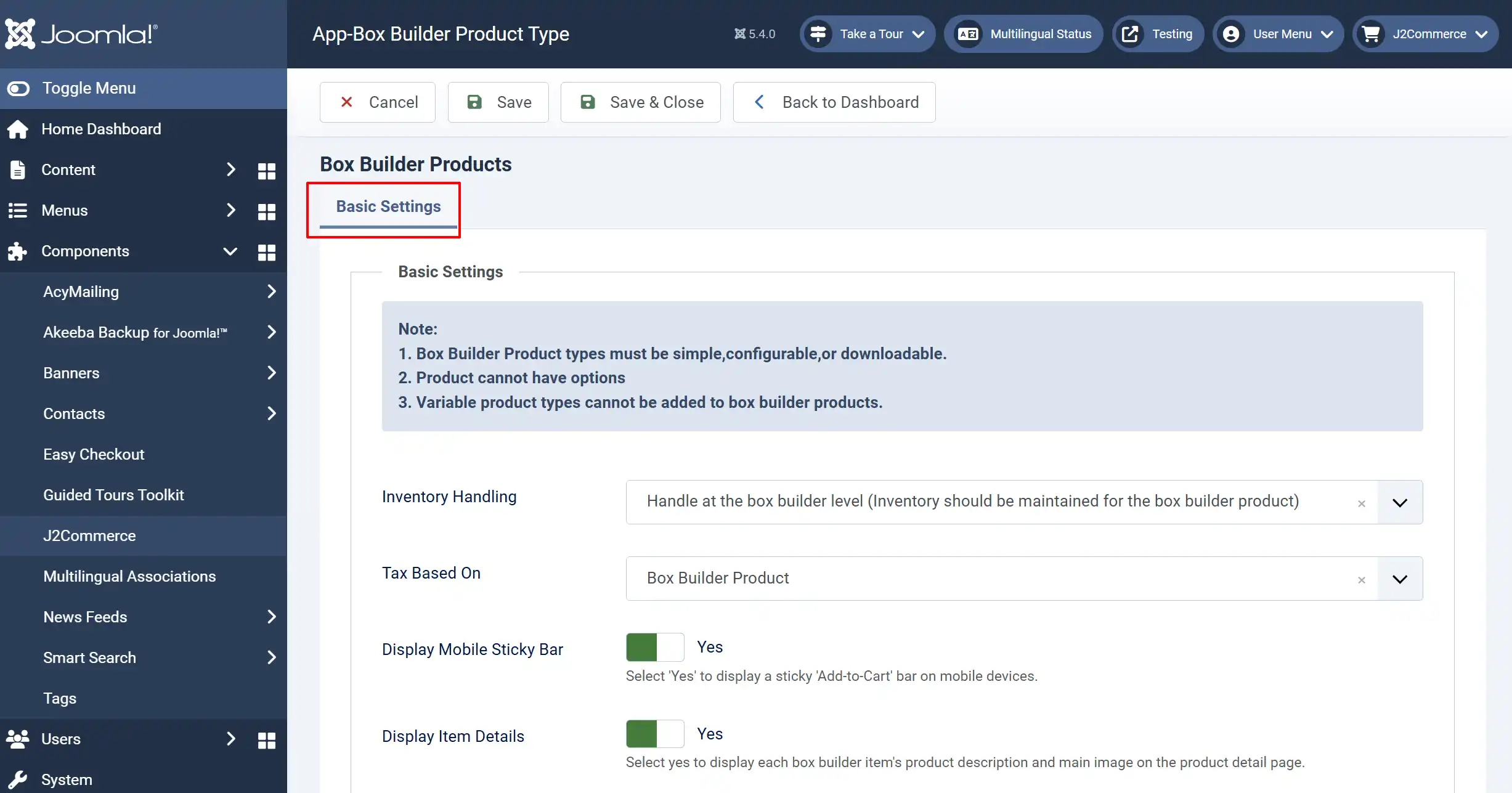
Inventory Handling: Choose how you want to handle the inventory.
Tax Based On: Choose how you want to calculate taxes. Choose "Box Level" for simplicity
Display Mobile Sticky Bar: Select Yes to display a sticky 'Add-to-Cart' bar on mobile devices.
Display Item Details: Select Yes to display each box builder item's product description and main image on the product detail page.
Creating a Box Builder Product
Go to Content > Articles > New
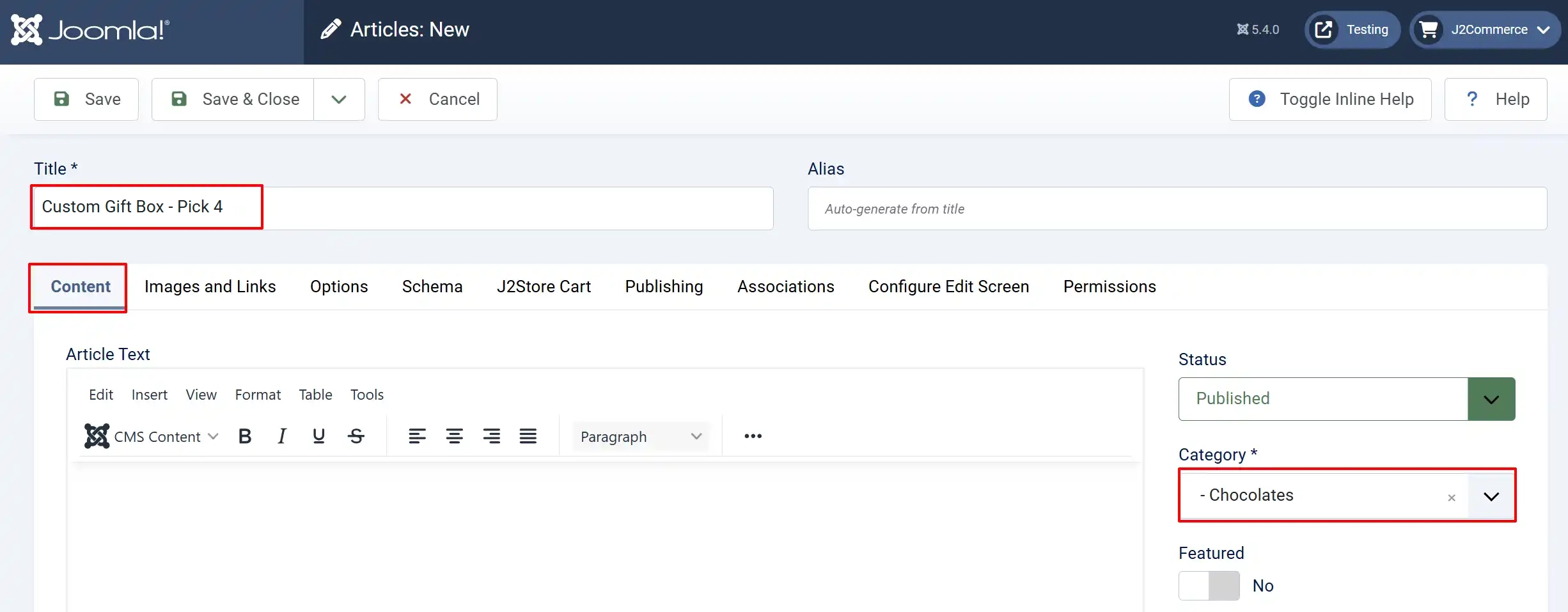
Content tab
Title: Give your product a name (e.g., "Custom Gift Box - Pick 4"). Leave the alias blank
Article Text: Add a description explaining what the box includes
Category: Select a category for your product
Status: Make sure the article is Published
J2Store Cart tab
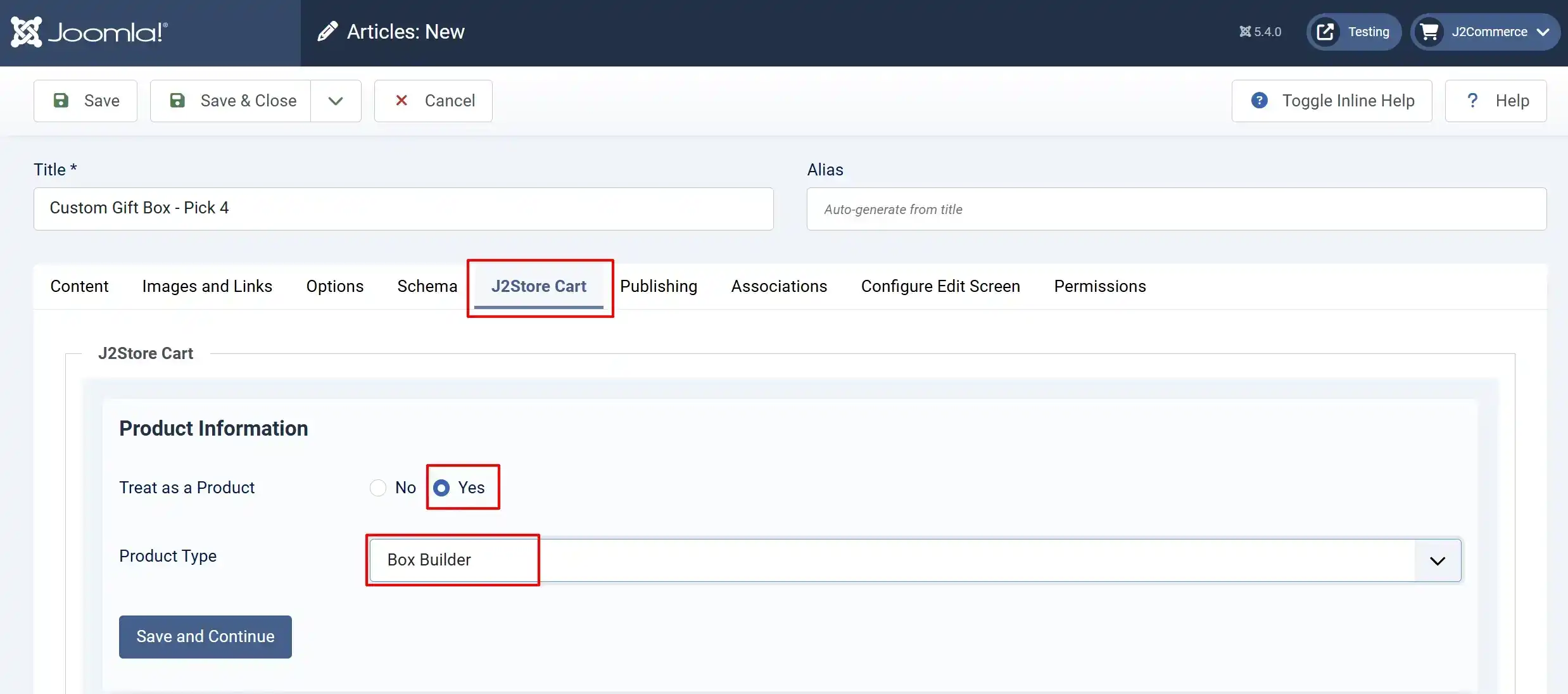
Treat as a Product: Set this to Yes
Product Type: select Box Builder
Save and Continue
Setting up the Box
App tab
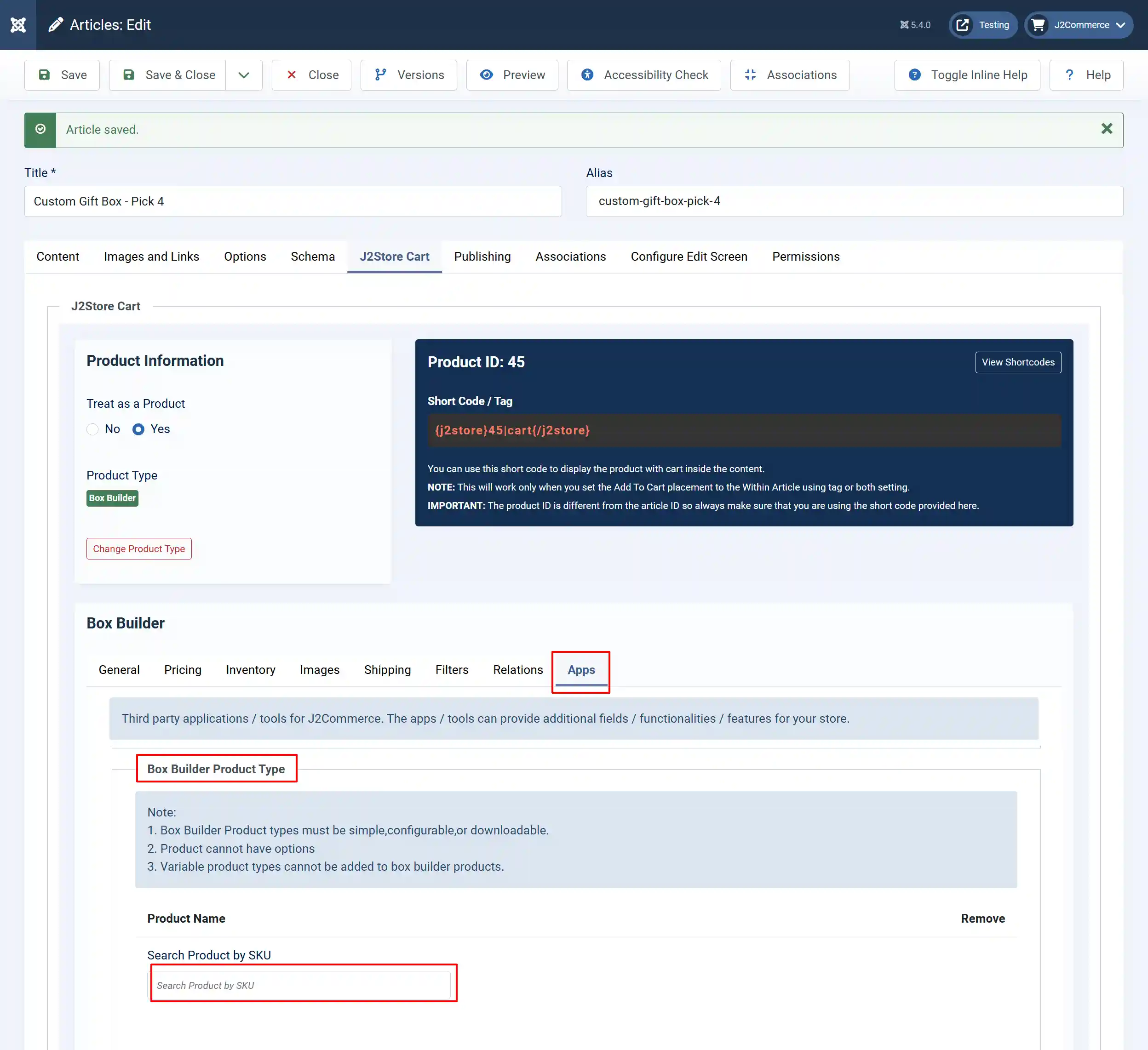
Adding Products to the Box:
In the Search Products field, start typing a product name or SKU
Select products from the dropdown that appears
Repeat until you've added all the products you want customers to choose from
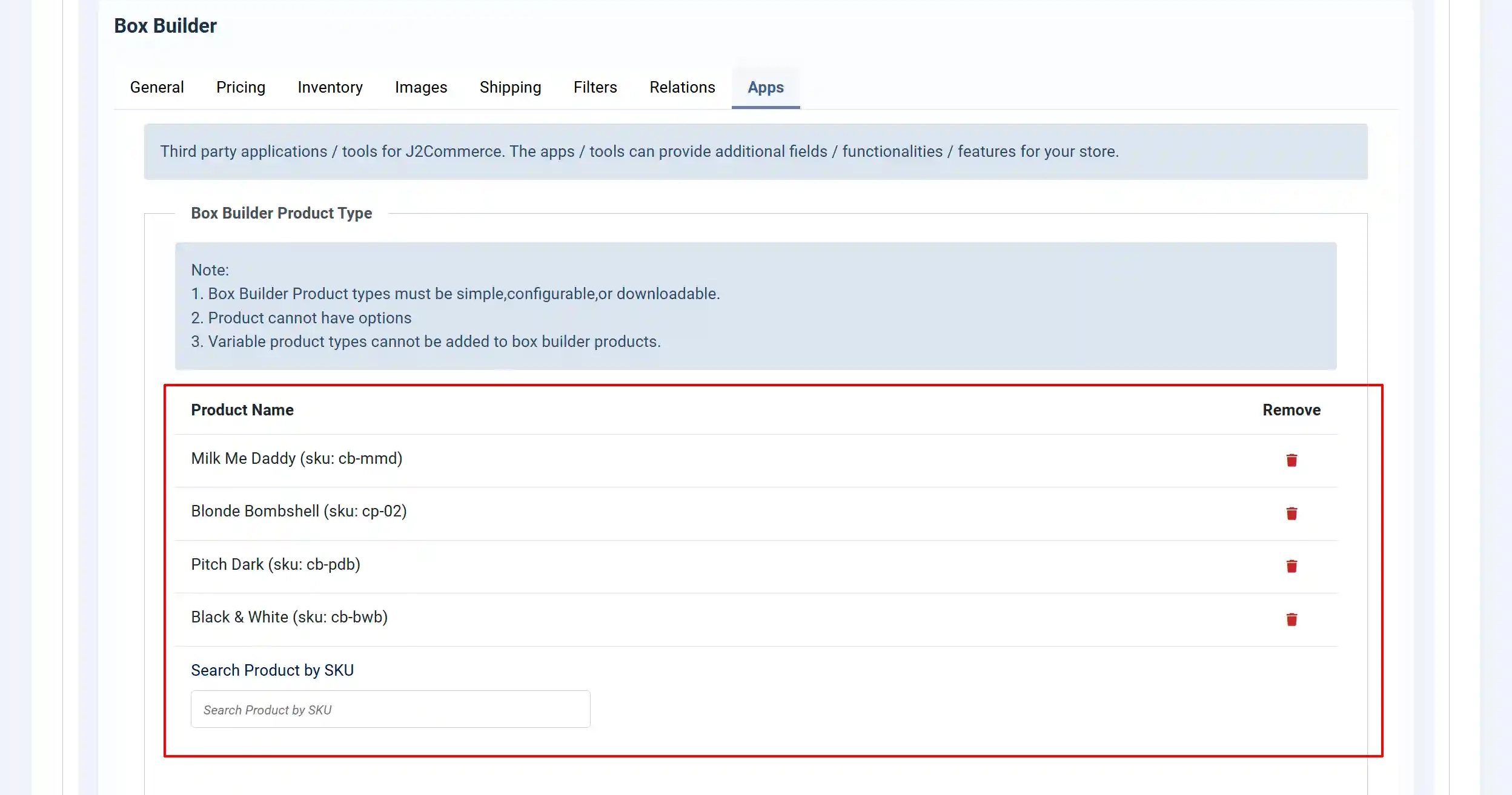
Important Notes:
-
You can add more products than the box size (customers will choose from them)
-
Only simple, configurable, and downloadable products work
-
Products with options already attached cannot be added
Box Settings:
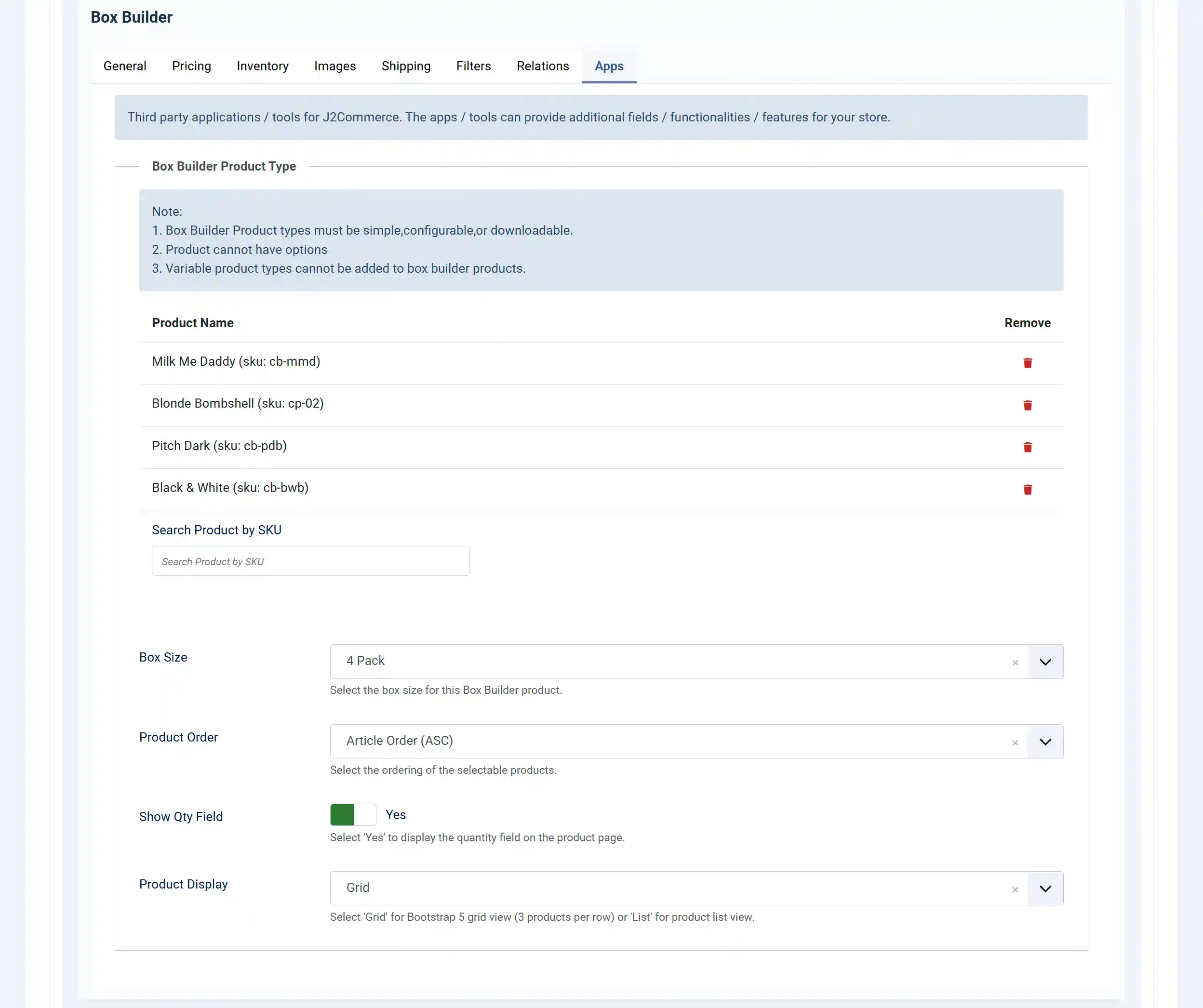
Box Size: How many items fit in the box (2-12)
Product Order: How products appear: Ascending, Descending (alphabetical), random, etc.
Show Qty Field: Set to Yes so customers can add multiple boxes at once
Product Display: Grid (cards) or List (vertical)
Pricing tab
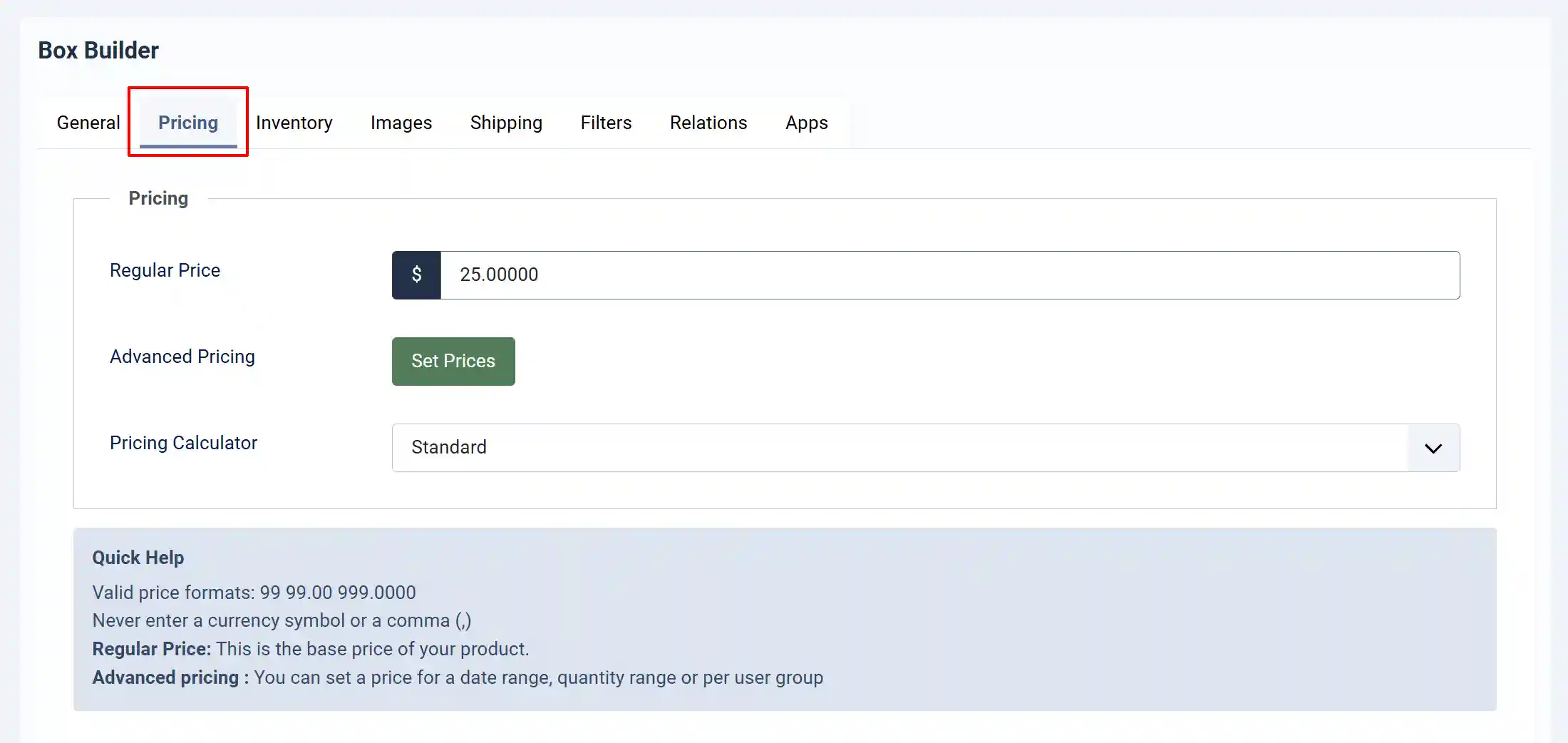
Regular Price: Enter the box price (e.g., 30.00)
**This is the TOTAL price for the filled box, regardless of what items are chosen
Advanced Pricing: You can set special discounted pricing for specific customers, ie: VIP, Charities, etc...
Inventory tab
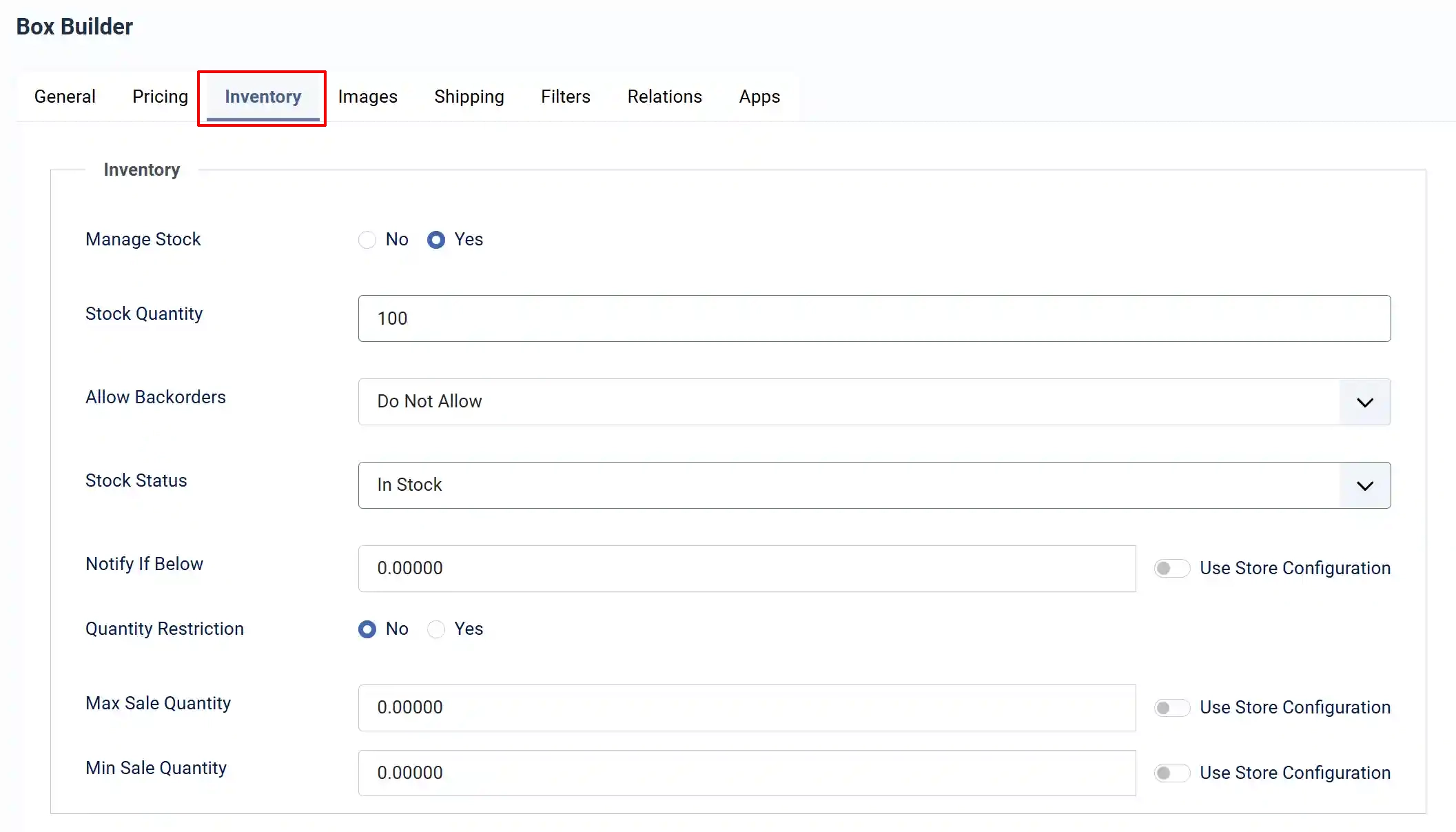
**Setting up the inventory is optional
Manage Stock: Set to Yes if you want to manage the stock
Stock Quantity: Enter your quantity available
Image tab
Upload a main image showing your box
Add additional gallery images if desired
How Customers Use Box Builder
On Desktop
-
The customer sees a grid of available products
-
Clicks "Add" to put an item in their box
-
A sidebar shows their box filling up (empty slots turn filled)
-
Can add the same item multiple times
-
Uses +/- buttons to adjust quantities
-
When box is full, "Add to Cart" button becomes active
-
Clicks "Add to Cart" to proceed
On Mobile
-
Customer sees product grid (2 columns)
-
Taps "Add" to select items
-
A floating bar at the bottom shows progress: "4/6 Selected"
-
When full, bar turns into "Add to Cart" button
-
Taps to add completed box to cart
Understanding Inventory Options
Box Level Inventory (Simpler)
-
You track stock on the box product only
-
Example: You have 50 "Pick 6" boxes available
-
When someone buys a box, your count goes from 50 to 49
-
The individual products inside don't need inventory tracking
Best for: Fixed quantity kits, pre-packaged offerings
Item Level Inventory (More Control)
-
You track stock on each product separately
-
When someone adds Product A to their box, Product A's stock decreases
-
If Product A runs out, it can't be selected anymore
-
Other products remain available
Best for: When individual products are also sold separately
Understanding Tax Options
Box Level Tax (Simpler)
-
One tax rate applies to the entire box price
-
Uses the tax profile assigned to the box product
-
Example: 10% tax on a $30 box = $3 tax
Item Level Tax (More Precise)
-
Each product's individual tax rate applies
-
Useful when products have different tax rates
-
Example: Food items at 0% + supplements at 10%
Common Questions
Q: Can customers choose the same item multiple times?
A: Yes! If you have a "Pick 6 Chocolates" box and someone loves the caramel flavor, they can add 6 caramels.
Q: What if a product runs out of stock?
A: Depends on your Inventory Handling setting:
- Box Level: Customers can still select any product until boxes run out
- Item Level: Out-of-stock products become unavailable
Q: Can the price change based on selections?
A: No. Box Builder uses a fixed price. All selections cost the same total amount.
Q: Can I use variable products (like different sizes)?
A: No. Only simple, configurable, and downloadable products work with Box Builder. Variable products with variants cannot be used.
Q: How do I see what customers picked?
A: In the order details, you'll see each box with a list of the items selected and their quantities.
Q: Can I require a minimum box fill?
A: The box must be completely filled before adding to the cart. Customers cannot add a partially filled box.
Troubleshooting
1: "Add to Cart" button stays disabled
-
Check that customers have filled ALL box slots
-
The button only activates when the box is complete
2: Products aren't appearing in search
Make sure the products:
-
Are published and enabled in J2Commerce > Apps
-
Are simple, configurable, or downloadable type
-
Don't have options already attached
-
Have stock available (if tracking inventory)
3: Stock isn't reducing correctly
Check your Inventory Handling setting in the plugin configuration:
-
Box Level: Only box stock reduces
-
Item Level: Individual product stocks reduce
4:Customers see wrong products
-
Review the products added in the Box Builder tab
-
Check the Product Order setting
-
Make sure unwanted products are removed
Tips for Success
1. Add more products than slots - Give customers choices! A 6-item box with 20 product options is more engaging than exactly 6 products.
2. Use clear product images - Customers pick visually, so good photos help conversions.
3. Set sensible box sizes - 4-8 items work well. Very large boxes (10-12) can overwhelm customers.
4. Price competitively - Show value! A $30 box of 6 items feels better than 6 individual $6 items.
5. Enable per-item pricing display - "$5 per item" helps customers understand the value.
6. Test on mobile - Many customers shop on phones, so verify the experience works well.