How to set up local store pick up shipping method
Many a times you might want to display a Store pickup option in the shipping method selection area of your site. Here is how it can be done.
Methods:
There are two ways in which the local store pick up method could be shown on the store front.
- Renaming the free shipping.
- Creating a shipping method using the standard shipping method.
Renaming the free shipping:
Ideal for: The following method is ideal when you don’t intend to use the free shipping plugin for other purposes.
Procedure:
- Navigate to Component > J2Commerce > Setup > Shipping methods > Free shipping.
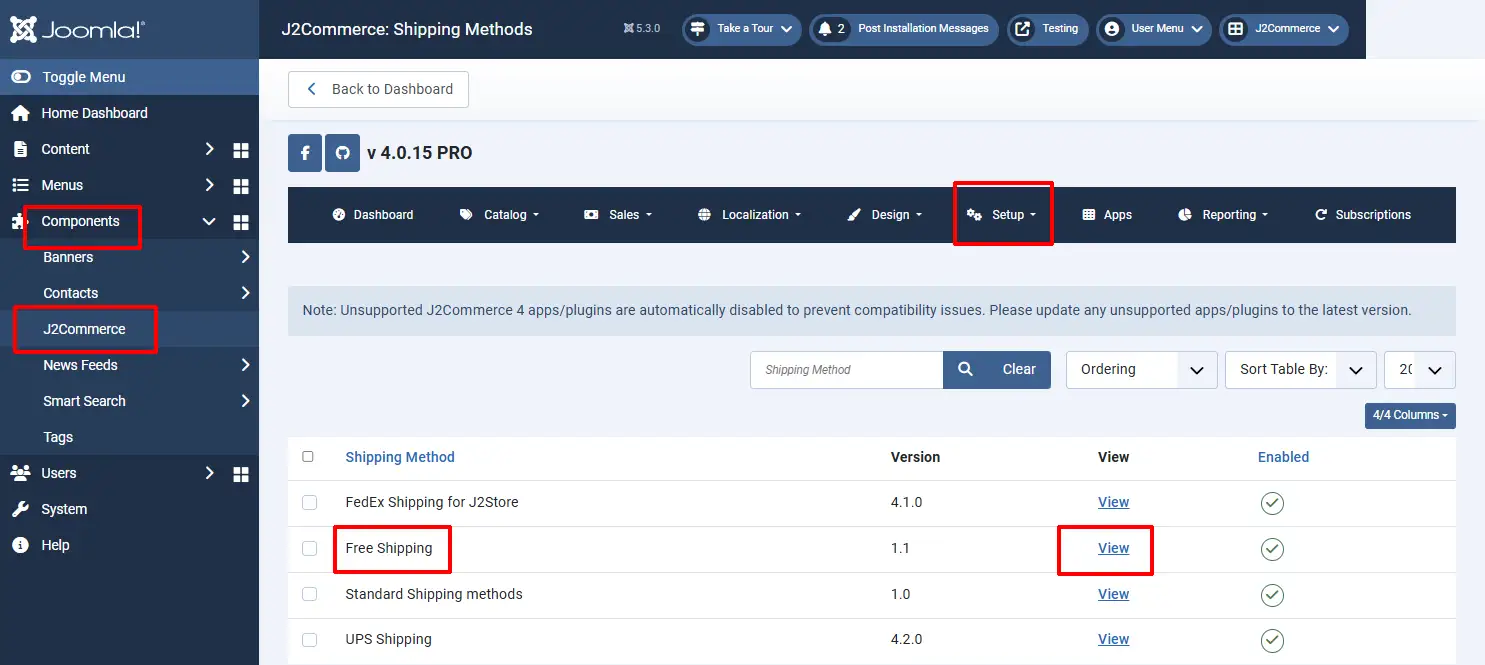
- Click on the View option.
- Rename the plugin’s display name to Local store pick up.
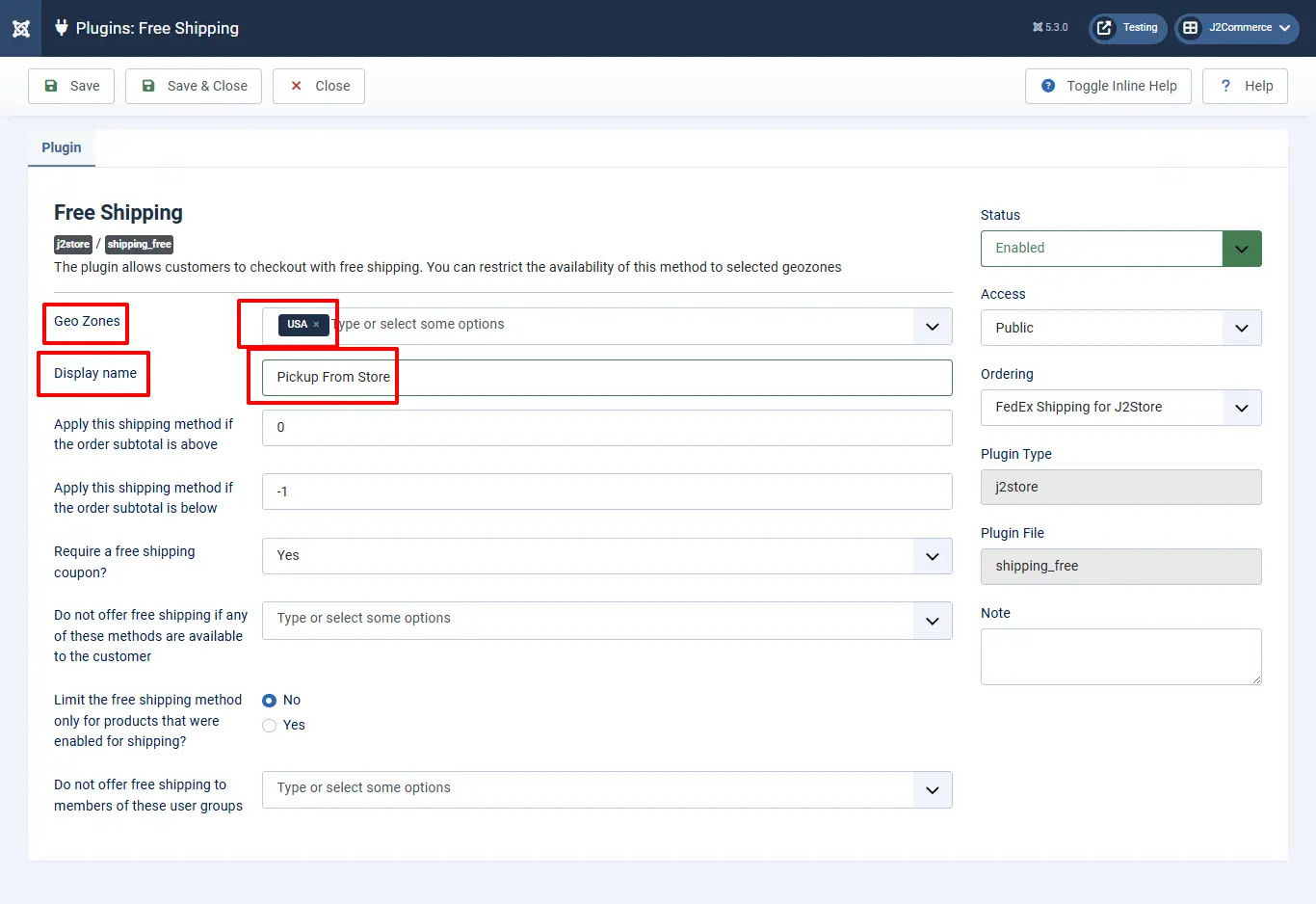
- Save the changes.
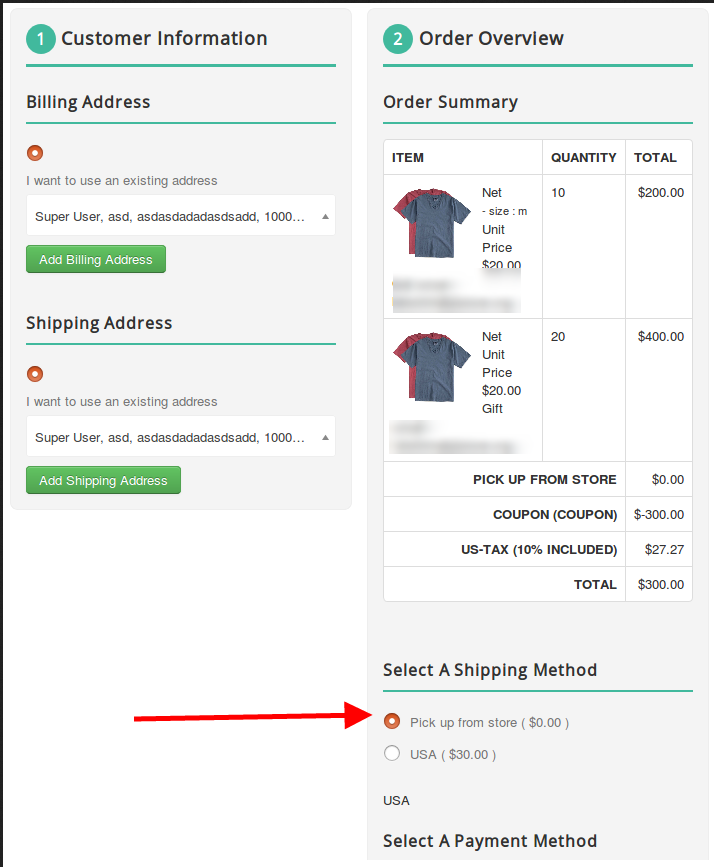
- Now the free shipping would appear as Local store pick up at the frontend for users who choose the USA region at their address.
Video Tutorial:
Creating a shipping method using the Standard shipping method:
Ideal for:
This process is ideal when you wish to use the Free shipping for other purposes but wish to display a store pickup option to users of a certain region.
Procedure:
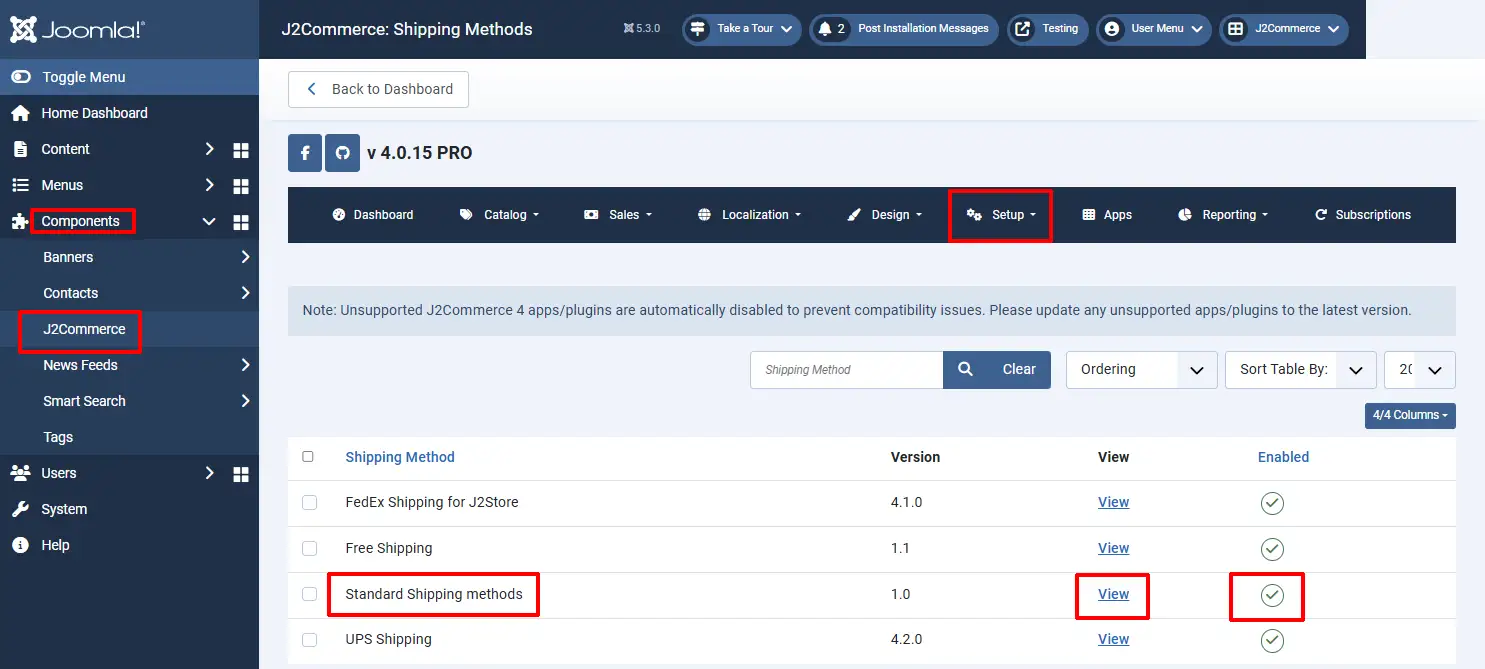
- Navigate to Components > J2Commerce > Setup > Shipping methods > Standard shipping methods.
- Click on the View option.
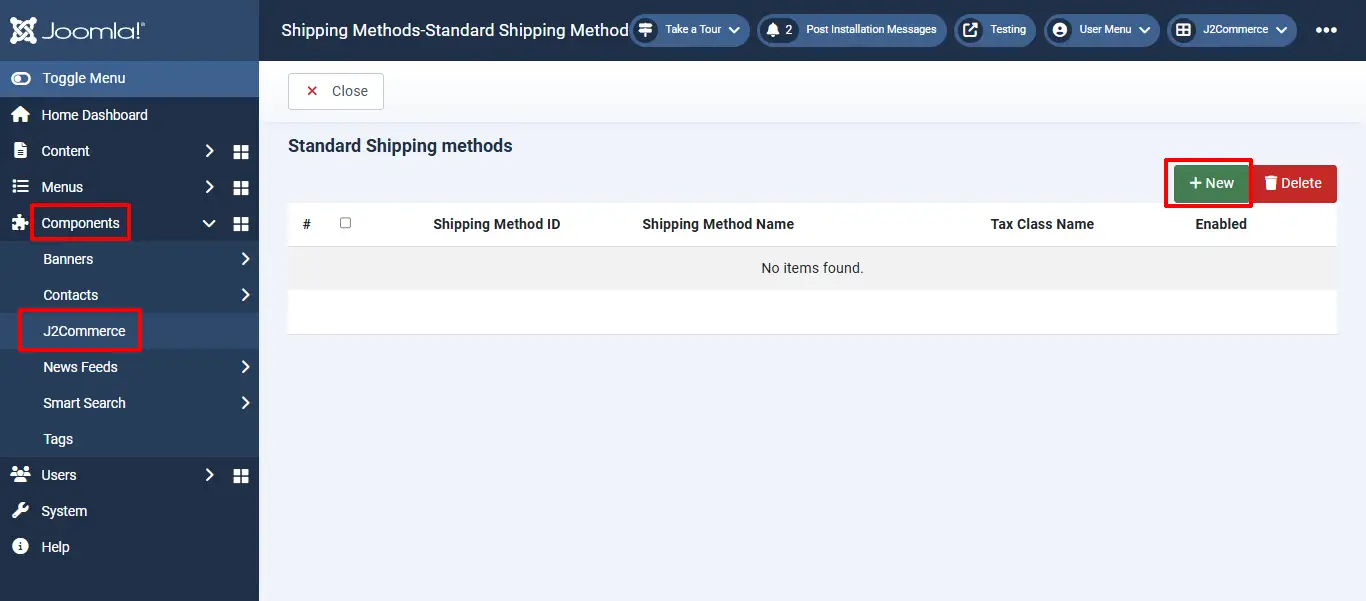
- Click on the New option.
- Set the name as Store pick up and define the other conditions, if any
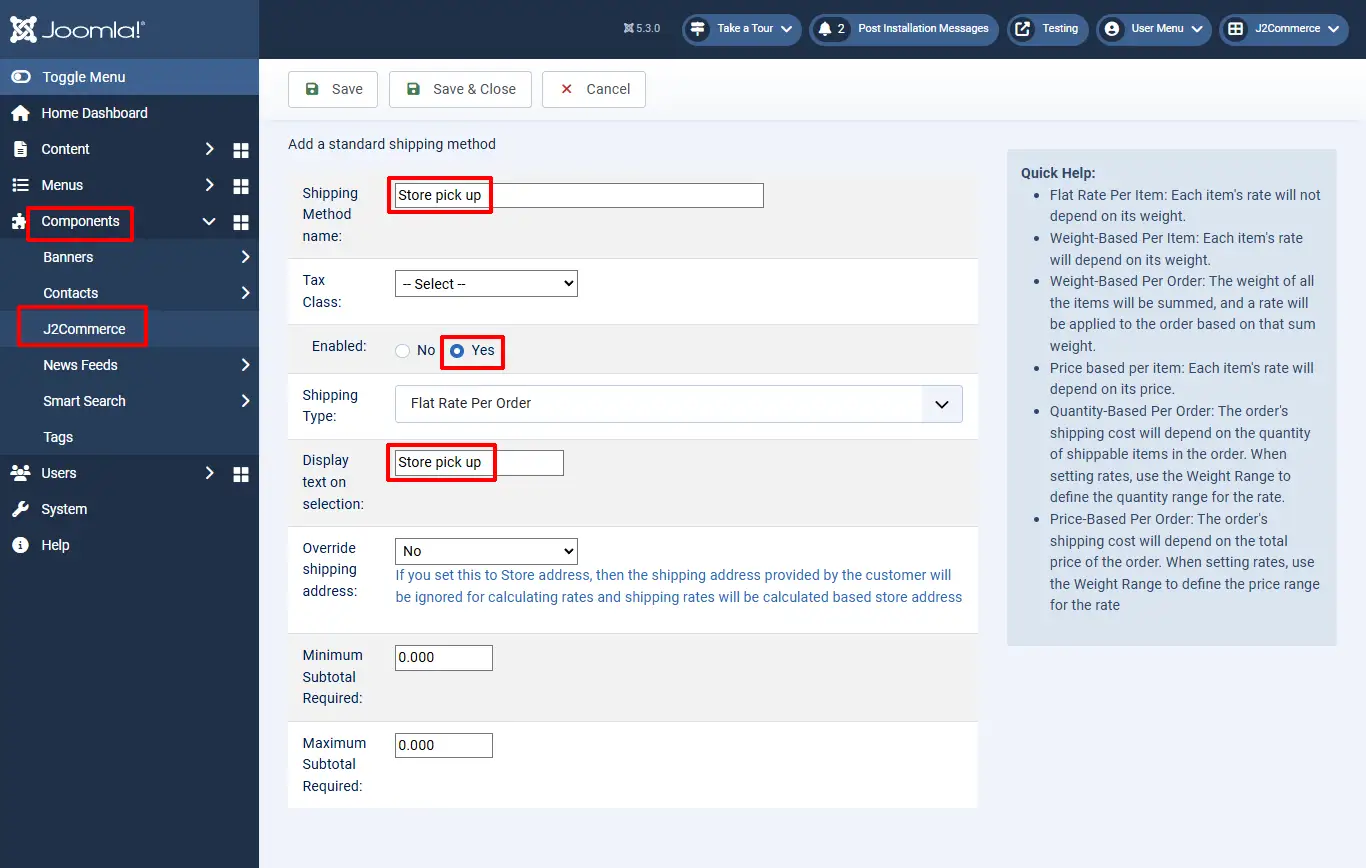
- Click save and close.
- Click on the set rates button next to the newly created shipping method.
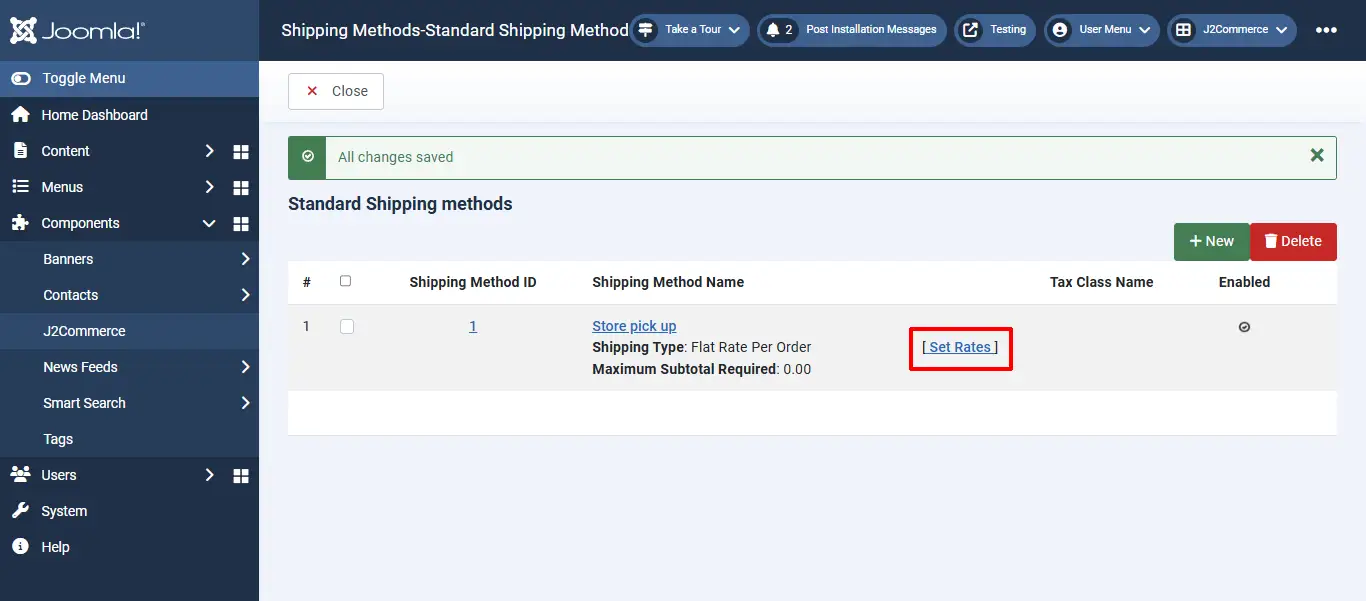
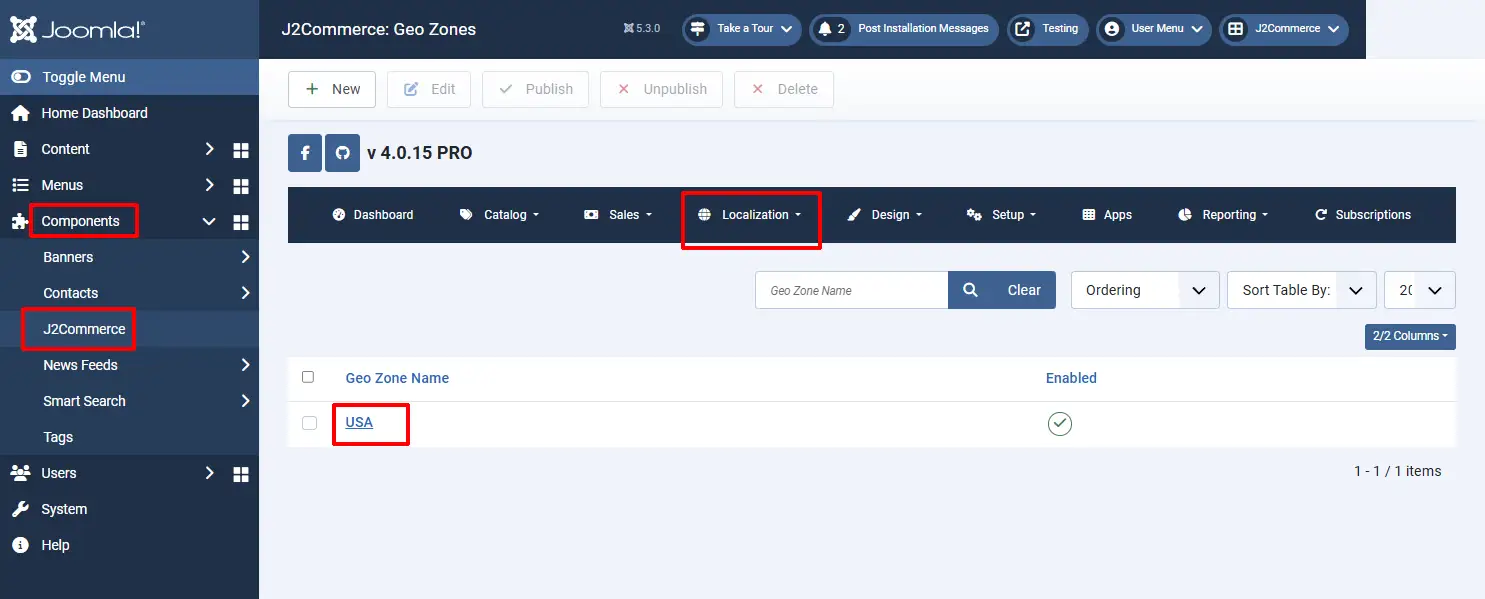
- Choose the geozone (you will have to create one already in Components > J2Commerce > Localisation > Geozones) for which this shipping option should be available.
- Set the rate as 0.
- Click on the create button.

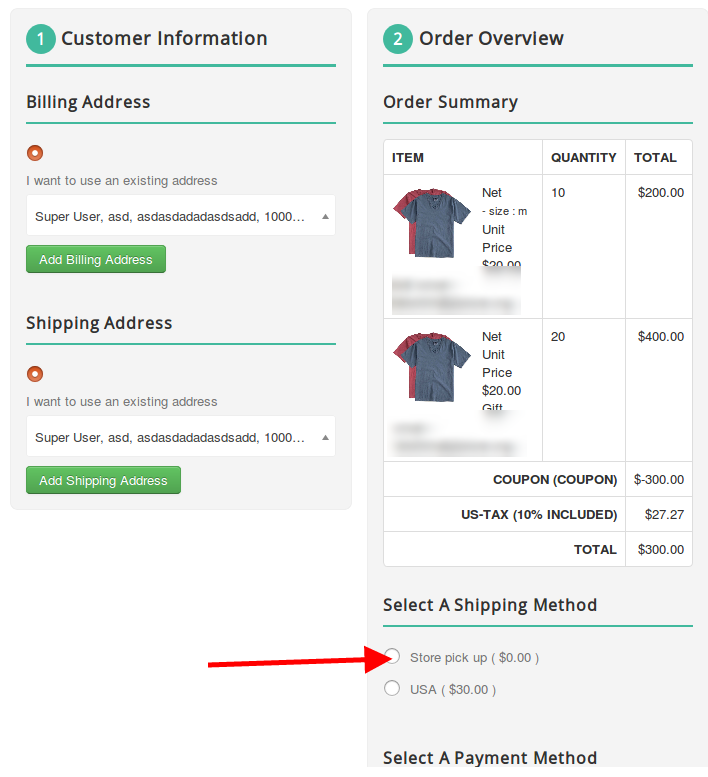
- Now the frontend would show the shipping method for users of the chosen region.
Video tutorial: