Product Shipping Restrictions
Overview of App
The Product Shipping Restrictions extension allows you to control which shipping methods are available for specific products or product categories. This is useful when certain products can only be shipped via specific carriers or when you need to restrict shipping to certain geographic regions.
Common Use Cases:
-
Restrict hazardous materials to ground shipping only
-
Limit oversized items to freight carriers
-
Block shipping to specific regions or zip codes
-
Offer special shipping methods for select products
Requirements
- PHP 8.1.0 +
- Joomla! 4.x/ Joomla! 5.x +
- J2Commerce / J2Store 4.x +
Super important Notice
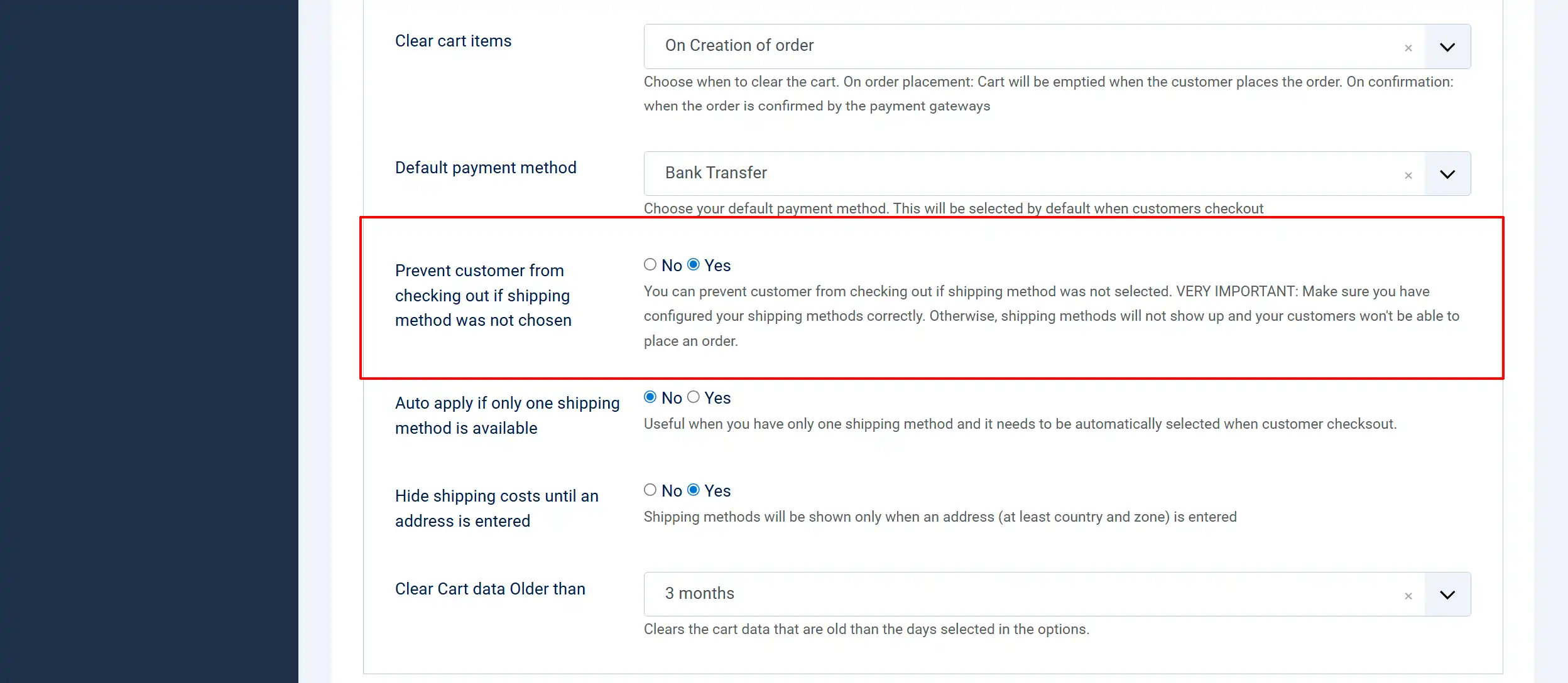
You must set the "Prevent customer from checking out if shipping method was not chosen" to Yes in order to prevent the restricted order from shipping out.
Go to J2Commerce > Set-up > Configuration > Cart tab > (towards the bottom)
Purchase the App
Step 1: Go to our J2Commerce website > Extensions > Apps
Step 2: Locate the Product Shipping Restrictions App > View Details > Add to cart > Checkout.
Step 3: Go to your My Downloads under your profile button at the top right corner and search for the app. Click Available Versions > View Files > Download Now
Install the App
Go to System > Install > Extensions > Install the app
-e0515ef561b368cb4d5a053cacb4c525.webp)
Enable the App
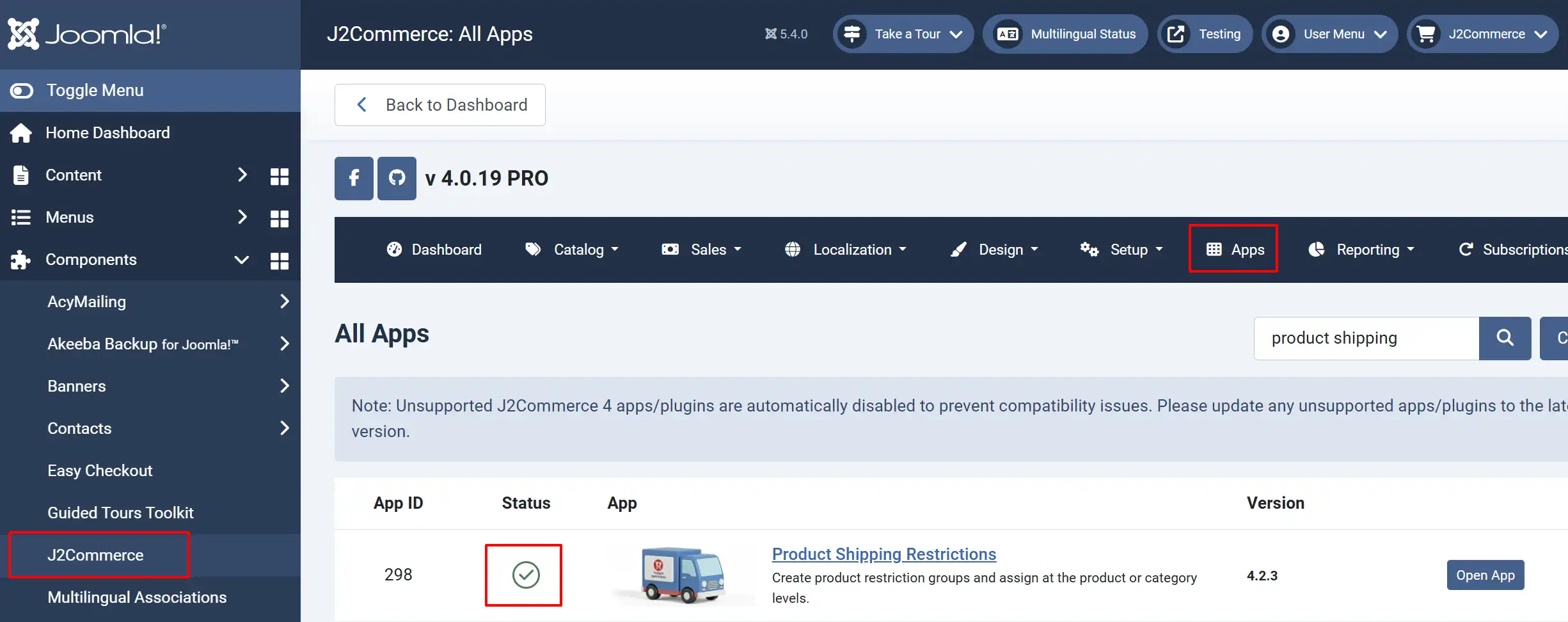
Go to J2Commerce > Apps > search for the Product Shipping Restrictions
The extension should be enabled by default. However, if it isn't, then click on the 'X' under Status to enable it.
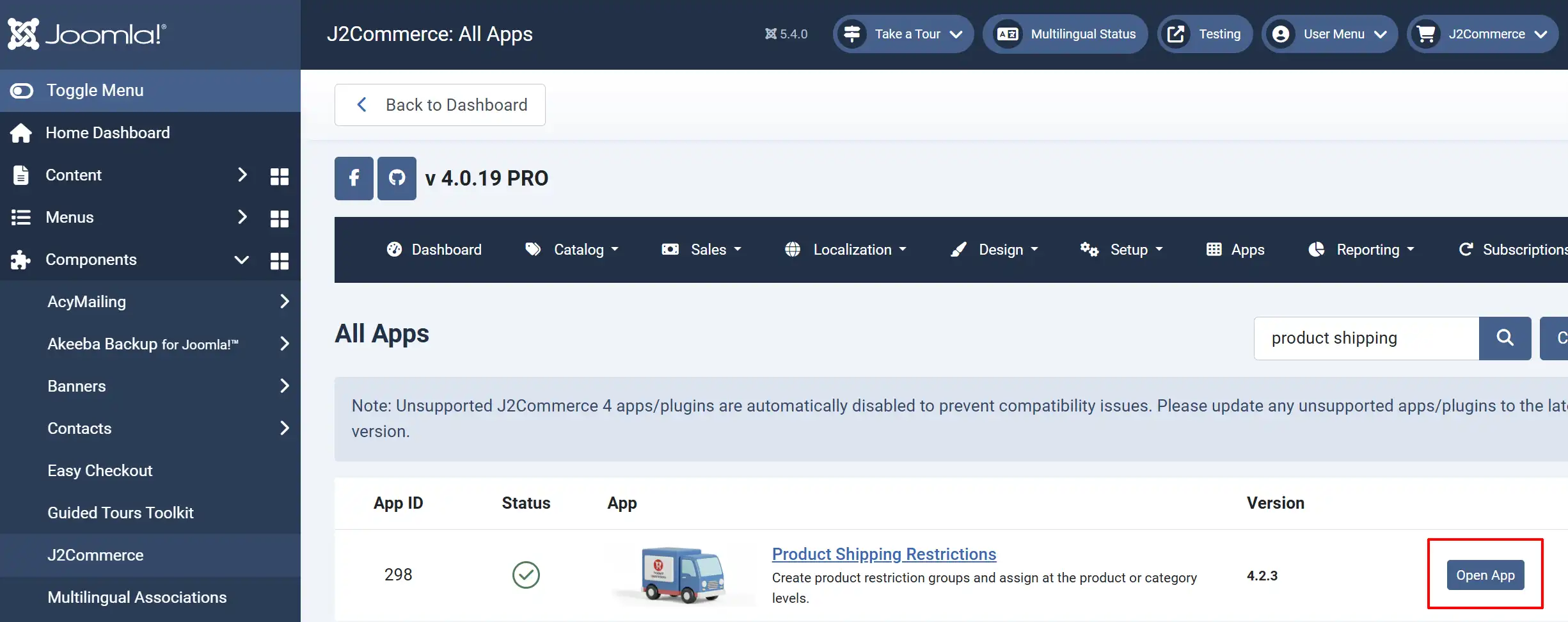
Click on "Open App" or the Title to start setting up the app
Setting up the App
Basic tab
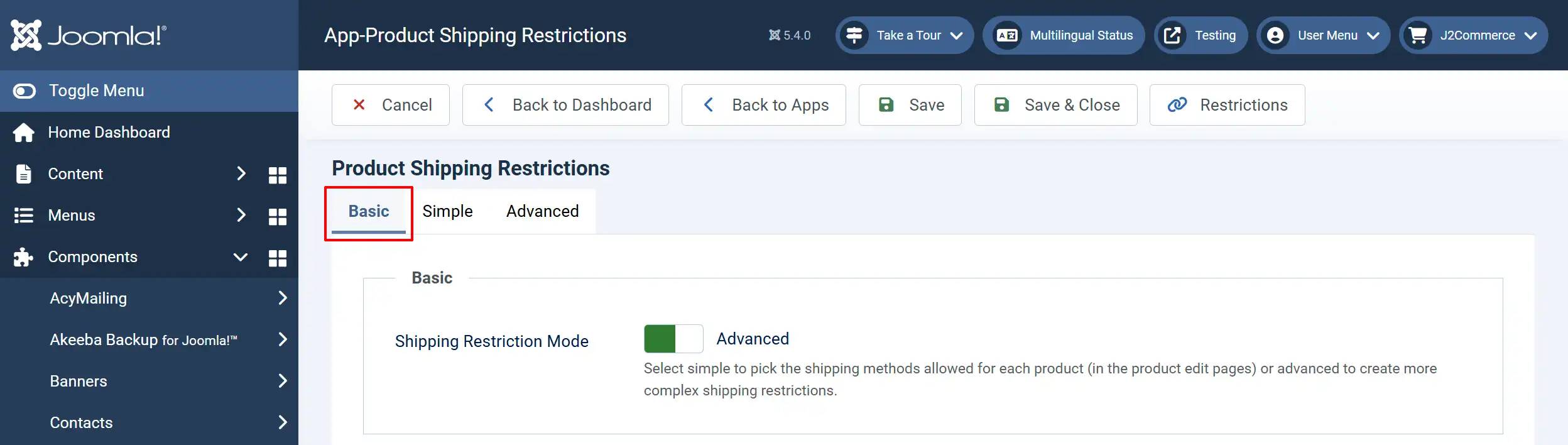
Shipping Restriction Mode:
The extension offers two modes of operation. Choose the one that best fits your needs:
- Simple Mode: (Recommended for Most Users)
Best for stores that need basic shipping method restrictions on a per-product basis.
How it works: You select which shipping methods are allowed for each product directly on the product edit page.
- Advanced Mode:
Best for stores with complex shipping requirements involving geographic restrictions, zip code limitations, and user group restrictions.
How it works: You create "Restriction Groups" that combine multiple rules, then assign these groups to products.
Simple Mode tab
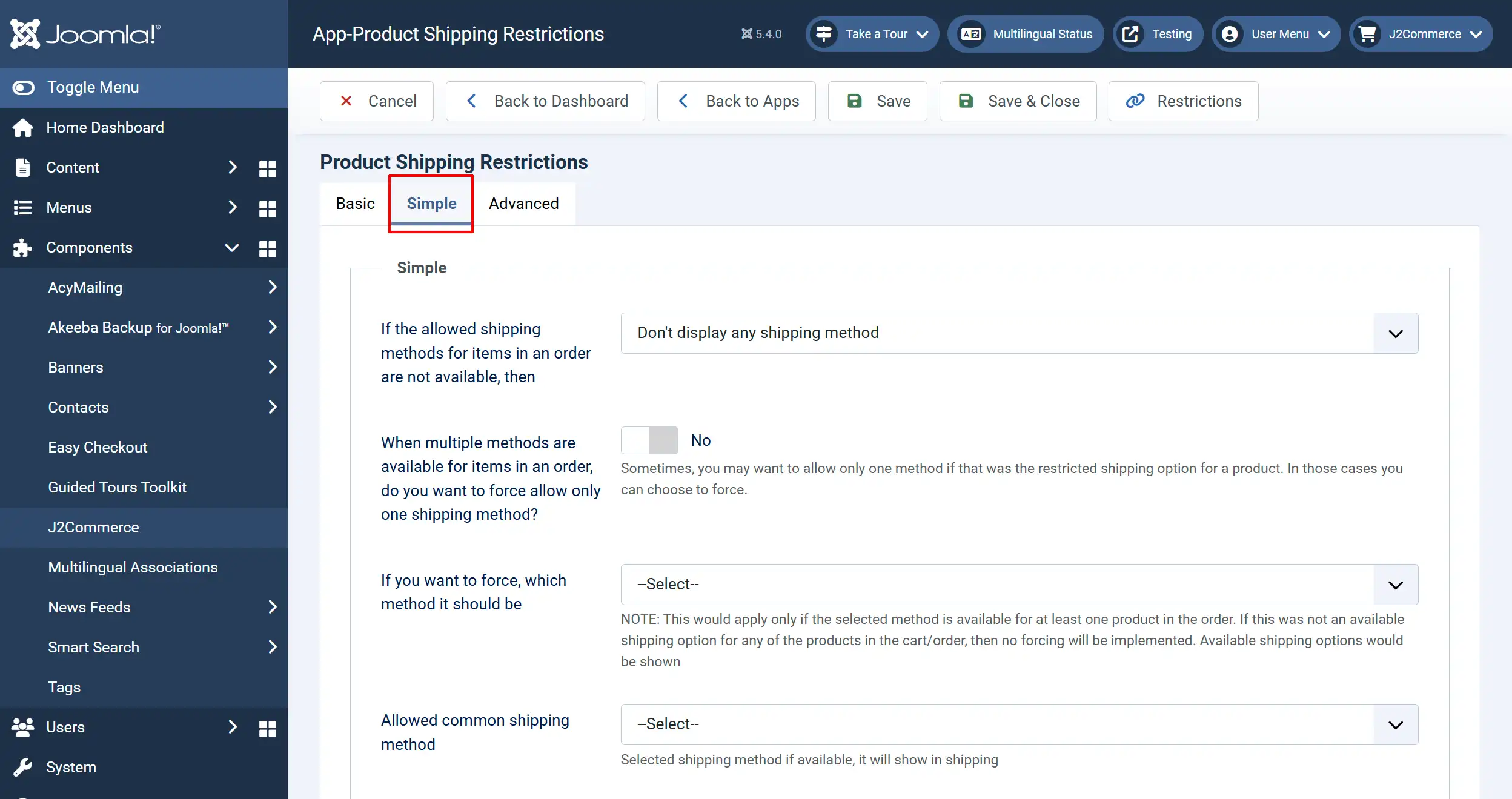
When using Simple mode, you'll see these additional options:
If the allowed shipping methods for items in an order are not available, then: Choose what happens when a product has no shipping restrictions set: <br>- Don't display any shipping method - No shipping options shown<br>- Display all available shipping methods - Show all options
When multiple methods are available for items in an order, do you want to force allow only one shipping method?: When multiple methods are available, force a single specific method. Sometimes, you may want to allow only one method if that was the restricted shipping option for a product. In those cases you can choose to force.
If you want to force, which method: Select the shipping method to force when the above is enabled. NOTE: This would apply only if the selected method is available for at least one product in the order. If this was not an available shipping option for any of the products in the cart/order, then no forcing will be implemented. Available shipping options would be shown
Allowed common shipping method: Selected shipping method if available, it will show in shipping. The shipping method that will always be available regardless of product restrictions
Advanced Mode tab:
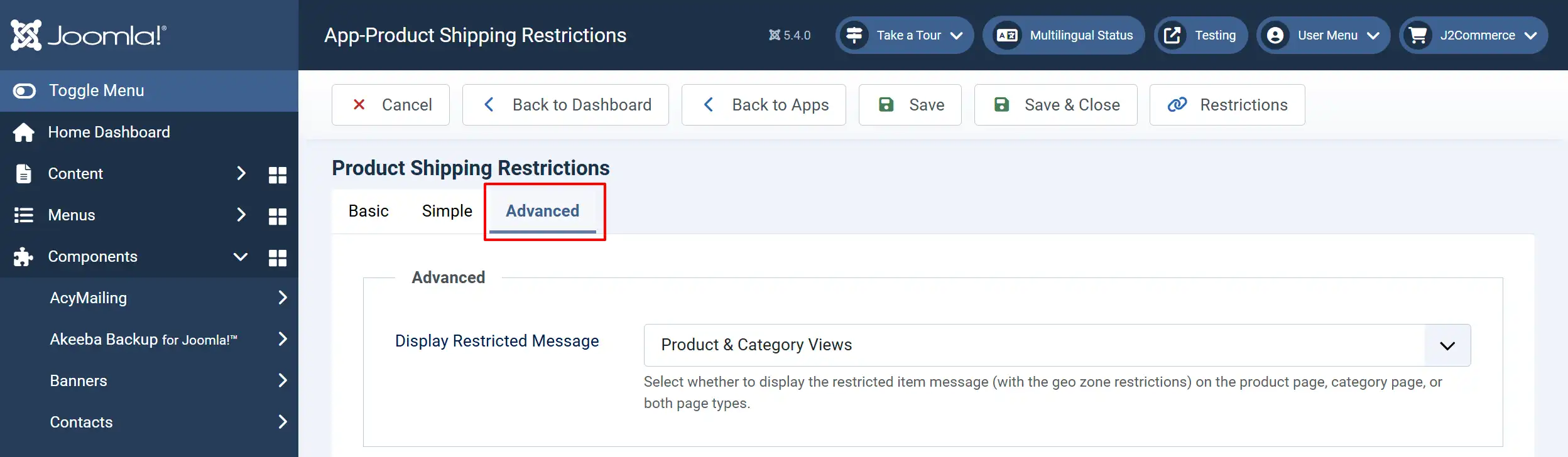
When using Advanced mode, you'll see:
Display Restricted Message: Choose where to show restriction warnings:<br>- Do Not Display<br>- Product View Only<br>- Category View Only<br>- Product & Category Views
Setting Up Simple Mode for 'Product' Restrictions
The following section is for you if you chose the Simple mode in the App. See the image below.
Note: If you choose the Simple Mode, it will show up on the App tab of the product page (as shown below. You cannot use Simple Mode for products that have Variants. You have to switch it to Advanced Mode for Variant products.
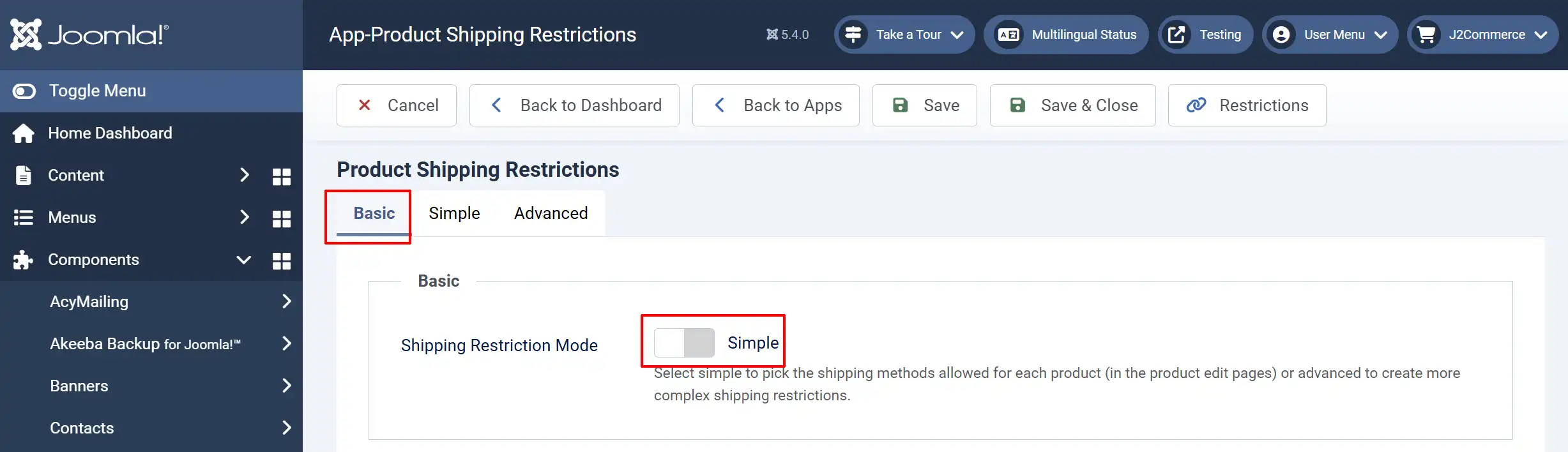
To set up the shipping restrictions for your product.
Go to J2Commerce > Catalog > Products > open the specific product
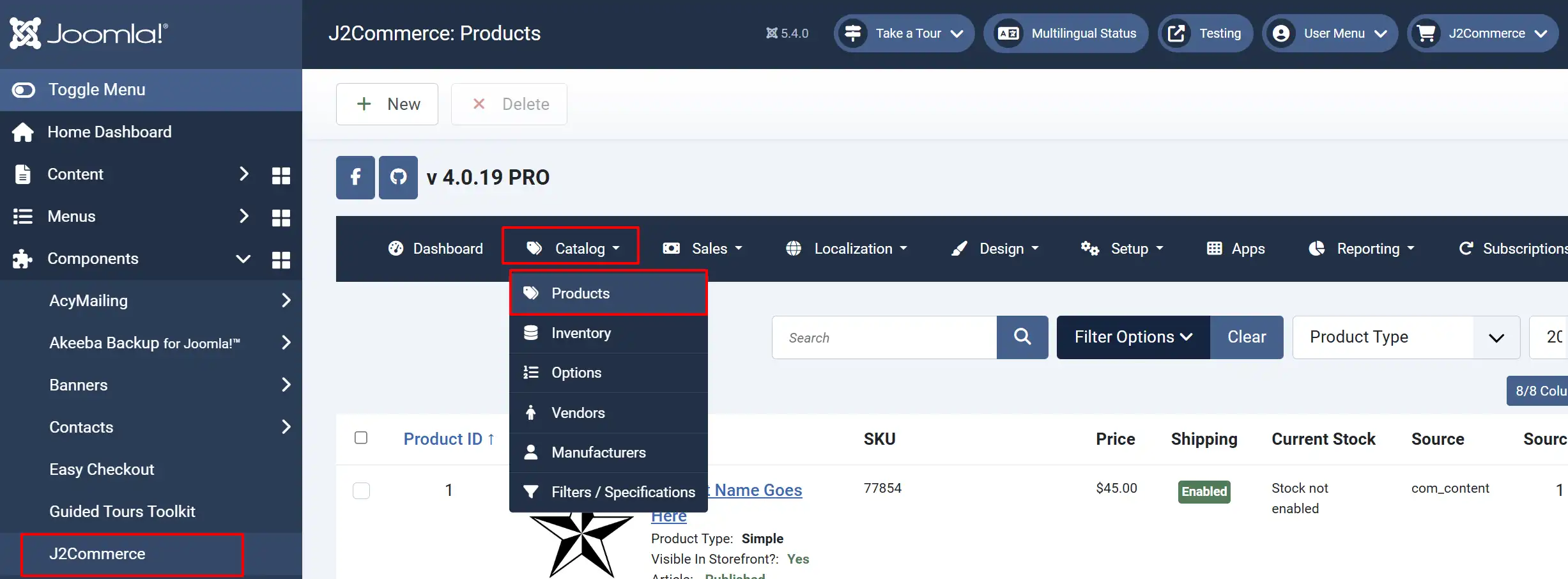
For Non-Variant Products
Go to J2Store Cart tab > Apps > Scroll down to find the Product Shipping Restrictions section
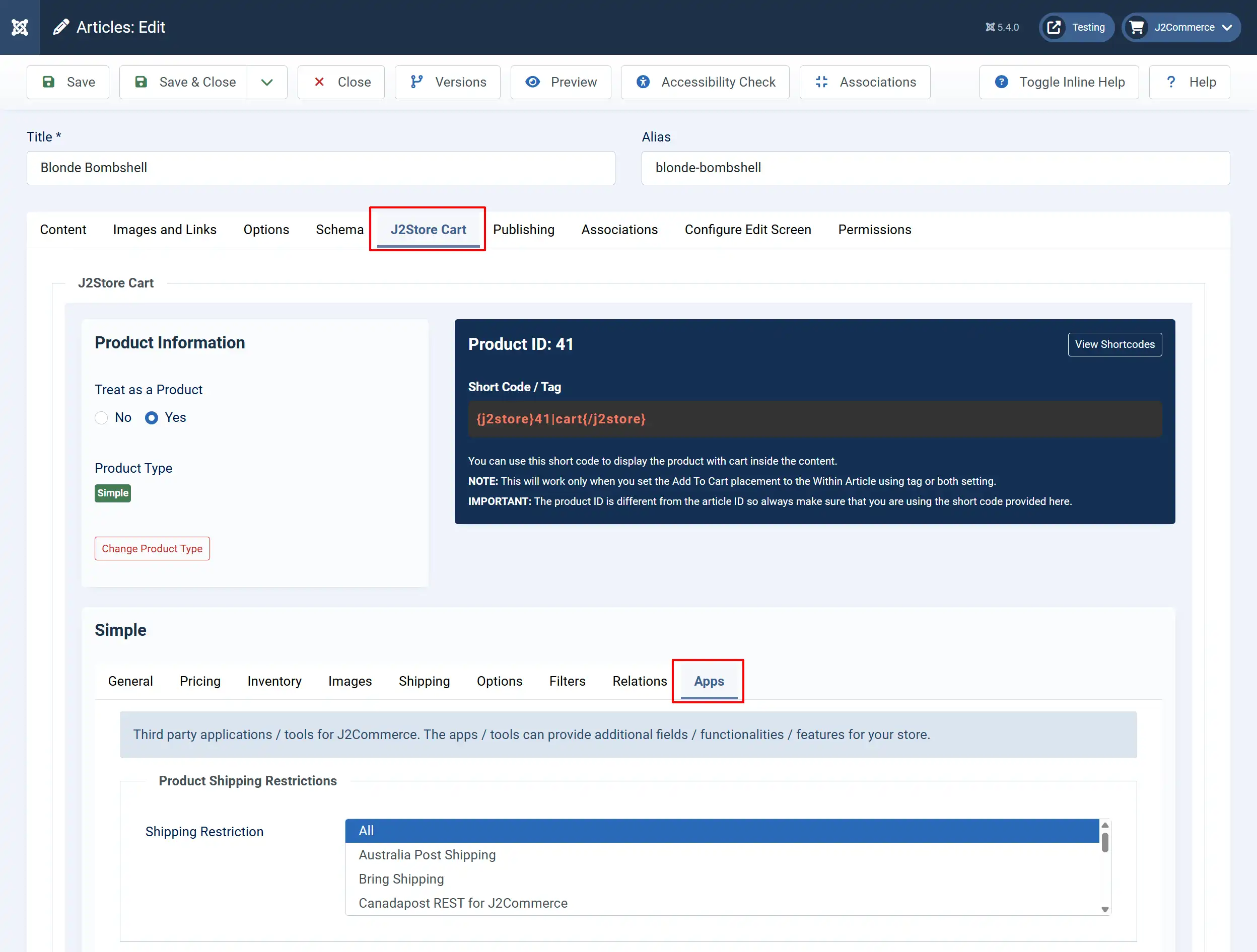
Shipping Restriction: Select the allowed shipping methods
- Hold Ctrl (Windows) or Cmd (Mac) to select multiple methods
- Select "All" to allow all shipping methods
Save the product
Setting Up Simple Mode for 'Category' Restrictions
You can also apply shipping restrictions at the category level:
Go to Content > Categories
Edit the category containing your J2Store products
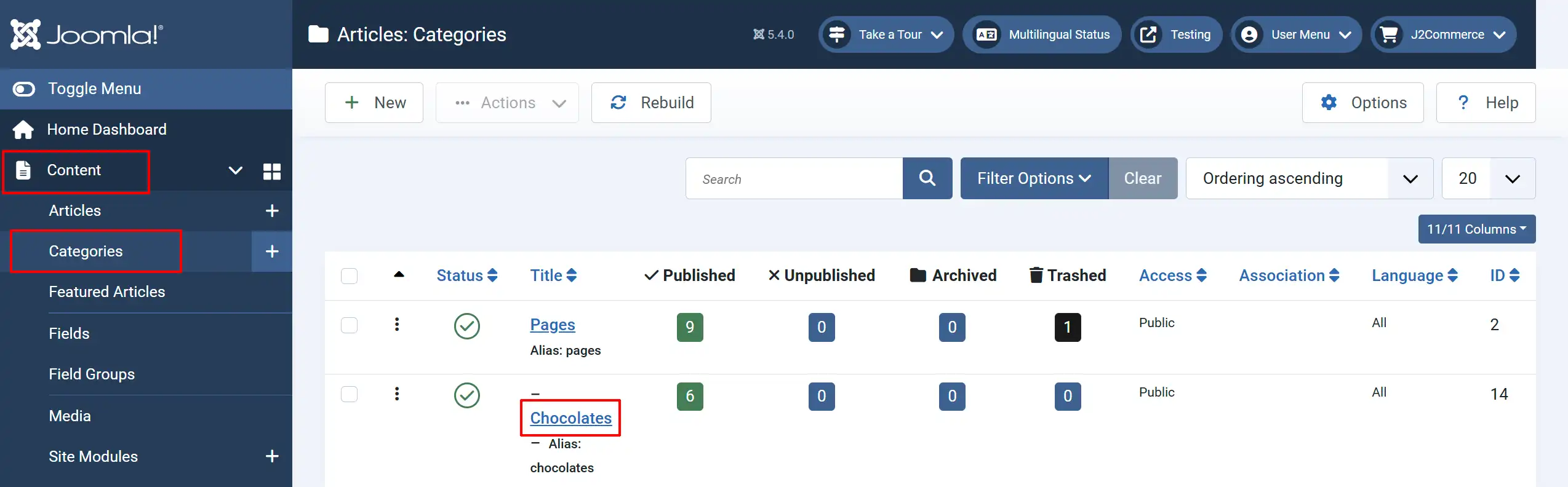
3. Look for the Restrict Shipping tab
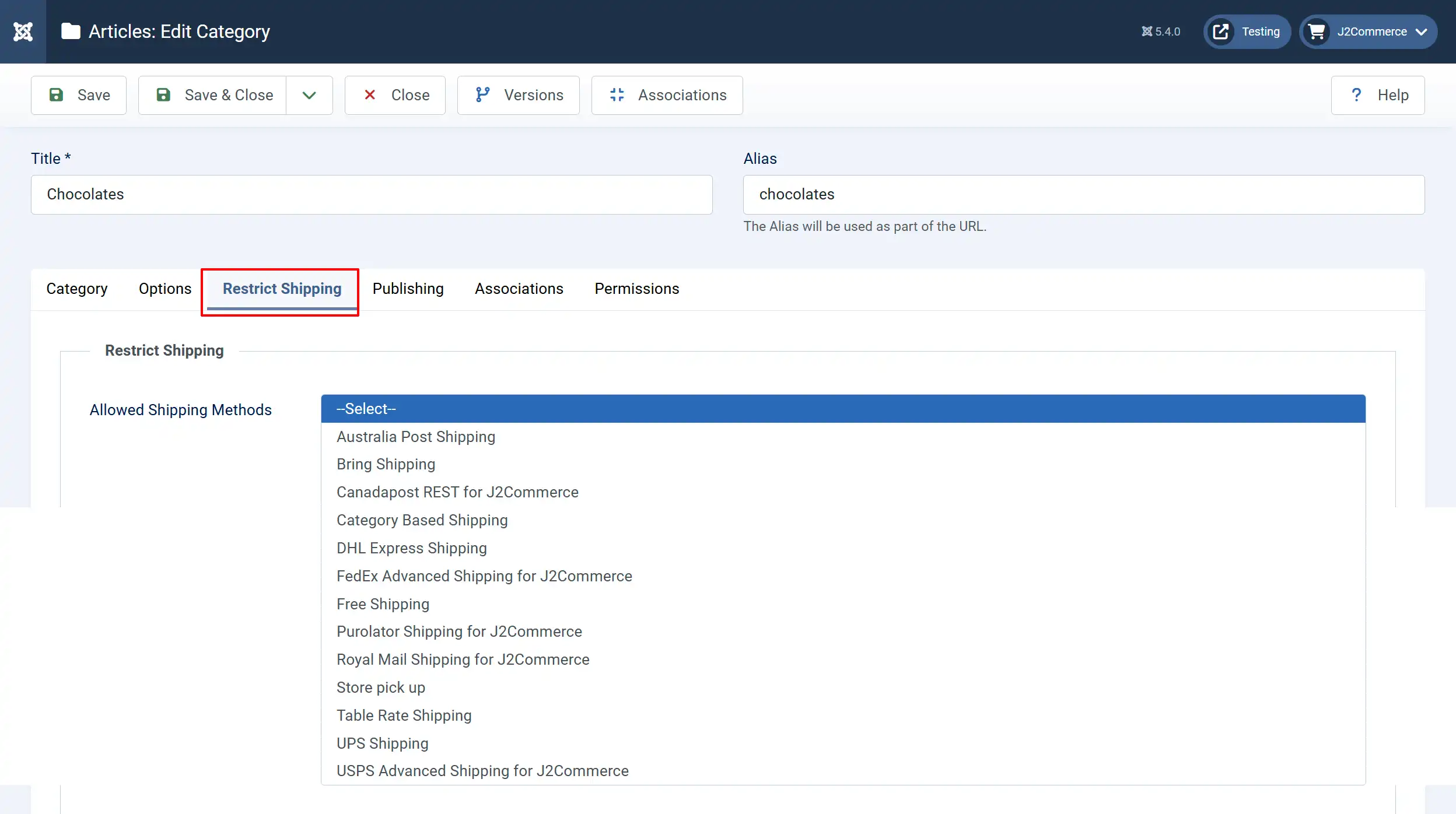
Select the Allowed Shipping Methods for all products in this category
Save the category
Note: Product-level restrictions override category-level restrictions.
Setting Up Advanced Mode for 'Product' Restrictions
Advanced mode requires creating Restriction Groups first, then assigning them to products. This is done when first setting up the app.
Note: If you choose the Simple Mode, it will show up on the App tab of the product page (as shown below. You cannot use Simple Mode for products that have Variants. You have to switch it to Advanced Mode for Variant products.
Go to Components > J2Commerce > Apps > Product Shipping Restrictions
Make sure it's switched to Advanced in the Basic tab.
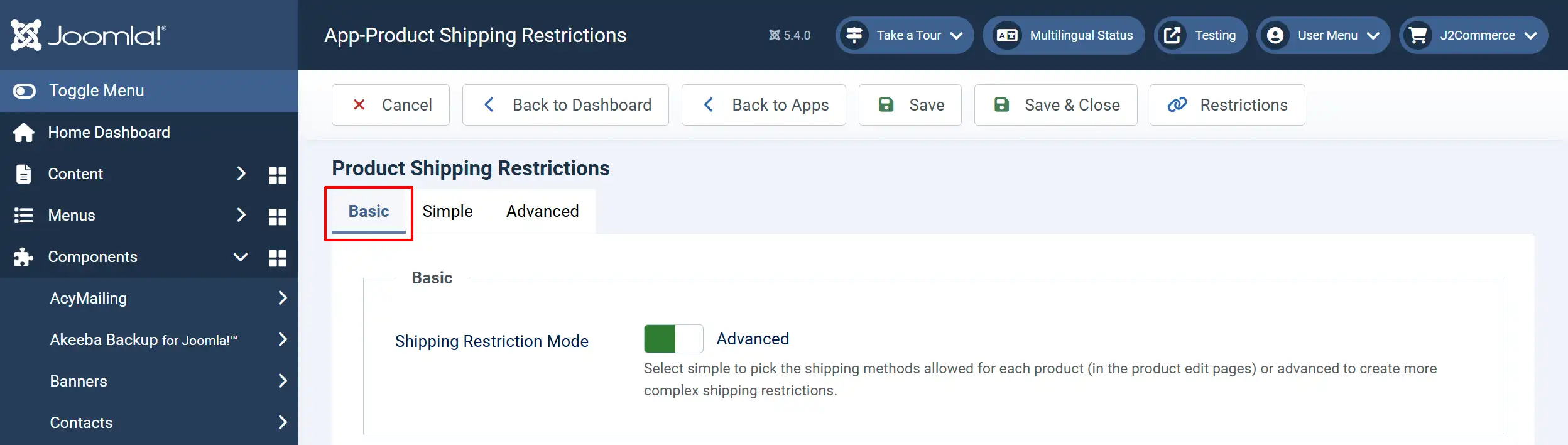
Create a Restriction Group
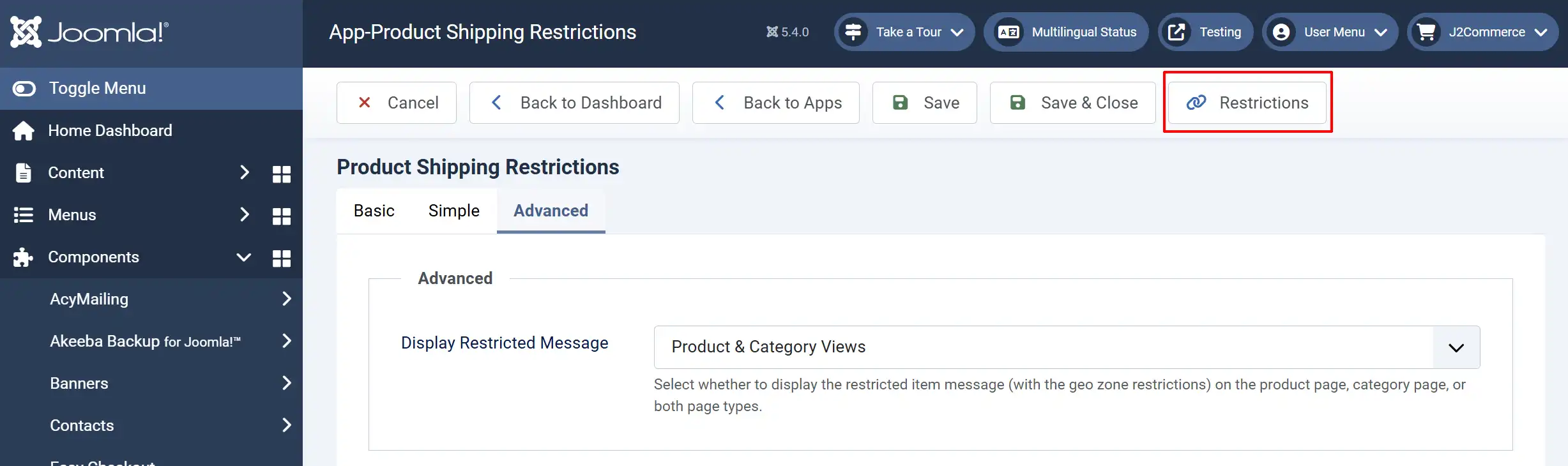
Click the Restrictions toolbar button
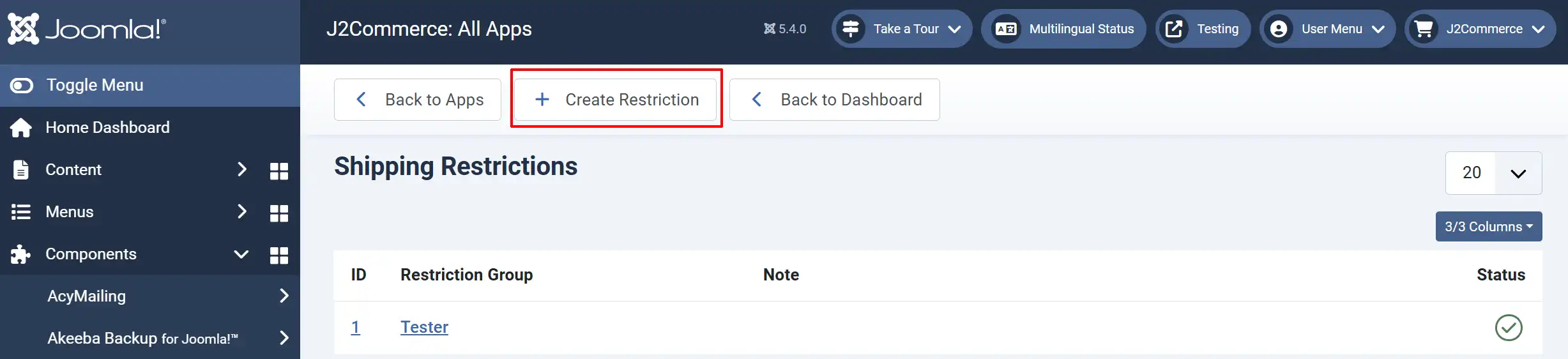
Click Create Restriction to add a new group
Fill in the restriction details:
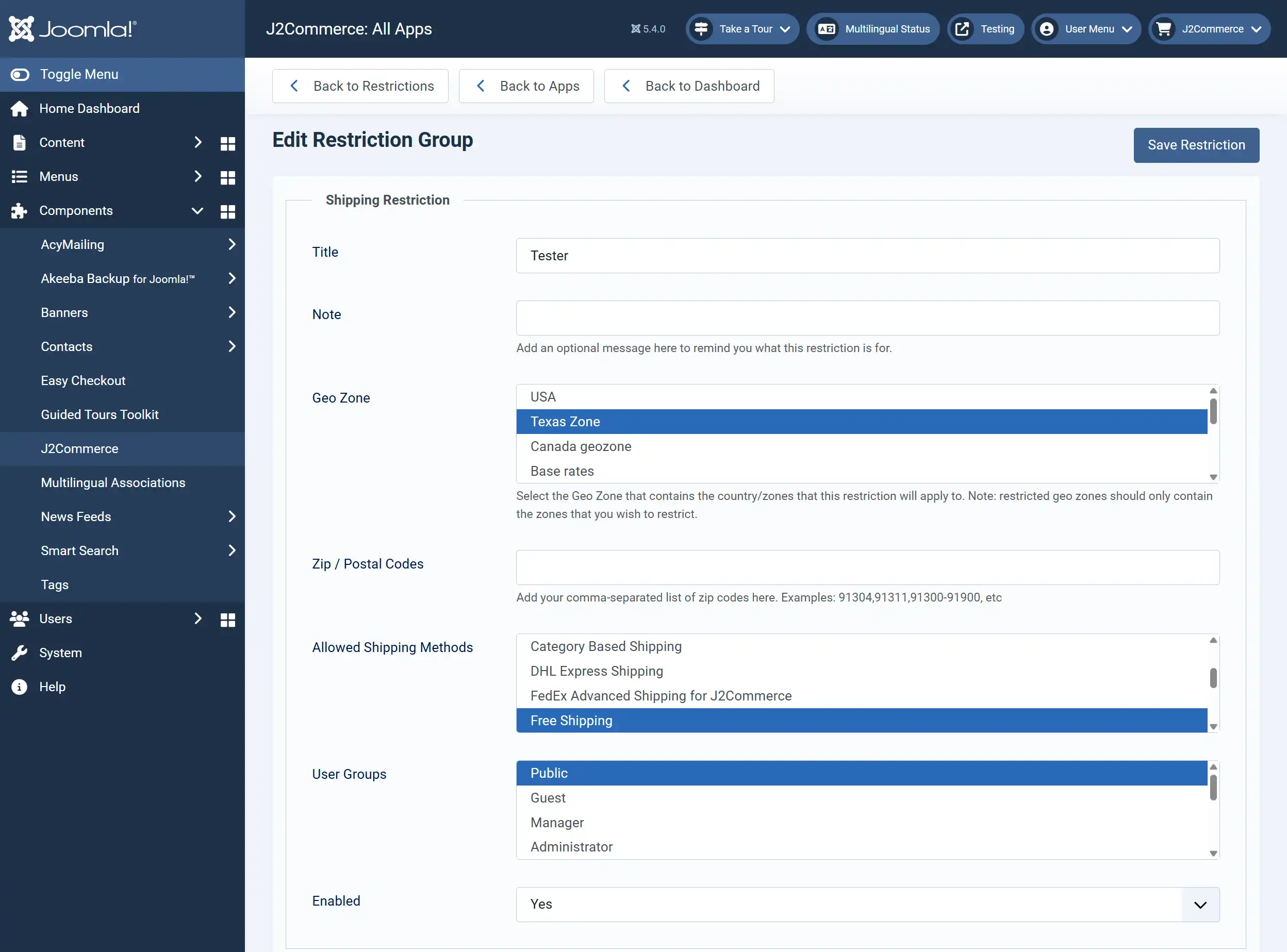
Title: A name for this restriction (e.g., "Fragile Items - Ground Only")
Note: Optional description to remind you what this restriction is for
Geo Zone: Select the Geo Zone that contains the country/zones to which this restriction will apply. Note: restricted geo zones should only contain the zones that you wish to restrict.
Zip / Postal Codes: Enter specific zip codes to restrict. Add your comma-separated list of zip codes here. Examples: 91304,91311,91300-91900, etc. Supports:<br>- Single codes: 91304<br>- Multiple codes: 91304,91311,91320<br>- Ranges: 91300-91900
Allowed Shipping Methods: Select which shipping methods ARE allowed for products with this restriction
User Groups: Optionally limit this restriction to specific Joomla user groups
Enabled: Toggle the restriction on or off
Save Restriction
For Non-Variable Products
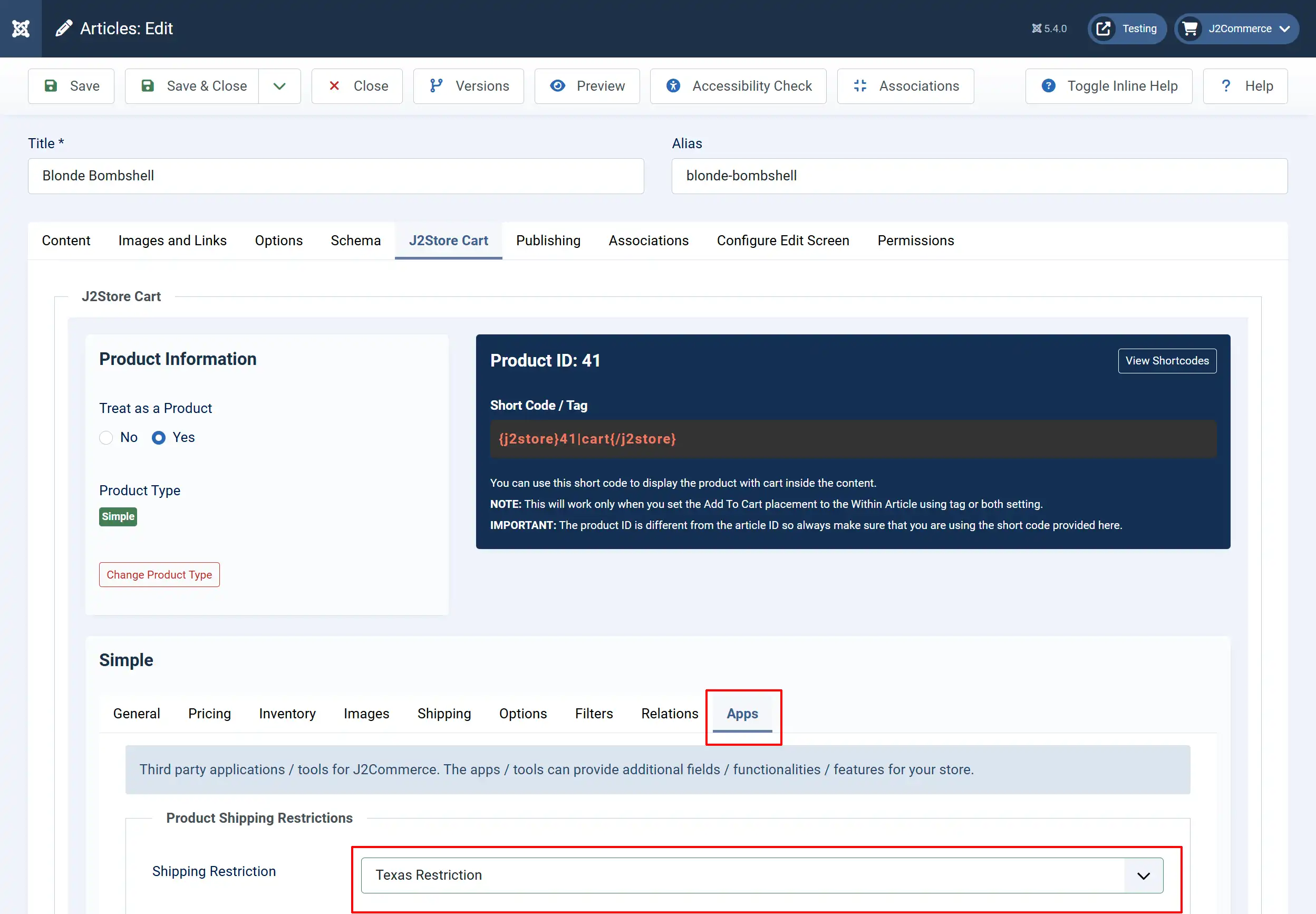
Go to J2Store Cart tab > Apps > Scroll down to find the Product Shipping Restrictions section
Select the Restrictions you created above.
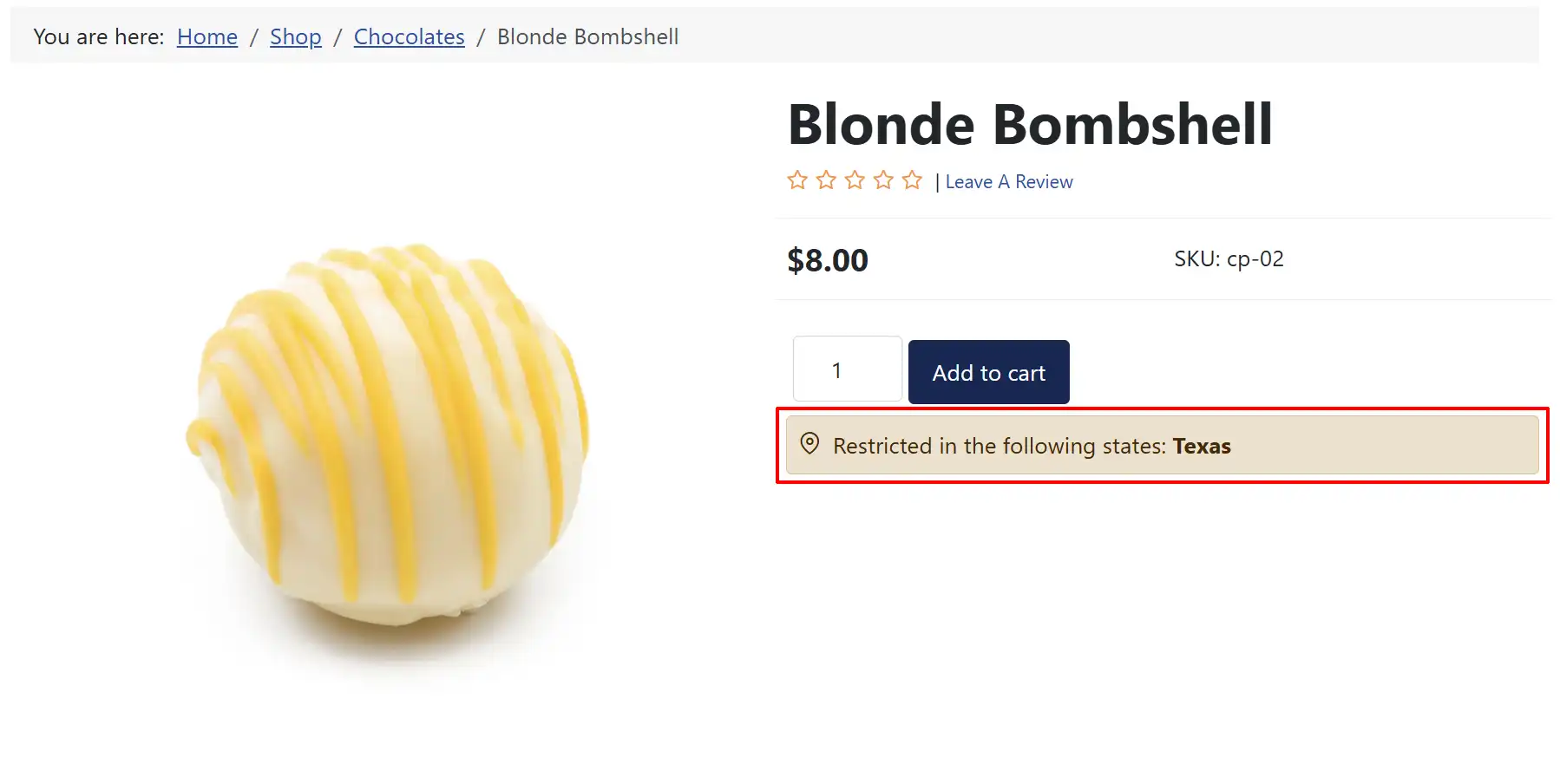
Frontend View
The image below shows how the product will look with the advanced shipping restriction set for Texas
For Variable Products
Go to your product > J2Store Cart tab > Variants tab
Open and edit each variant
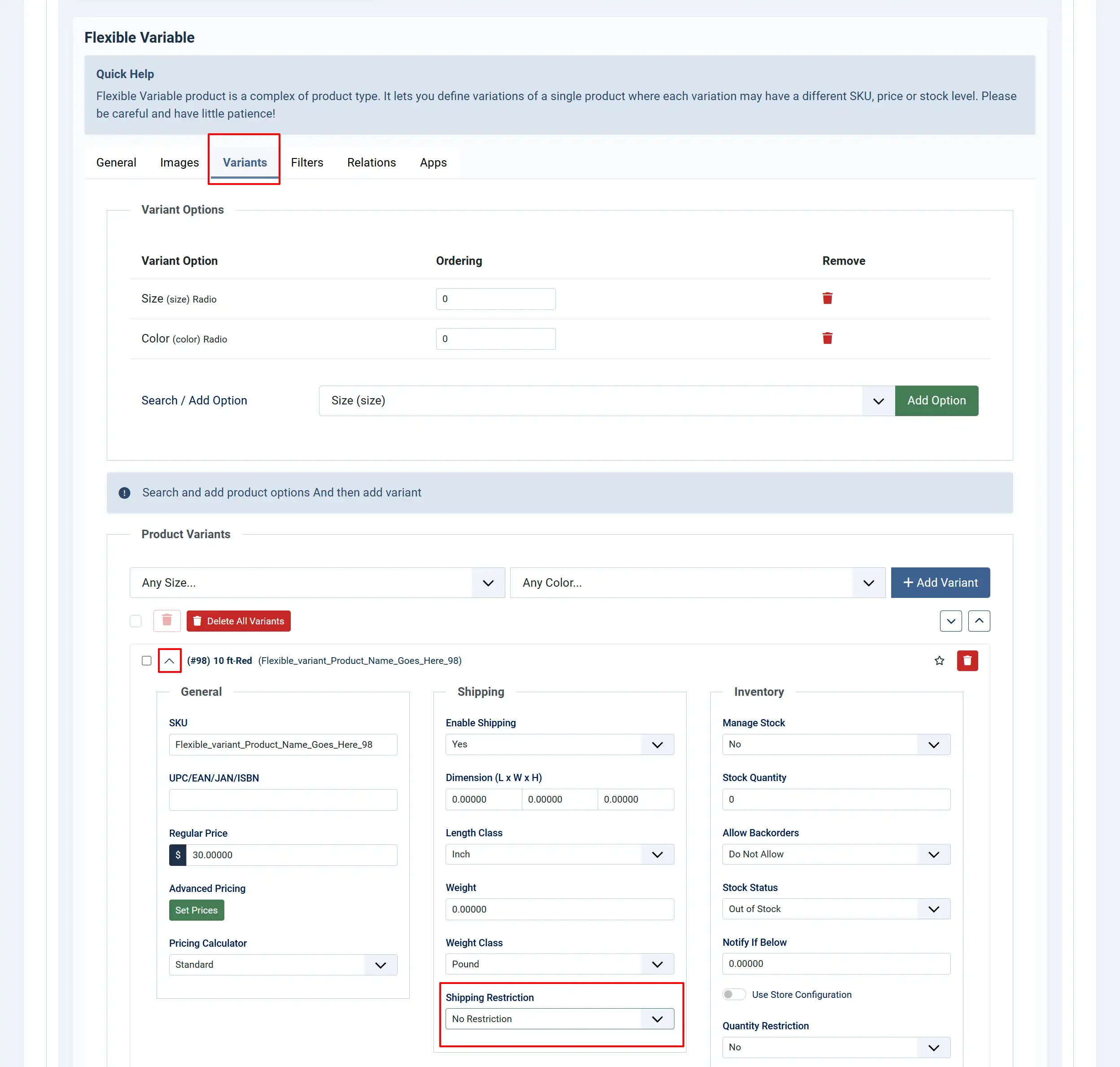
In the variant's shipping section, select the Restriction Group
Save the variant and product
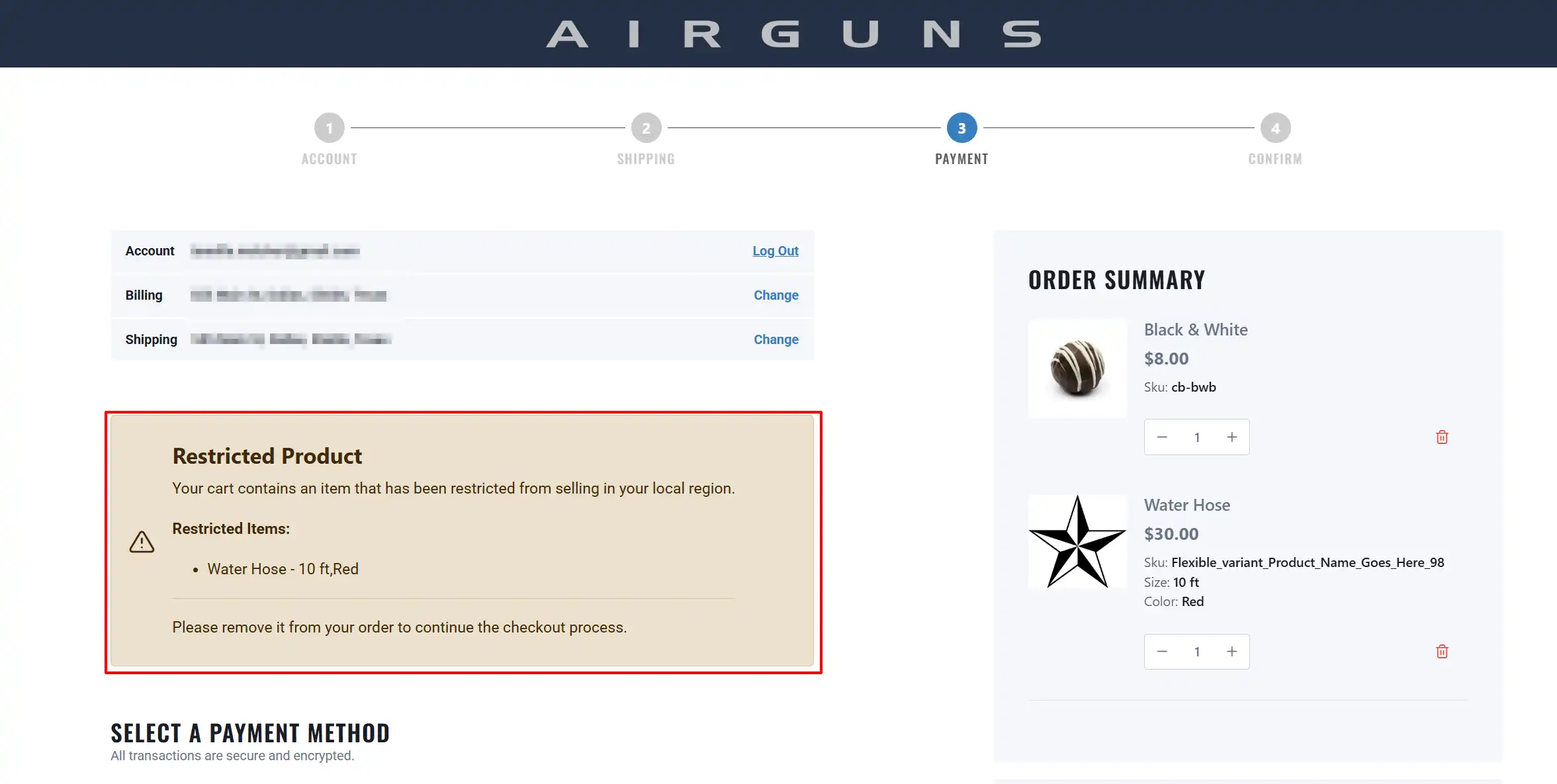
Frontend Checkout
Setting Up Advanced Mode for 'Category' Restrictions
You can also apply shipping restrictions at the category level:
Go to Content > Categories
Click on the category containing your J2Commerce products
Go to the Restrict Shipping (Advanced) tab
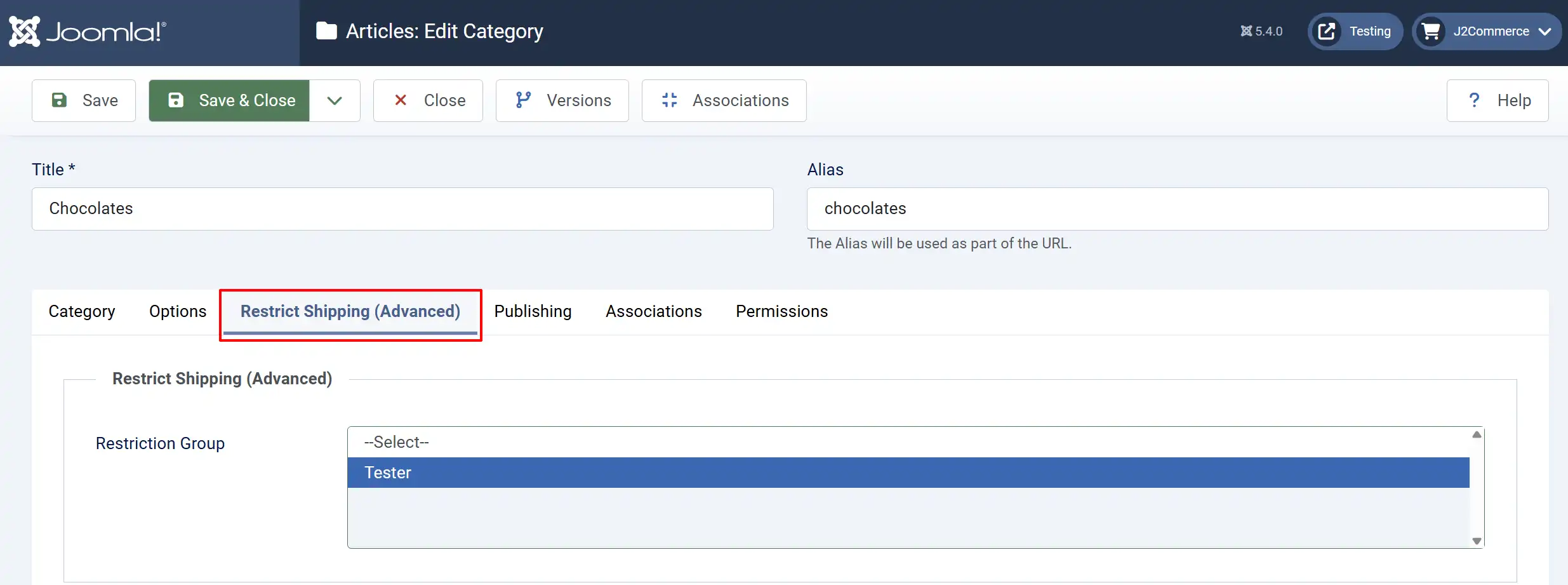
Select the restriction group
Save the category
How Restrictions Work at Checkout
Simple Mode Behavior
When a customer reaches checkout:
- Only shipping methods that are allowed for ALL products in the cart will be displayed
- If no common shipping methods exist, the behavior depends on your "If no allowed shipping methods" setting
Advanced Mode Behavior
When a customer reaches checkout:
- The system checks if the shipping address matches any restricted geo zones or zip codes
- If a restricted product is in the cart AND the shipping address matches the restriction:
- All shipping methods are hidden
- A warning message is displayed listing the restricted products
- The customer must remove restricted items to continue checkout
Warning Messages
If configured to display restriction messages:
On Product Pages:
> "Restricted from shipping in: [Zone Names]"
On Category Pages:
A "Restricted Product" badge appears with a tooltip showing restricted zones.
At Checkout:
> "Your cart contains an item that has been restricted from selling in your local region. Please remove it from your order to continue the checkout process."
Managing Restriction Groups
View All Restrictions
1. Go to Components > J2Commerce > Apps > Product Shipping Restrictions
2. Click the Restrictions toolbar button
3. You'll see a list of all restriction groups with their status
Edit a Restriction
1. Click on the restriction ID or name in the list
2. Make your changes
3. Click Save Restriction
Enable/Disable a Restriction
Click the status icon (green check) in the restriction list to toggle the status.
Best Practices
1. Start with Simple Mode if you only need to limit shipping methods per product
2. Use descriptive names for restriction groups (e.g., "Hazmat - Ground Only" instead of "Restriction 1")
3. Test thoroughly by placing test orders from different locations
4. Use the Note field to document why a restriction exists
5. Set up Geo Zones first in J2Commerce > Localization > Geozones before creating advanced restrictions
Troubleshooting
Shipping methods not showing
- Check that the product has shipping enabled
- Verify the shipping method itself is enabled and configured
- Ensure the "If no allowed shipping methods" setting matches your expectations
Restriction not applying
- Confirm the restriction group is set to "Enabled."
- Check that the geo zone includes the correct countries/zones
- Verify the restriction is assigned to the correct product or category
All shipping methods are showing despite restrictions
- Make sure you're in the correct mode (Simple vs Advanced)
- For Simple mode, ensure you selected specific methods (not "All")
- For Advanced mode, verify the customer's address matches the restricted zone
Support
For additional help or to report issues:
- Visit [J2Commerce Support](https://www.j2commerce.com)
- Email: support@j2commerce.com
Version 4.2.3 | Last Updated: June 2025