Manufacturers
This page contains information about the manufacturers of the products that are listed in J2Commerce.
Manufacturers are listed with the following details:
- Company
- Tax Number
- Address
- City
- Zip
- Phone and Mobile
- Country
- Zone
Before you can add a manufacturer to a product, you have to create the manufacturer.
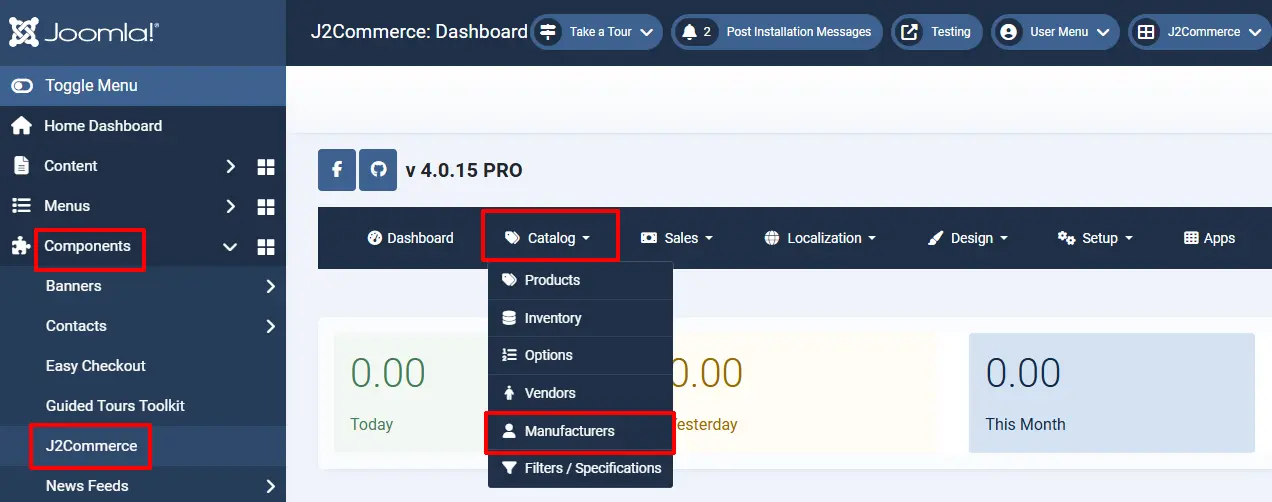
Step 1: Go to Components > J2Commerce > Catalog > Manufacturer
Step 2: Select 'New'
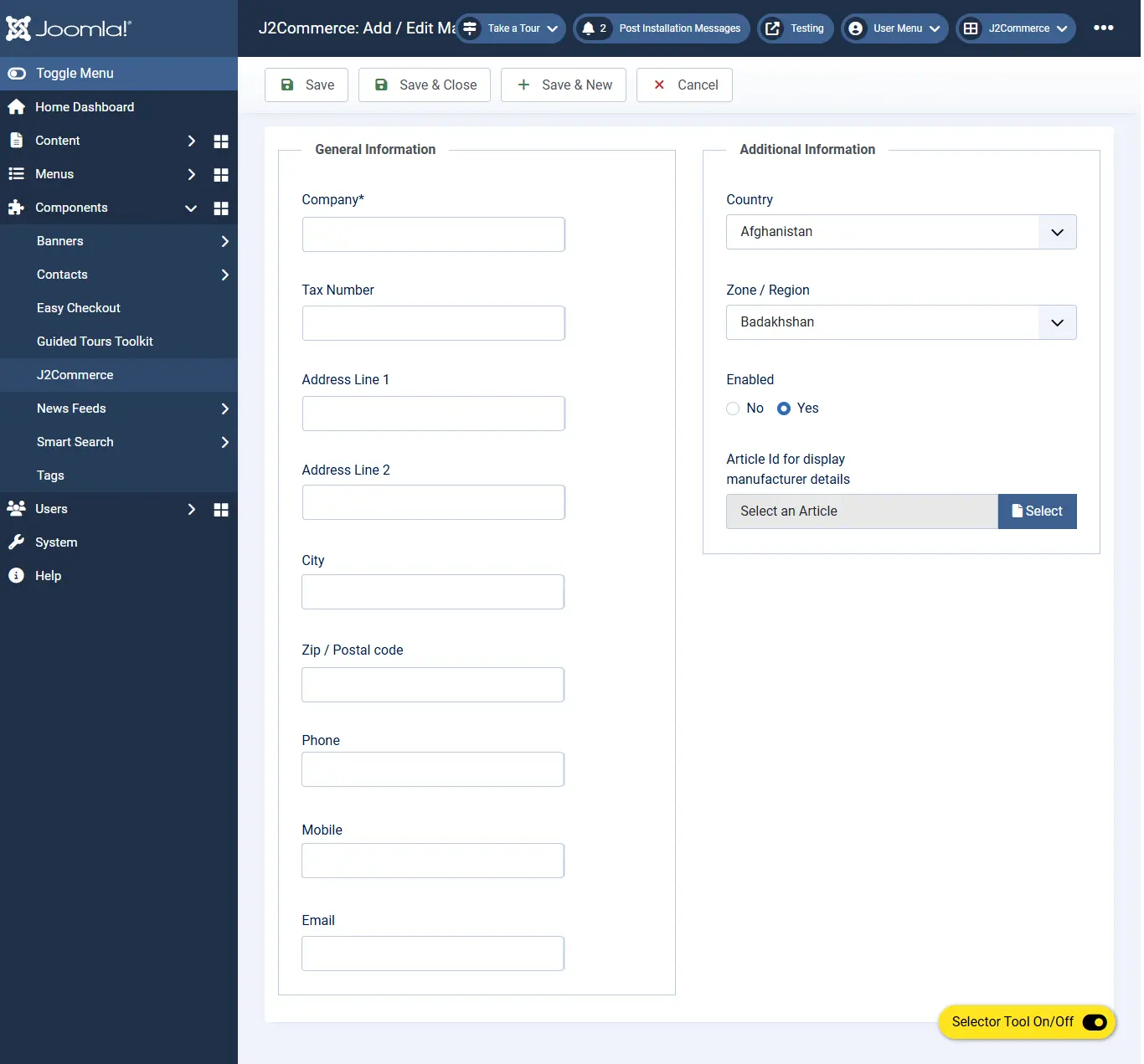
Step 3: Fill in all of the boxes with the manufacturer's information
The image shown below is how a manufacturer is added.
Associating them with products
To add the manufacturers to the product, follow the instructions below:
- Navigate to Content > Articles. Find your product
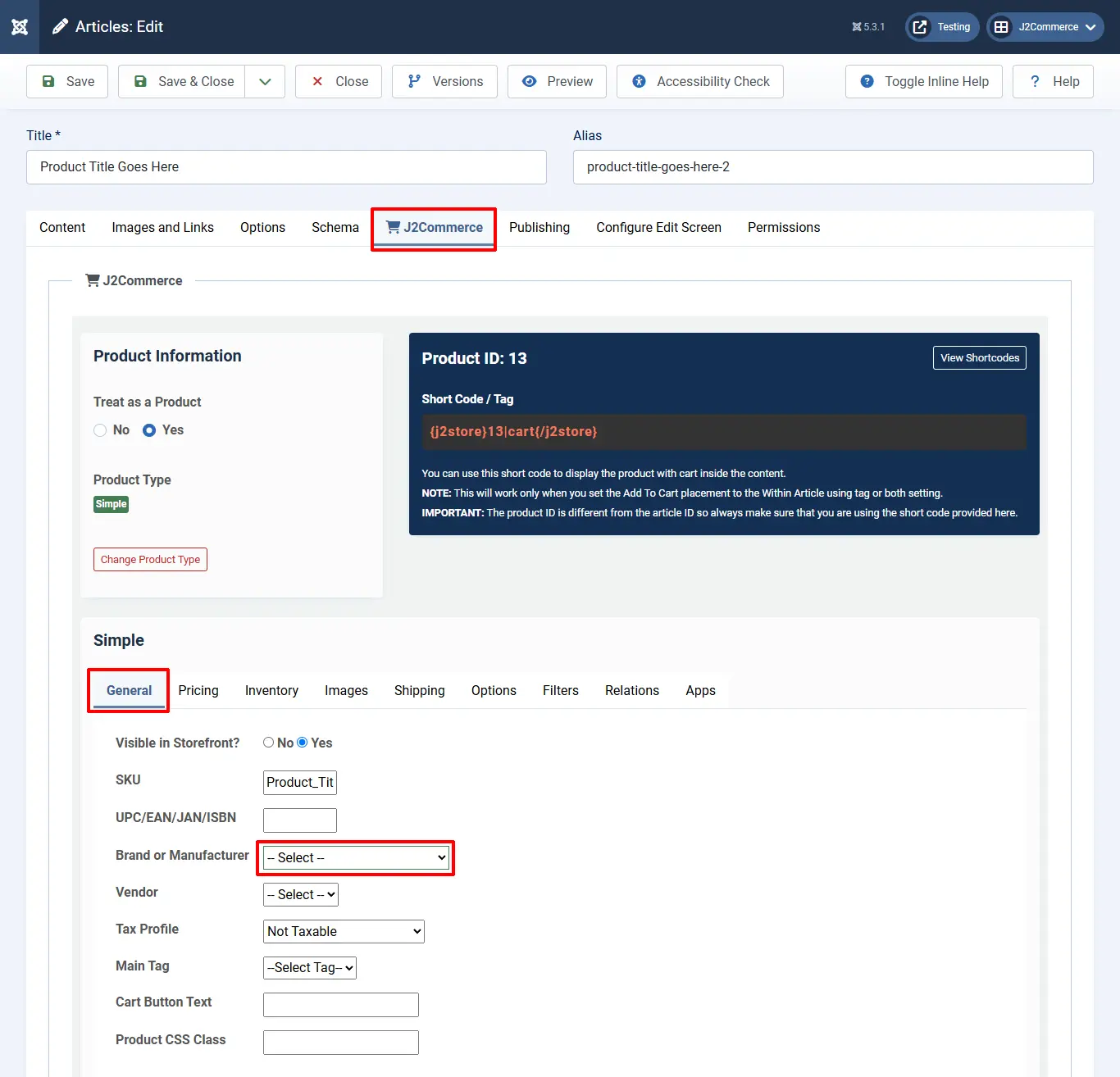
- Open the Product. Click on J2Commerce (or J2Store cart) > the 'General' tab.
- Click on the manufacturer's dropdown box.
- The list of available manufacturers will be available.
- Choose your manufacturer and save.
- Navigate to Menus > Manage. Find your product’s menu and open it
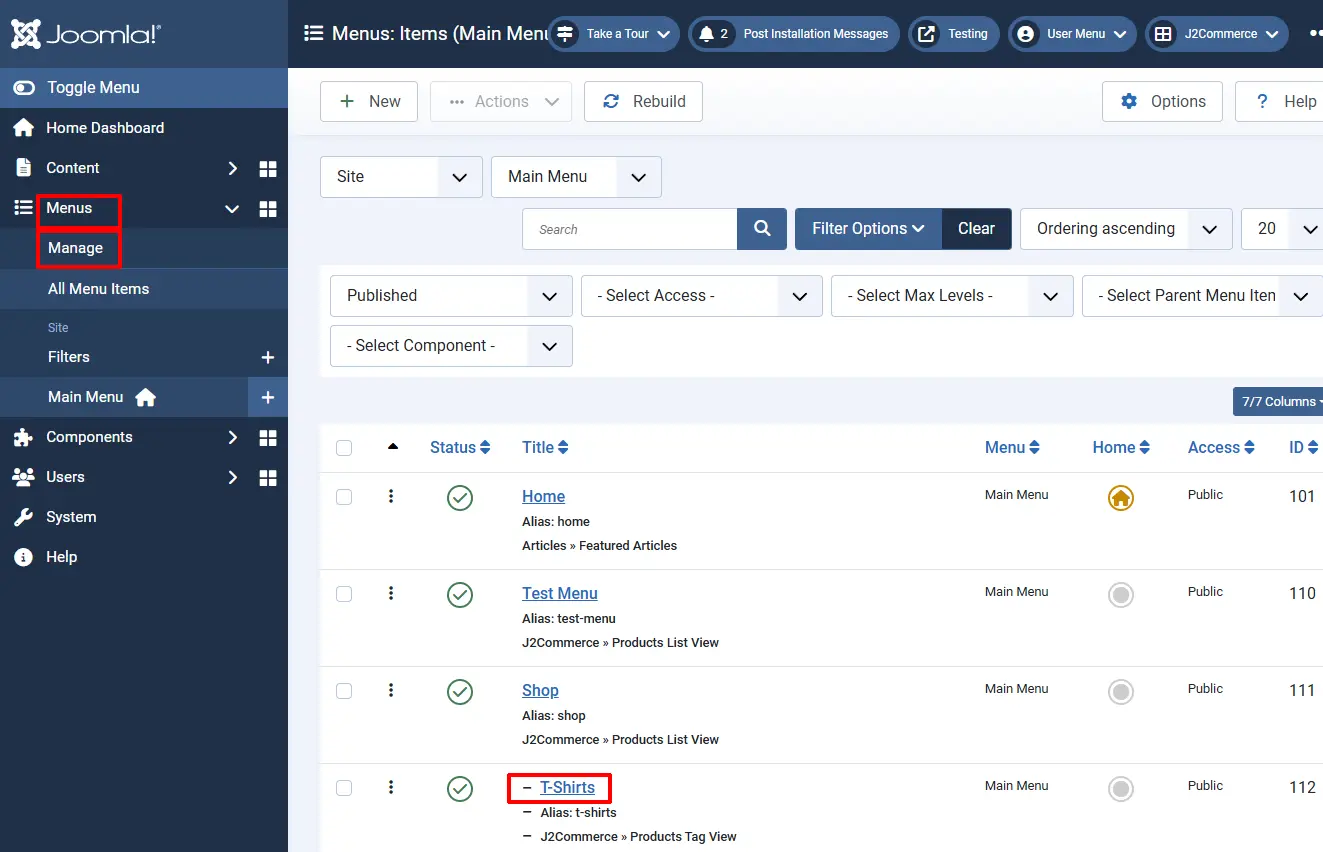
- Click on the 'Product View Options' tab
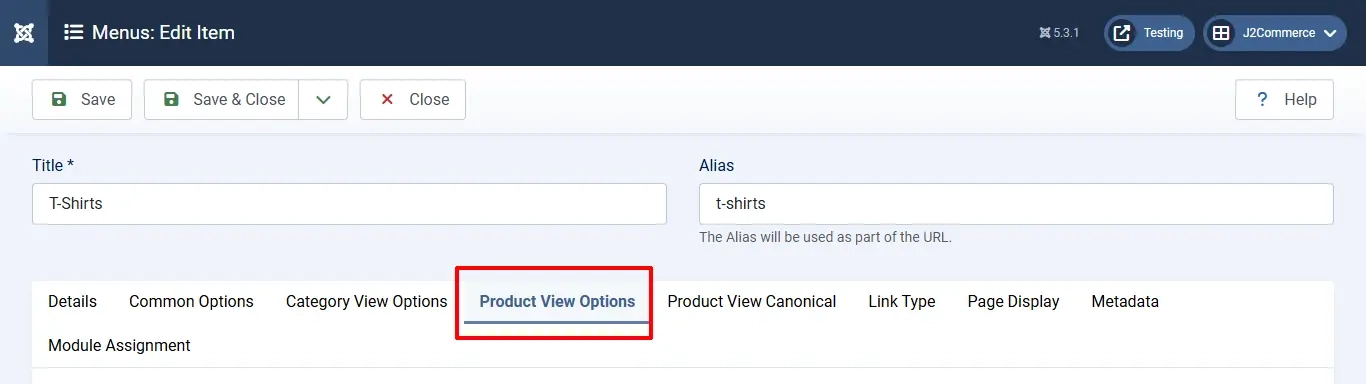
- Set the option Brand to 'Yes'
-745cfeb95a59a7d3366da318559328c8.webp)
This would display the associated brand on the product view as follows:
Frontend
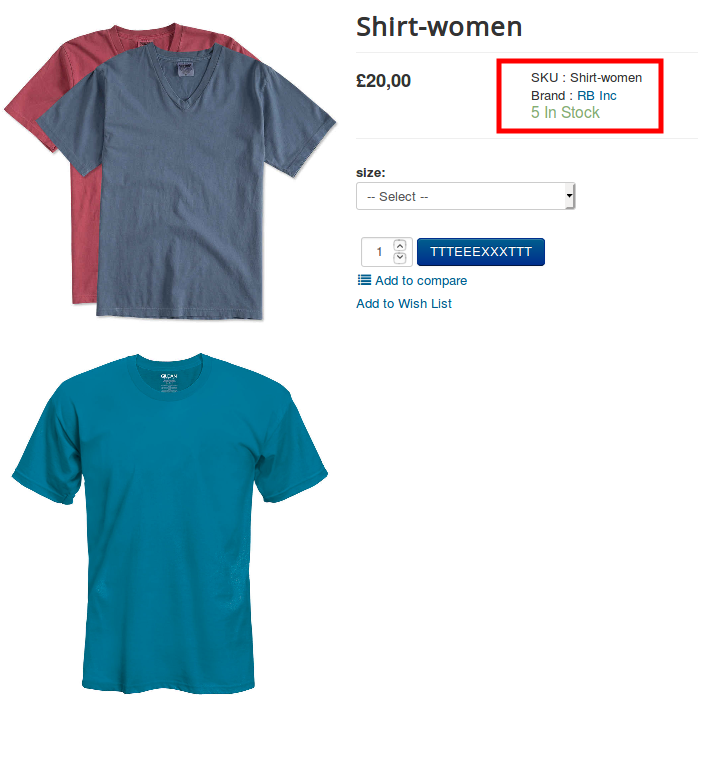
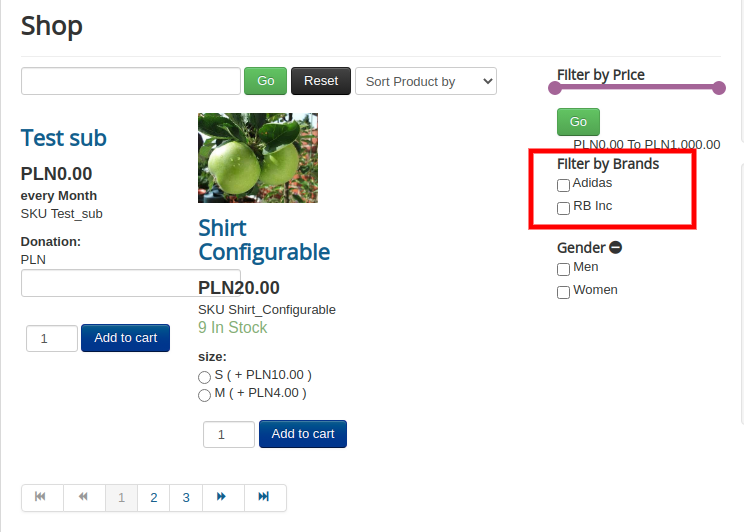
Filtering products based on manufacturers/brands:
Once you associate manufacturers with the appropriate products, you can also let users filter products based on brands.
- Post linking brands with the concerned products. Navigate to Menus > Manage.
- Open your product menu > Category View Options tab.
-1ad891cd2b5eff4ae9262a6b89c0f806.webp)
- Scroll down to the Filters section. Set the option: Manufacturer/brand filter to Show.
- Set the option Manufacturer filter listing type to Show all filters.
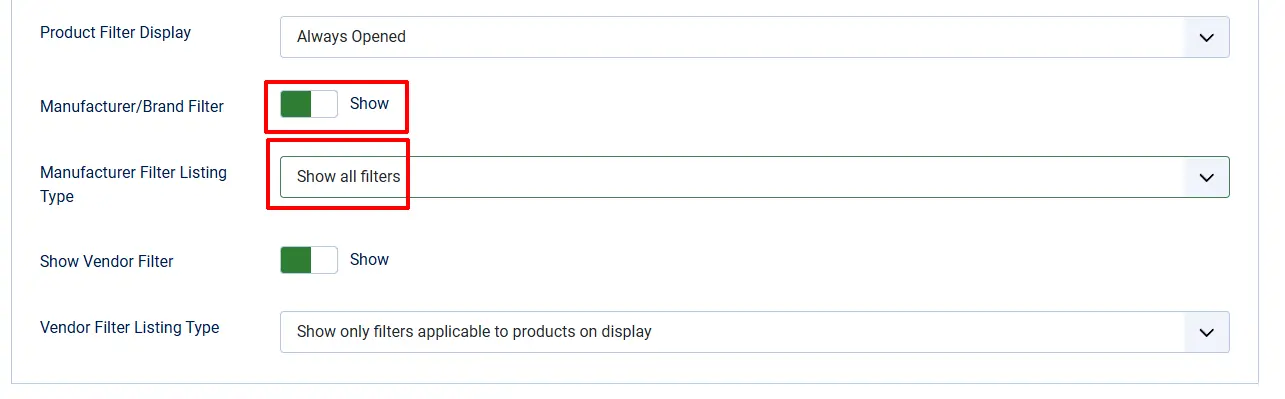
- Once the manufacturer filters are enabled, the filters would be listed and users can filter the products based on brands.