Category Based Shipping
What This Plugin Does
Category Based Shipping lets you charge different shipping rates based on which product categories are in
your customer's cart. For example:
• Charge $5 shipping for "Books."
• Charge $15 shipping for "Electronics."
• Charge $25 shipping for "Furniture."
You can also set different rates for different locations (geozones), so customers in Europe might pay different shipping rates than customers in North America.
Requirements
- PHP 8.1.0 +
- Joomla! 4.x/ Joomla! 5.x +
- J2Commerce / J2Store 4.x +
Purchase the App
Step 1: Go to our J2Commerce website > Extensions > Shipping Plugin
Step 2: Locate the Category Shipping Plugin > click View Details > Add to cart > Checkout.
Step 3: Go to your My Downloads under your profile button at the top right corner and search for the app.
Step 4: Type in Category Shipping in the search bar
Step 6: Click Available Versions > View Files > Download Now
Install the App
Go to System > Install > Extensions > install the Plugin
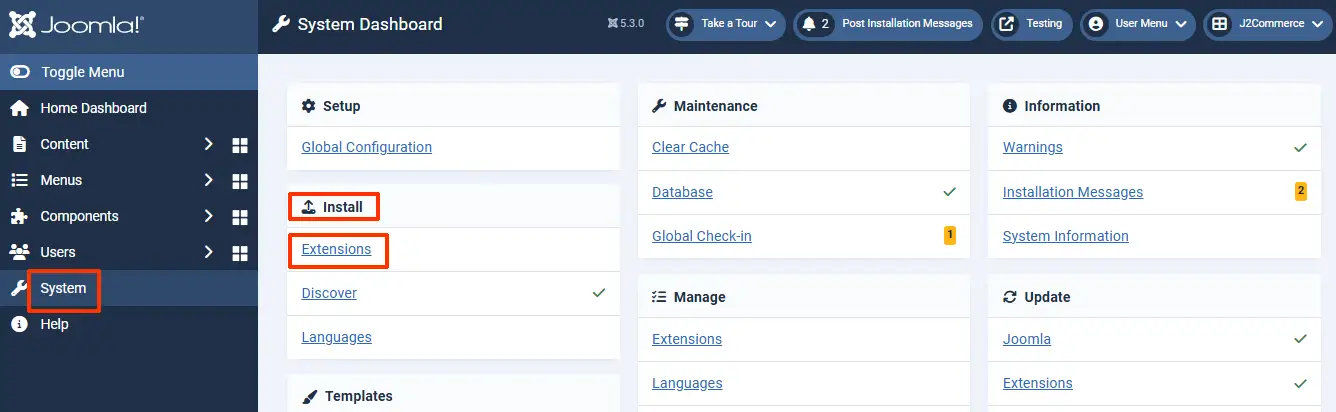
Enable the Plugin
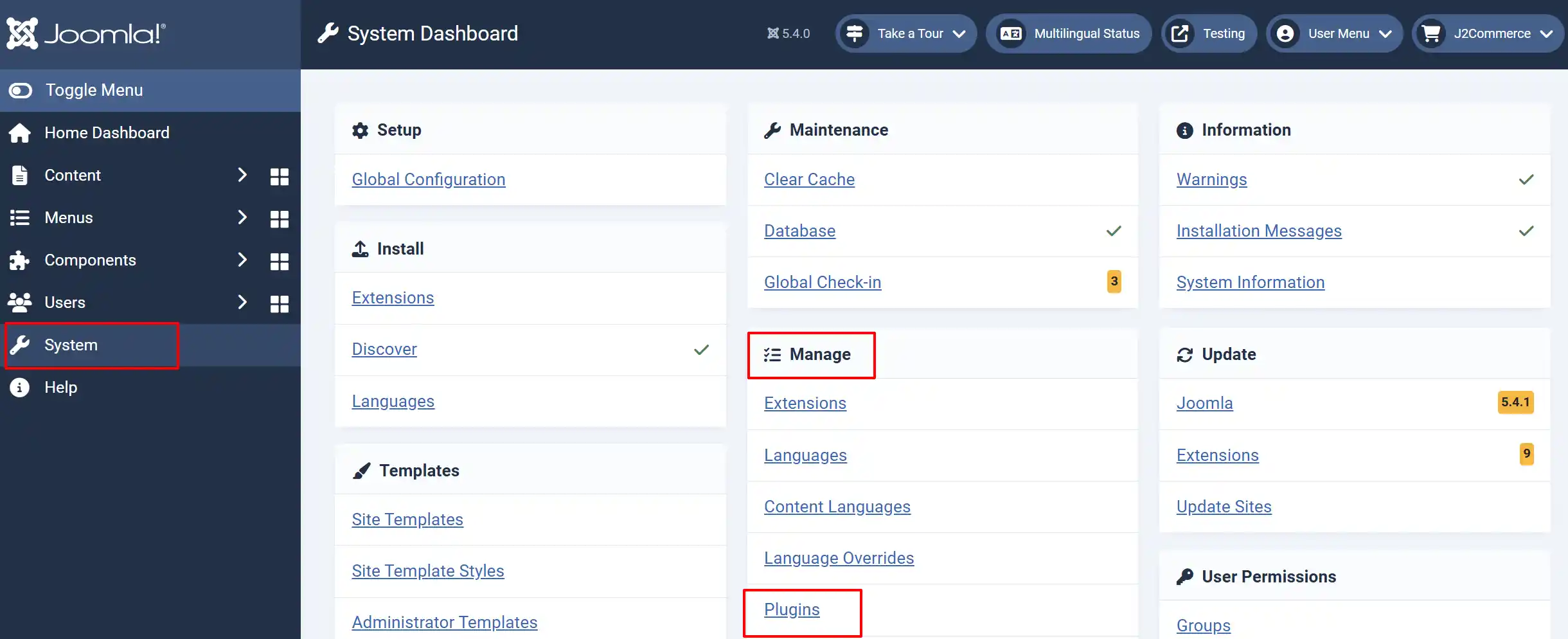
Go back to System > Manage > Plugins
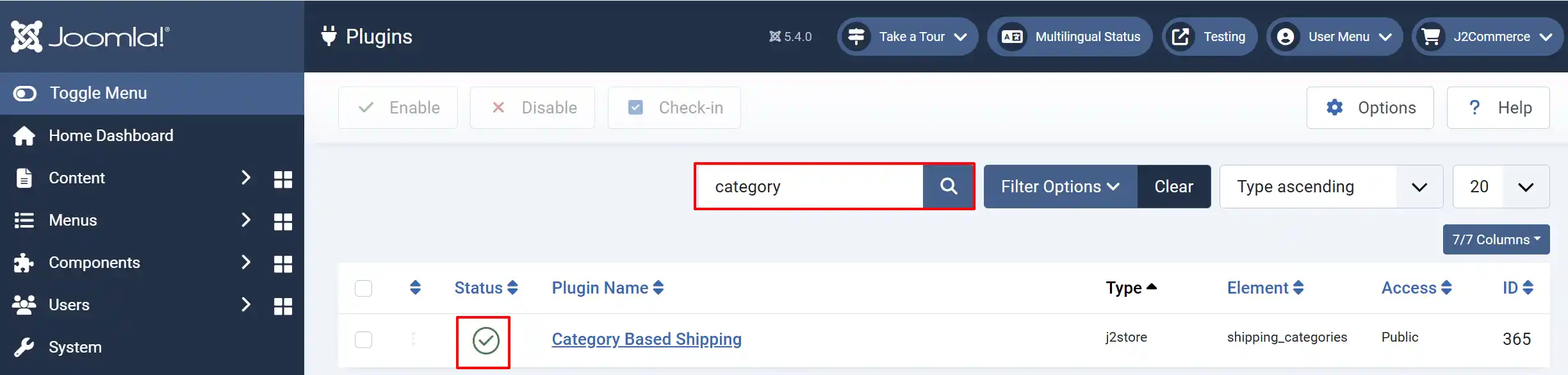
Search for Category Based Shipping
Click on the 'X' under Status to enable it
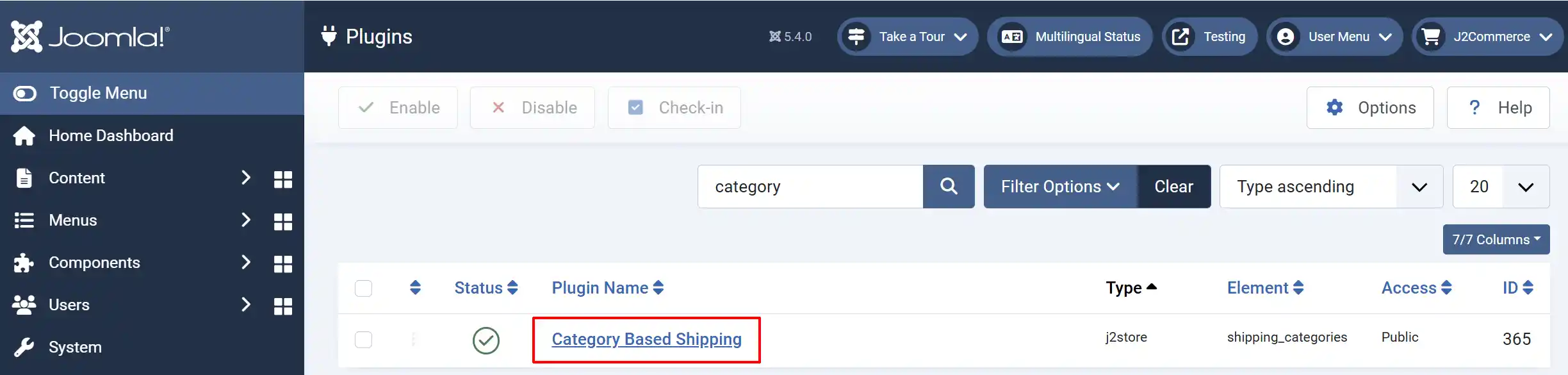
Click on the Title to start setting up the Plugin
Setting up the Plugin
Plugin Tab
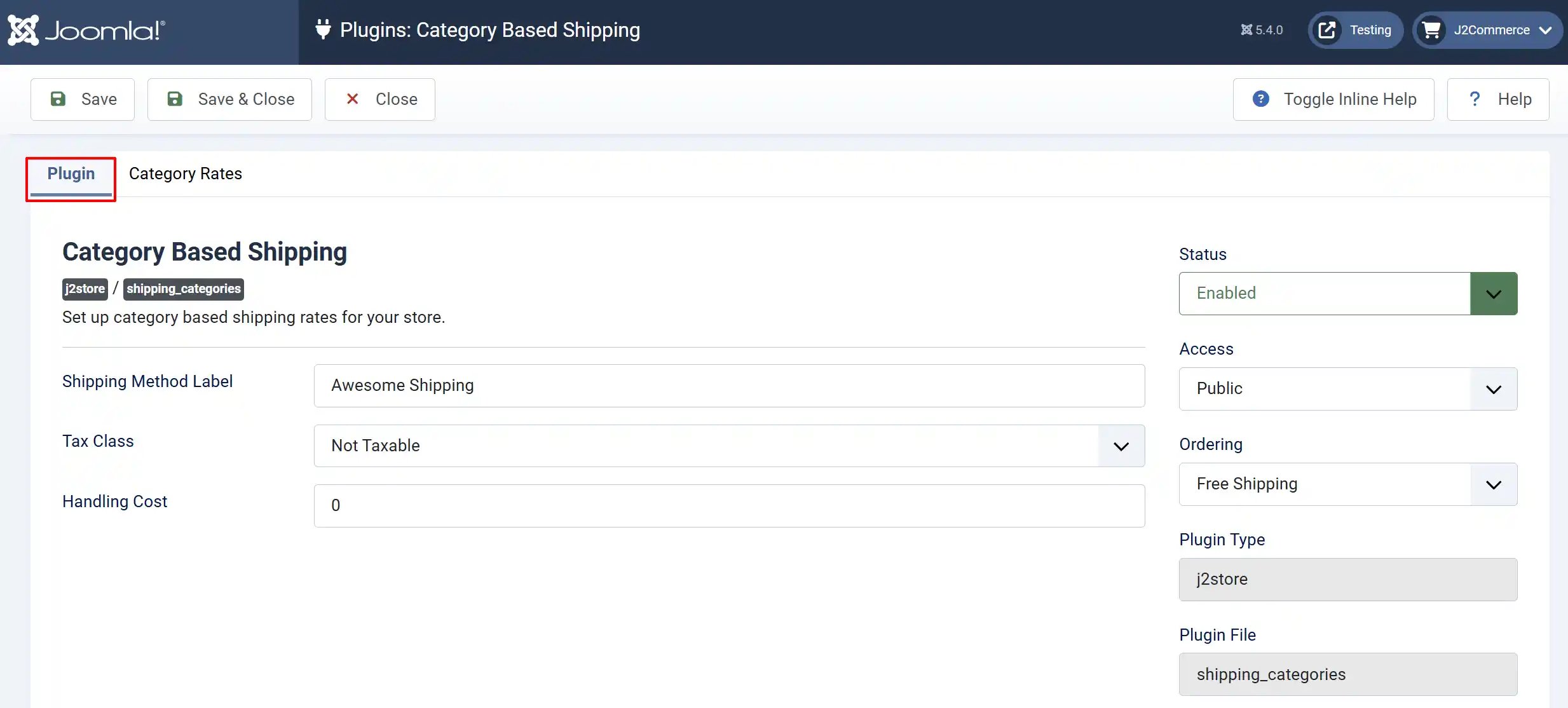
Shipping Method Label: This is the name your customers will see at checkout.
For example: "Standard Shipping", "Category Shipping", "Product-Based Shipping."
**Tip: Keep it simple and clear for your customers to know what it is.
Tax Class: If you need to charge tax on shipping, select the appropriate tax profile here. Leave empty if shipping should not be taxed.
Handling Cost: An extra fee is added to every order that uses this shipping method.
Examples:
• Enter 5.00 to add a $5 handling fee to all orders
• Enter 0 If you don't want any extra charges
Category Rates Tab
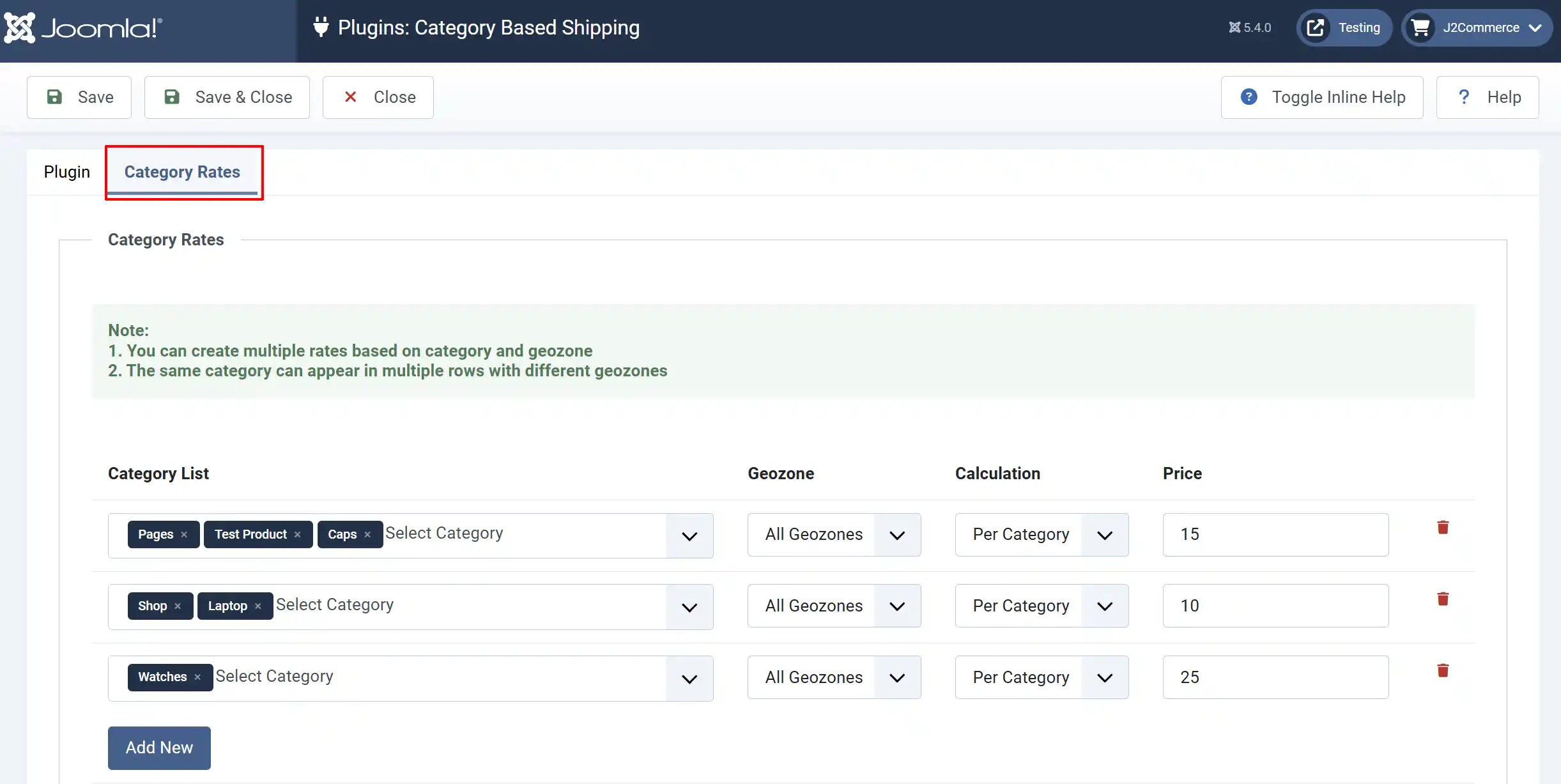
This is where you set up your shipping prices based on product categories.
Note:
1. You can create multiple rates based on category and geozone
2. The same category can appear in multiple rows with different geozones
Understanding the Rate Table
The table has 5 columns:
| Column | What It Does |
|--------|-------------|
| Category List | Select which product categories this rate applies to |
| Geozone | Choose a shipping region, or leave as "All Geozones" for everywhere |
| Calculation | How to calculate the charge (see below) |
| Price | The shipping cost for this combination |
| Action | Delete button to remove this row |
Setting Up Your First Shipping Rate
Example 1: Simple Category Shipping
Let's say you want:
• Books category = $5 shipping
• Electronics category = $10 shipping
How to Set it Up
1. Click Add New to create a row
2. In Category List, select "Books"
3. Leave Geozone as "All Geozones"
4. Set Calculation to "Per Category"
5. Enter Price as 5.00
6. Click Add New again for the second row
7. In Category List, select "Electronics"
8. Leave Geozone as "All Geozones"
9. Set Calculation to "Per Category"
10. Enter Price as 10.00
Click Save
Result:
-
Cart with a book = $5 shipping
-
Cart with electronics = $10 shipping
-
Cart with both = $15 shipping (rates add together)
Understanding Calculation Types
Per Category
Charges the rate once regardless of how many items from that category are in the cart.
Example:
• Rate: Books category = $5, Per Category
• Customer buys 1 book = $5 shipping
• Customer buys 5 books = $5 shipping (same price)
**Best for: Categories where shipping cost doesn't increase with quantity (digital goods with a physical manual,
small items, etc.)
Per Category Item
Charges the rate for each item from that category in the cart.
Example:
• Rate: Heavy Items category = $3, Per Category Item
• Customer buys 1 heavy item = $3 shipping
• Customer buys 5 heavy items = $15 shipping ($3 × 5)
**Best for: Categories where each item adds to shipping cost (heavy items, fragile items, oversized products)
Setting Up Location-Based Rates
You can charge different shipping rates based on where customers are located.
Example 2: Different Rates by Region
Let's say you want to charge different shipping costs for Electronics based on location:
• USA = $10
• Europe = $25
• Rest of World = $40
Setting It Up
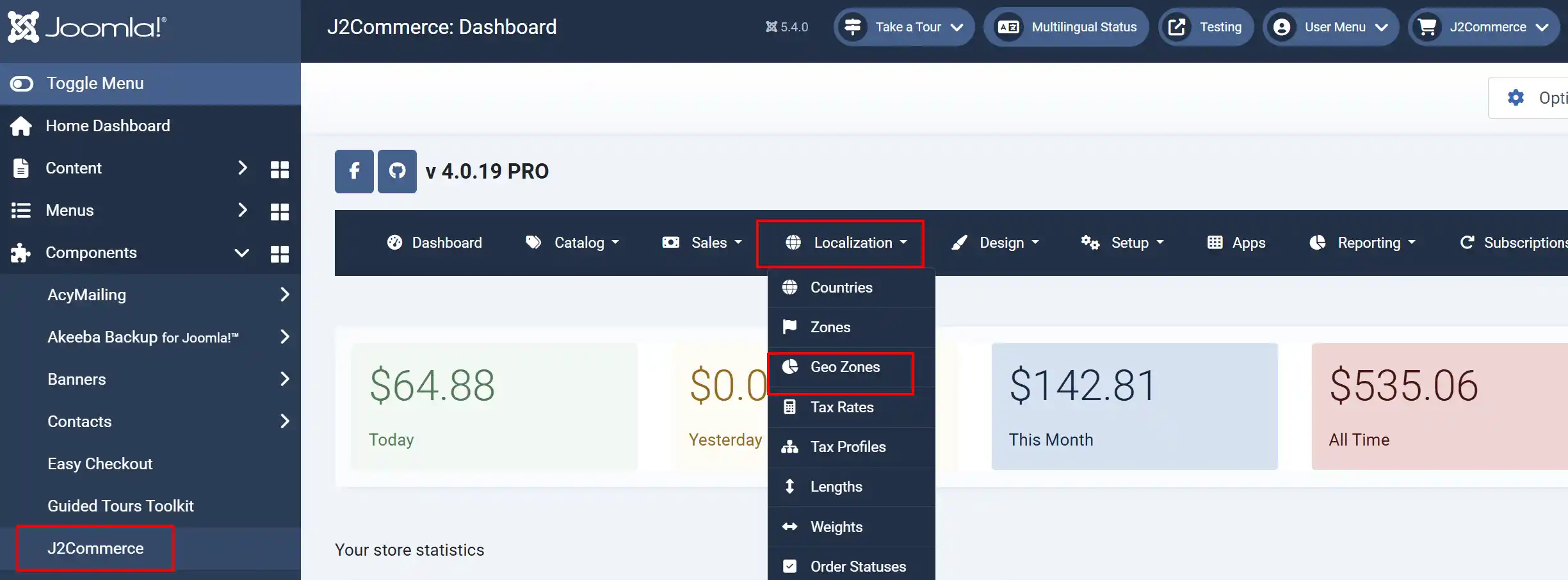
Step 1: First, make sure you have geozones set up in J2Commerce
Go to J2Commerce > Localisation > Geozones) See below for where to go.
Step 2: Create three rows:
Row 1 - USA:
-
Category List: Electronics
-
Geozone: USA (or your USA geozone)
-
Calculation: Per Category
-
Price:
10.00
Row 2 - Europe:
-
Category List: Electronics
-
Geozone: Europe (or your Europe geozone)
-
Calculation: Per Category
-
Price:
25.00
Row 3 - Rest of World:
-
Category List: Electronics
-
Geozone: All Geozones
-
Calculation: Per Category
-
Price:
40.00
Click Save
Important: Put your specific geozone rows first. The "All Geozones" option acts as a fallback for locations not covered by other rows.
Multiple Categories in One Rate
You can select multiple categories for a single rate. This is useful when several categories should have the same shipping cost.
Example 3: Grouping Categories
You want Books, DVDs, and CDs to all have $5 shipping:
Setting It Up
Step 1: Click Add New
Step 2: In Category List, hold Ctrl (or Cmd on Mac) and click to select:
-
Books
-
DVDs
-
CDs
Step 3: Leave Geozone as "All Geozones"
Step 4: Set Calculation to "Per Category"
Step 5: Enter Price as 5.00
Click Save
Result: Any product from Books, DVDs, or CDs triggers the $5 rate.
How Rates Add Together
When a customer's cart has products from multiple categories with different rates, the shipping costs **add together**.
Example 4: Multiple Categories in Cart
Your setup
-
Books = $5 (Per Category)
-
Electronics = $10 (Per Category)
-
Handling Cost = $2
Customer's cart
-
2 Books
-
1 Electronic item
Shipping calculation
-
Book rate: $5 (once, regardless of quantity)
-
Electronics rate: $10
-
Handling cost: $2
-
Total shipping: $17
Common Setup Scenarios
Free Shipping for One Category, Paid for Others
-
Digital Downloads = $0 (Per Category)
-
Physical Products = $8 (Per Category)
Per-Item Shipping for Heavy Items
-
Regular Items = $5 (Per Category)
-
Heavy Items = $10 (Per Category Item)
A cart with 3 regular items and 2 heavy items = $5 + $20 = $25
International Shipping Surcharge
-
All Categories, Domestic geozone = $8 (Per Category)
-
All Categories, International geozone = $25 (Per Category)
Troubleshooting
Shipping option not showing at checkout?
1. Check plugin is enabled: Go to Plugins and verify the status is "Enabled."
2. Check product has shipping enabled: Edit your product and ensure "Shipping" is set to "Yes."
3. Check category assignment: Make sure your products are in categories that have rates defined
4. Check geozone coverage: If using geozones, ensure the customer's location is covered
Wrong shipping amount?
1. Check calculation type: "Per Category" vs "Per Category Item" makes a big difference
2. Check for multiple matching rows: Remember, all matching rates add together
3. Check handling cost: This is added to every order
Customers seeing "All Geozones" rate instead of specific rate?
-
Make sure the specific geozone rows appear before the "All Geozones" row
-
Verify the customer's address matches the geozone you set up