A simplified guide for the New EU VAT rules 2015 for digital goods and setting them up in J2Commerce
If you are a seller of digital goods and services, you would probably be wondering about the new European VAT rules that came into effect from January 1, 2015. For detailed information on taxes, please consult an expert. J2Commerce is not held responsible VAT / Tax changes.
Since the rules are a bit of a pain, we have come up with a simplified guide that will help you implement the new rules easily in your J2Commerce Joomla! shopping cart.
The New VAT rules
In simple terms, the new VAT rules are:
- If the company sells to any country in the EU, it will have to charge VAT in the country of the buyer instead of the seller.
- If the buyer of the digital goods is an individual, the company has to charge the VAT percentage from the country of buyer
- If the buyer of the digital goods is a company (with a valid VAT number), there is a 0 percent VAT charge.
- If the buyer of the digital goods is a company without a VAT number or has an incorrect VAT number, then VAT of the country of the buyer must be charged.
- If the company sells digital goods to companies or individuals in their own country, local VAT needs to be charged.
Purchase the European VAT plugin
We have created a VAT plugin that helps you implement the VAT rules automatically. Download and install the plugin.
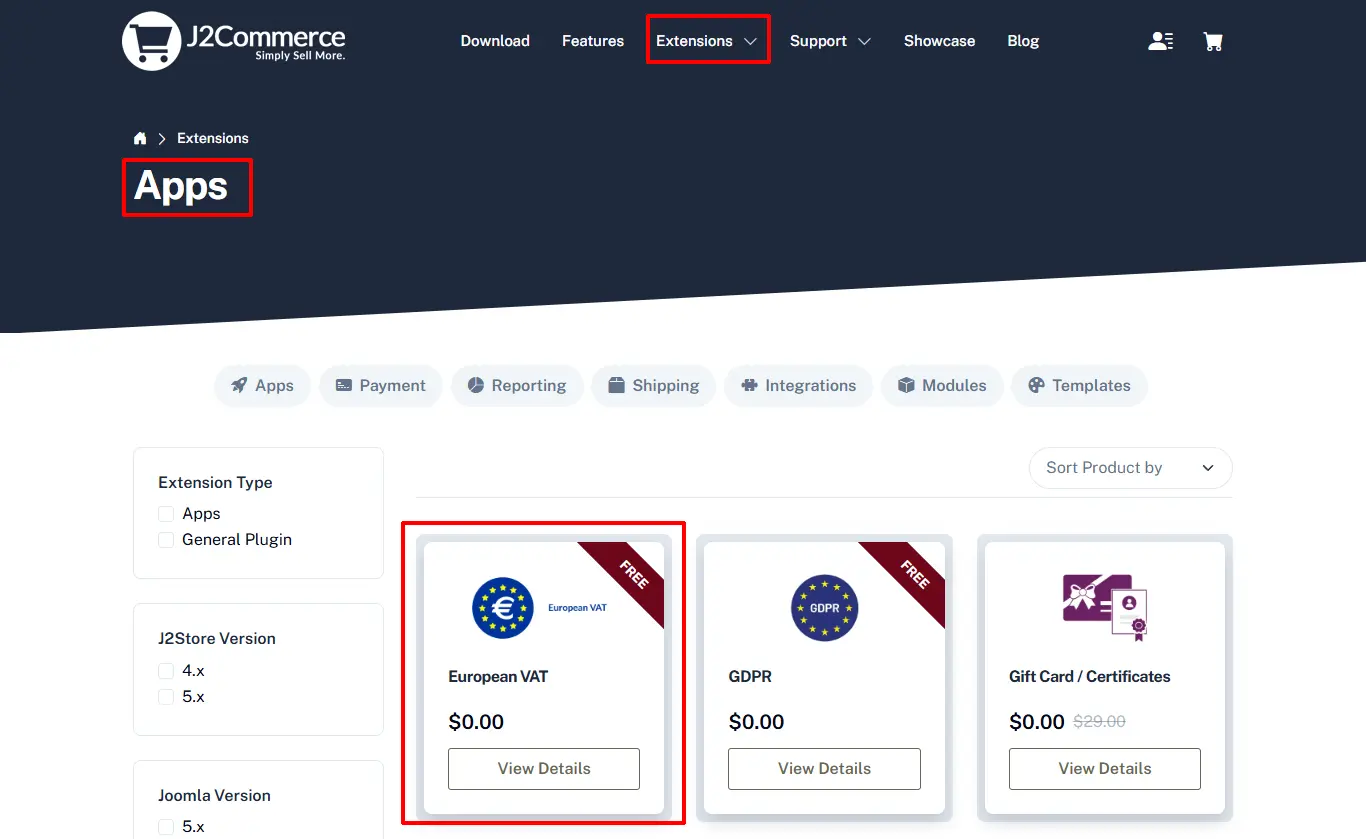
Step 1: Go to J2Commerce > Extensions > App
Step 2: Locate the European VAT App > click View Details > Add to cart > Checkout.
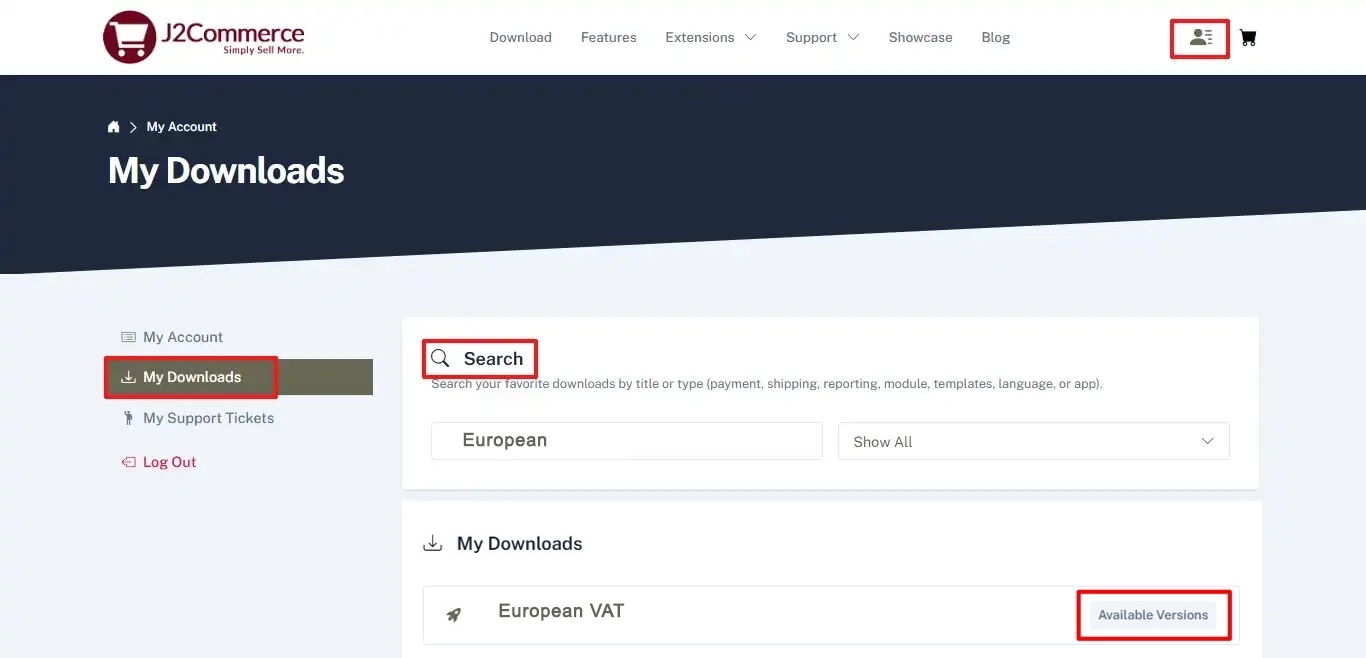
Step 3: Go to your My Downloads under your profile button at the top right corner and search for the app. Click Available Versions > View Files > Download Now
Installing the App
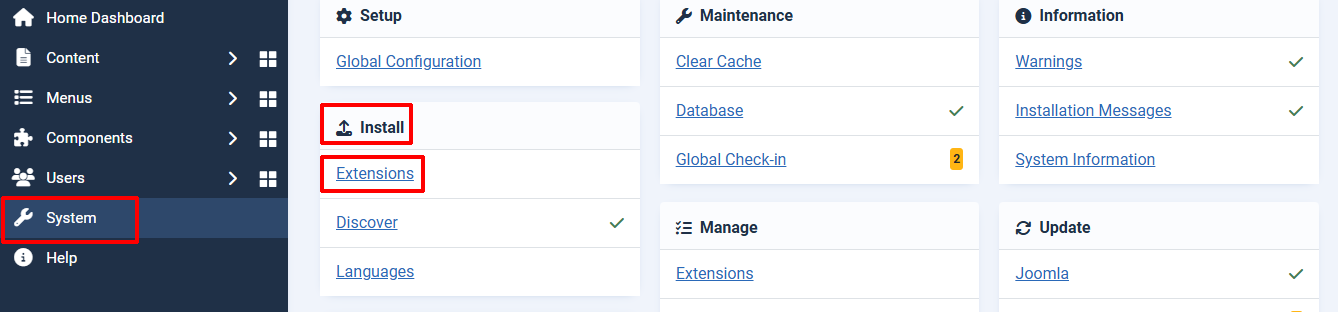
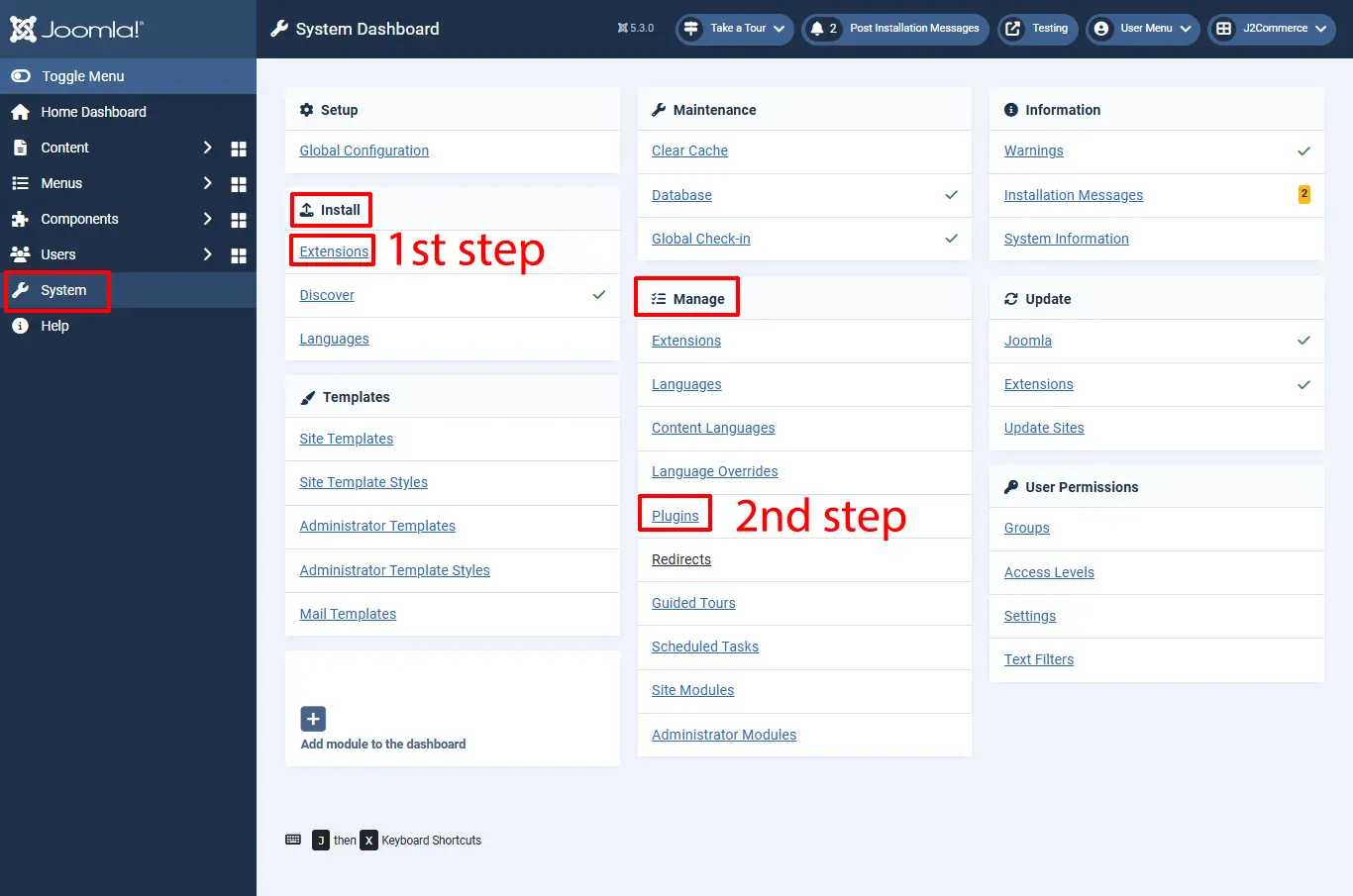
Step 1: Go to System > Install > Extension > to install the plugin
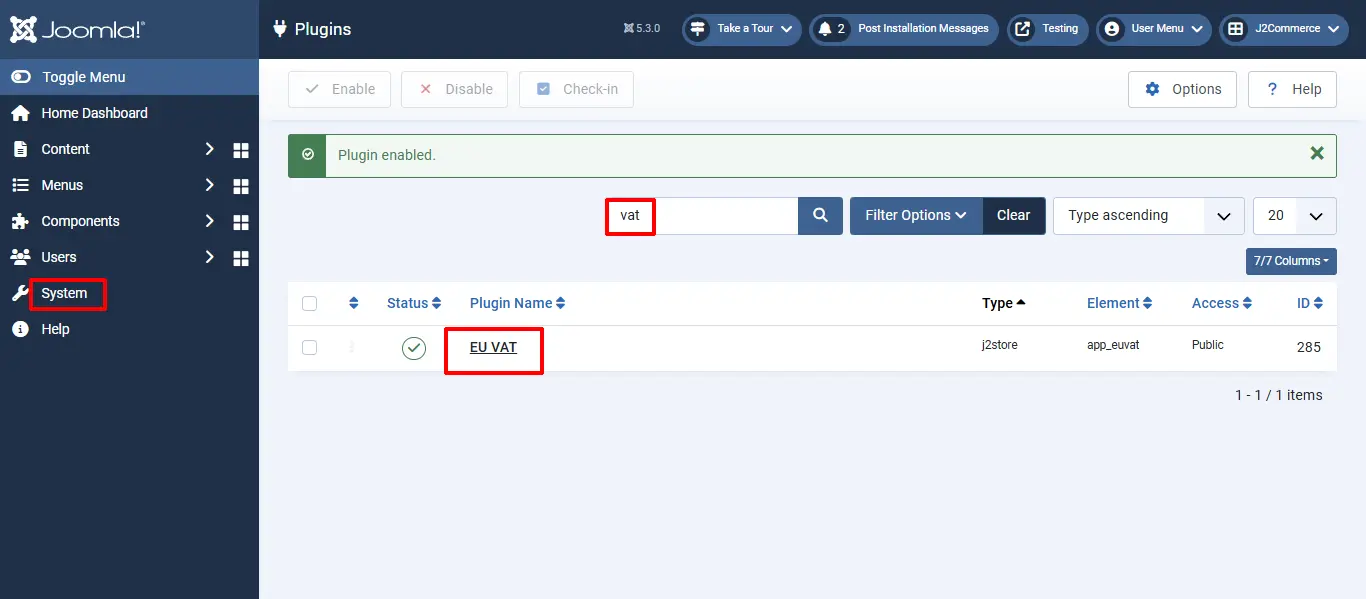
Step 2: Go to System > Manage > Plugins and search for EU VAT and enable the EU VAT plugin
Implementation
Let us assume that your company is located in: United Kingdom, Bristol, and your home country (local ) VAT is 21 %
Store Configuration
Go to Components > J2Commerce > Setup > Configuration > Store tab
Set the Default Country to the United Kingdom.
Set your Default Zone to Bristol
Tax rule for Home Country
First, we should define the geo zone and tax rates for the home country, that is the country in which your shop is located.
2.1 Define Geo Zone
Go to Components > J2Commerce > Localization > Geo Zones > New
Geo Zone Name: Home VAT Zone ( It can be anything. It is used just as a reference )
Status: Enabled
Add country / Zone
Choose the United Kingdom from the Dropdown list and add it
Save and close
2.2. Define Tax rate:
Go to Components > J2Commerce > Localization > Tax Rates > New
Name: Home VAT Rate
Tax Percent: 21
Geo Zone: Home VAT Zone
Status: Enabled
Tax rule for an EU Country. Let us take Germany as an example. Let us say, Germany’s VAT charge is: 25 %
A few countries might have the same VAT rate for digital goods. You can group them under one geo zone.
For this example, I am going to stick with one EU country, that is Germany.
3.1 Define Geo Zone
Go to Joomla admin – J2Commerce – Localization – Geo zones – New
Geo Zone Name: Germany VAT Zone ( It can be anything. It is used just as a reference )
Status: Enabled
Add country / Zone
Choose Germany from the Dropdown list and add it
If some other EU countries also implement a 25 % VAT, then you can group them under this geo zone itself
Save and close
3.2. Define Tax rate:
Go to Components > J2Commerce > Localization > Tax Rates > New
Name: Germany VAT Rate
Tax Percent: 25
Geo Zone: Germany VAT Zone
Status: Enabled
Setting up the Tax Profile
It is sufficient to set up ONE tax profile for digital goods, in which we can associate many tax rates.
Go to Components > J2Commerce > Localization > Tax Profiles > New
Tax Profile Name: Digital Goods Tax Profile
Status: Enabled
Setting up the Tax Rates Mapping
4.1. Choose Home VAT Rate 21 % and choose Billing Address as the Associated Address.
4.2. Choose the Germany VAT Rate 25 % and choose Billing Address as the Associated Address.
Save.
Applying a tax profile to a product
J2Commerce uses native Joomla articles as products. So go ahead and create a product.
Go to Content > Article > New or open your digital product.
Select the J2Commerce (J2Store Tab) > Tax Profile, and Choose Digital Goods Tax Profile.
Fill in other relevant fields for your product and save.
Application of VAT rules with Examples:
Now we have successfully configured the tax rules in J2Commerce. Let us see how they will be applied to different scenarios
Example 1: Buyer ( can be an INDIVIDUAL or company ) from the same country (Home country )
Our shop is located in the United Kingdom. And the buyer is from the same country. So the local tax of 21 percent applies.
Example 2: Buyer ( INDIVIDUAL ) from a different EU country (Germany )
The buyer is from Germany and he is an Individual customer. So we are charging him the German VAT rate of 25 %
Example 3: Buyer ( COMPANY ) from a different EU country WITHOUT a valid VAT Number
The customer is from Germany. He has entered a company name. But his VAT number is INVALID. So we apply Germany’s VAT rate of 25 %.
(The EU VAT plugin validates the VAT number provided against the EU database.)
Example 4: Buyer ( COMPANY ) from a different EU country WITH a valid VAT Number
The customer is from Germany. His VAT number is VALID. So NO tax is applied. If you have any questions or suggestions, please post in the ticket system.