Downloadable product
Introduction
The product type allows you to sell digital products like PDF, images, audio, video, software, e-books etc. The customer will be able to download the file immediately after making the payment.
Product Settings
The settings in this type are almost identical to simple product, except for a very few.
Since this is downloadable, obviously, it has no shipping option. Likewise, there is no options page also, to choose a color or size, because it has no physical existence.
But there is a unique option Files for this product type. Have a look over that option.
Files

Step 6: When you click on 'Set Product Files' from the photo above, the window below will pop up. This is where you will attach your downloadable file and name it. After selecting Create, the download files will appear below them.

Select the file and click the create button, and you will get the product listed below as shown in the picture. You can add as many files as you can to the folder. When a customer purchases the product, all the files associated with the product will be available for download.
VERY IMPORTANT: In configuration > basic settings, the File attachment path field should point to an existing directory inside your website root.
If you specify a directory outside the public root, then you should enter the full file path manually.
** A file has to be associated with a downloadable product. If not, no downloadable link would appear in the My downloads section of the user’s My profile page even if the user has bought the product and paid.**
Download limit
This determines the maximum number of copies allowed to be downloaded by a single customer. Enter a numeric value to set the limit.
**VERY IMPORTANT NOTE: This parameter must have a value. If no value is inserted in this field, the downloadable product wouldn’t appear in the My downloads section even if the user has paid successfully for the order.
Download Expires (in days)
This will set a deadline for the product link to be active to download the product. If the deadline is set to be 15 days, for instance, the link goes inactive on the start of the 16th day.
All other options are the same as a simple product.
**VERY IMPORTANT NOTE: This parameter must have a value. If no value is inserted in this field, the downloadable product wouldn’t appear at the My downloads section even if the user has paid successfully for the order. **
A Step-by-step example to create a downloadable product
J2Commerce implements an innovative concept in creating products. It uses the Joomla articles as products. So, to create a product is to create an article.
So, let's create an article.
Creating an Article
Have a look at the image below: Start by creating a 'New' Article. Go to Content > Article > New.
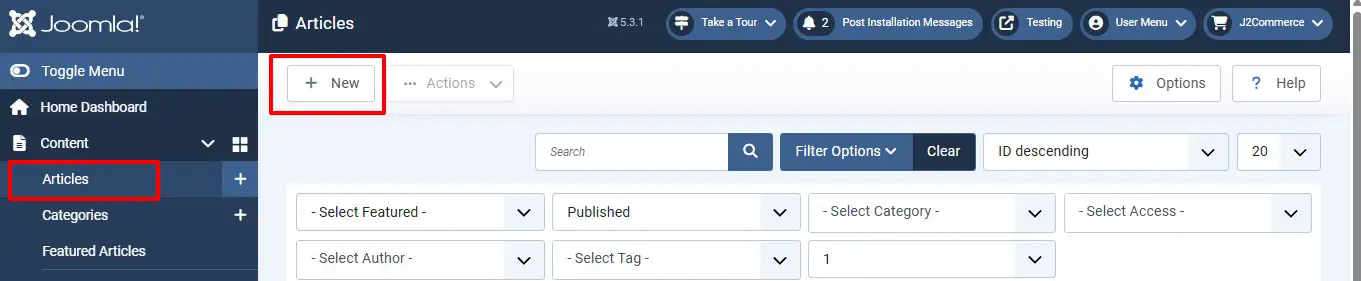
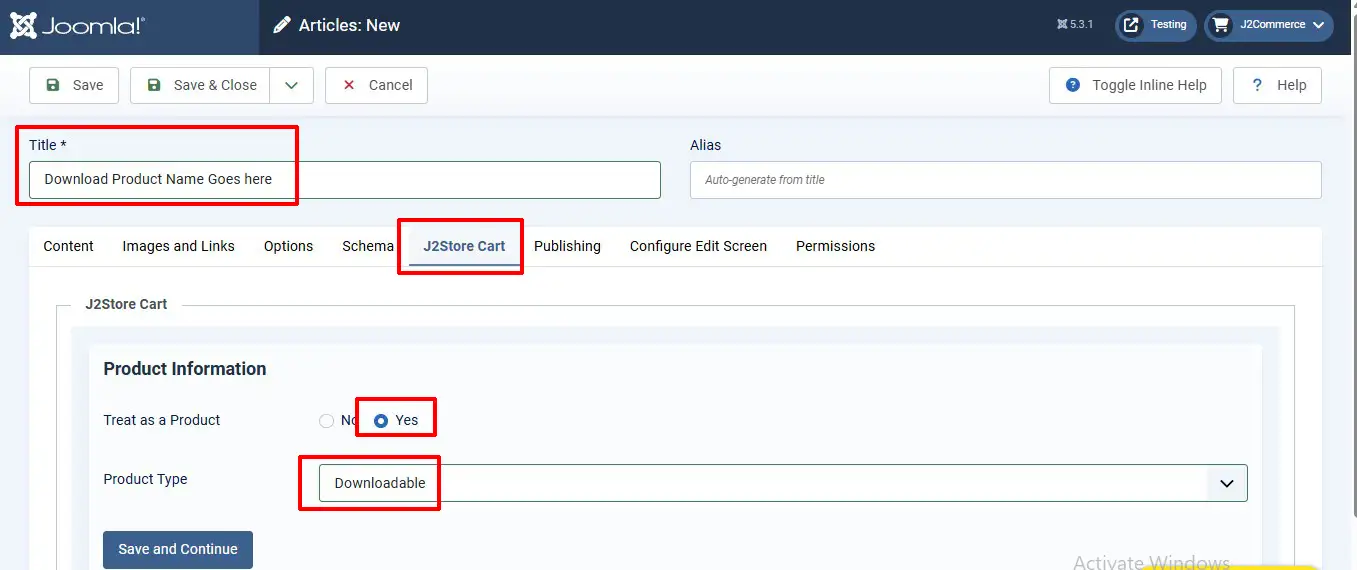
A downloadable product is one that has no physical existence. It can be downloaded as per the terms and conditions of the seller. It can be a book, a video, a music album or even a software extension like Joomla! extension. To create a downloadable product, follow the steps:
- Enter the name for your product.
- Since you are creating an article, you need to tell that the article should be treated as a product. So, select ‘Yes’.
- Select the type of product, i.e., ‘Downloadable’.
- Now, click the ‘Save and Continue’ button.
Add a description for the product, as illustrated below. 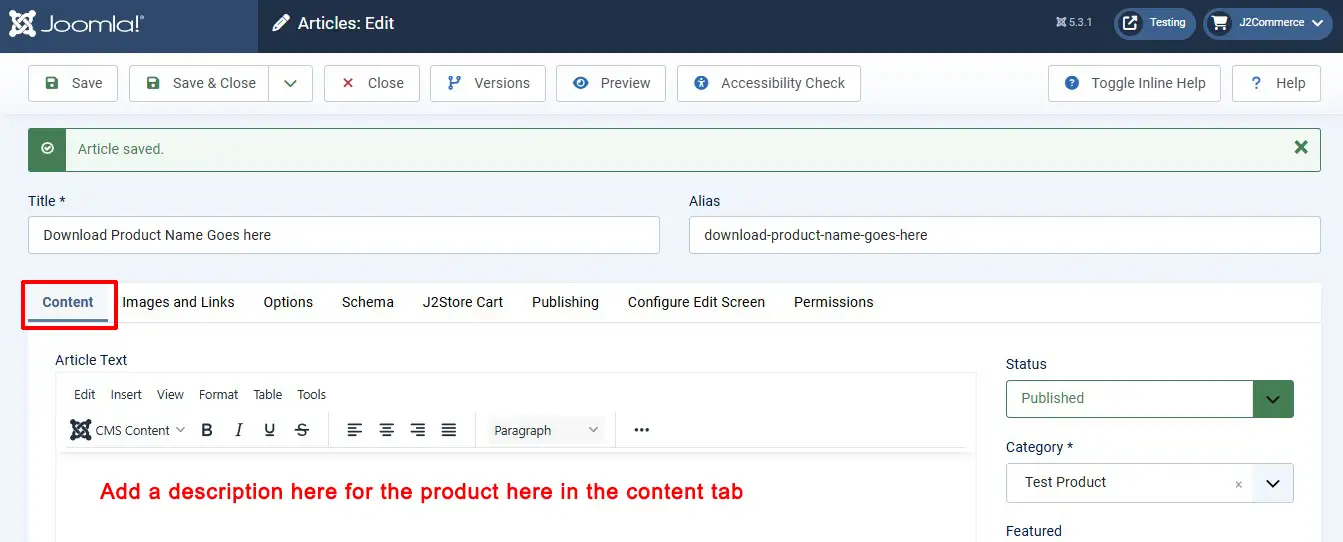
How to set the parameters:
General
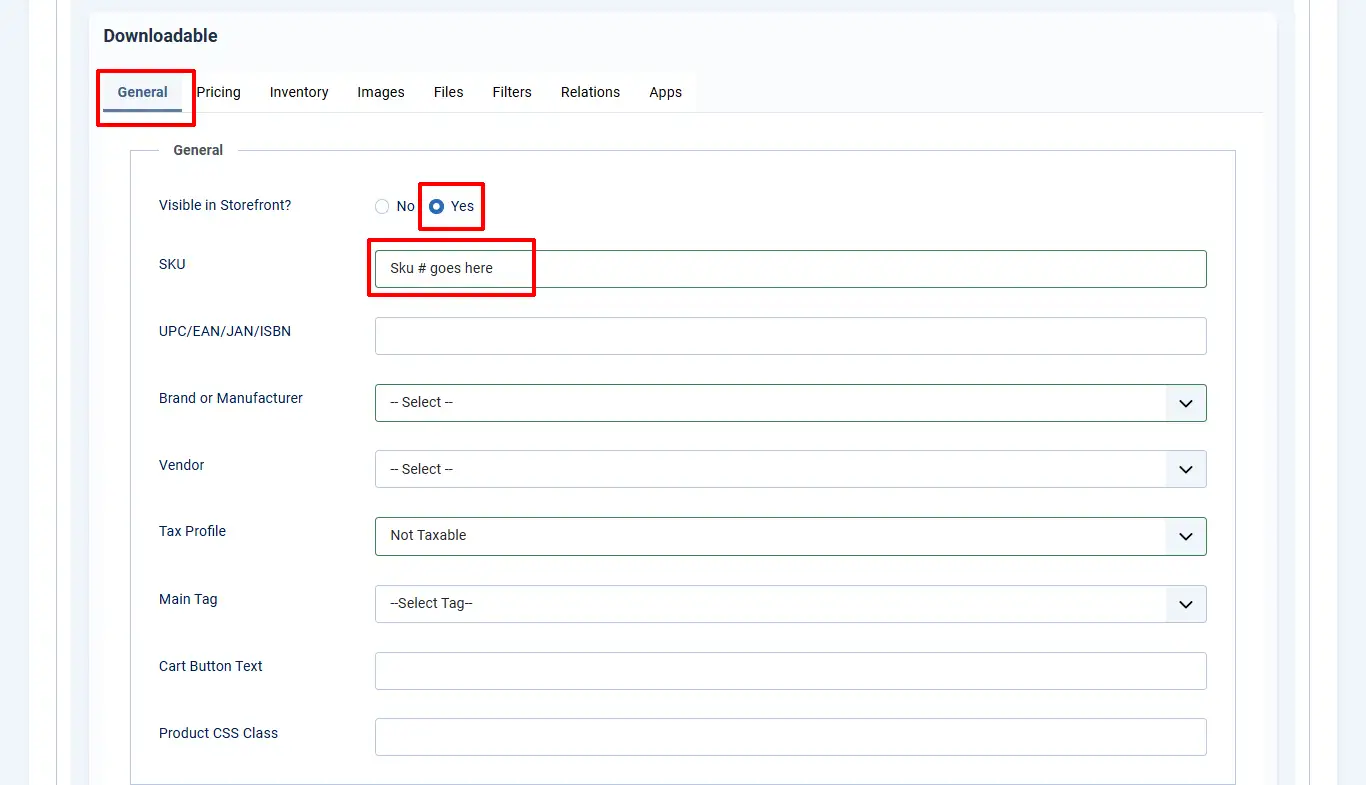
Enter the details as required by the fields in the tab, like SKU, UPC/EAN, brand, vendor, tax profile and the caption for the cart button. Once you enter them, you can navigate to the next tab, pricing.
Pricing
In Pricing, you can set the price for your product. You have the option to set up advanced prices, like discount offers, as shown in the following images.

In the above image you set up the regular price for the E-Book. Click the set prices button to set advanced/special prices. It will pop-up a window to set the special prices, like this.
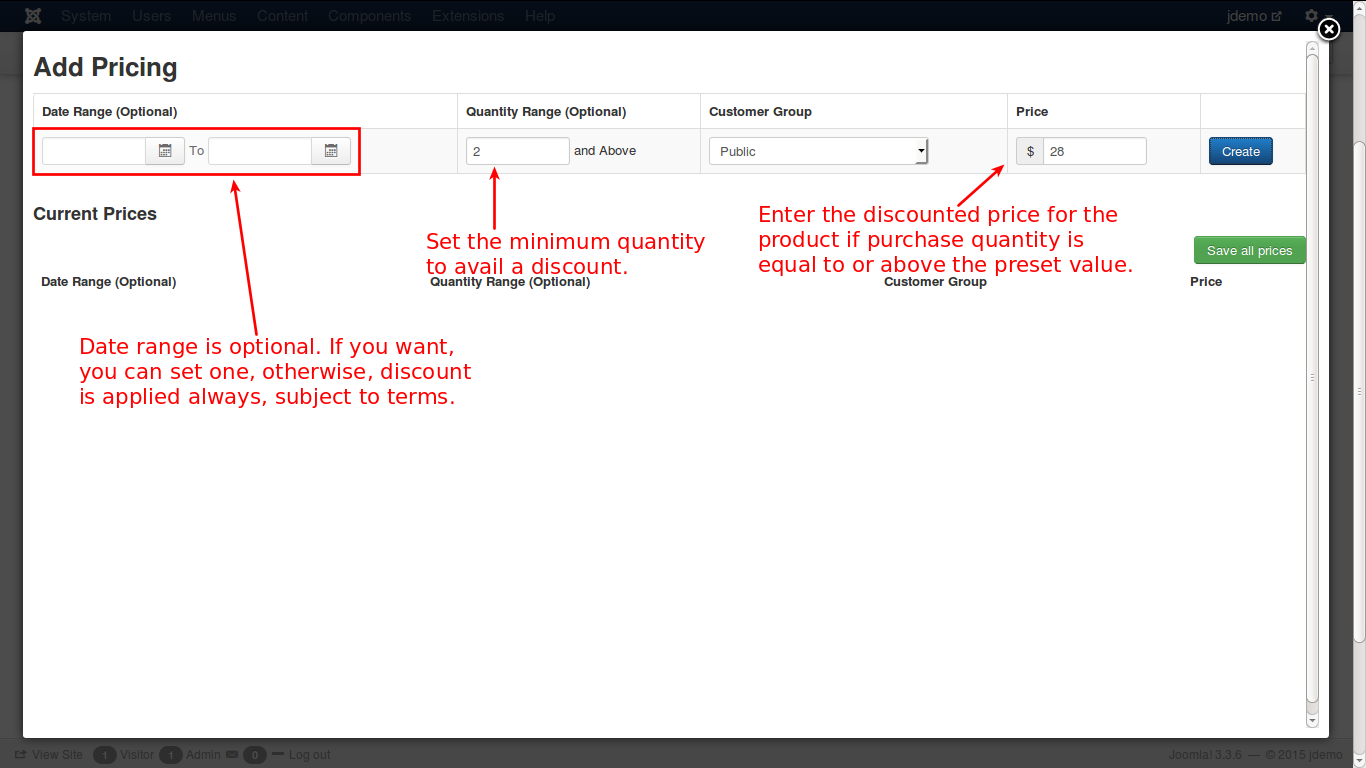
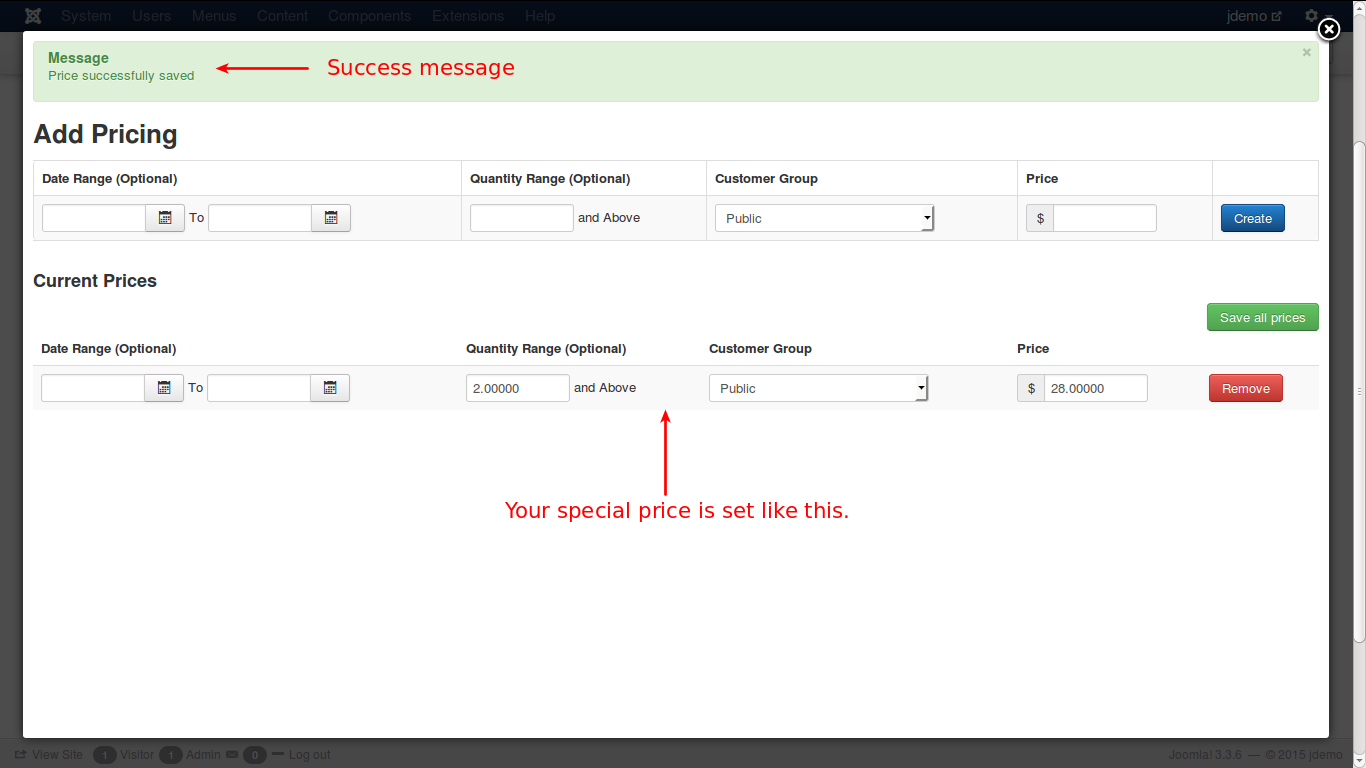
In the above image, you can set a date range for the special price; otherwise, you can leave it empty for the special price to be applied always. For example, if a customer buys 2 or more copies of the E-Book, you can offer a discount on price throughout the year. Now, you have entered the values, and click the blue ‘Create’ button and you will get the special price listed below, as shown in the image.
Images
When you select the images tab, you will get a screen like this.
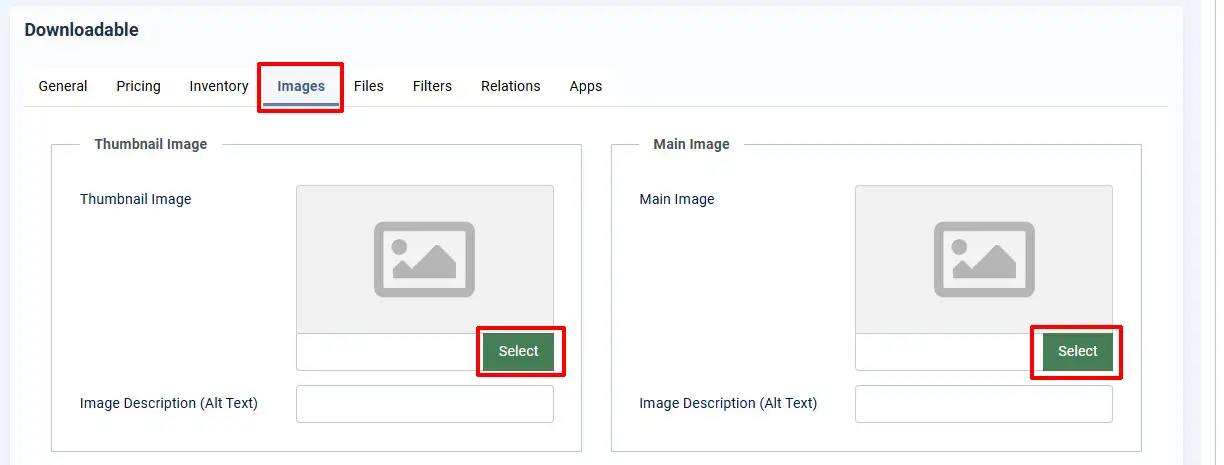
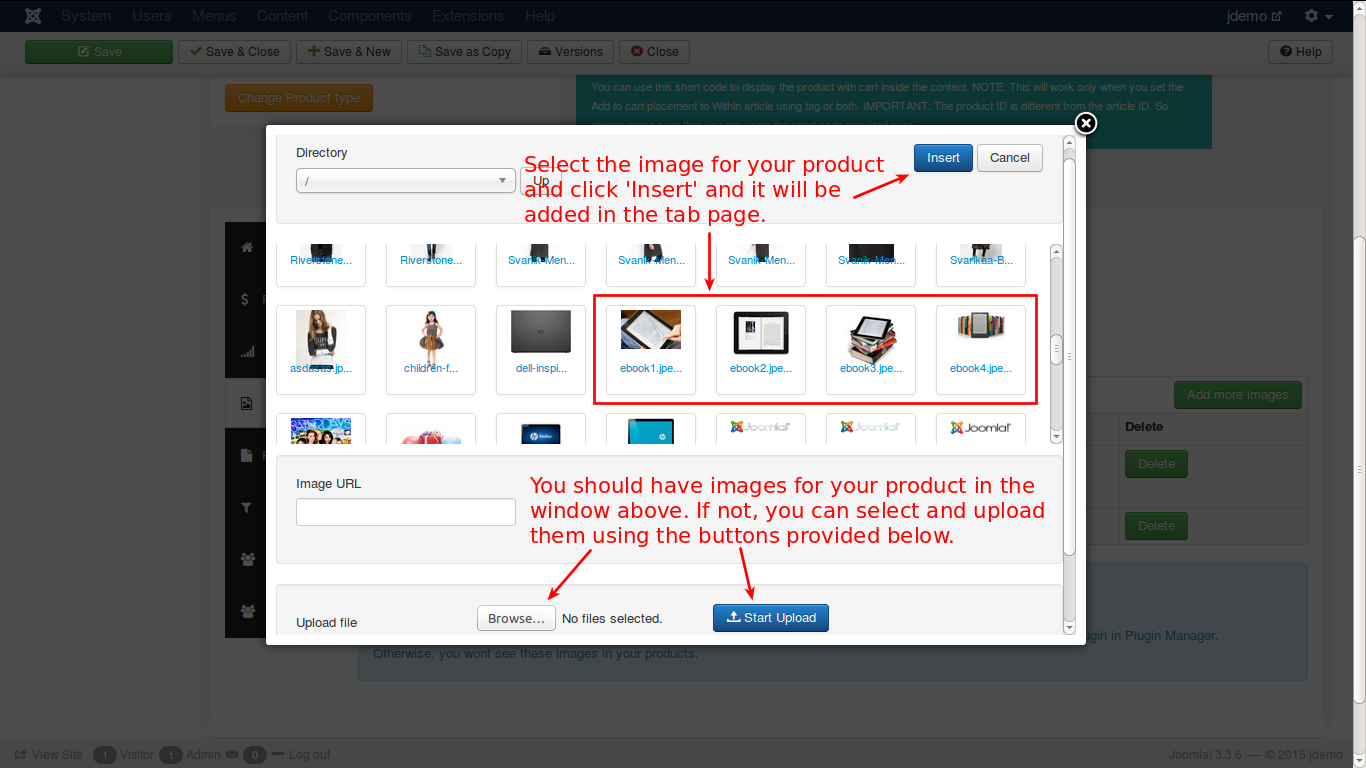
Click on the Select an image button. You will get a pop-up window, where you can select a suitable image for your ebook, as shown below:
Files
Unlike other products, you do not have options and shipping tabs for a downloadable product. But there is a unique tab, Files is present here. You must have a separate folder or directory on your site to place the downloadable products. From that folder, the product will be downloaded when the buyer fulfills the requirements for the download.
The following steps will guide you to set up a folder with a downloadable product.
Step 1: Create a folder on your site to upload the files
You can use your Hosting Provider’s CPanel File Manager or an FTP client like FileZilla to access your web root (public_html / www / httpdocs ).
Once you are in the web root, you can create a folder. Name it as: myfiles.
Step 2: Protect the folder from outside access
We do not want people to access this folder using their browser and download files. So let us protect this folder using a .htaccess file.
Create a file called htaccess.txt on your computer and open it with your favorite text editor. Add the following lines to it.
order deny, allow deny from all
Save the file. Now upload it to the folder we just created in our web root. In our example, it is myfiles.
IMPORTANT: Rename the file to .htaccess
All the files uploaded to this folder are now protected.
Step 3: Point J2Commerce to use the files in this folder.
Go to Joomla admin > j2Commerce Dashboard > Set up > Configuration > Basic settings
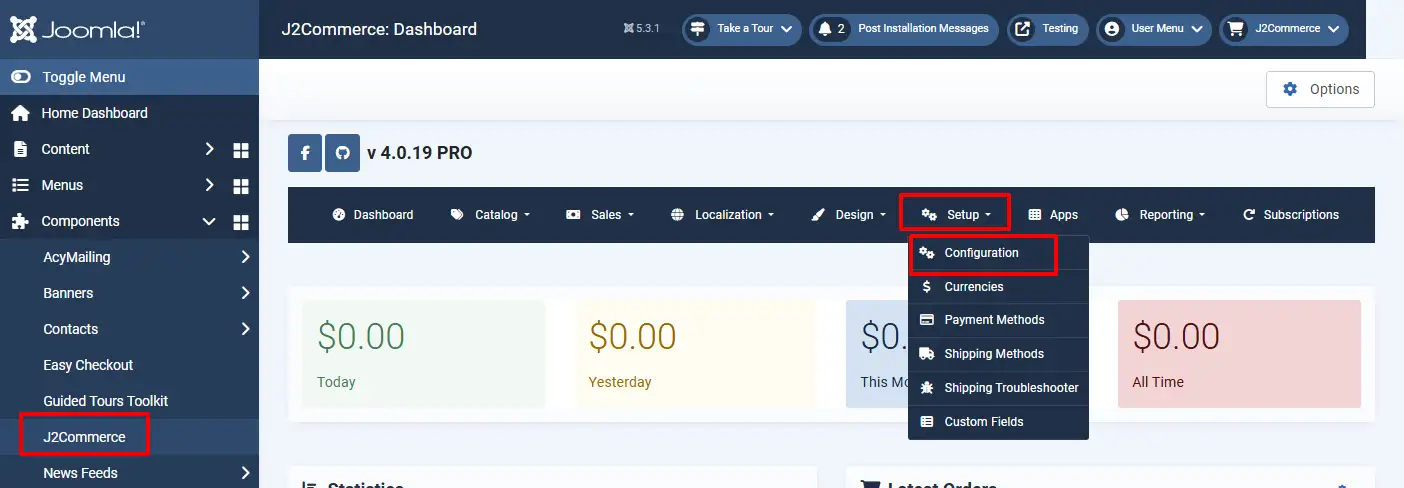
In the File attachment path field, enter the name of the folder that contains your files. In our example, it is: myfiles.
Check the image below:
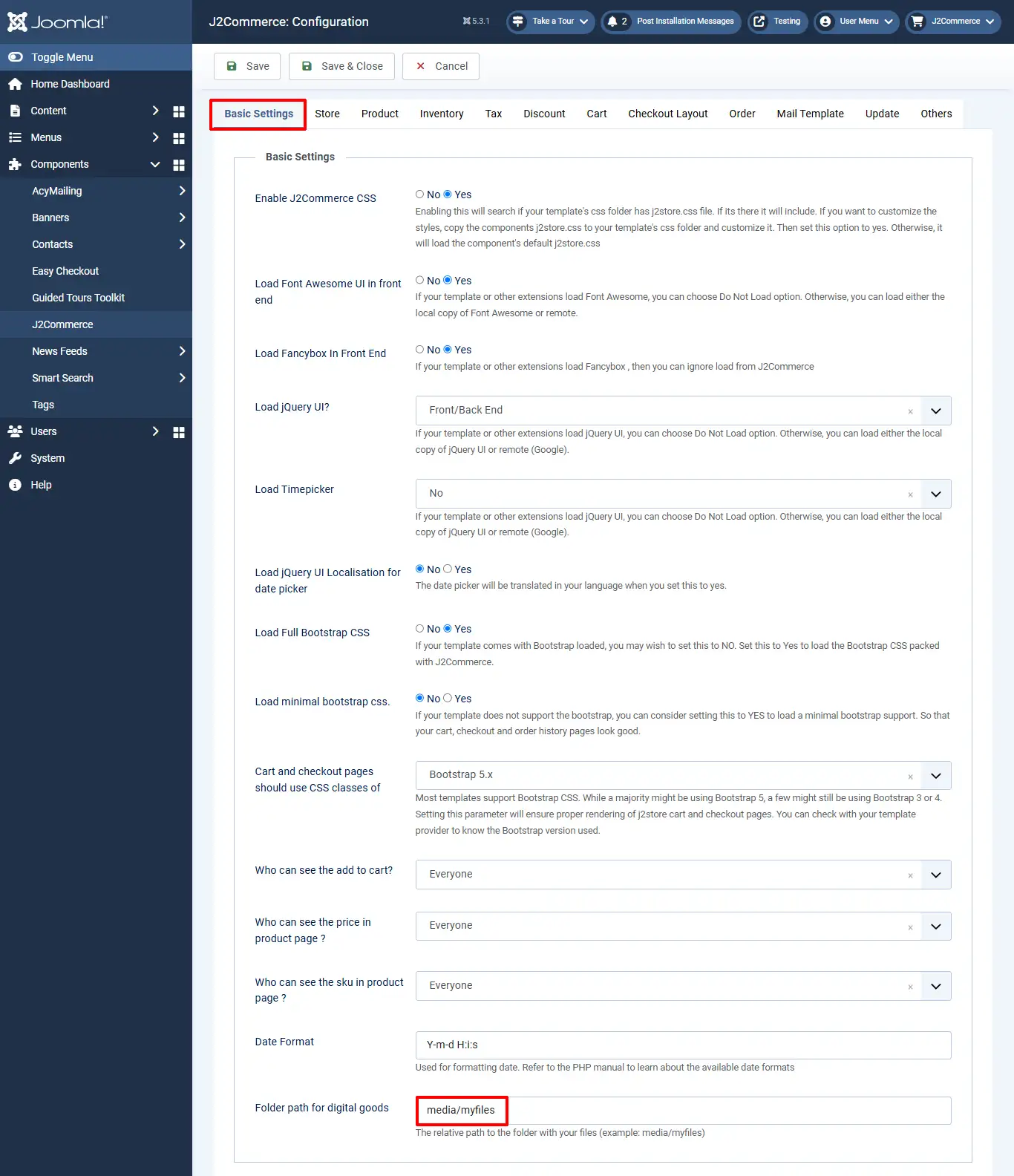
Finally, save the configuration. You have created a folder to upload your digital products like ebook, pdf files, image files etc., set up a protection mechanism from unauthorized access and configured the folder in your configuration page.
If you don't already have a My Profile menu type, then follow the steps below. Otherwise, skip to the next step.
Let us create a Downloads Area for the customers
-
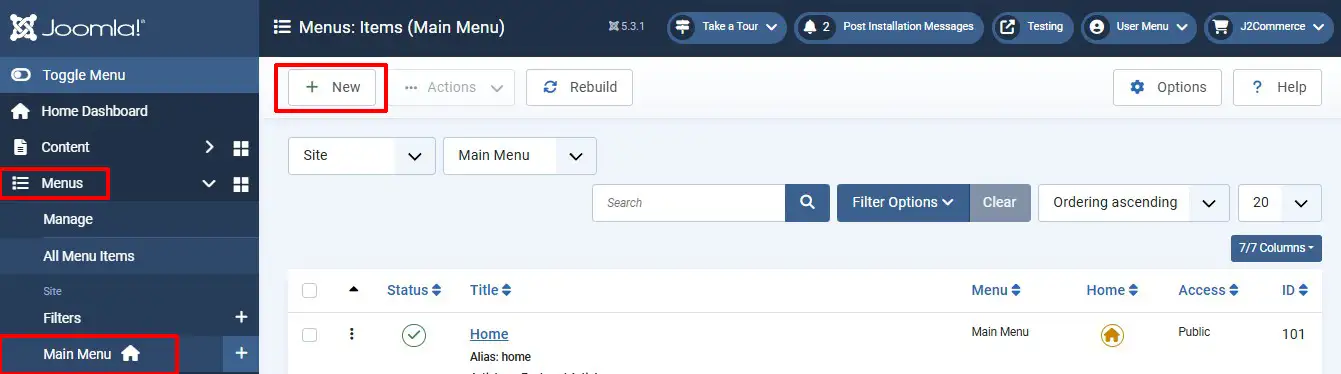
Go to Joomla admin > Menus > Main Menu
-
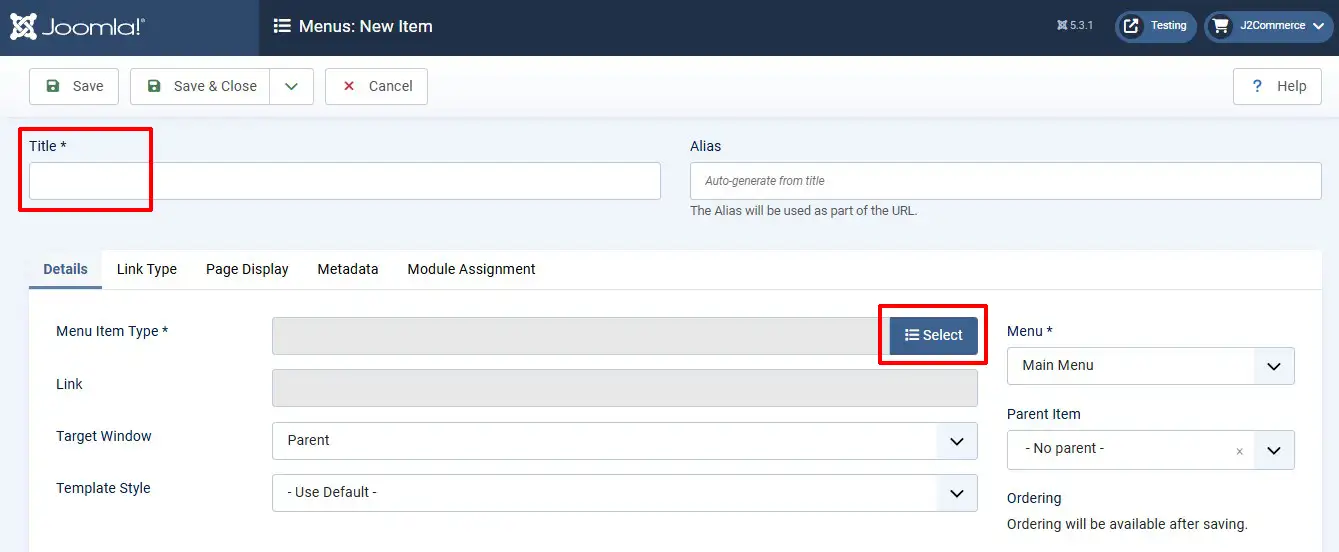
Click New to create a new menu
-
Enter a Name
-
Click Select in the Menu Item Type
-
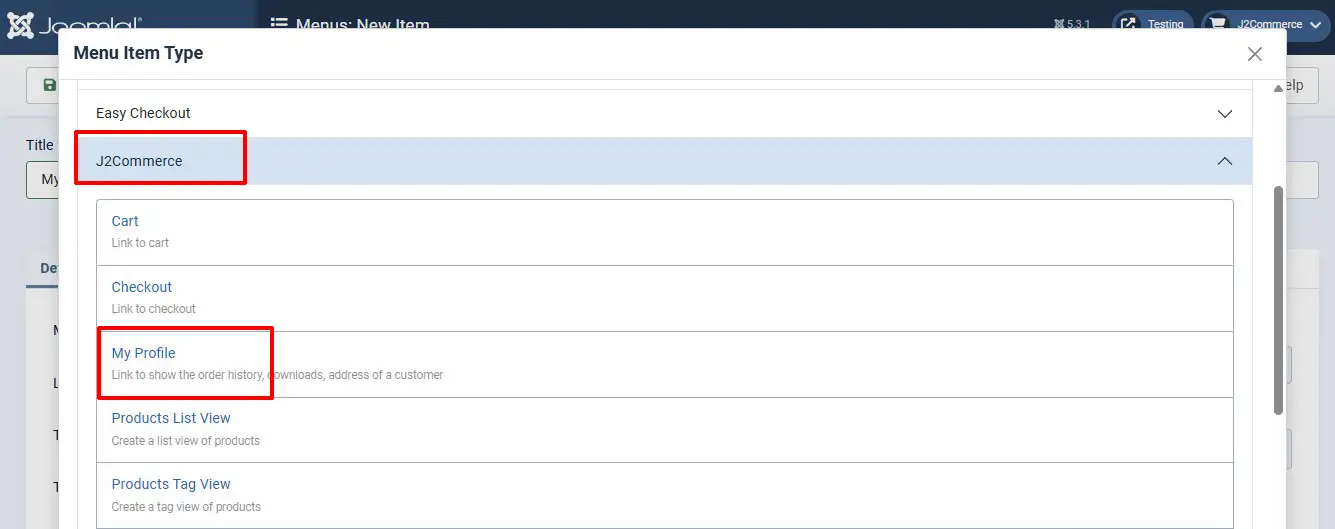
Choose J2Commerce > My Profile
Check the image below.
Click Save
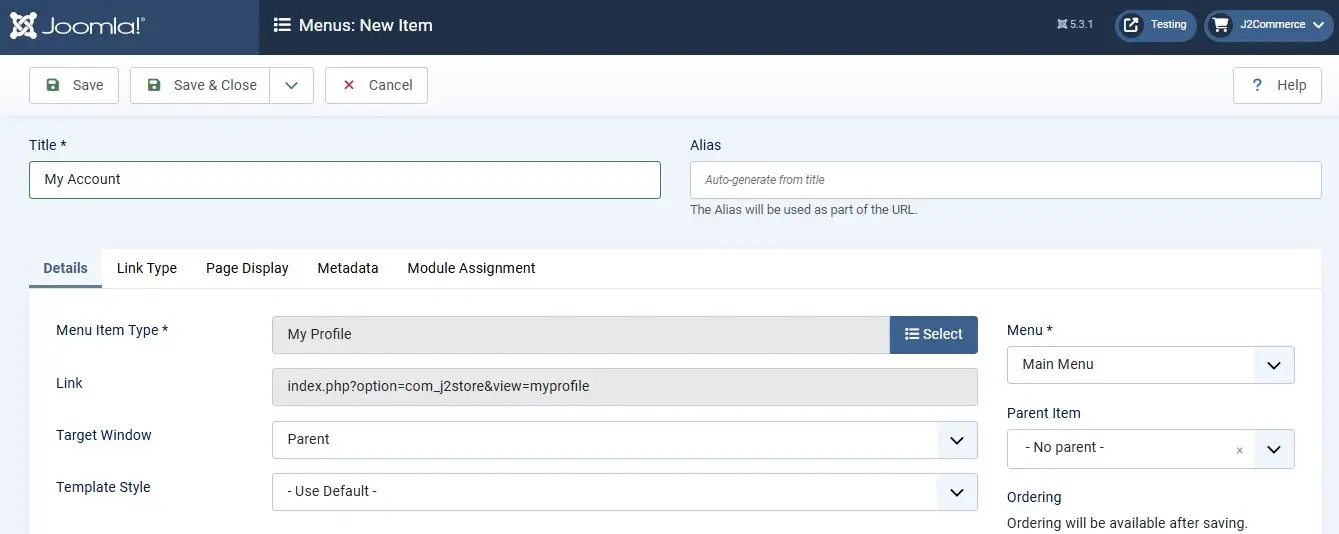
You just have to tell the customers to visit 'My Account' on the frontend of your website to get their files after their purchase.
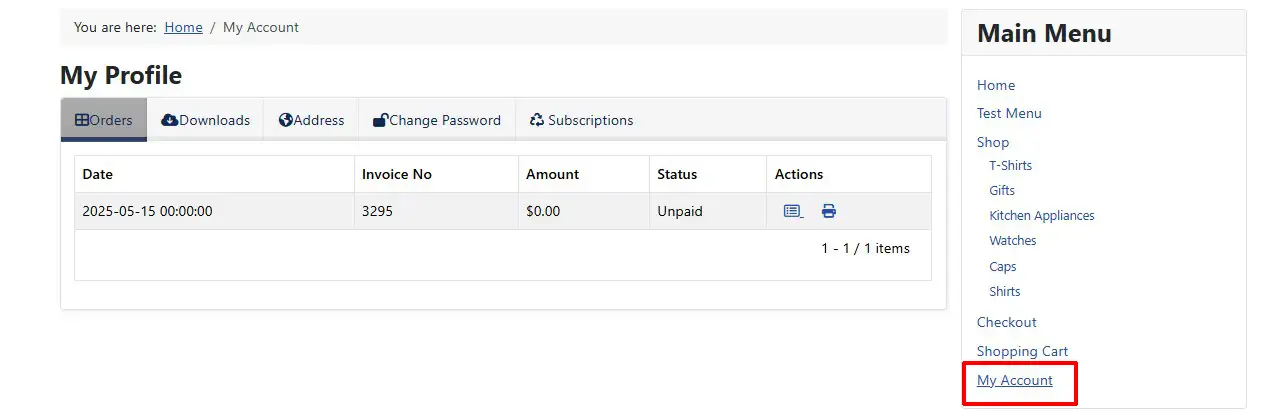
When the customer purchases the downloadable product and finishes the checkout process, the order is completed, and the status becomes ‘Confirmed’. If My Profile is clicked, the orders will be listed as shown below:

And when ‘Downloads’ tab is clicked, it will show the download link like this:

Filters
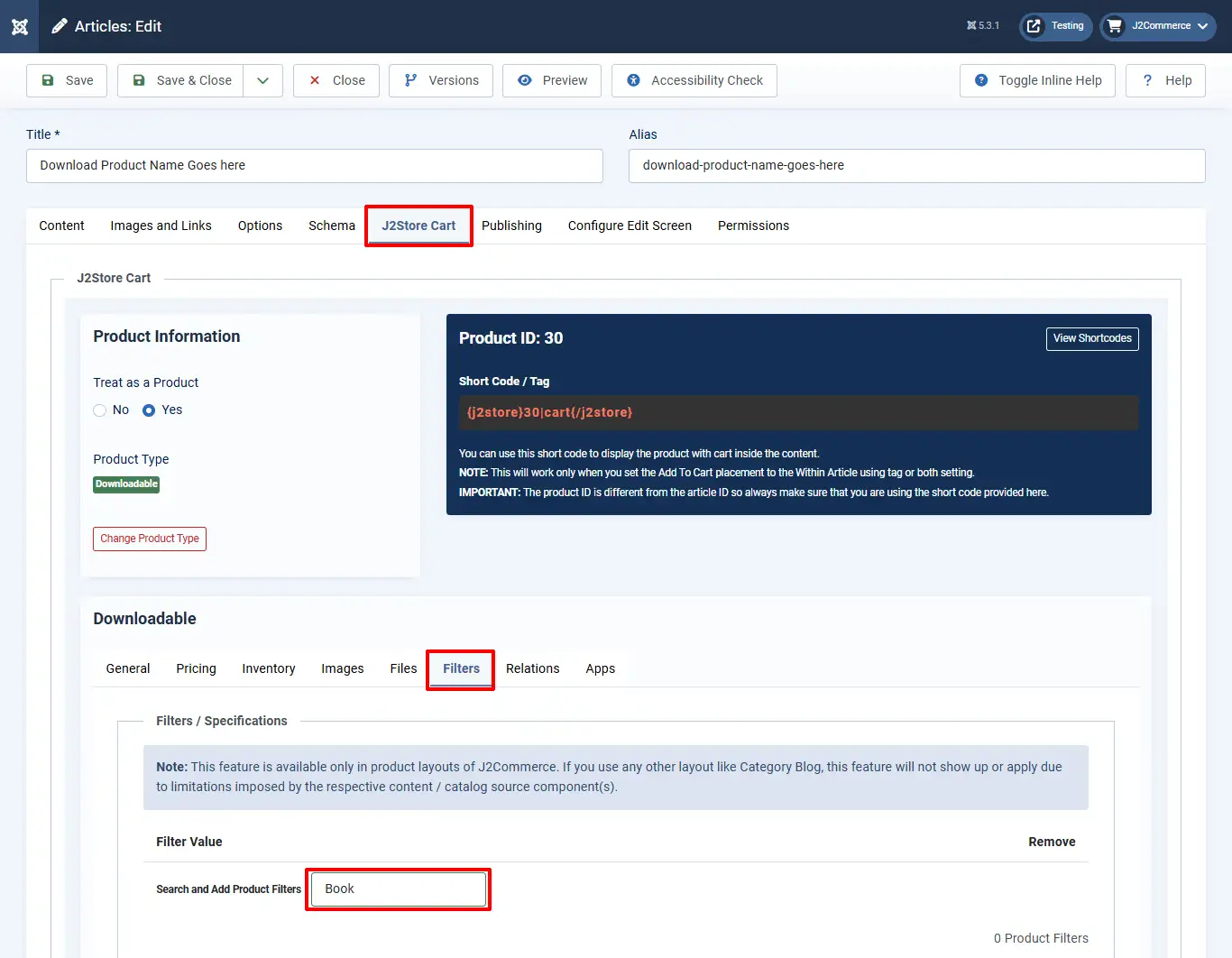
The filters will help to narrow the product search for specific products. For e.g., if you add a filter with the value ‘Books’, the search will display only music files. See the image below:
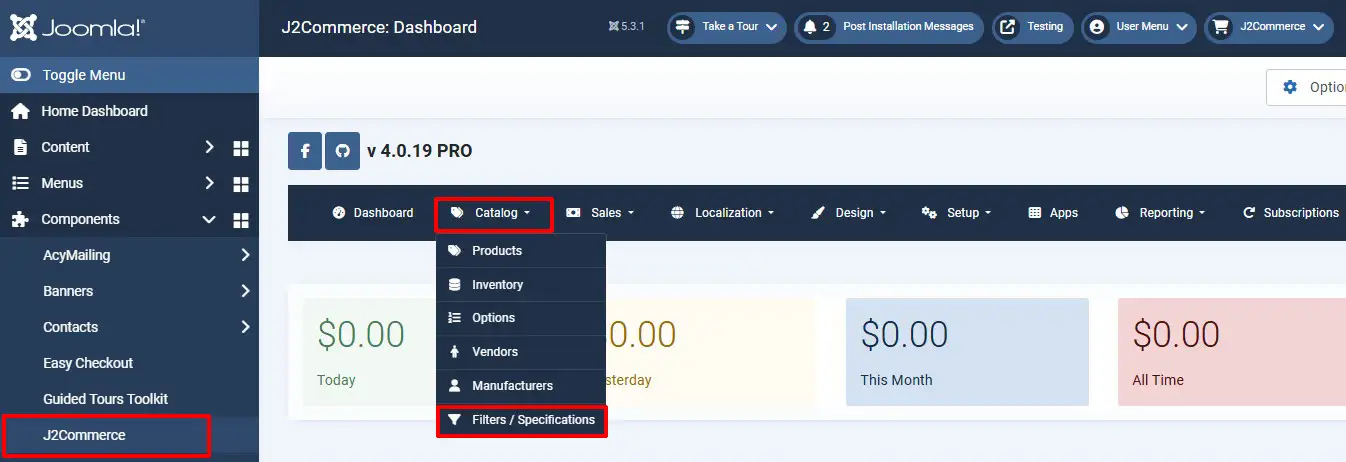
If the filters you want don't show up, then it's because they haven't been previously created. Go to J2Commerce > Catalog > Filter
Relations
The next tab is Relations. Here, you can add products of higher value than the one being viewed by the customer and recommend the customer to buy that product, citing its advantages and additional features. This is an upsell.
Refer the image below:
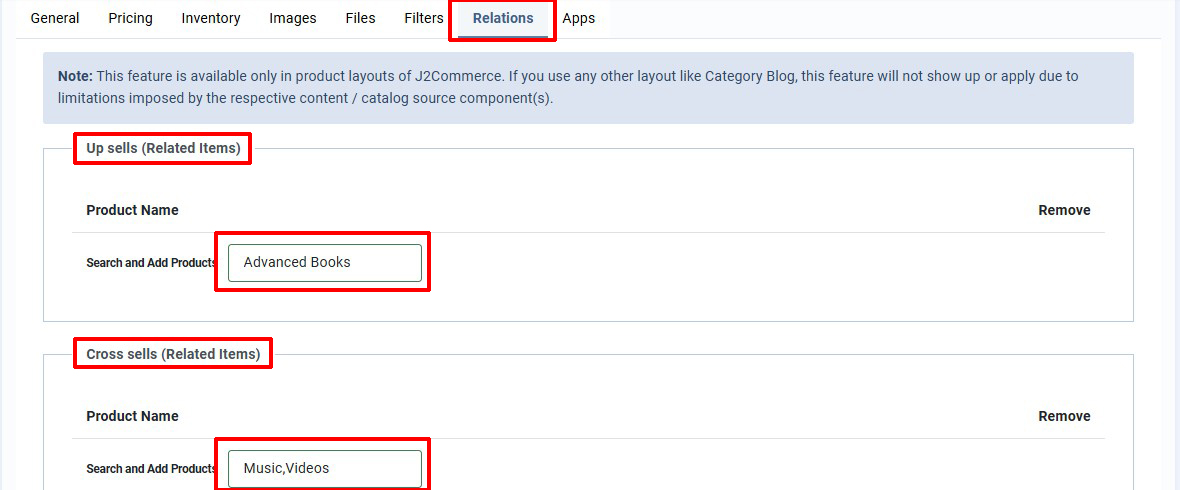
Also, you can add some other products to convince the customer to buy theses products additionally. This is cross sell.
For more detailed explanation, refer to the Relations section of the Downloadable Product.
Apps
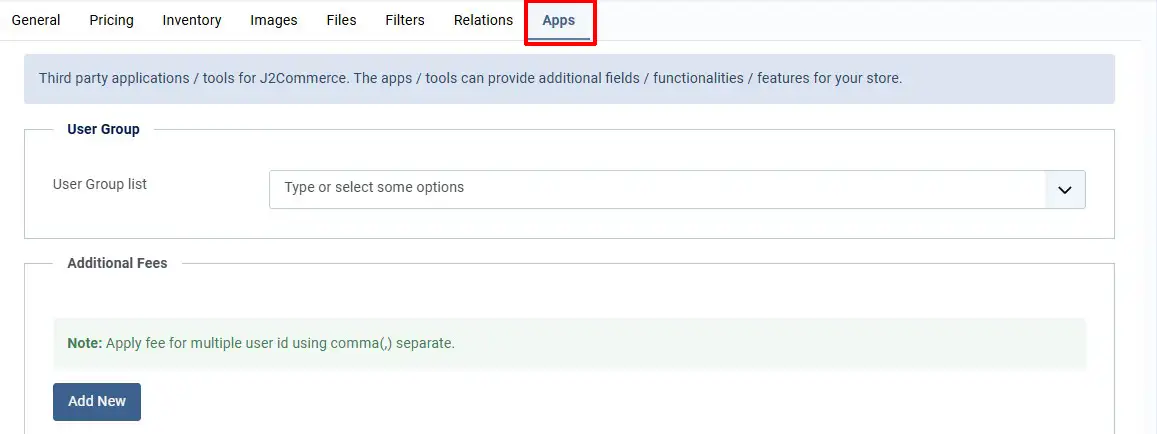
In this tab, you can add third party tools or plugins, that are available, to enhance the J2Commerce functionality, like adding additional fields, applications, functions or features.
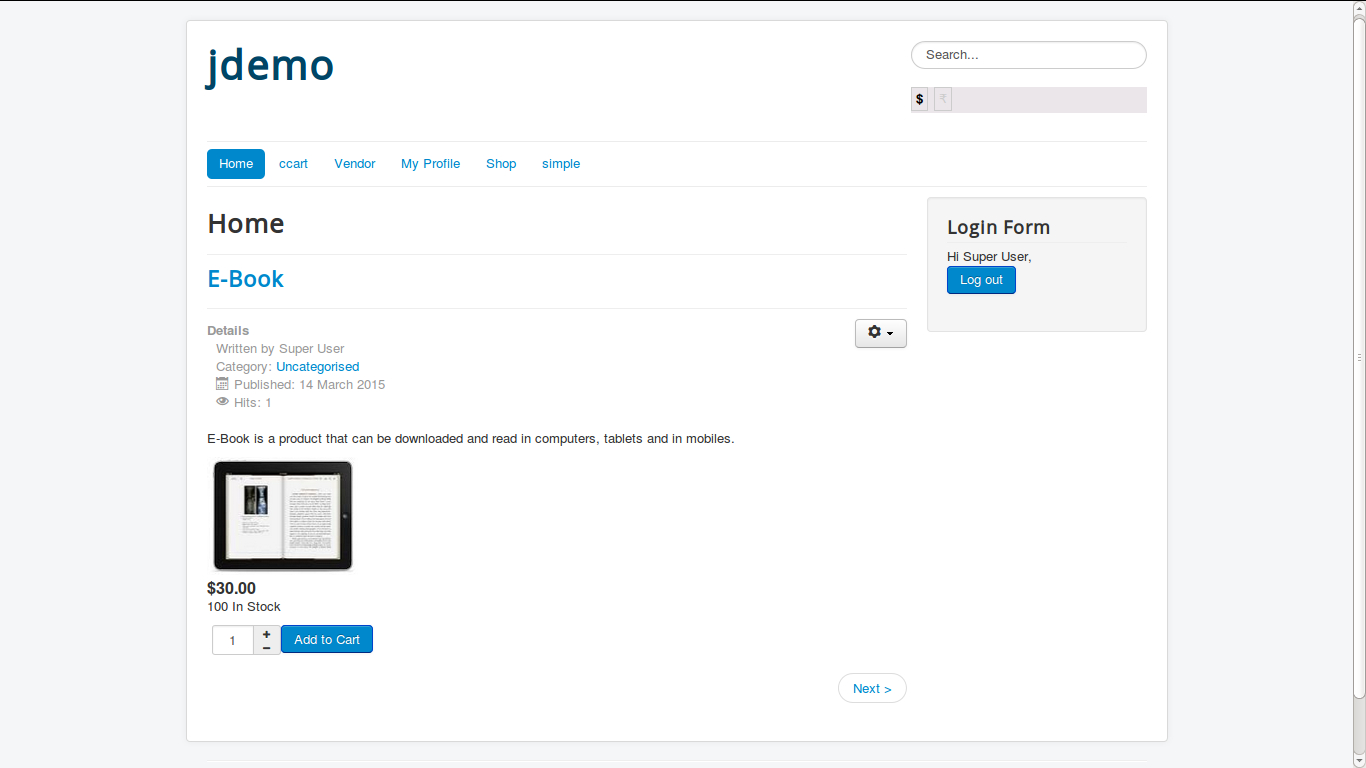
Now, lets have a look on how your product is viewed in your online store. Check the image below:
How to sell files that are stored externally?
If you have files stored externally, like on your Dropbox account or on your Amazon S3 bucket, then you could sell them on your store using the following extensions, respectively:
How to reset the download limit for a single user:
Let us assume that you have provided download limit for a product as 1 and the user has downloaded the file.
Now, he wants to download the product again.
Here is how you could reset the download limit for that user alone:
To reset the download limit for a single user:
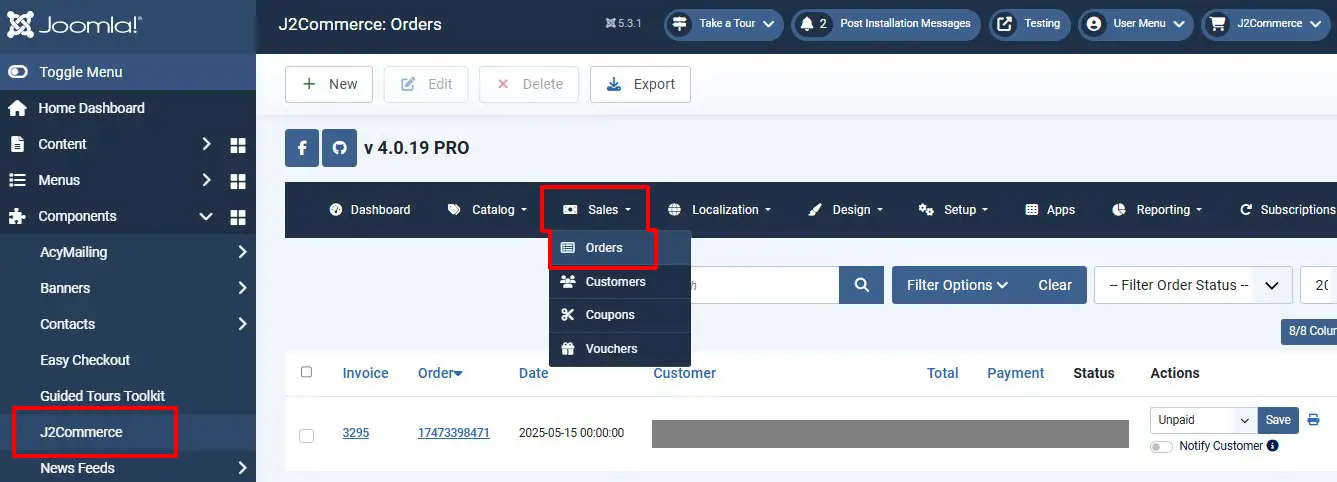
Please navigate to J2Commerce > Sales > Orders > Order of the downloadable product.
Click on the checkboxes mentioned in the screenshot below and click save.
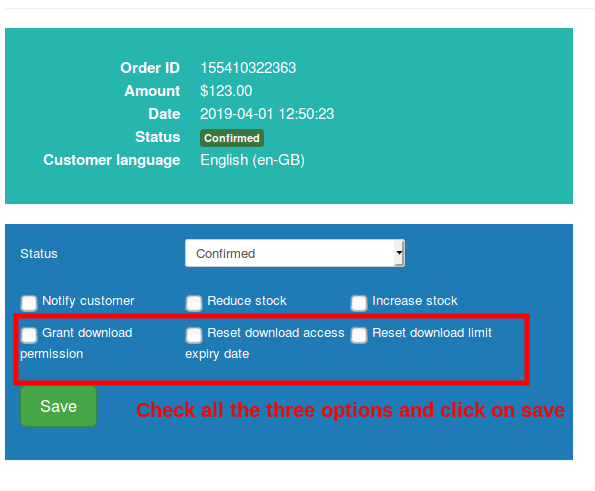
This would reset the download limit and expiry date only for that particular user.
He would be able to log in to his My Profile or (My Account) tab and download the number of times you have allowed on the product.
My downloads section doesn’t have a download link
The downloadable file link would be listed at the My downloads tab of the user’s My profile page only when:
- The order is in confirmed status
The user should have paid for the order successfully and the order should be in confirmed status. Only then the file would be listed in the my downloads section of the user.
- There should be a download limit, download expiry and file set up
In the product article, the following parameters shouldn’t be left empty:
- Download limit
- Download expiry (in days)
- File
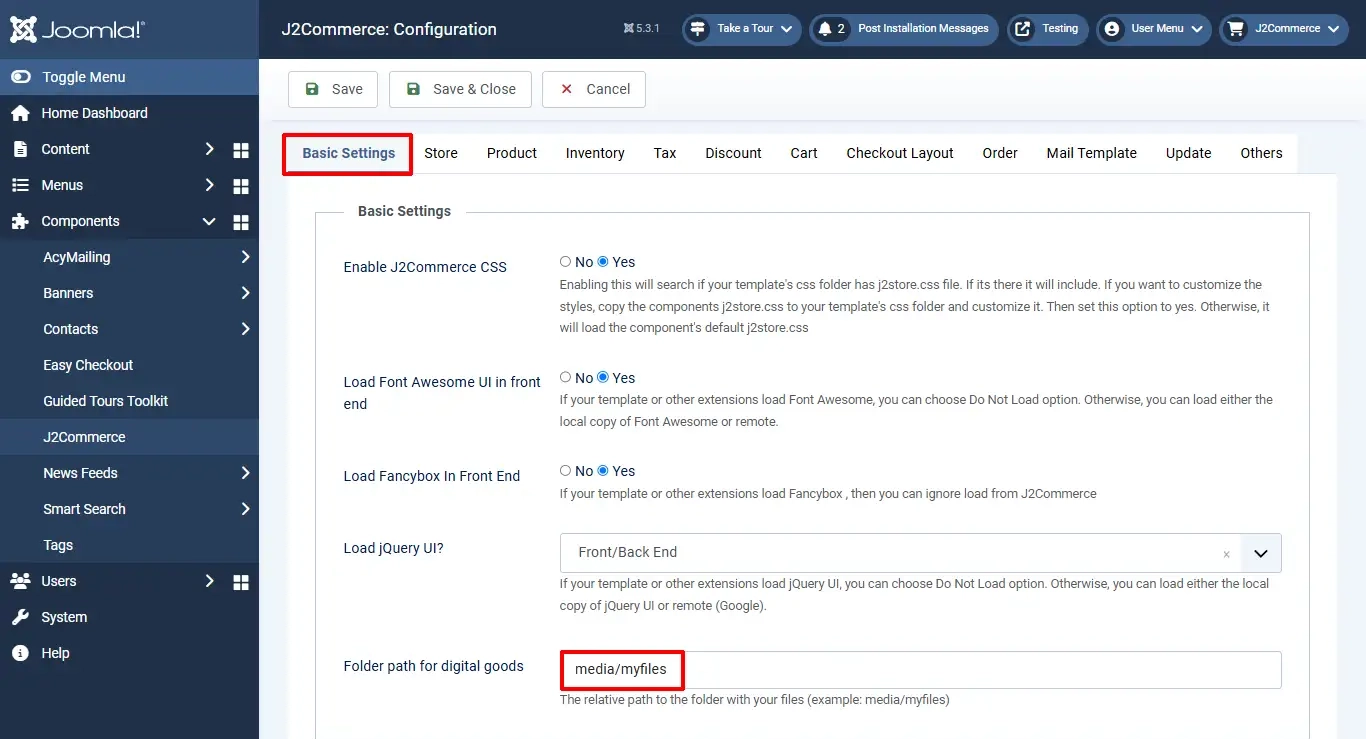
- The Folder path for digital goods should not have a slash in the path
Under J2Commerce > setup > configuration > basic settings tab, the path you set should not start with a slash.
Example: the path should be set as: media/myfiles and not /media/myfiles.
Video Tutorial
Here is a video that could help you create a digital product: