Customers and Users
Customers are those who buy products from your store. Whoever checks out successfully is added as a customer in the database.
In Joomla, every visitor, customer or Administrator belongs to a user group, and each group has its own level of access and permissions that determine what they can see or do on the site — both on the frontend and in the administrator backend
How to Create/Edit a User or Customer
Under the User section of the Home Dashboard, you can access all Customer and User information in Detail. Go to User > Manage
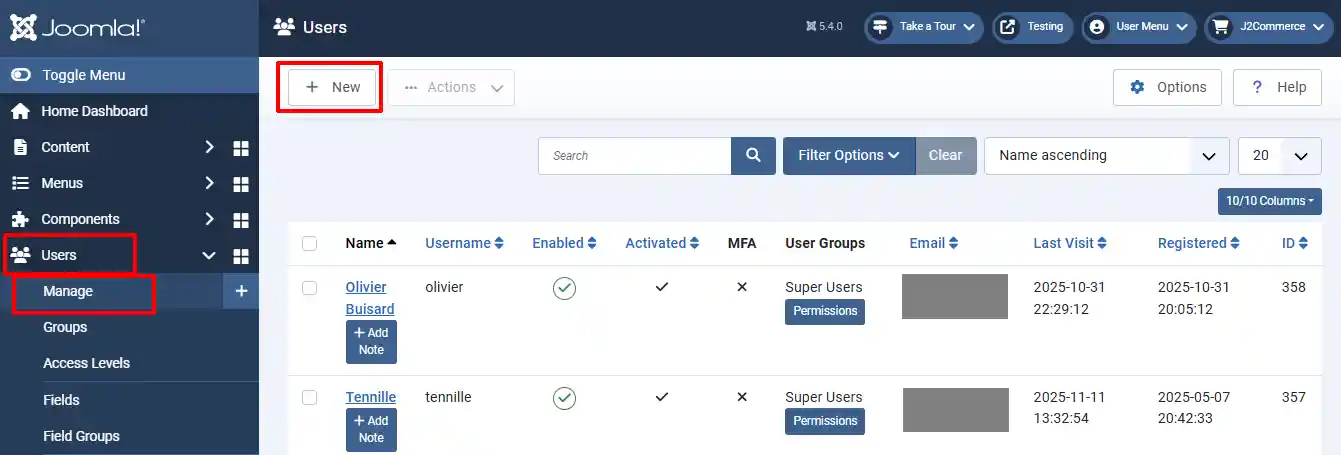
To create a new Customer, select New. Or edit an existing customer by clicking on their name.
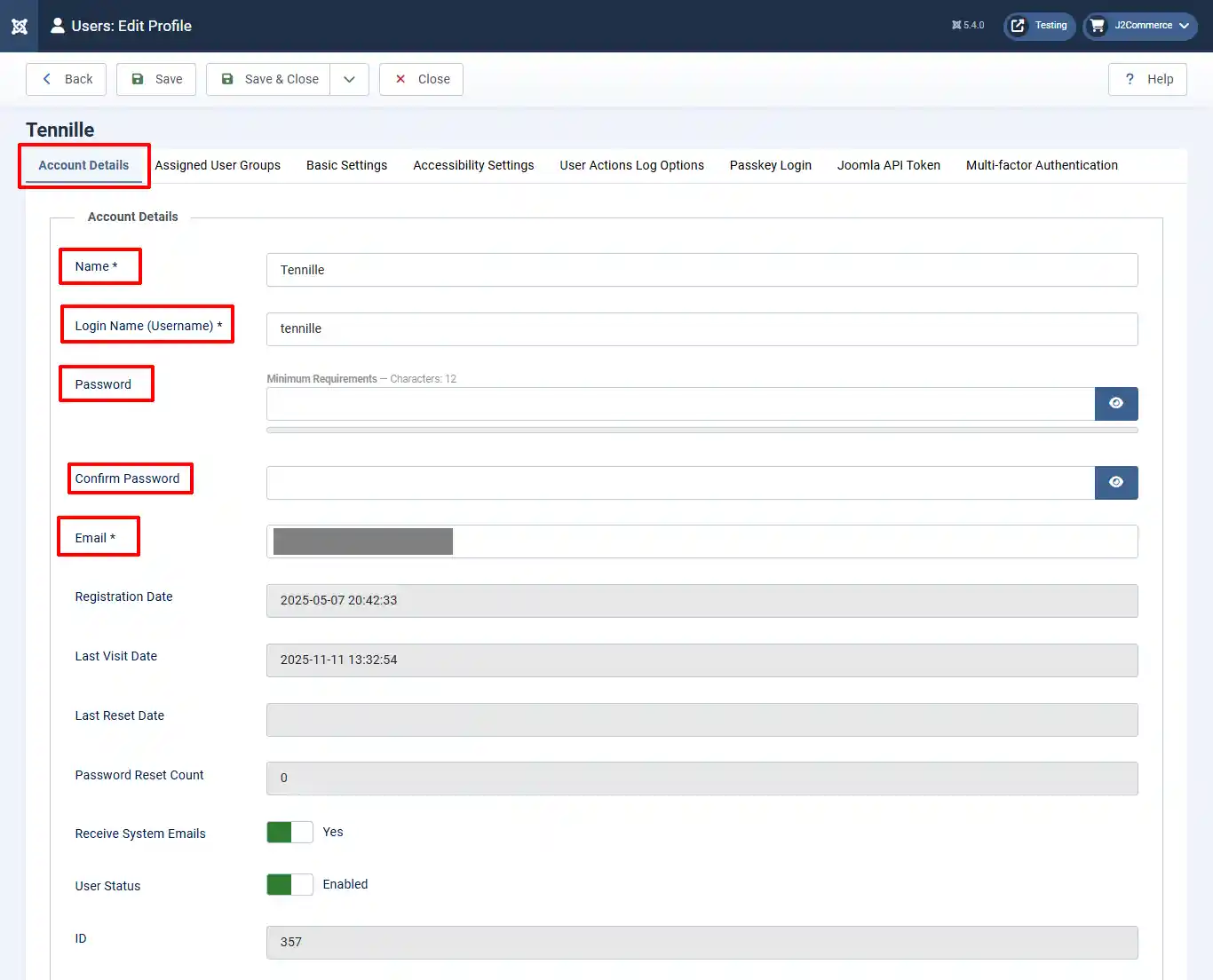
Account Details:
Fill out the Customer/User details. Account details include their Name, Login Name, Password, and Email.
Assigned User Groups:
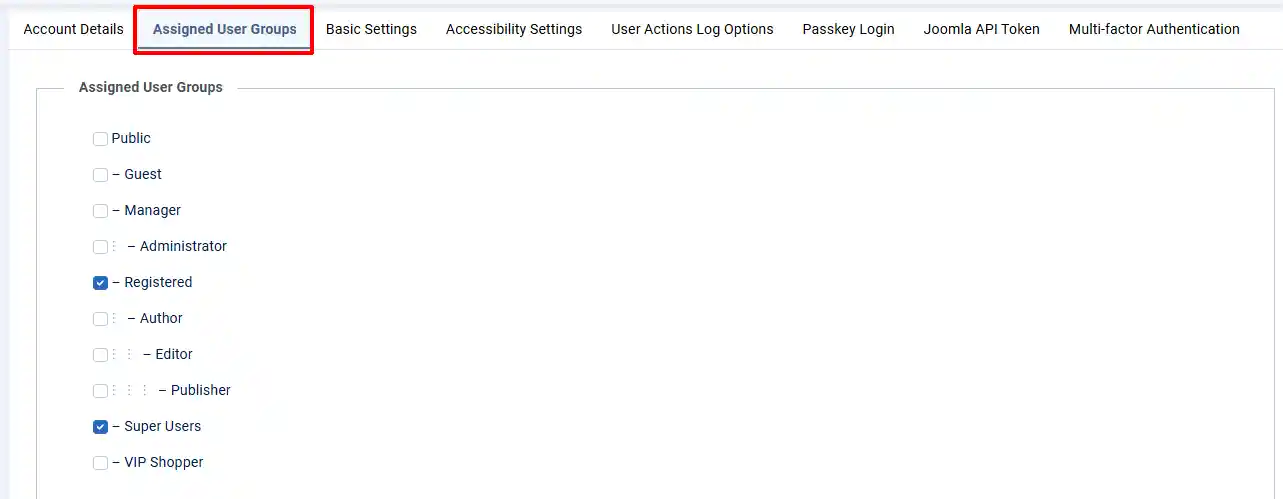
Assign the Customer/User to specific groups, giving them access and permission to different parts of the website. It is very important not to give them the wrong access permission.
The Different Groups and Sub-Groups
Public: Represents everyone who visits your website, even if they are not logged in. People in this group can only view content that is set to be visible to the public. They have no special permissions or backend access and serve as the most basic level of visibility.
Guest: Is very similar to Public, but it specifically includes only users who are not logged in. You can use this group to display certain modules or pages that disappear once a user signs in, such as a login form or welcome message. Guests cannot access the backend or see any restricted content.
Registered: Includes users who have created an account and logged in to your site. They can access frontend areas that are restricted to registered members but cannot create, edit, or publish any content. This level is ideal for members-only sections or download areas where users simply need to log in to view protected material.
Author: Allows users to log in to the frontend and create new articles. They can also edit their own content after it’s created, but they cannot edit articles created by others or publish their work. This role is best for contributors who regularly submit content that needs review before publication.
Editor: Can log in to the frontend and has broader content privileges. Editors can open, edit, and save any article on the site, regardless of who created it. However, they still cannot publish or unpublish articles. Editors are typically used for people who review and refine content written by others.
Publisher: Has all the capabilities of an Editor but also gains the authority to publish or unpublish articles. This means Publishers can make content visible to the public once it’s approved. Although they generally don’t have full backend control, they can handle most content-related tasks directly. This role is commonly assigned to someone who manages the website’s news or blog section.
Manager: Is the first level that includes backend access. Managers can log in to the Joomla Administrator panel and manage content, menus, categories, and users. However, they do not have the ability to install extensions or change the site’s global configuration. They are ideal for day-to-day site administrators who handle content and user management but should not have full control over the system settings.
Administrator: Has full backend access, including the ability to manage extensions, menus, users, and content. Administrators can perform nearly every task within Joomla except modifying Super User accounts or changing the global configuration settings. This group is typically assigned to trusted staff or developers responsible for maintaining the site’s structure and functionality.
Super Users: Is the highest level of access in Joomla. Members of this group have unrestricted control over the entire website, including global configuration, template editing, user management, and the ability to create or modify other Super Users. This level should be reserved for the site owner or main developer since it holds complete authority over every aspect of the site.
VIP Shopper: Is a custom user group created for your site. This type of group often appears when using eCommerce extensions such as J2Store, HikaShop, or J2Commerce. Its permissions depend on how you configure it, but it is typically used to grant special privileges such as exclusive pricing, discount access, or special product visibility for premium customers. By default, VIP Shoppers don’t have backend access, but they can be given specific frontend privileges if needed.
The Groups Access and Benefits
| Group | Frontend Login | Backend Access | Can Edit Others’ Content | Can Publish | Can Manage Users | Can Configure Site | Notes |
|---|---|---|---|---|---|---|---|
| Public | ❌ | ❌ | ❌ | ❌ | ❌ | ❌ | Everyone |
| Guest | ❌ | ❌ | ❌ | ❌ | ❌ | ❌ | For non-logged users |
| Registered | ✅ | ❌ | ❌ | ❌ | ❌ | ❌ | Members-only access |
| Author | ✅ | ❌ | ❌ | ❌ | ❌ | ❌ | Can create & edit own |
| Editor | ✅ | ❌ | ✅ | ❌ | ❌ | ❌ | Can edit all articles |
| Publisher | ✅ | ⚠️ Limited | ✅ | ✅ | ❌ | ❌ | Can publish content |
| Manager | ✅ | ✅ | ✅ | ✅ | ✅ | ❌ | Backend manager |
| Administrator | ✅ | ✅ | ✅ | ✅ | ✅ | ❌ (no Super User control) | Trusted admin |
| Super Users | ✅ | ✅ | ✅ | ✅ | ✅ | ✅ | Full site control |
| VIP Shopper | ✅ | ❌ | ❌ | ❌ | ❌ | ❌ | Custom group (shop privileges) |
How to add a new Group or Sub-group
Depending on your company, you may want to create a new Group or sub-group. For example, a Photographer's Website may want to have a sub-group called Clients.
Go to User > Groups.
Below shows the Group Tree and how many users are in each group.
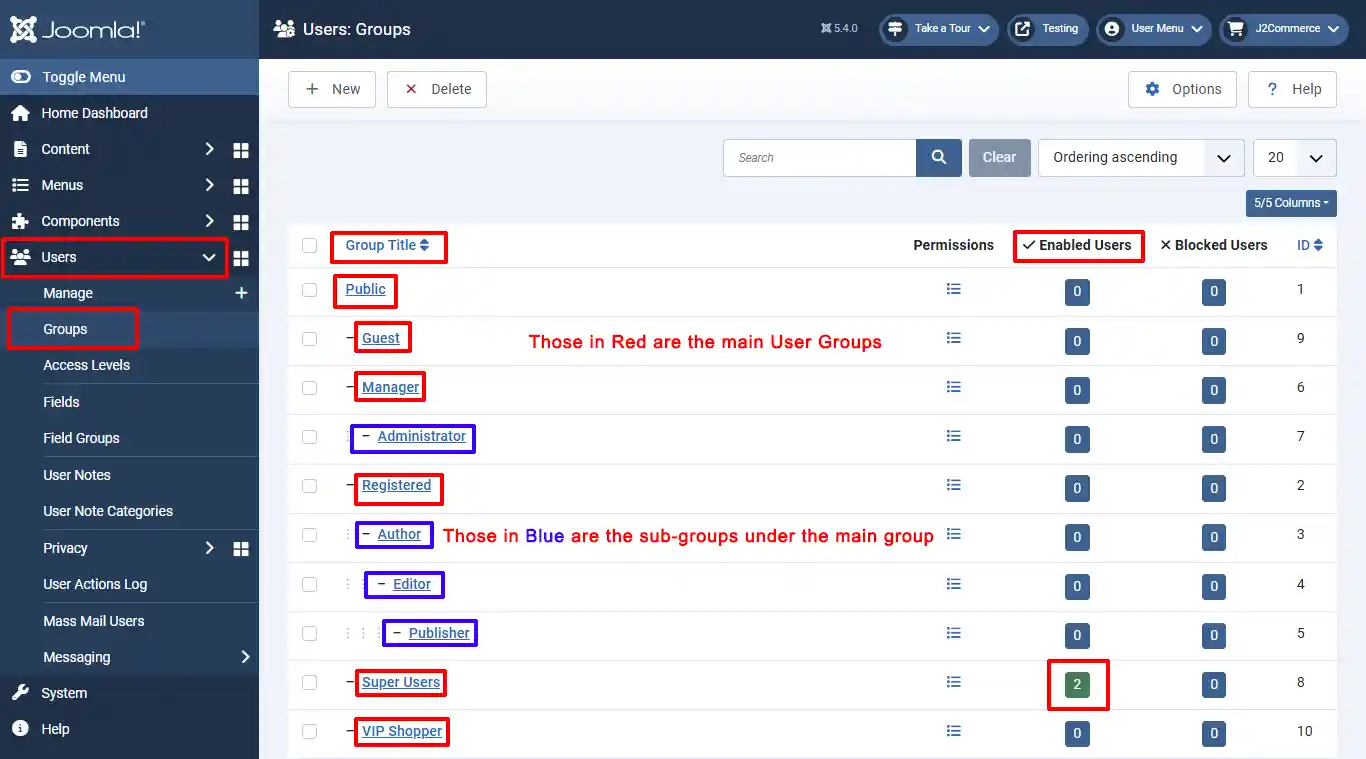
Select New to create a new user group.
User Group Details:

Group Title: Name your new group or sub-group title
Group Parent: Assign your new group to the appropriate parent group. In the case above, Client is the title of the new group, and it will be placed under the Registered parent group, giving it the same access and permission as the parent group.
How to Add Notes to Customers
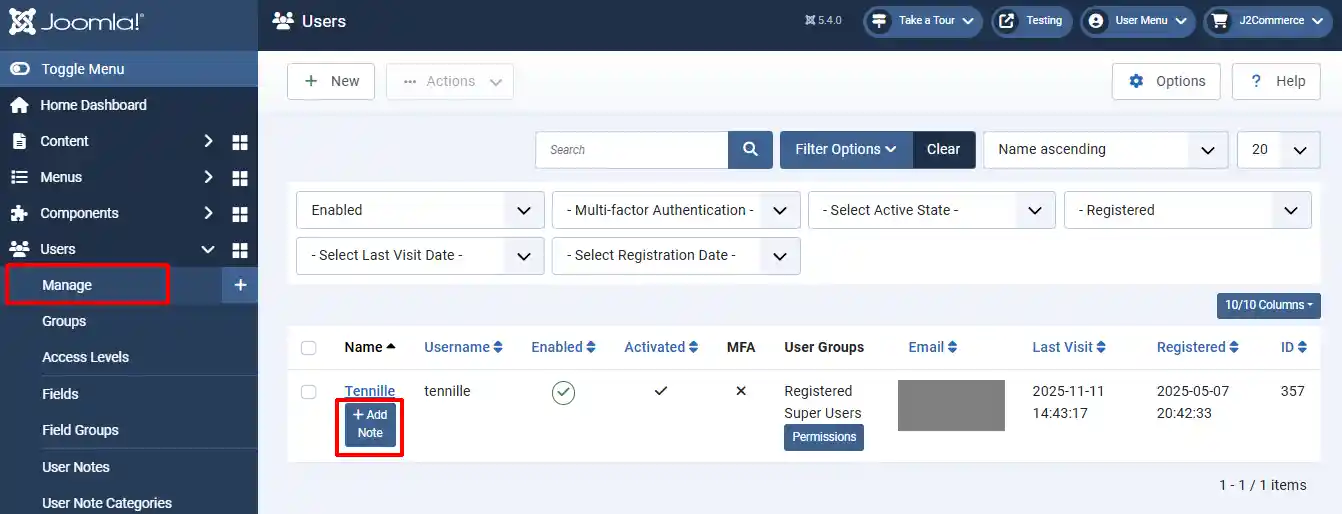
Select Add Notes
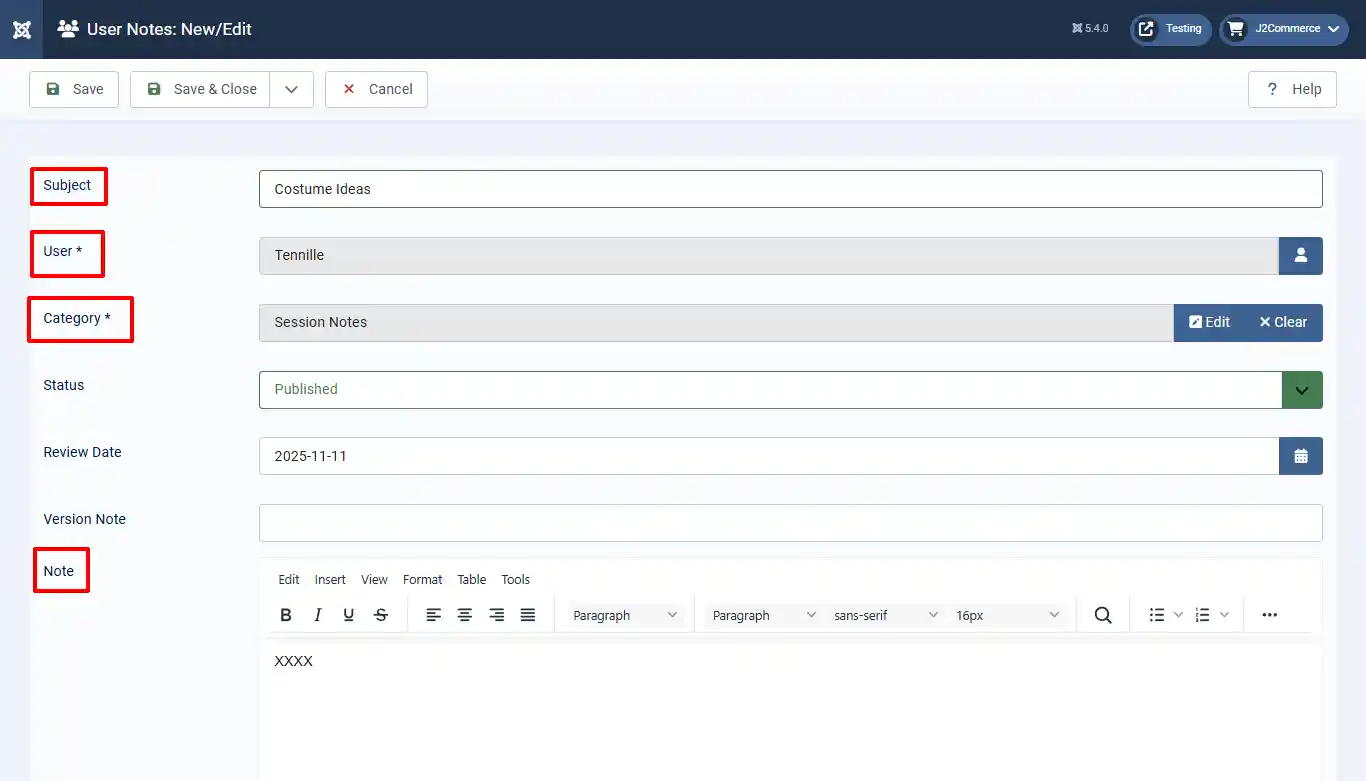
Subject: Name the Subject
User: Assign the Customer/User the Notes will be attached to
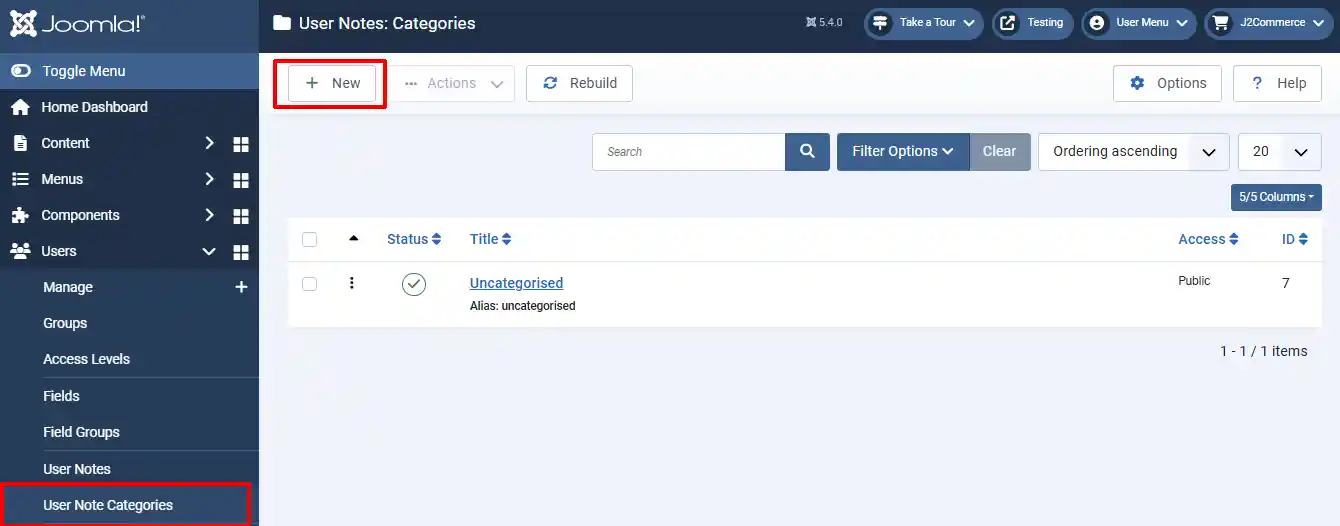
Category: You need to assign the note to a specific category to keep them organized. If the category you want doesn't exist in the list, you can add a new category. Go to User Note Category > New
Note: See details below about adding notes.
When to Add Notes To Customers
In Joomla 5, the User Notes feature allows administrators to attach private notes or records directly to a user’s profile in the backend. These notes are not visible to the user and are meant purely for administrative or team use.
Here’s what that means in practical terms:
The main purpose of adding a user note is to keep track of important information or history related to a specific user. For example, you might use it to record when someone registered, received special access, caused issues, made requests, or required follow-up from your team. It’s a built-in way to maintain context or background information without needing a separate spreadsheet or CRM system.
The benefits include improved communication and organization among administrators. If multiple people manage the site, each admin can quickly see the user’s background—such as “Contacted support about password reset,” “VIP customer — do not delete,” or “Contributor approved for blog access.” Notes can also be categorized for easy filtering (for example: Billing, Support, Content, or Security), making it simple to find relevant records later.
Another benefit is accountability and documentation. If you ever need to review decisions about user management (like why someone was blocked or given special permissions), the note serves as a quick internal record of what happened and when.
In short, User Notes in Joomla 5 function as an internal log or CRM-style annotation system that helps you and your team stay organized, track user history, and communicate internally—without cluttering the user’s visible profile or risking privacy issues.
Example User Notes for an Ecommerce Website:
-
Order History / Issues: “Order #5567 delayed due to supplier stock issue. Resolved and reshipped 11/3.”
-
Support Tickets: “Contacted support twice in October regarding login errors — reset done manually.”
-
Discount / Rewards: “Approved for VIP Shopper status. 15% permanent discount applied.”
-
Shipping Notes: “Prefers delivery to business address only. Verified shipping details.”
-
Account Flags: “Refund processed 9/20 due to duplicate charge. No further issues since.”
-
Custom Access / Permissions: “Added to VIP Shopper group manually — do not remove.”