Upload File in Checkout
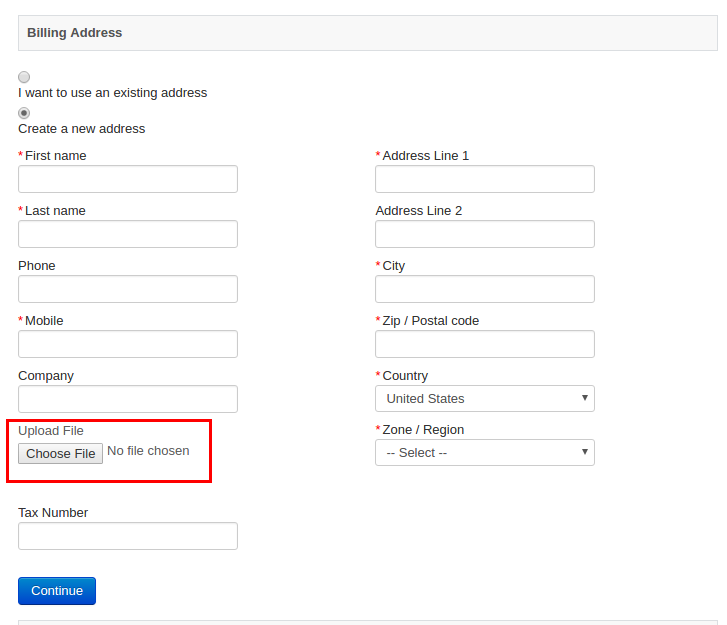
Allow customers to upload one or more files during the order. The app will come in handy for store owners selling products like printed materials. The customer can upload an image or a PDF to their order.
The store owner can download it from the app’s backend and manage all the uploaded files for an order.
Requirements
- PHP 8.1.0 +
- Joomla! 4.x/ Joomla! 5.x +
- J2Commerce / J2Store 4.x +
Purchase the App
Step 1: Go to our J2Commerce website > Extensions > Apps
Step 2: Locate the Upload File in Checkout App > click View Details > Add to cart > Checkout.
Step 3: Go to your My Downloads under your profile button at the top right corner and search for the app. Click Available Versions > View Files > Download Now
Install the App
Go to System > Install > Extensions > Install the app
-e0515ef561b368cb4d5a053cacb4c525.webp)
Enable the App
Go to J2Commerce > Apps > search for the Upload File in Checkout app
Click on the 'X' under Status to enable it.
Click on "Open App" or the Title to start setting up the app
Setting up the Parameters
Basic Setting tab
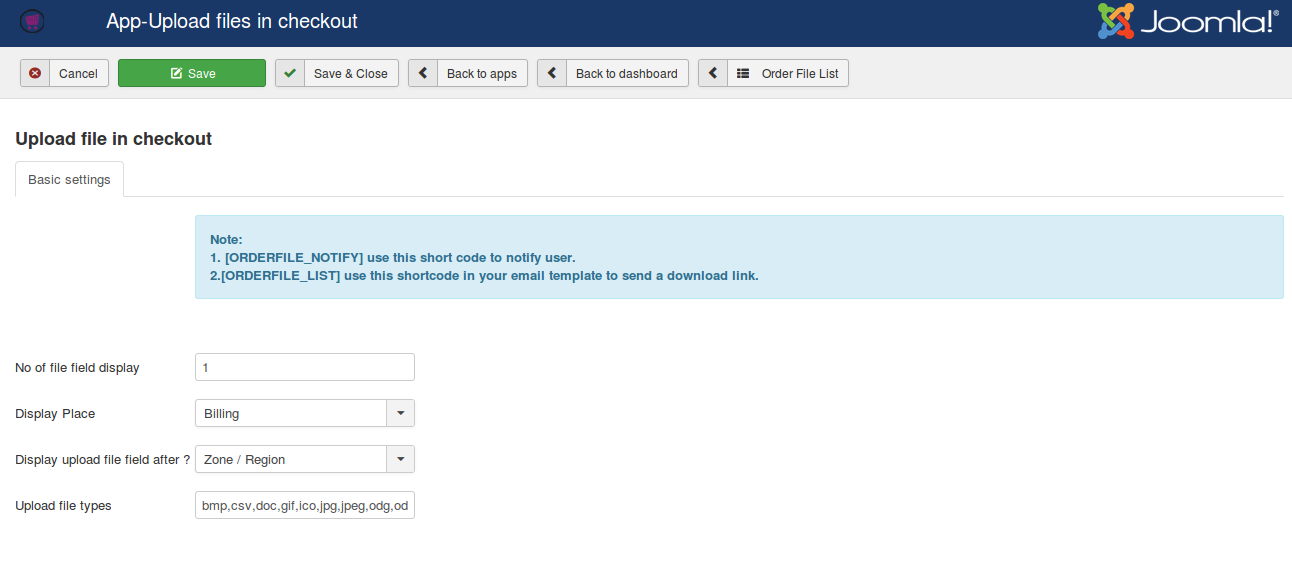
No of file field display: Enter the number of fields to be displayed in the checkout.
Display Place: Choose the place where the upload field should be displayed. You can choose either Billing or Shipping.
Display the upload file field after? The upload file field will be displayed after the checkout fields are selected here. For example, if you choose Last name, the field will appear after the field Last name.
Upload file types: Add your file format types here. If you don’t have any file formats added here, the app will not allow you to upload the file in that format. For example, if you would like to upload the file in .pdf, make sure that you have added this format in this field.
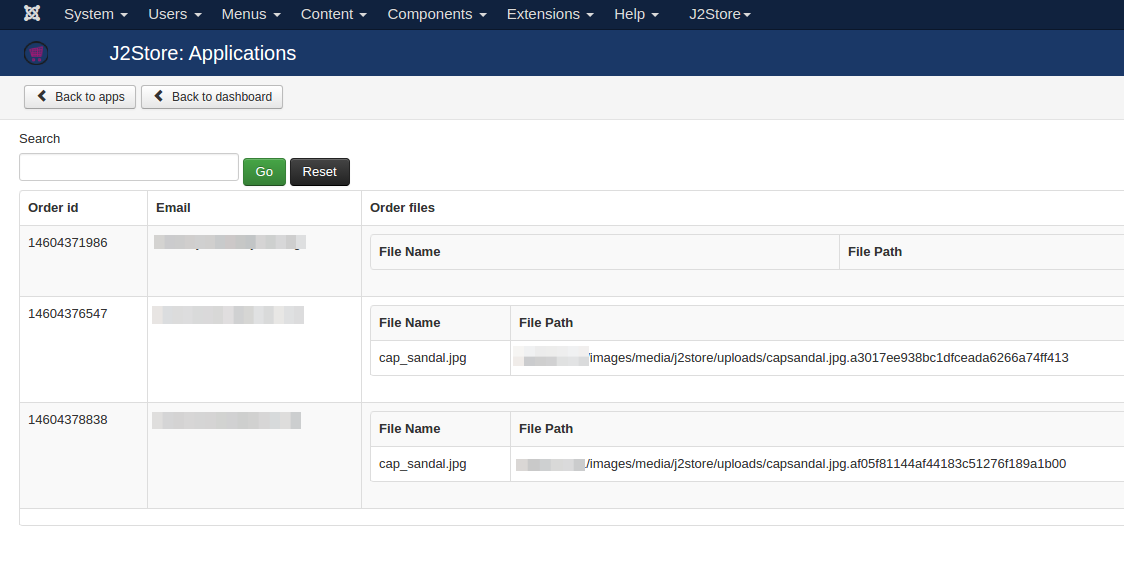
Manage uploaded files: By clicking the Order File List button at the top of the app’s settings page, you can find all the files uploaded by the customer. It displays the file name with the path where the file is located.
Shortcodes: The below shortcodes help you to notify the customer that he / she has attached a file to this order.
- [ORDERFILE_NOTIFY]This shortcode will display just the message or information saying that the order contains a file attachment.
- [ORDERFILE_LIST] This shortcode allows you to include a download link in an email. Use this shortcode in your email template so that when the customer receives the order email, he/she can see the link to download the file that was uploaded.
Frontend