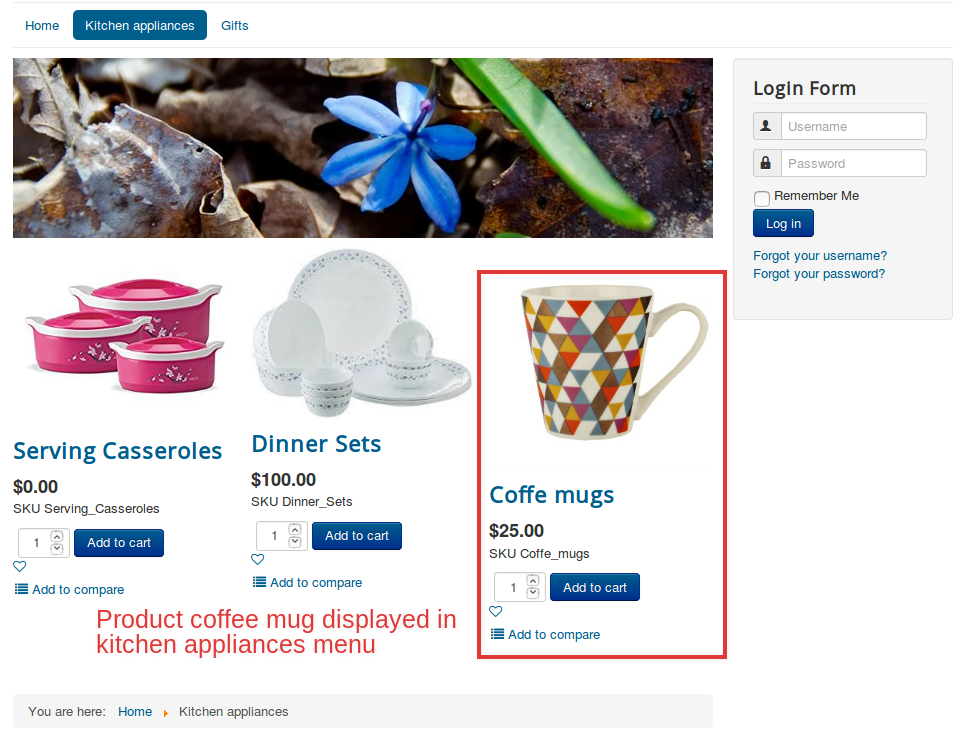
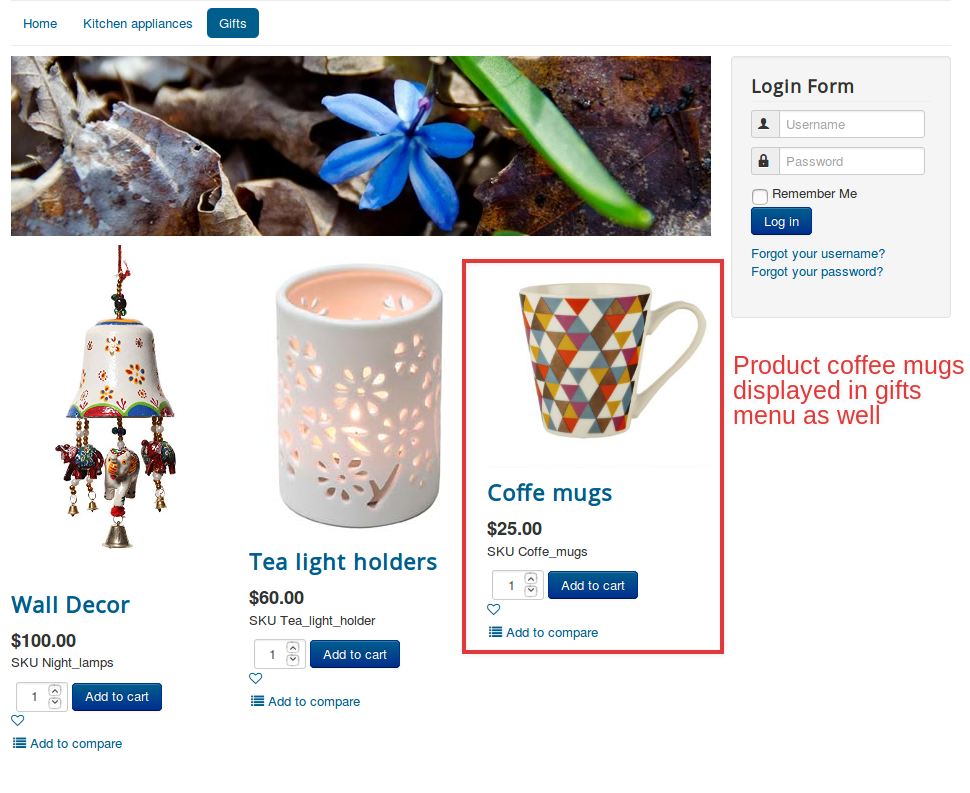
Assigning a product to multiple categories
With the conventional list layout, it is possible to organize products based on their categories. However, there is one catch. It is not possible to assign a product to multiple categories.
Overcoming this, now we have the tag layout, where it is possible for a product to be assigned to multiple categories.
Steps to be followed:
Step 1: Create tags that you wish to link with the product. Go to Components > Tags > New
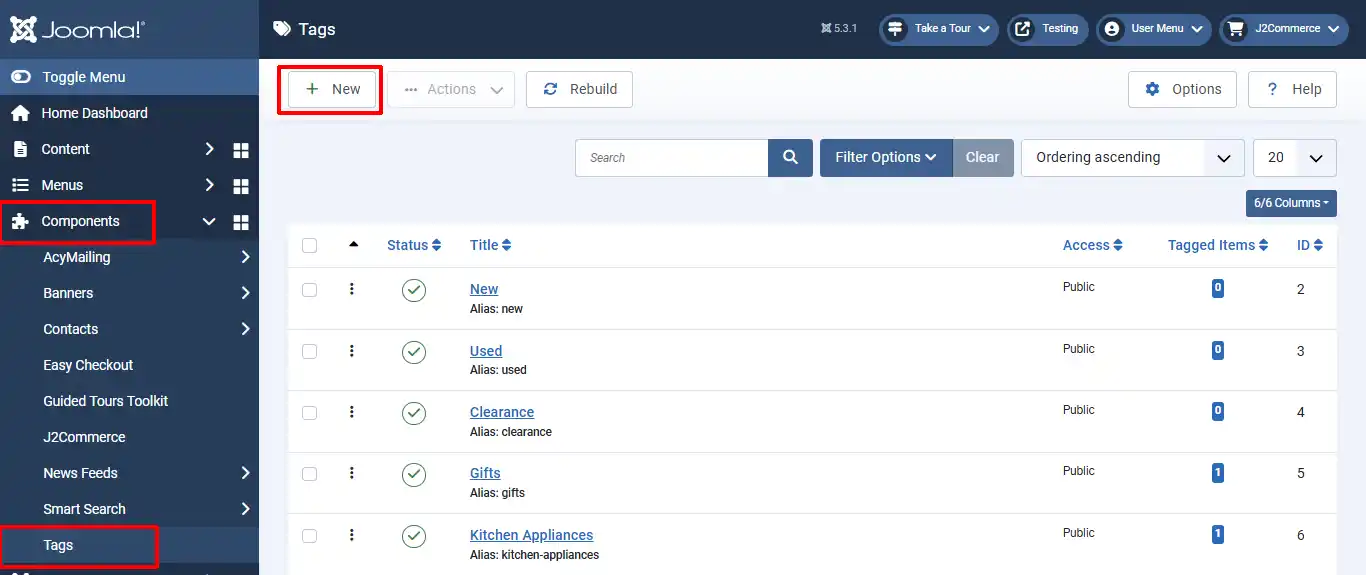
Step 2: Create a product and add the tags to the product.
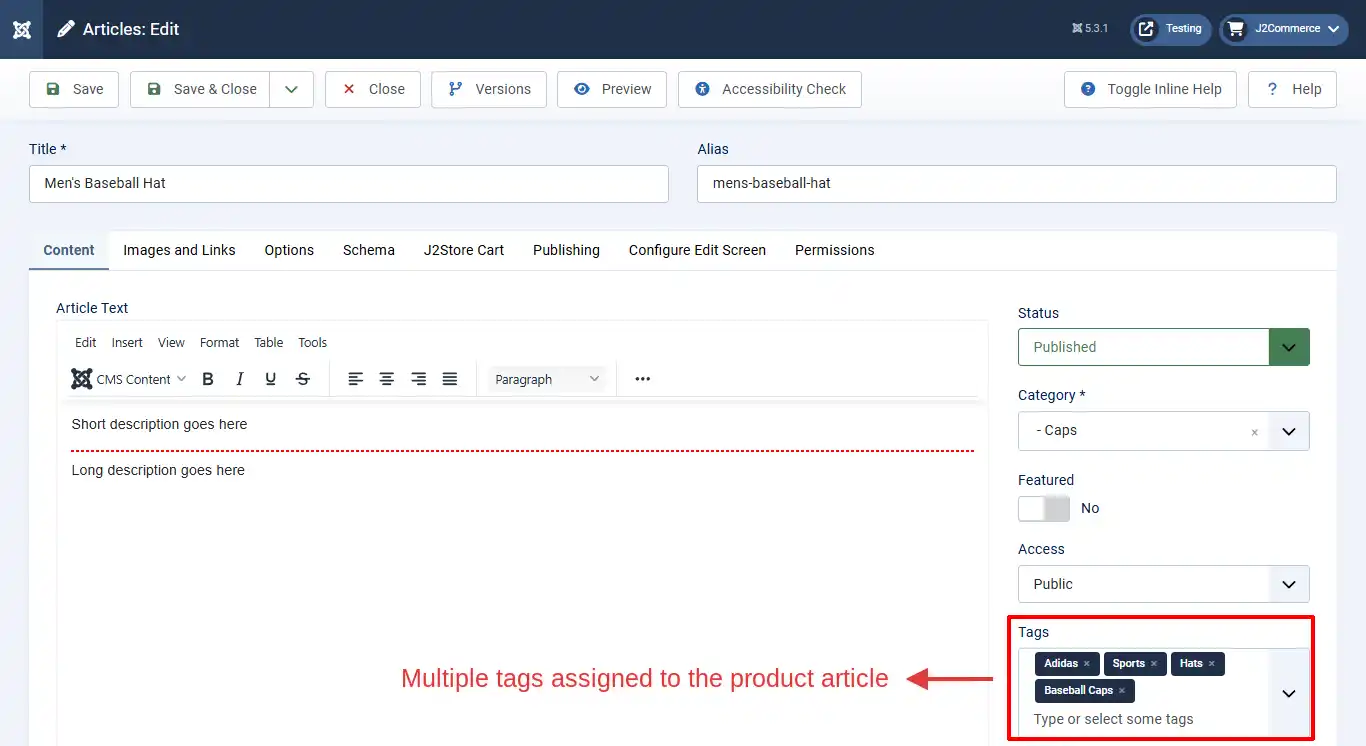
Step 3: Create menus and link the tags with the respective menus.
Scenario
Products like Coffee mugs should be available under two categories- Kitchen appliances and Gifts.
Steps to be done:
Step 1: Create two tags: Gifts, Kitchen and Accessories. Go to Components > Tags > New
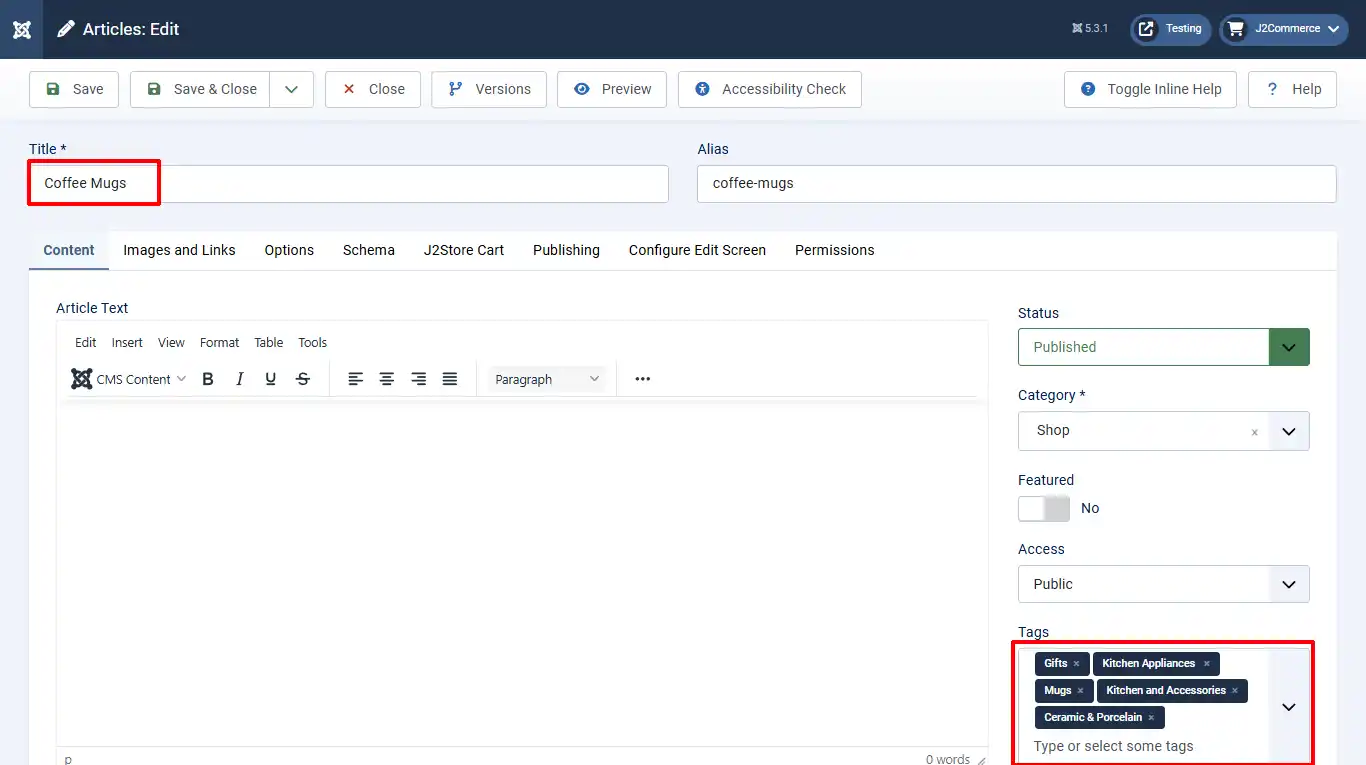
Step 2: Create a product named coffee mugs. Go to Content > Articles > New
Step 3: Assign both tags to the product article. See photo below
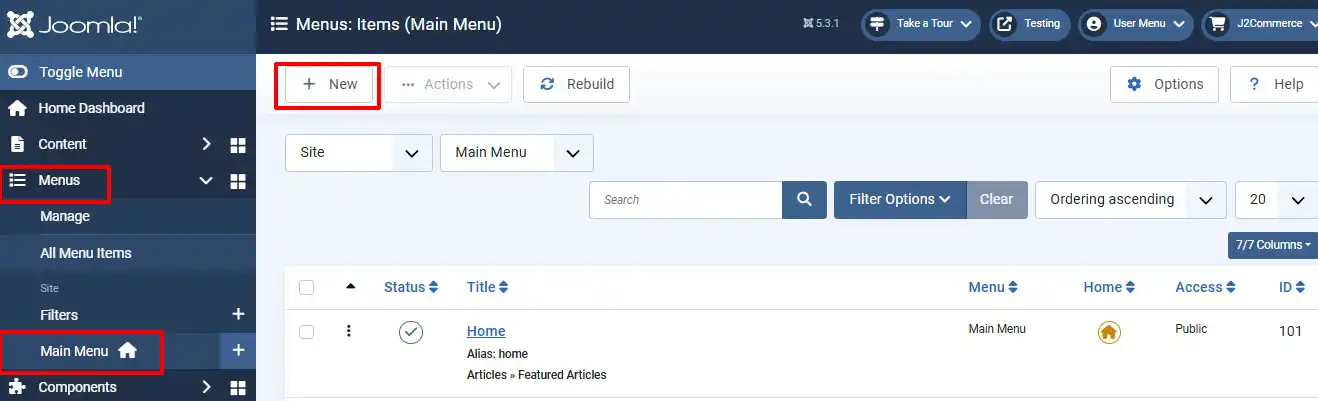
Step 4: Create menu items for the Tags. Go to Menu > Main Menu > New
Step 5: Assign the Menu Item Type. Click on Select > J2Commerce > Product Tag View.
Step 6: Choose Tag Category. ie: Kitchen and Accessories, associating the tag Kitchen and Accessories, Gifts, associating the tag Gifts.
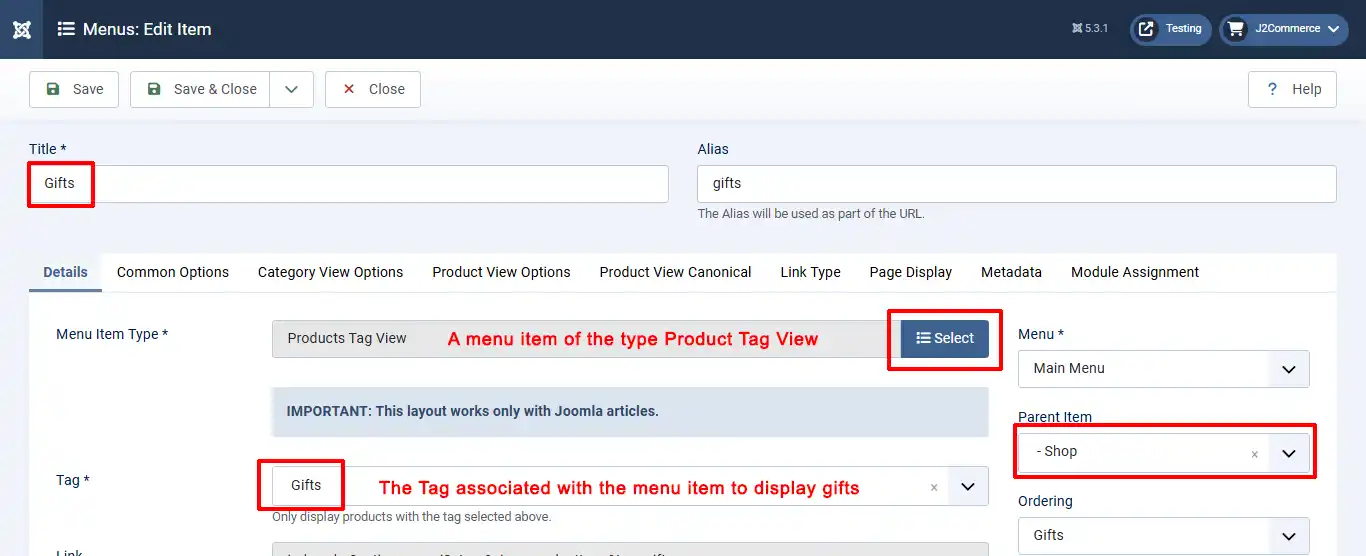
Now the product coffee mugs will be available in both Kitchen and Accessories, and Gifts.
Likewise, we can assign products to as many categories as we wish through the Tag system.
The frontend view is like this: