USPS Advanced Shipping
The USPS Advanced Shipping plugin comes with the feature of Standard Rate API setting and Flat rate setting.
Requirements
- PHP 8.1.0 +
- Joomla! 4.x/ Joomla! 5.x +
- J2Commerce / J2Store 4.x +
Configuration: Prior to configuring the plugin, you should have an active account with USPS and have received API keys.
Step 1: Login to USPS > https://developers.usps.com/
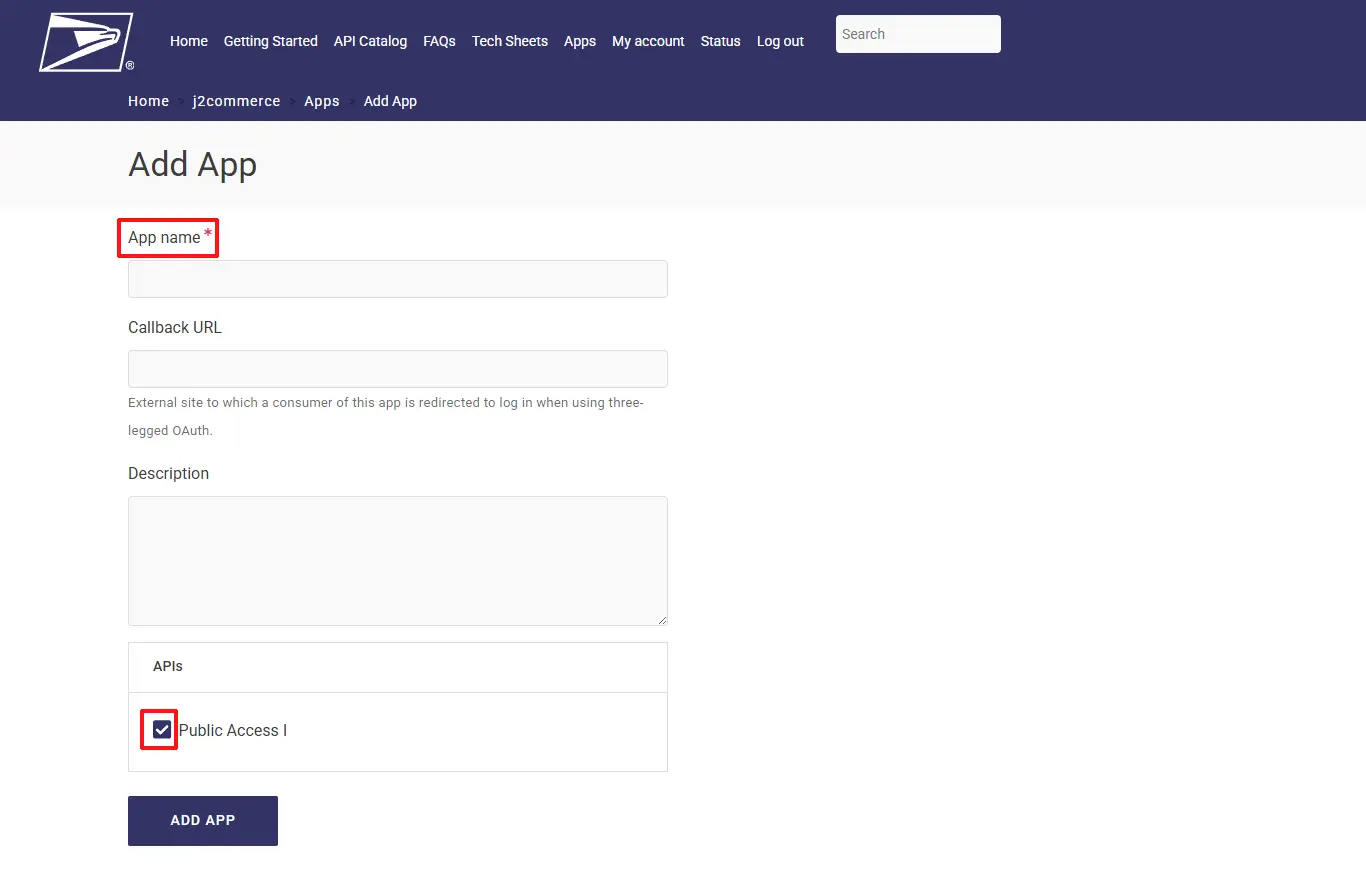
Step 2: Apps tab > Add Apps

Step 3: Name your App anything you want > click on Public Access
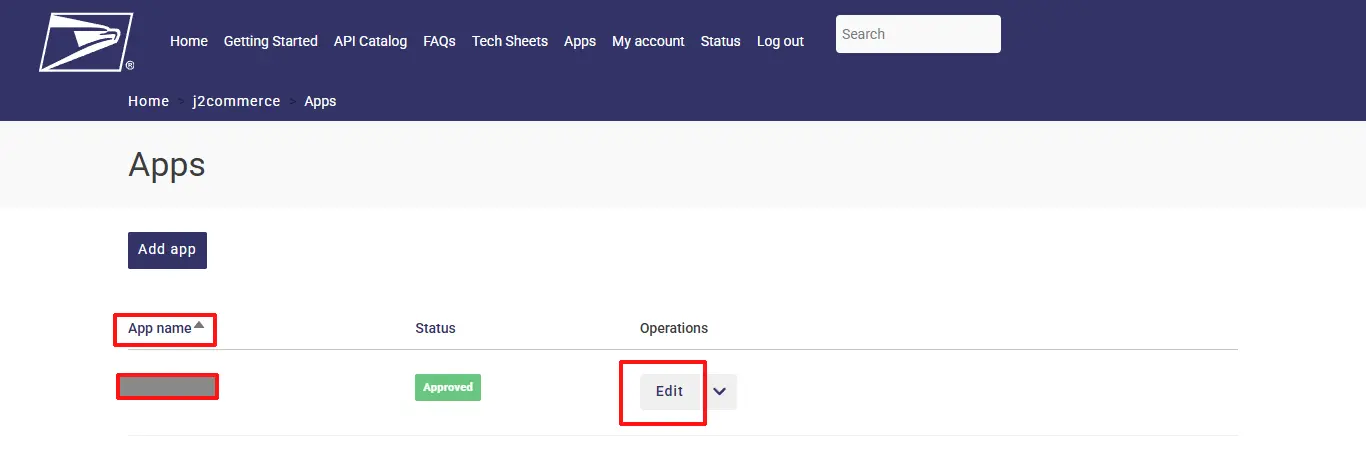
Step 4: Click Edit on the main screen
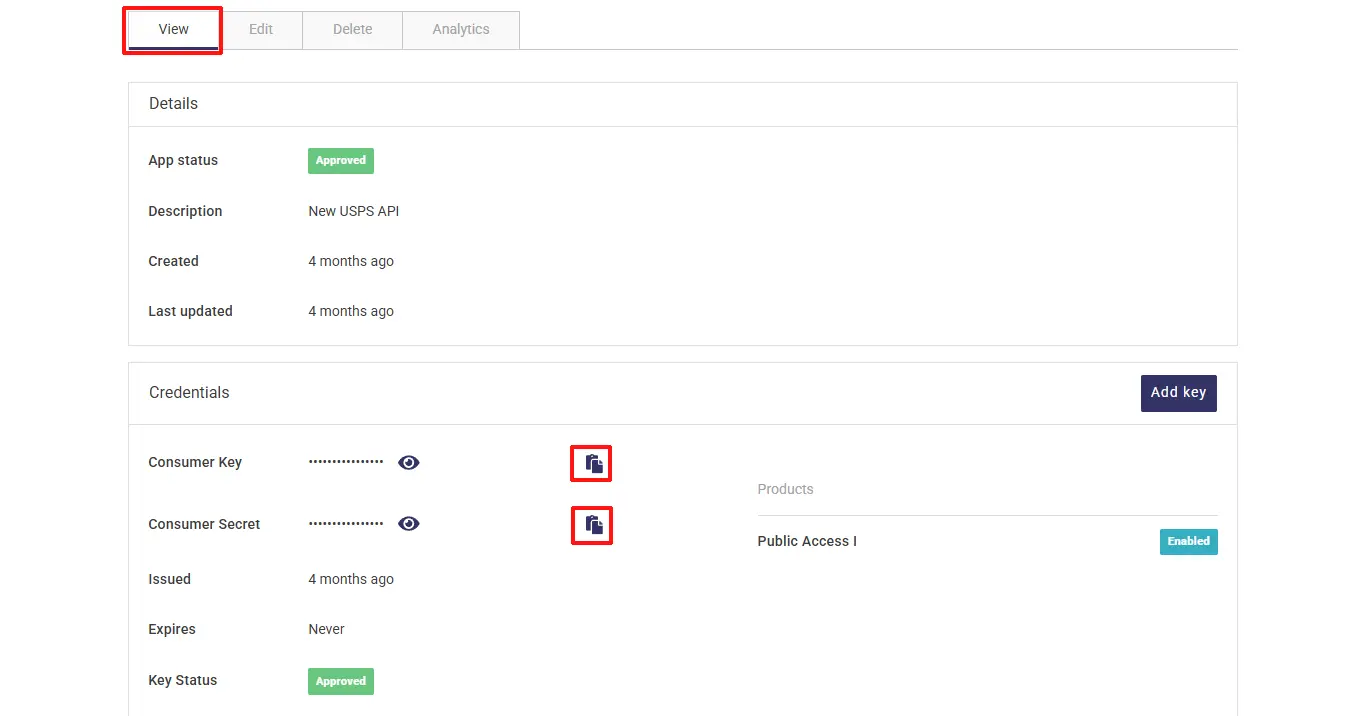
Step 5: Click View tab > click the Copy button to copy your Key and Secret code which you will need once you have installed the app on the backend of your website.
Step 1: Go to our J2Commerce website > Extensions > Shipping Plugins
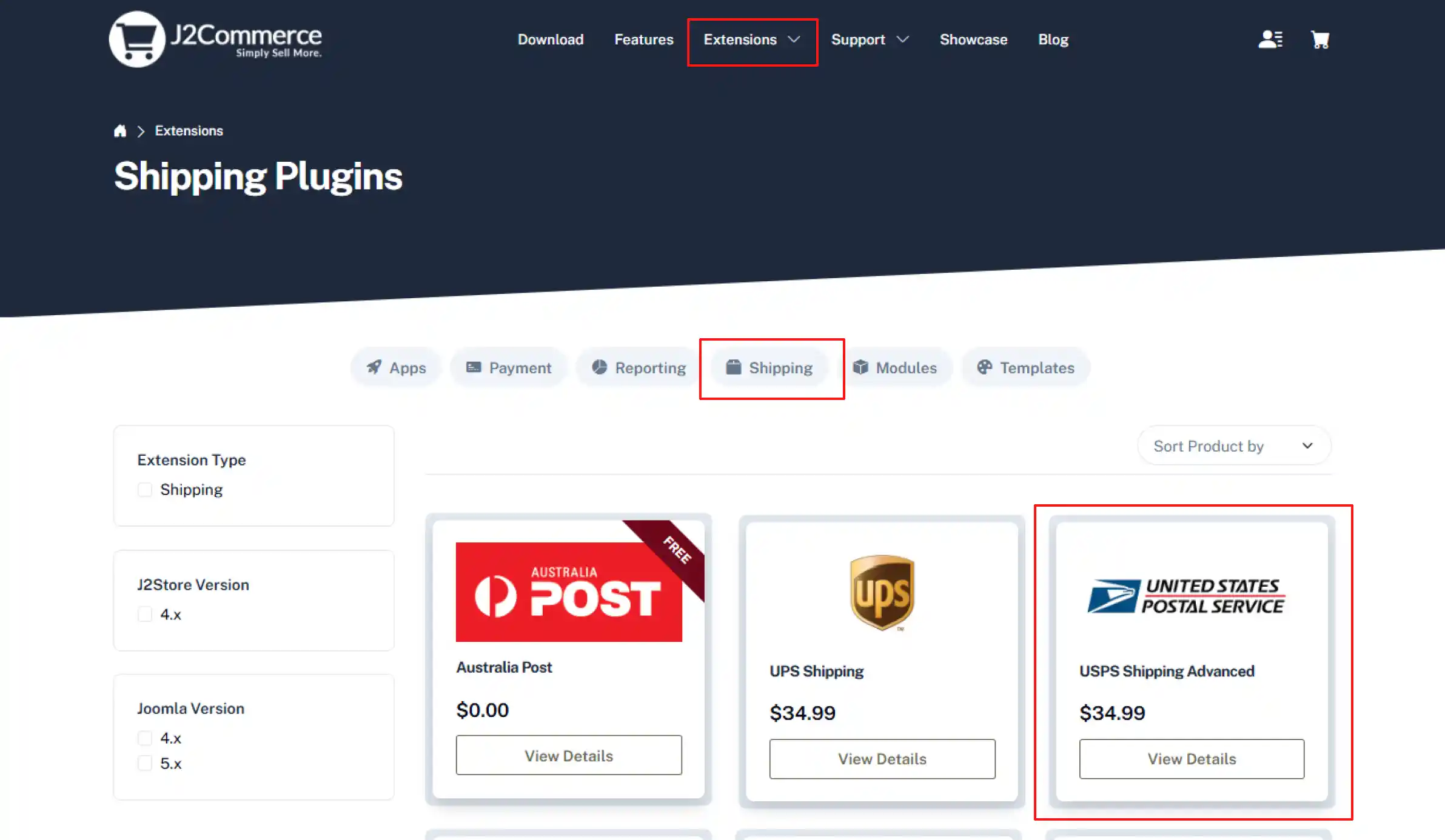
Step 2: Locate the USPS App > click View Details > Add to cart > Checkout.
Step 3: Go to your My Downloads under your profile button at the top right corner and search for the app. Click Available Versions > View Files > Download Now
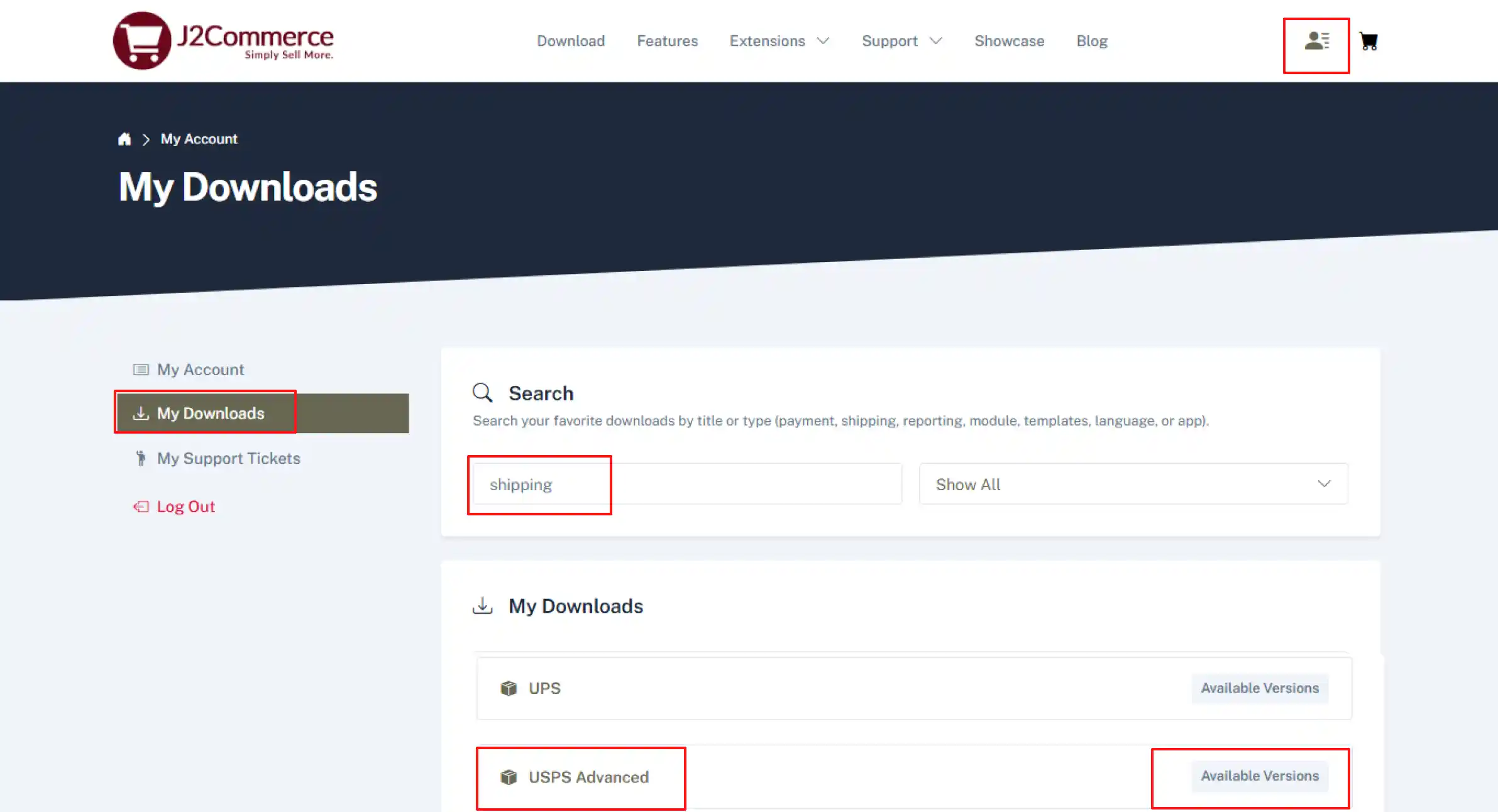
Installation: You can install this USPS shipping plugin, using Joomla installer. The following steps help you for successful installation.
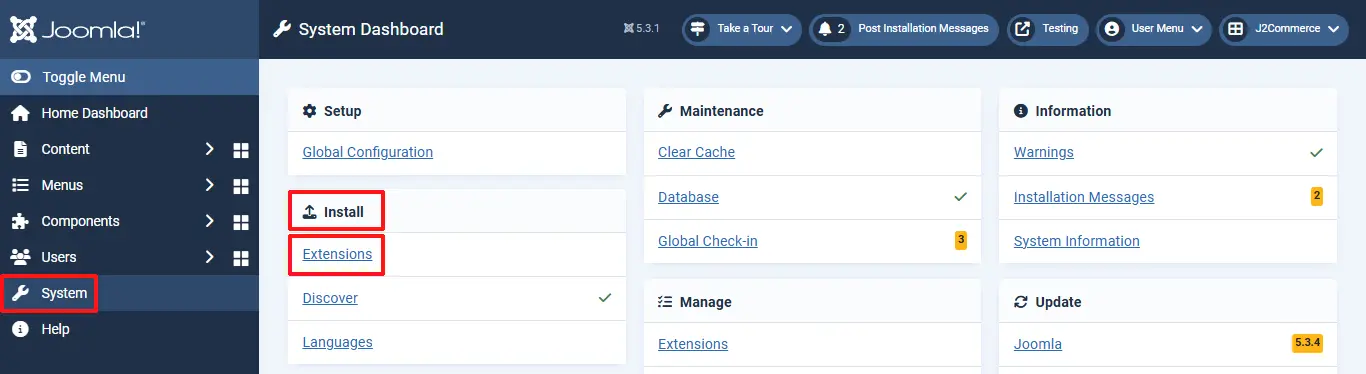
Step 1: In the Joomla admin, go to System > Install > Extensions
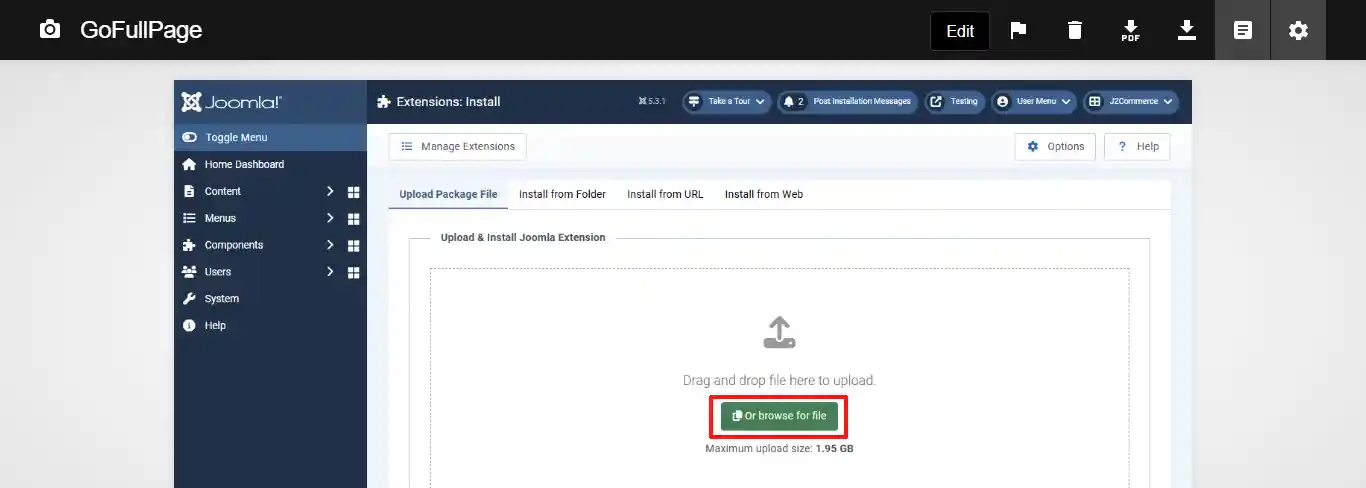
Step 2: Click on the Browse button and select USPS Shipping zip file
Step 3: In the Joomla admin, go to System > Manage > Extensions
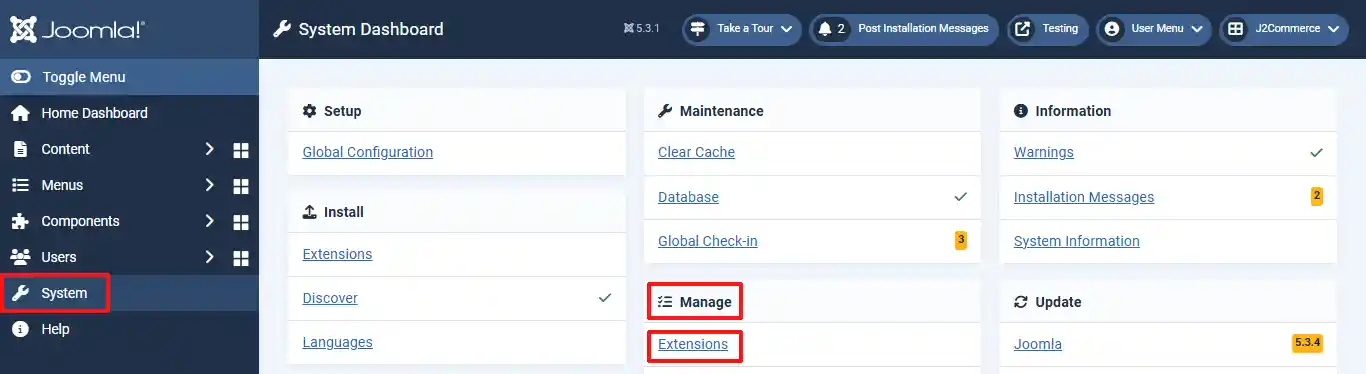
Step 4: Search for the app and enable it.
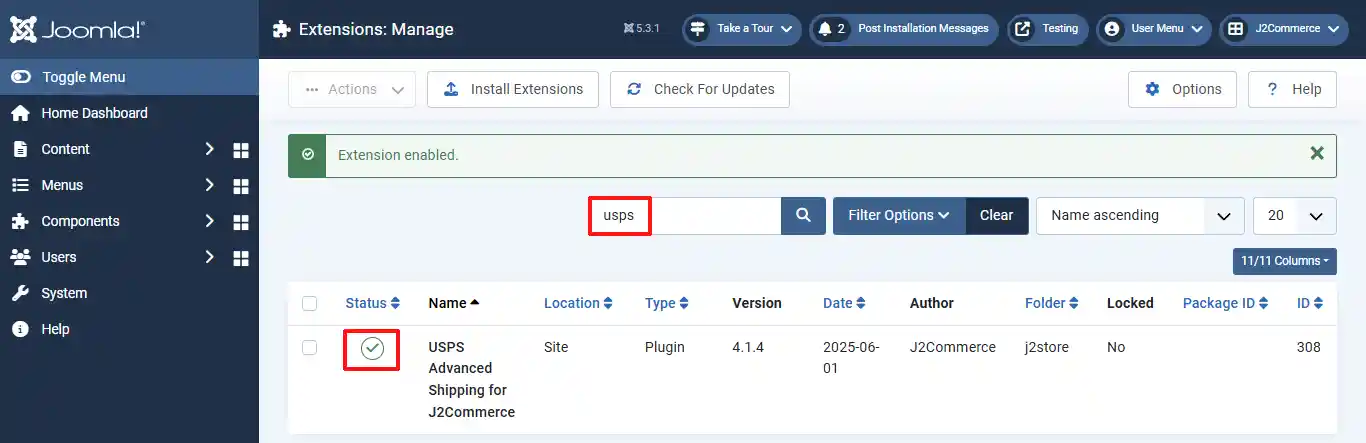
Step 5: Select J2Commerce >setup > shipping methods
Step 6: Locate the USPS Advanced Shipping App and click View to begin customizing it.
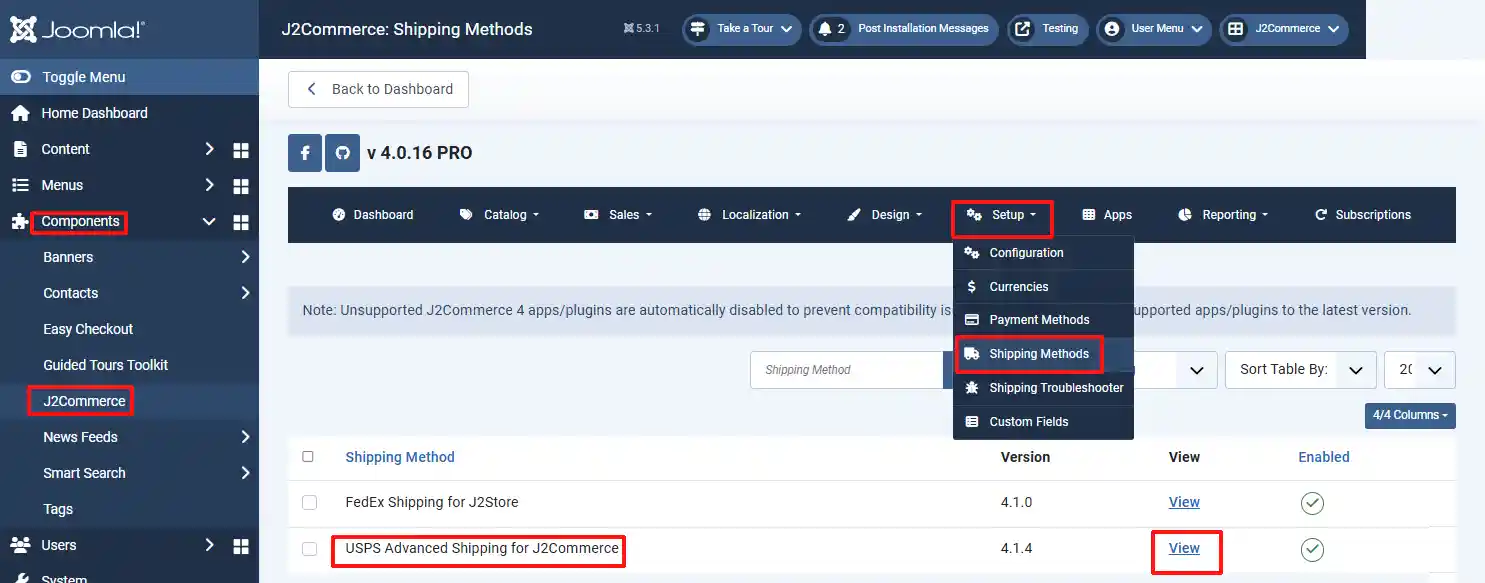
Plugin Settings:
Step 1: Login to your USPS account and copy the Key & Secret code https://developers.usps.com/
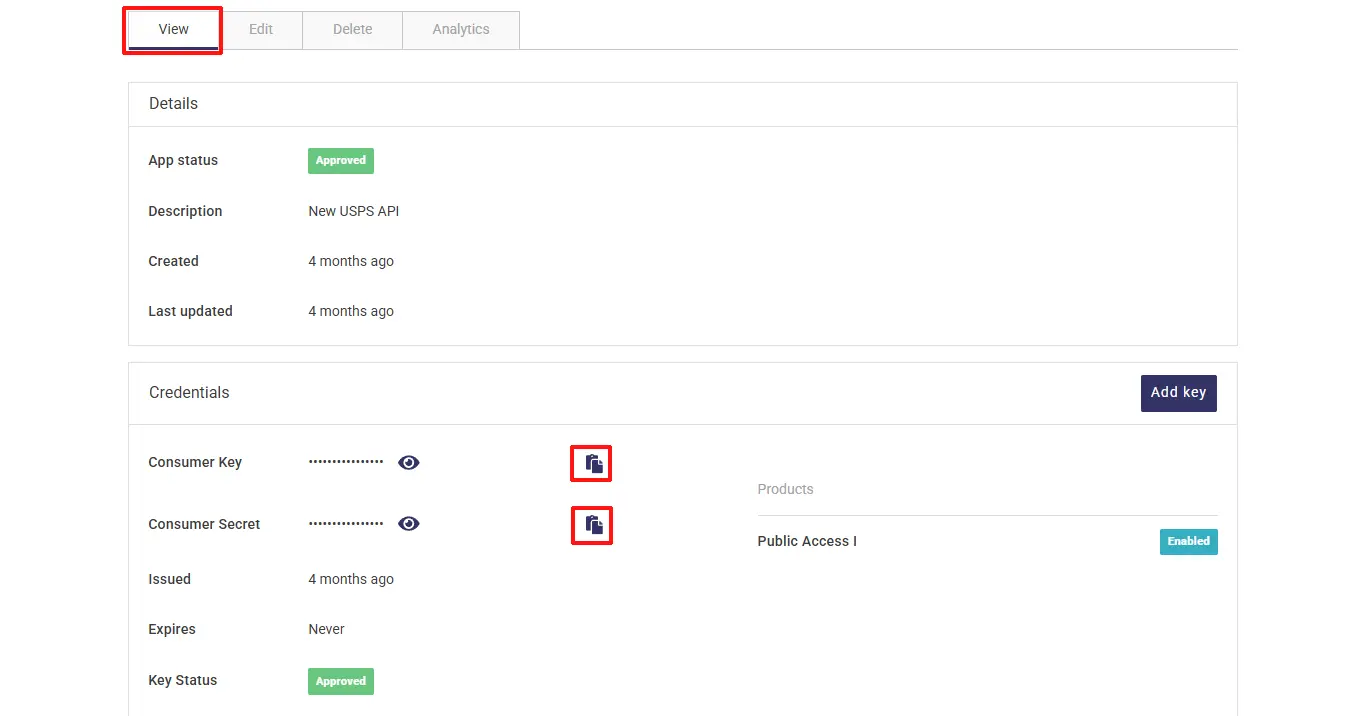
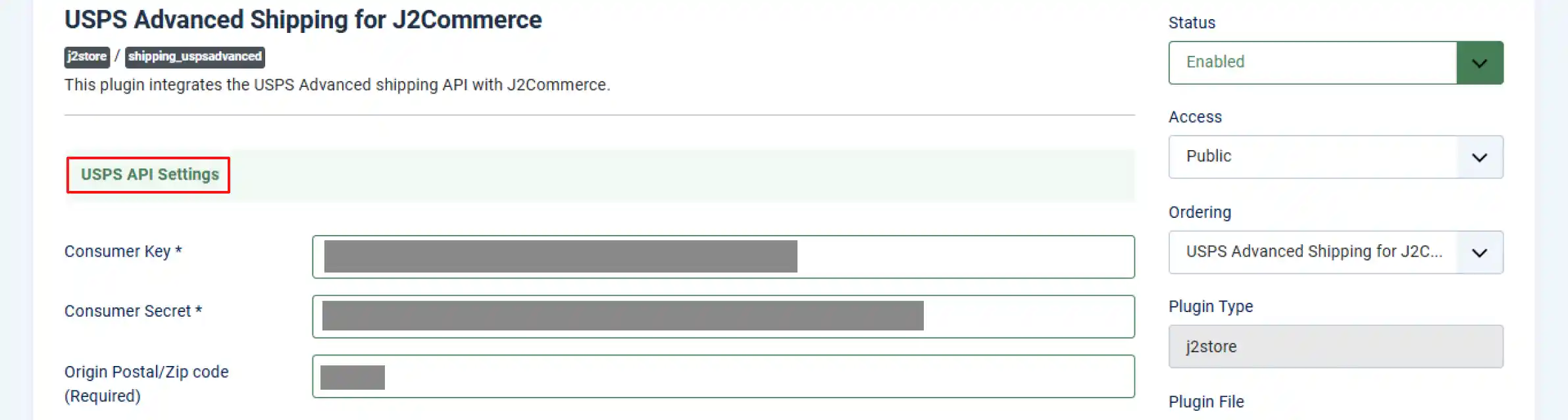
Step 2: Configure the shipping plugin by entering the plugin parameters.
Enter Key/Secret code:
Origin postal/ Zip code: Enter the Postcode from where you ship.
USPS COMMON SETTINGS :
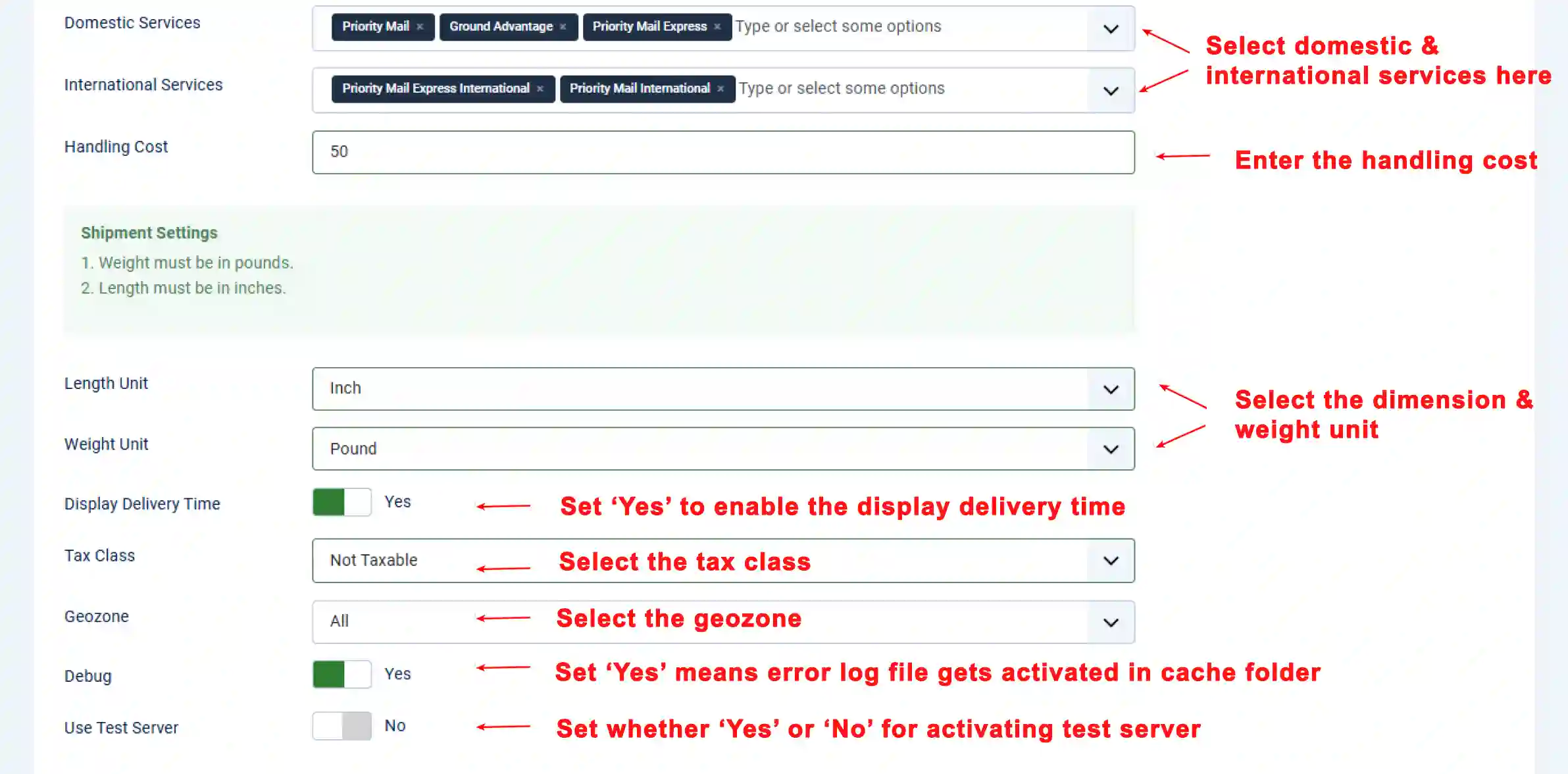
Domestic Services: USPS offered lot of domestic services. You can select more than one service.
International Services: USPS offers a lot of international services. You can add multiple options from the list.
Handling cost: If you need to charge a handling cost for the shipping, you can enter here.
Length unit: Select the desired unit in which you want to measure the dimension, like, inch, millimeter, and centimeter. Preferred unit Inch.
Weight unit: Select the desired unit in which you want to measure the weight, like, kilograms, pounds etc. Preferred unit Pound.
Display Delivery Time: If you want to show the delivery time means set it yes otherwise set it as no.
Tax class: If shipping is taxable and you want to add tax rate, select a tax profile in this option.
Geozone: If you want to limit this shipping method to particular areas, then you can select the corresponding geozone in this option. If this shipping is applicable to all areas, then set it to All.
Debug: If you set this to Yes, then an error log file will be maintained in the cache folder. It is suitable for a test account.
Set this option to No in live site
Use Test Server: USPS Shipping offers a testing suite called test server. Before going live, you can test your store using USPS test server feature.
Refer the below image
Enable standard API service: Set this to YES will enable the standard API service of USPS (i.e) once standard API is enabled, it will pass to the USPS server and get the standard rates from USPS server.
Shipping rate based on? There are 2 options available
1) Commercial Rate: Commercial Base Pricing is always cheaper than the retail rates. Commercial Base Pricing is a discounted rate offered to U.S. Postal Service (USPS) to customers. It is the common price for all the customers of USPS.
2) Retail rates: Shipping rate changes based on the surcharges, fees, and other factors.
Packing type USPS offers 3 types of packing.
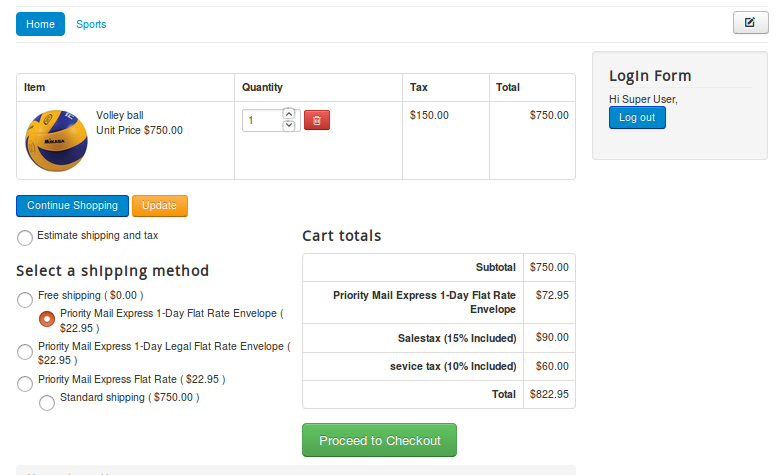
- Individual Packing: Each products consider as a separate unit and packing it into individual boxes. Each product will be packed separately.

Output will be displayed as like the image below
- Box packing :
The box packing included with this shipping method lets you pack all the items into a single box for which you have to define height, width, length, weight and max-weight. Packing is mainly volume based but also considers item size.
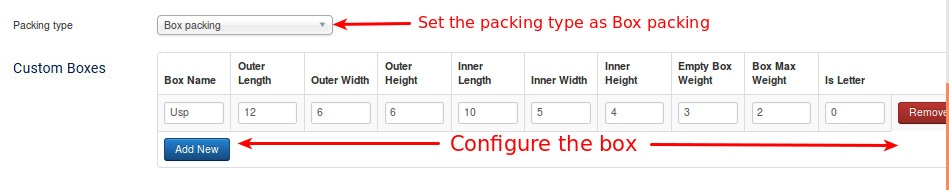
If you choose box packing, then you will have to create/set the box size. The box will have the following fields.
- Name: This allows you to name your custom packages.
- L (in), W (in), H (in): The first set of dimensions are the outer dimensions of the package. These are the dimensions passed to the API. If you are working with a flat rate box via the API (i.e., Regional Boxes), use the API’s ‘inner dimensions’ for your box’s outer dimensions. Your box must ‘fit’ inside.
- Inner L (in), Inner W (in), Inner H (in): The second set of dimensions are for the inner dimensions of the packaging. This should be the outer dimensions minus the thickness of the package walls. These dimensions are used for packing and items must fit within them (they cannot be the same size as the products, allow for a little extra room).
- Weight of Box (lbs): This is the weight of the empty box by itself. This weight is added to the total weight of the contents.
- Max Weight (lbs): This is the maximum weight your box can hold. This includes the weight of the box and the contents.
- Letter: This checkbox determines whether your package is a letter (envelope) or a box.
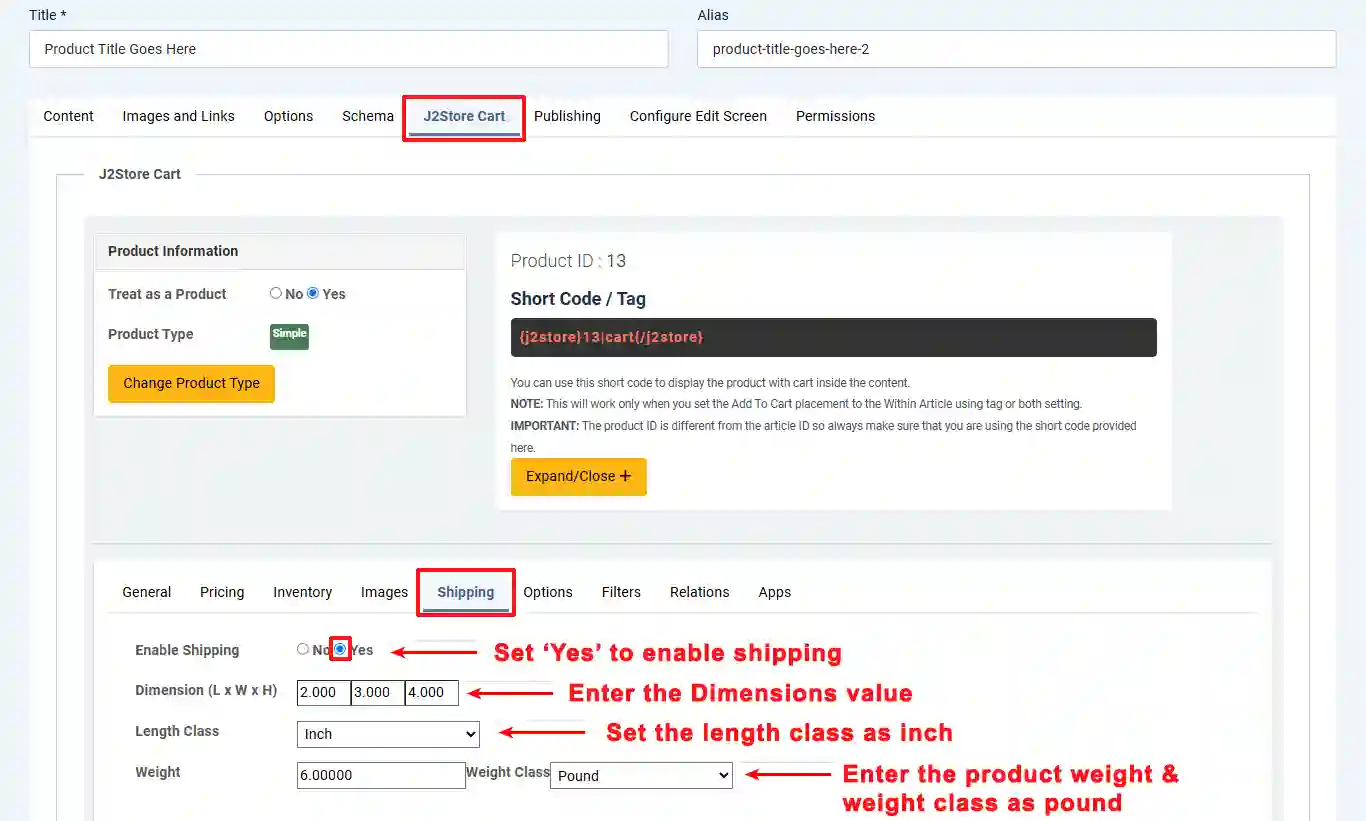
After configuring the USPS settings, then the important thing you have to do is to enter the dimensions for your product.
Step 1: Go to Content > Article > click on your product.
Step 2: Go to the J2Commerce (J2Store Cart) tab > Shipping tab
- Weight-Based Packing :
In this, each product has a different weight. Products having less than 70 lbs will be packed up into a single pack. If the products exceed 70 lbs, it does not pack up.

After configuring the USPS, configure the following things in J2Commerce (formally J2store) also.
.png)
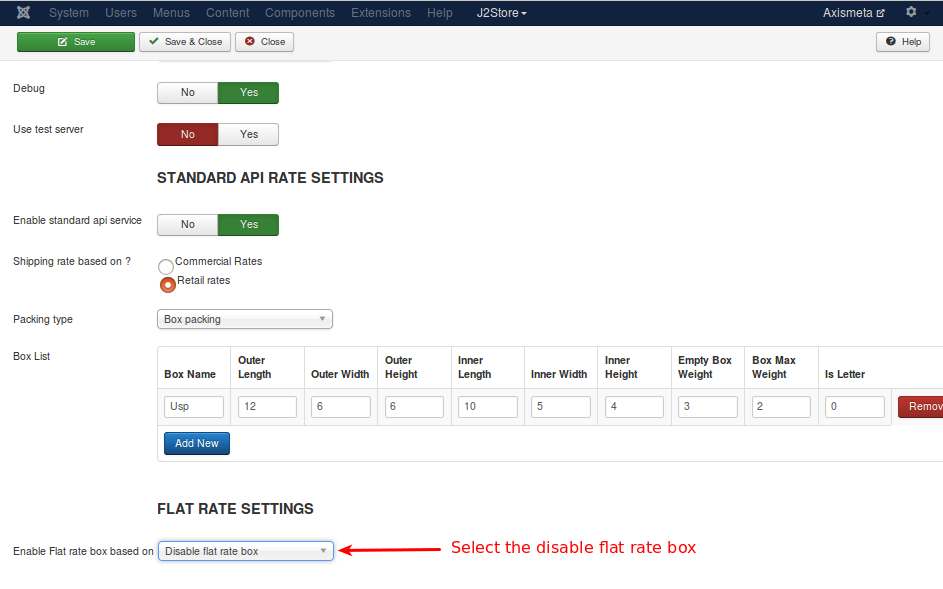
Enable Flat Rate box based on: It is important to note that Flat Rate Shipping prices come directly from the USPS API, and you cannot add or modify pricing for this option.
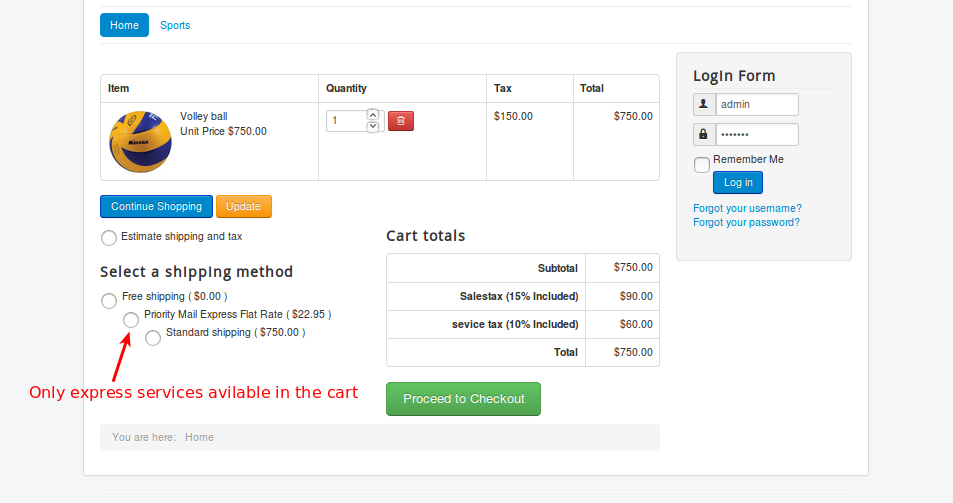
It has four options like enable the flat rate box, disable the flat rate box, enable priority services only, and enable express services only.
Enable flat Rate box: Choosing this option will enable express services and also the priority services.

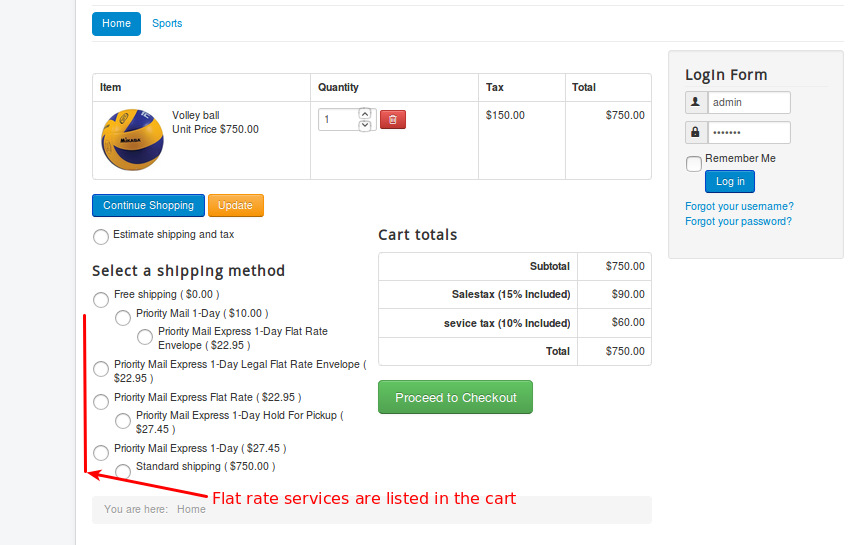

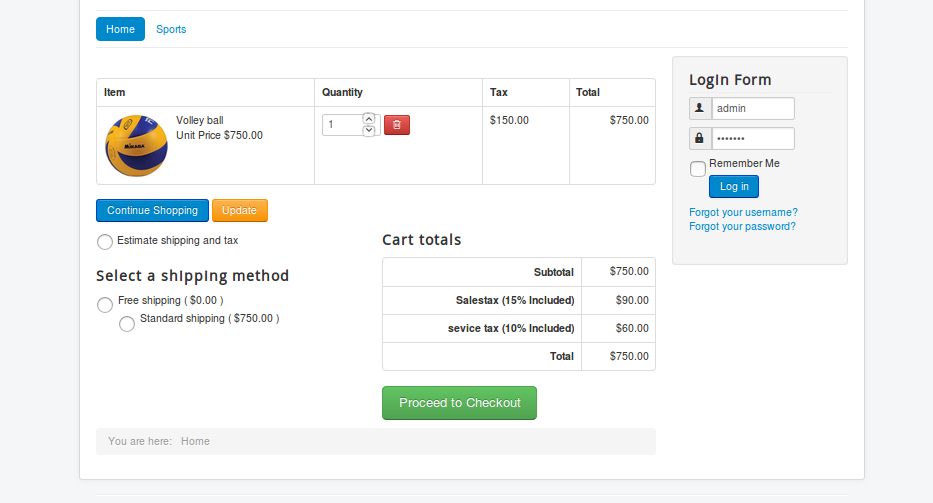
Disable Flat Rate box: If you select this option, it will disable all flat rate services.
Refer to the images below for a better understanding
.png)
Enable Priority Services only: It only enables priority services in the cart page.
Refer to the images below

.png)
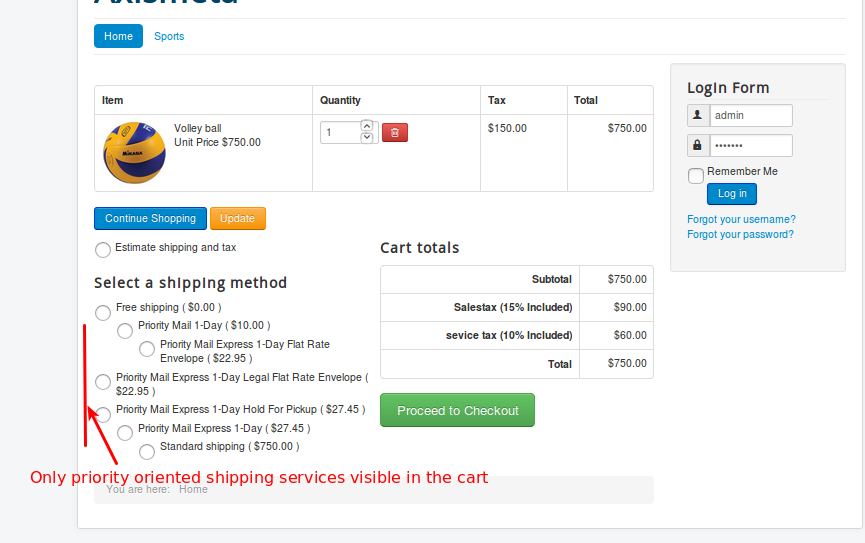
Enable Express Services: Choosing this option will enable only the express services.
Refer to the images below
.png) 
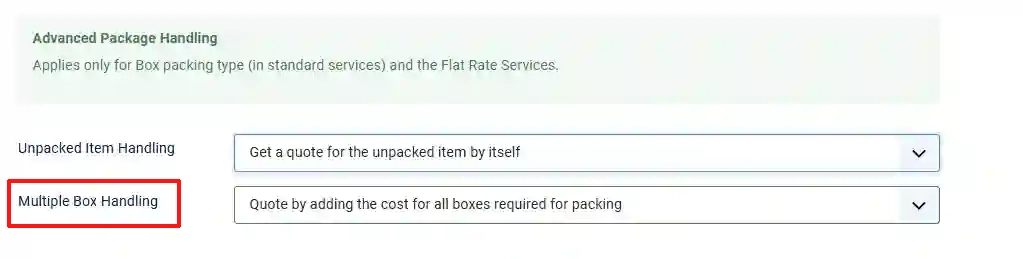
Advanced package handling: This type of handling method applies to Box packing type and Flat rate services. For scenario, consider you are having only two boxes (Box 1, Box 2) and 7 items needs to be packed. Pack the first three items into Box 1 and the second three items into Box 2. To pack item 7, you need one more box (Box 3). So you need multiple boxes to pack the items. In this case, you can decide whether the cost for an additional box should be applied or not.
By this Advance Package: handling method, you can use the following options to charge and un-charge the unpacked item.
Unpacked item handling
- Get a quote for the unpacked item by itself: Choosing this option will get a quote or charge for the unpacked item (i.e.) it will display the charge for multiple boxes (Box 1, Box 2, Box 3). This is the default option.
- Ignore item - do not quote: Choosing this option will display the charge for Box 1 and Box 2 and will ignore Box 3.
- Abort - do not return any quotes for the standard service: Choosing this option will cancel sending quotes for all the boxes.
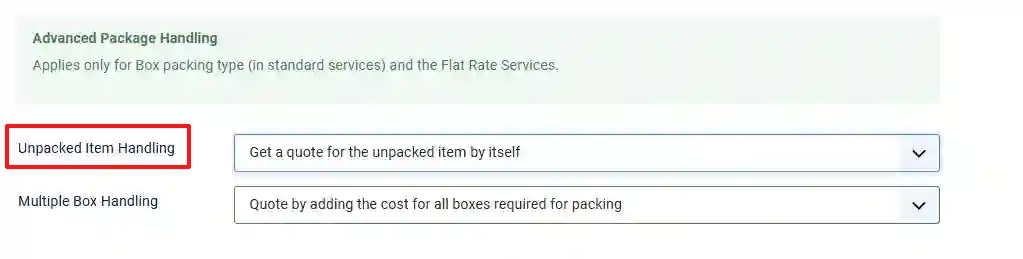
If multiple boxes are required for shipping?
- Quote by adding the cost for all boxes required for packing: This is the default option. Choosing this option will add the cost for all the boxes (Box 1, Box 2, Box 3).
- Abort - do not return any quotes: Choosing this option will cancel quotes for all the boxes and will not return any cost.