DHL Shipping
This plugin integrates the DHL Shipping Rate API with J2Commerce.
Requirements
-
with PHP 8.1.0 +
-
Joomla! 4.x/ Joomla! 5.x +
-
J2Commerce / J2Store 4.x +
Configuration:
Prior to configuring the plugin, you should have an active account with DHL and have received API keys. At the end of this document, you can follow the steps to register with DHL and get API Credentials.
Purchase the Plugin
Step 1: Go to our J2Commerce website > Extensions > Shipping Plugin > Shipping
Step 2: Locate the DHL Express shipping plugin > click View Details > Add to cart > Checkout.
Step 3: Go to your My Downloads or My Account under your profile button at the top right corner and search for the app. Click Available Versions > View Files > Download Now
Installing the Plugin
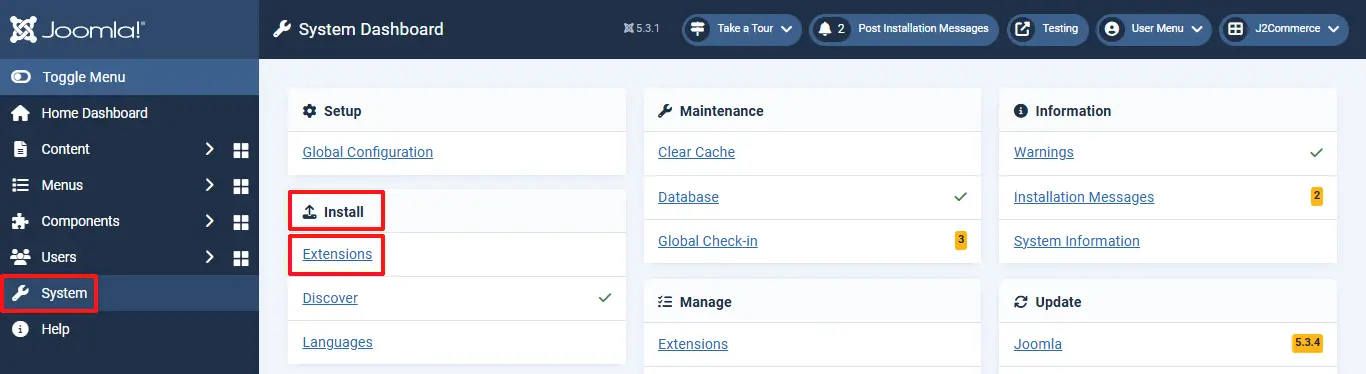
Go to System > Install > Extensions
Click on the Browse button and select the DHL Express Shipping zip file you saved during the download process. You will receive a message of success once installed.
Enable the Plugin
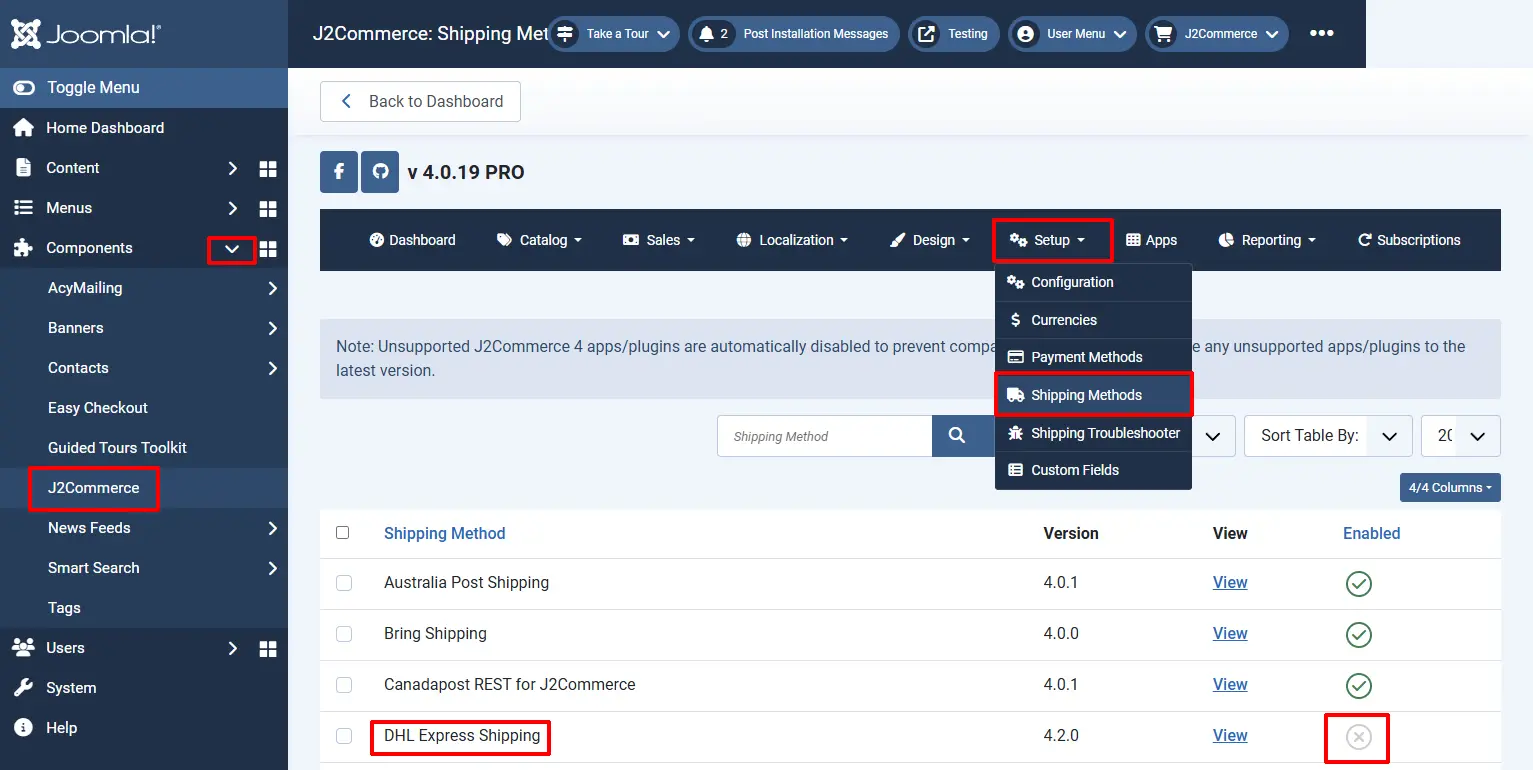
Select J2Commerce > setup > shipping methods > DHL
Enable the plugin by clicking on the 'X' to enable it. It will turn into a checkmark
Setting up the Plugin
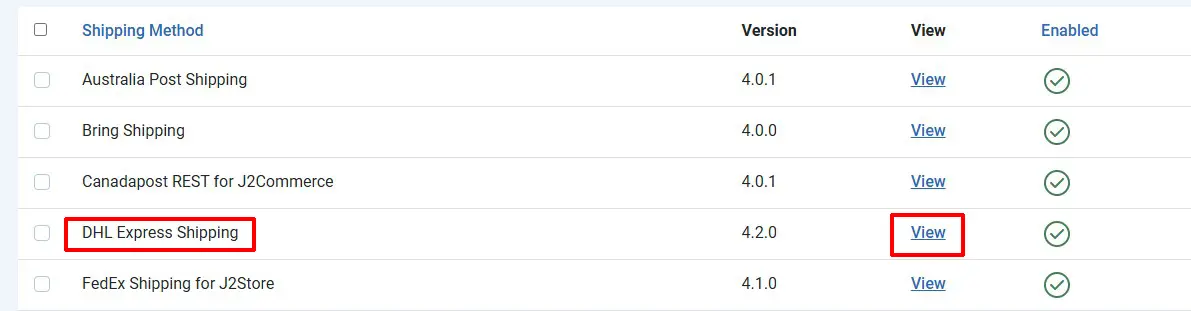
Once it's enabled, click 'View'
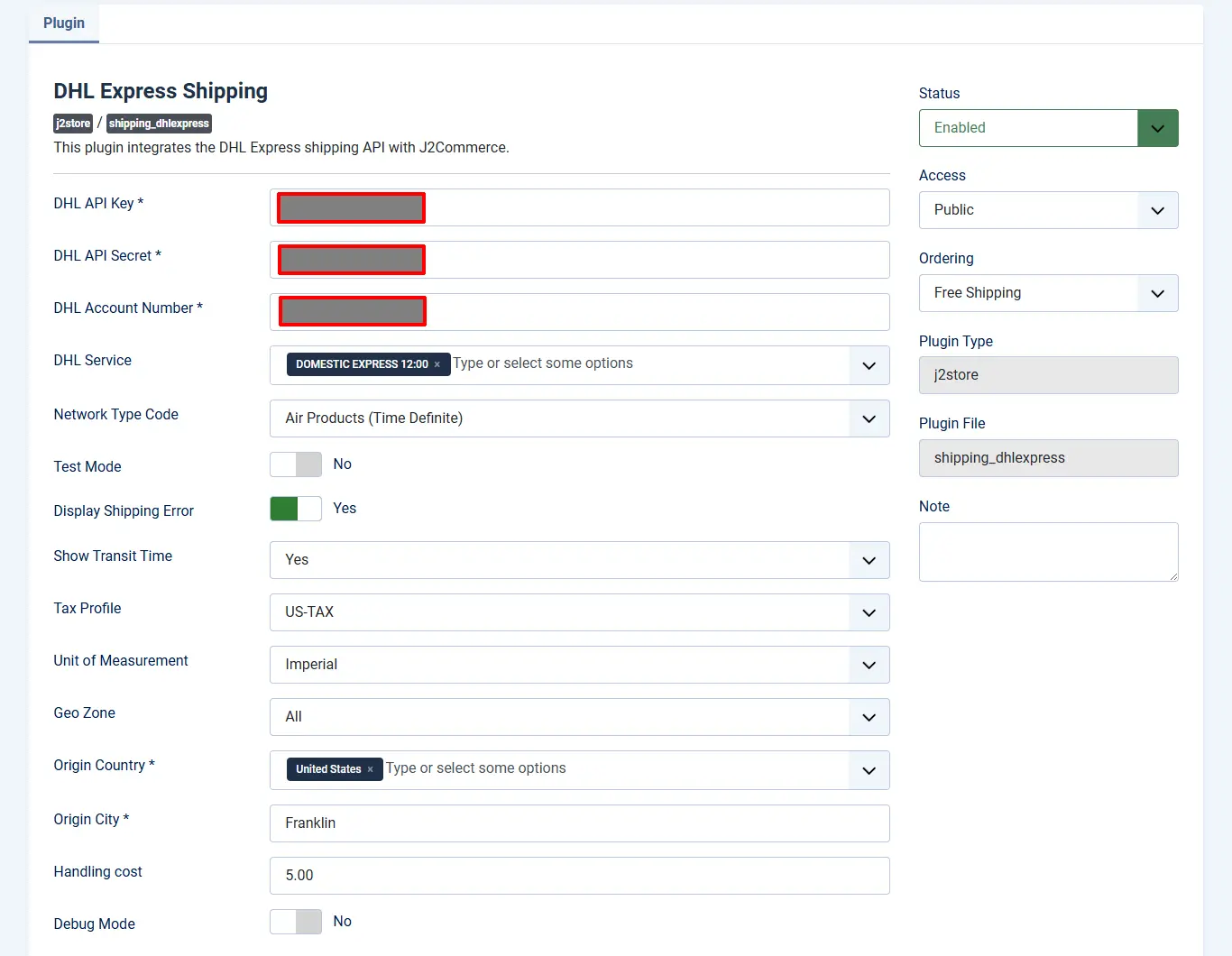
Configure the shipping plugin by entering the plugin parameters.
Plugin tab
DHL API Key: Client Key provided by the DHL Developer Portal (https://developer.dhl.com/)
DHL API Secret: Client Secret provided by the DHL Developer Portal (https://developer.dhl.com/)
DHL Account Number: Enter the DHL account Shipper number
DHL Service: Select the DHL services to be offered
Network Type Code: Is a parameter used to ensure that the specified shipping product code is valid for the account number
Test Mode: Toggle between sandbox (testing) and production (live) environments. Select Yes to use the DHL test api instead of the live (production api)
Display Shipping Error: Select yes to display DHL shipping errors in checkout
Show Transit Time: Select Yes to display the estimated transit time next to the shipping rate
Tax Profile: Here, you can specify the Tax class to charge the Tax on shipping. Leave empty if you do not want to charge tax
Unit of Measurement:
-
Metric: Uses standard units like kilograms (kg) for weight and centimeters (cm) for dimensions (length, width, and height).
-
Imperial: Uses standard units like pounds (lbs) for weight and inches (in) for dimensions
Geozone: If you choose a Geozone, then this shipping plugin will apply only to customers coming from the countries/zones added under the chosen Geozone. Leave empty to show the method to all Geozones. You can restrict users using this Geo Zone option
Origin Country: Enter the Country from which you ship
Origin City: Enter the city from which you ship
Handling Cost: Apply an additional fee to the shipping cost calculated
Debug Mode: Enables logging for troubleshooting API issues. If you set this to Yes, the system will log the requests and responses, which will help you debug. The logs will be saved in the Cache folder.
How to obtain DHL Credentials
The following instructions will help walk you through the process of obtaining your new DHL Client Key and Client Secret.
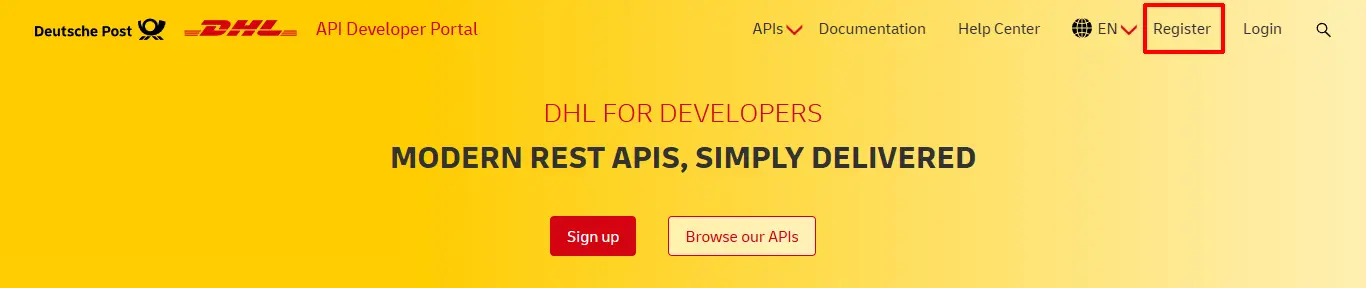
Step 1: Go to https://developer.dhl.com/ and log in or create a new account by clicking Register.
Fill in the required information, then submit the registration.
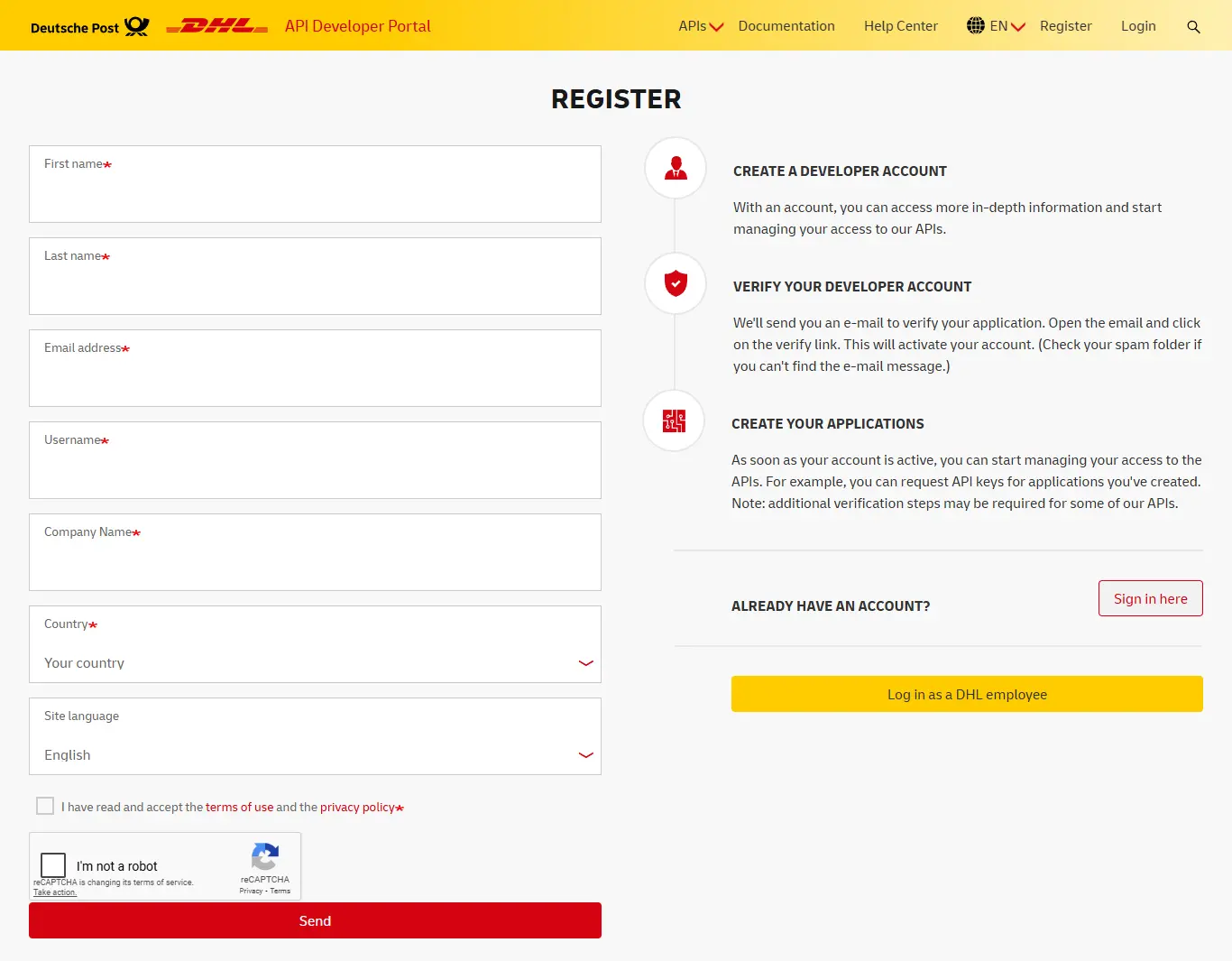
After creating your account, you will receive a confirmation email. Click the link in the email to set your password and activate your account.
Step 2: Create a new app and select an API
-
Log in to the DHL Developer Portal
-
Go to the My Apps section or click Create App from the menu
-
Provide a name for your app
-
Select the specific DHL API you wish to use from the API catalog, such as:
DHL Express—MyDHL API: For express parcel shipping services.
DHL Freight APIs: For road freight shipments.
DHL Global Forwarding APIs: For global ocean and air freight shipments.
Shipment Tracking—Unified: For cross-divisional tracking.
-
Read and accept the terms and conditions, then click Create App.
Step 3: Get your API key for testing
-
Once your app is created, it is automatically approved for use in the sandbox (test) environment
-
In the My Apps section, click on the name of your newly created app
-
Find the Credentials section and click the "Show" link next to the Consumer Key and Consumer Secret to view them
-
The Consumer Key acts as your API key for testing. Use these credentials to begin testing your application
Step 4: Request production access
-
To get a production API key, you will need to formally request production access for your app
-
From your app's details page, click the button to Request Production Access
-
Fill out the request form with details about your intended use and expected transaction volume. For DHL Express, you will also need to provide your existing 9-digit DHL account number
-
Submit the request. DHL will review your application, which may require verification by a DHL representative or account manager
-
You will be notified by email once your request is approved. Log back into the portal to retrieve your production API key and secret
Additional considerations
Existing DHL account: You will need an active customer account with the relevant DHL business division (e.g., DHL Express) before obtaining a production API key
Third-party integration: If you are using a third-party application like an e-commerce platform, the process may involve selecting your platform when requesting credentials.