Setting up the store in your Language
There is a high chance that you might want to set up your store in your own language. Let's suppose you are trying to set up your site in the German Language.
Download the Joomla Language
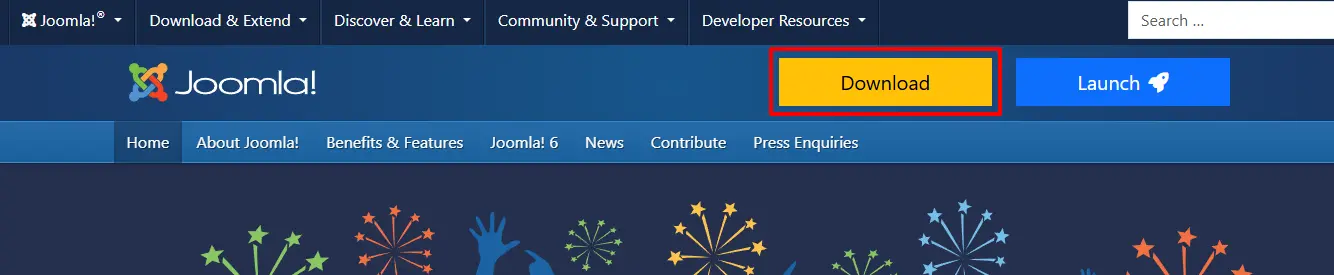
Step 1: Go to Joomla! > Download
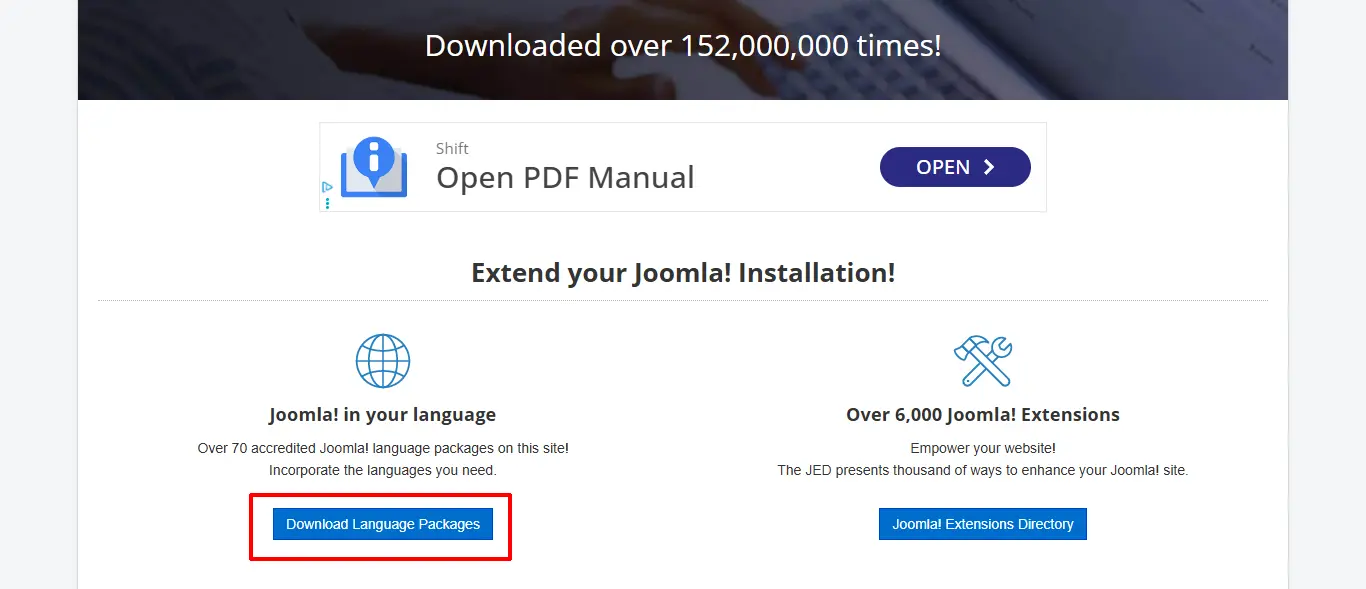
Step 2: Scroll down to Joomla! in your language > Download Language Packages
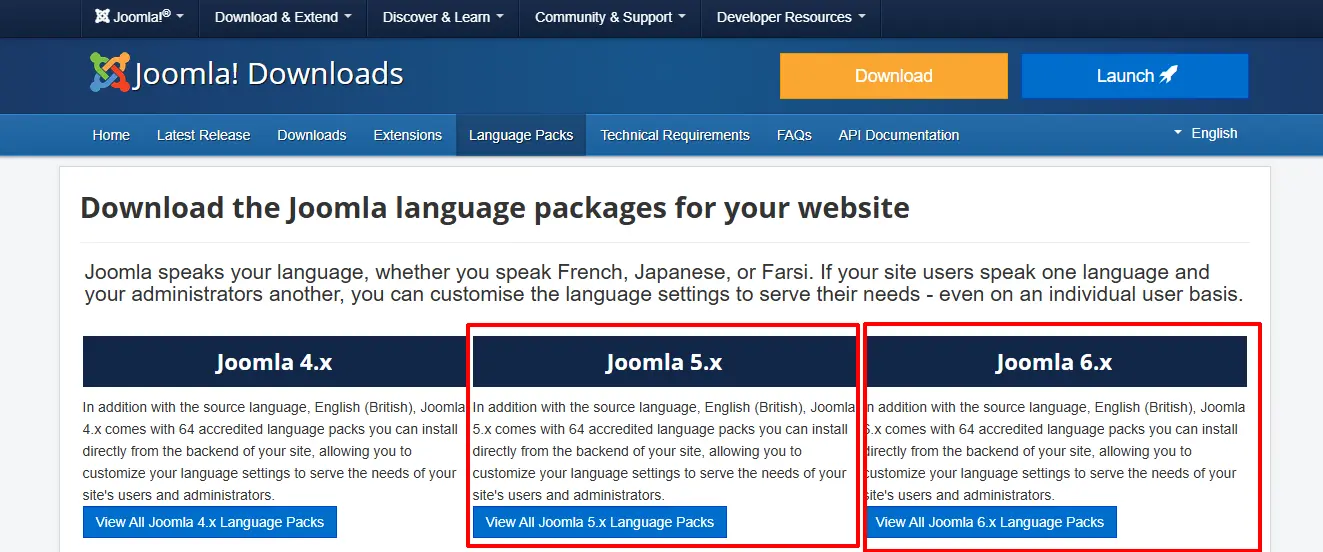
Step 3: Select the version of Joomla! You are working with. Either Joomla! 5 or 6.
Step 4: Choose the language package you want to download. In this case, we are downloading the German Language Pack
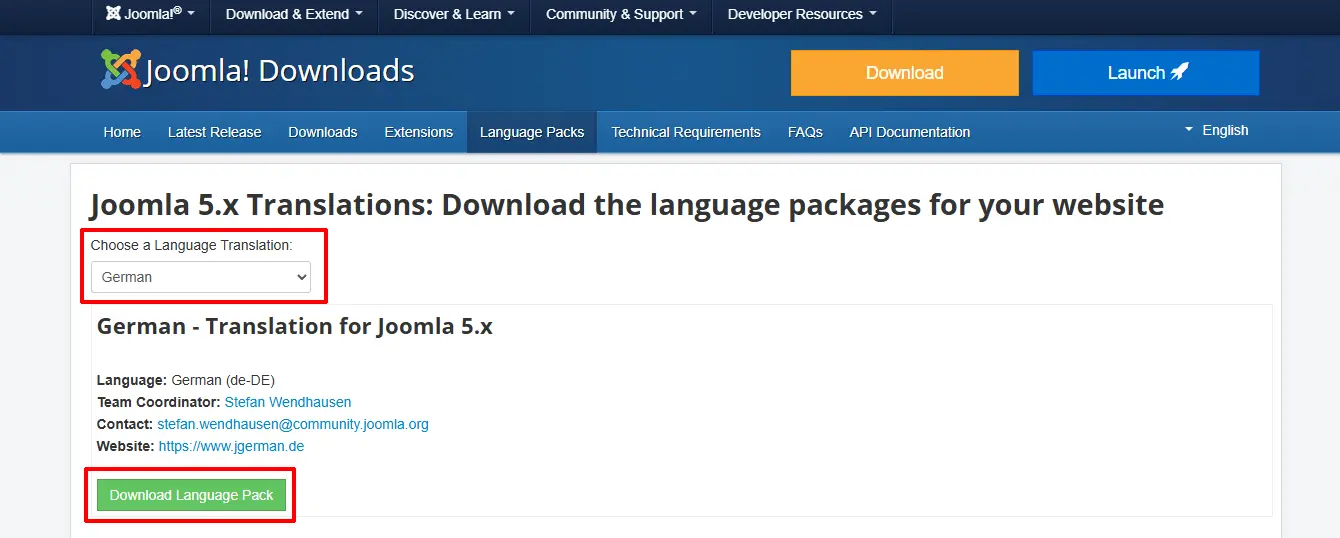
Install the Joomla Language
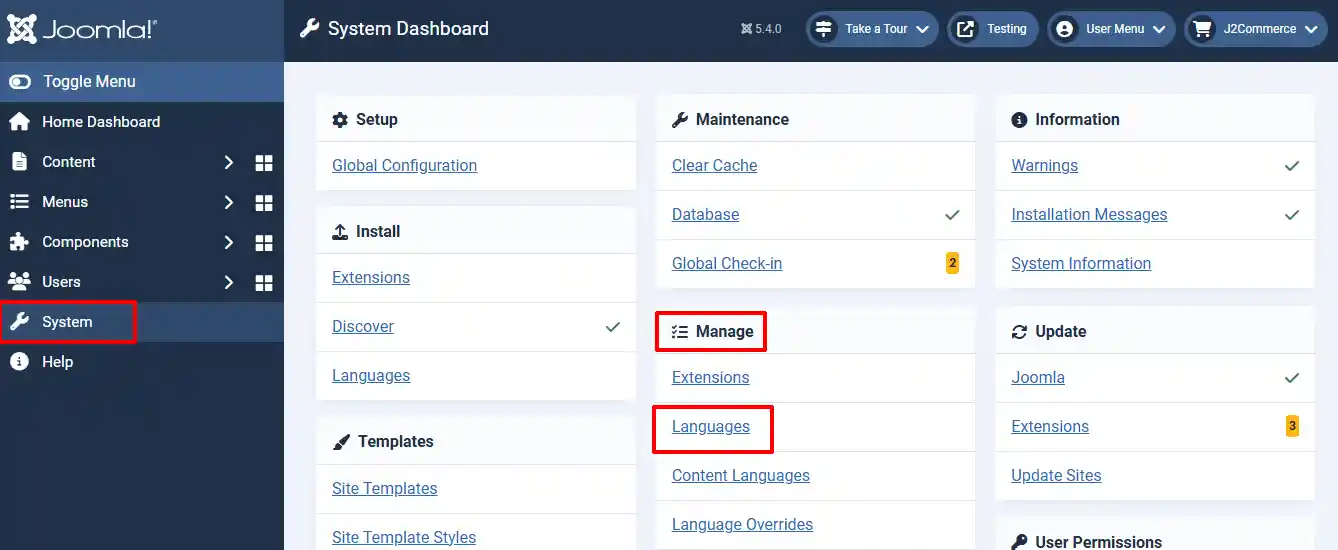
Step 1: Go to System > Manage > Languages
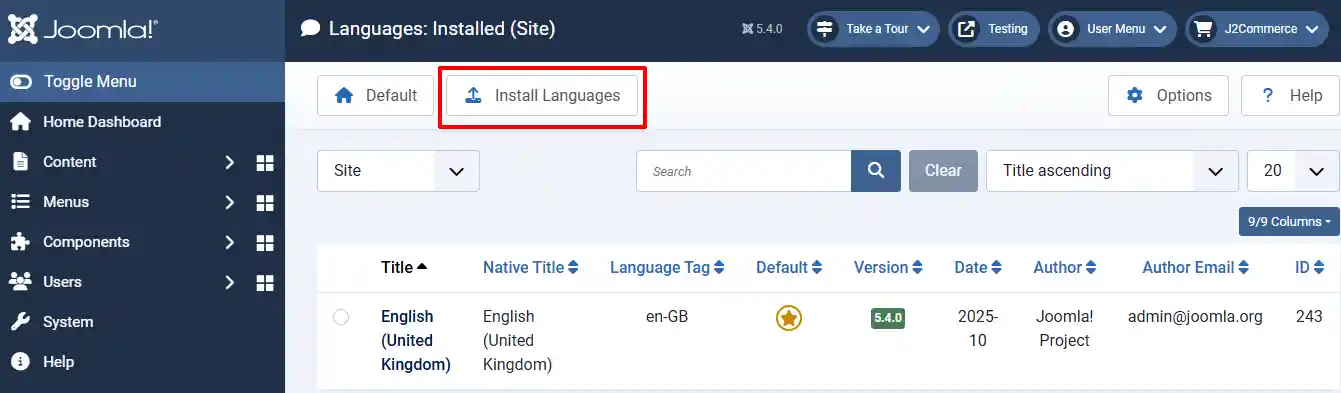
Step 2: Click on Install Languages
Step 3: Locate German and click Install. Once the language is installed, you will find that language under the Content Languages
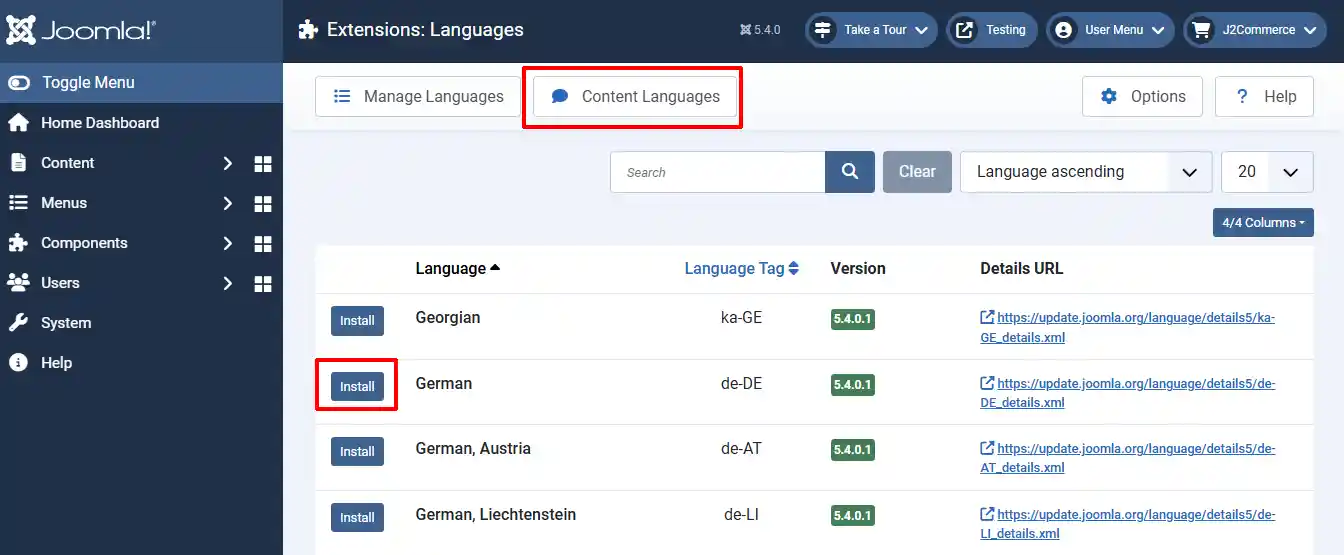
Step 4: Click on Content Languages and Enable the German Language by clicking on the 'X'.
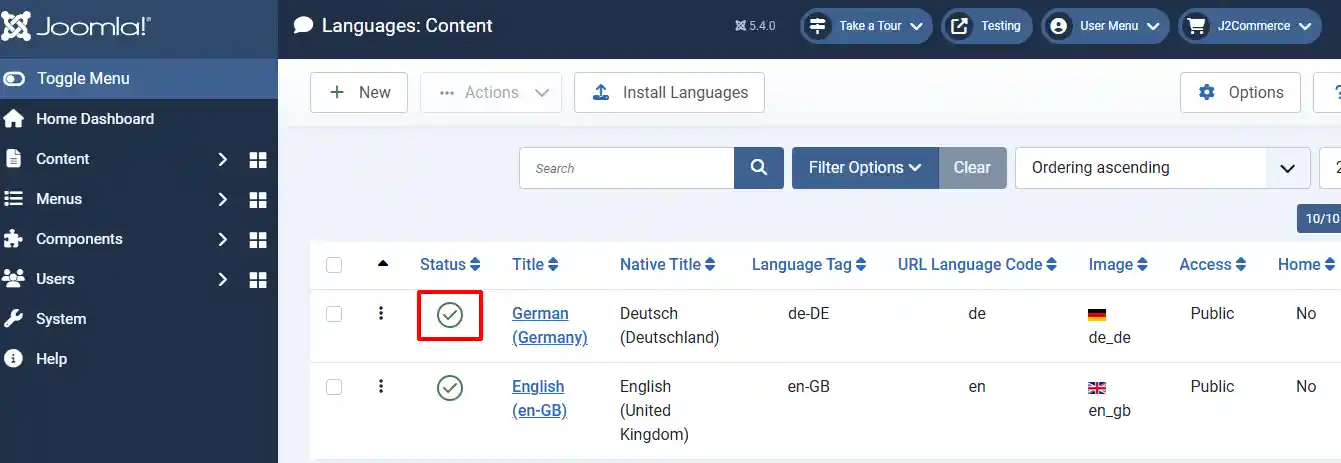
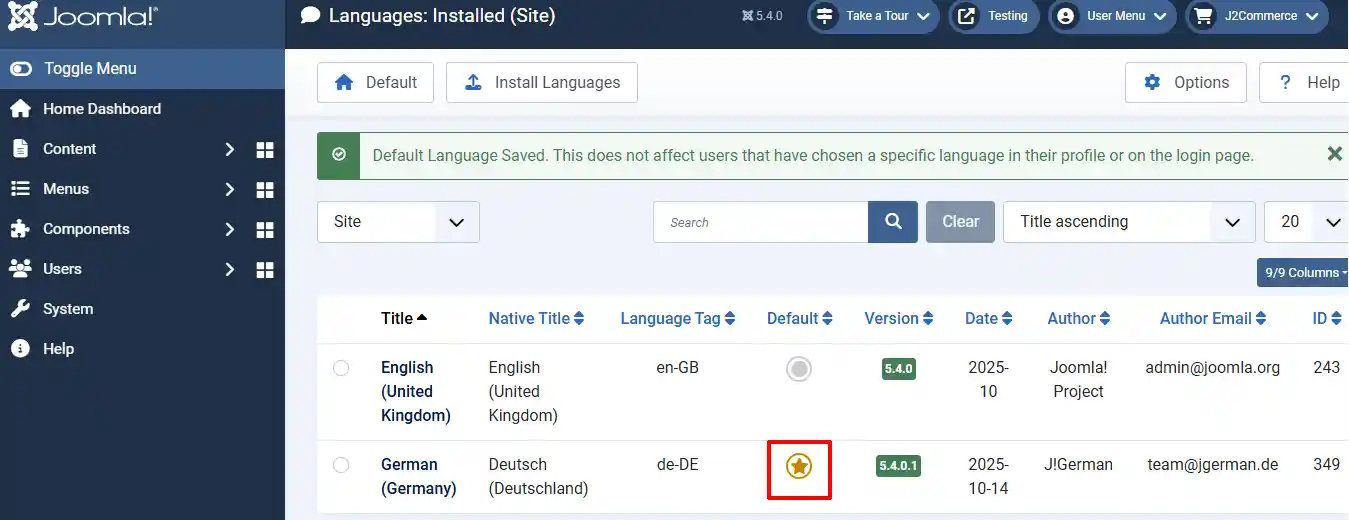
Step 5: Go back to System > Languages. Click on the Star to set the German Language as your default language.
Download J2Commerce Language Pack
Step 1: Go to J2Commerce.com > Extensions > Language Packs > Search for your Language > Available Versions > View Files
In this example, we will be using the German translation
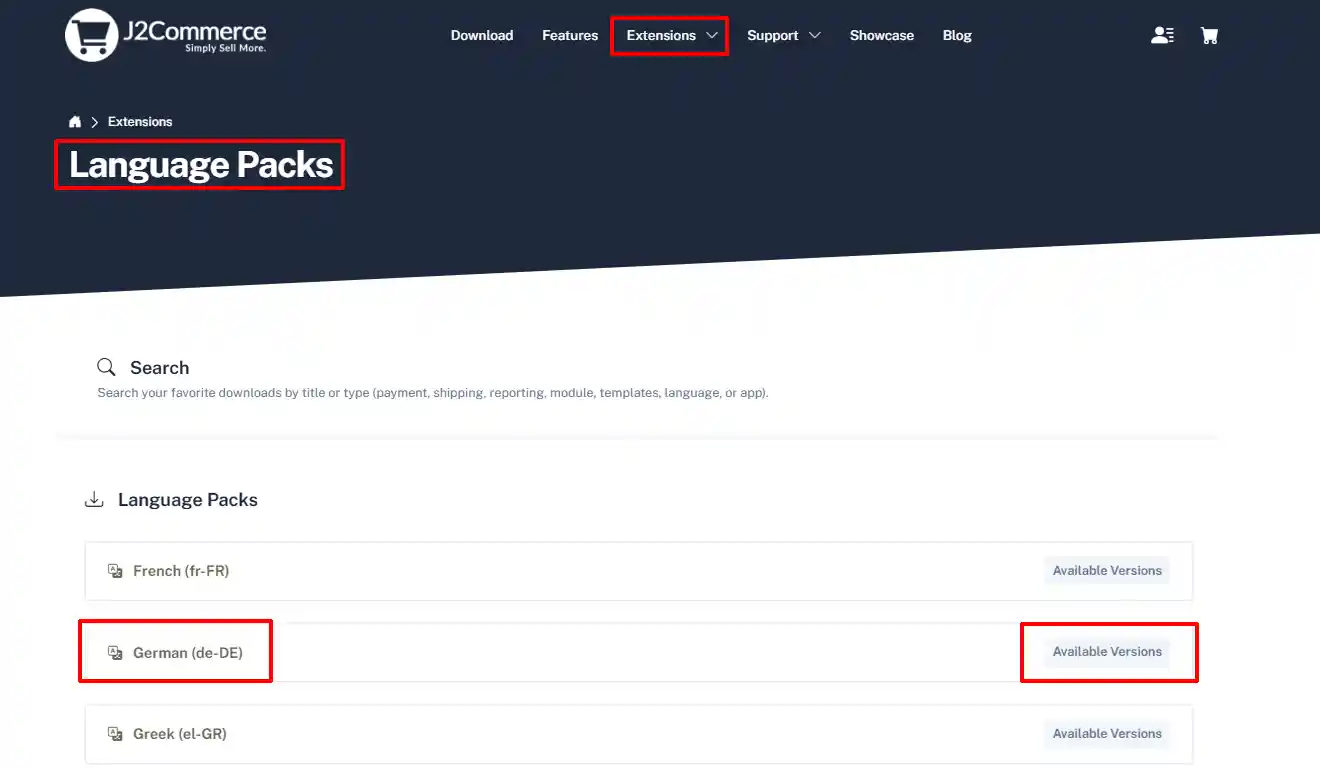
Step 2: Go to your My Downloads under your profile button at the top right corner and search for the app. Click Available Versions > View Files > Download Now

Install J2Commerce Language Pack
Use the Joomla! installer to install the app. Go to System > Install > Extensions
Install the German language Zip file
-e0515ef561b368cb4d5a053cacb4c525.webp)
Enabling Language Packs
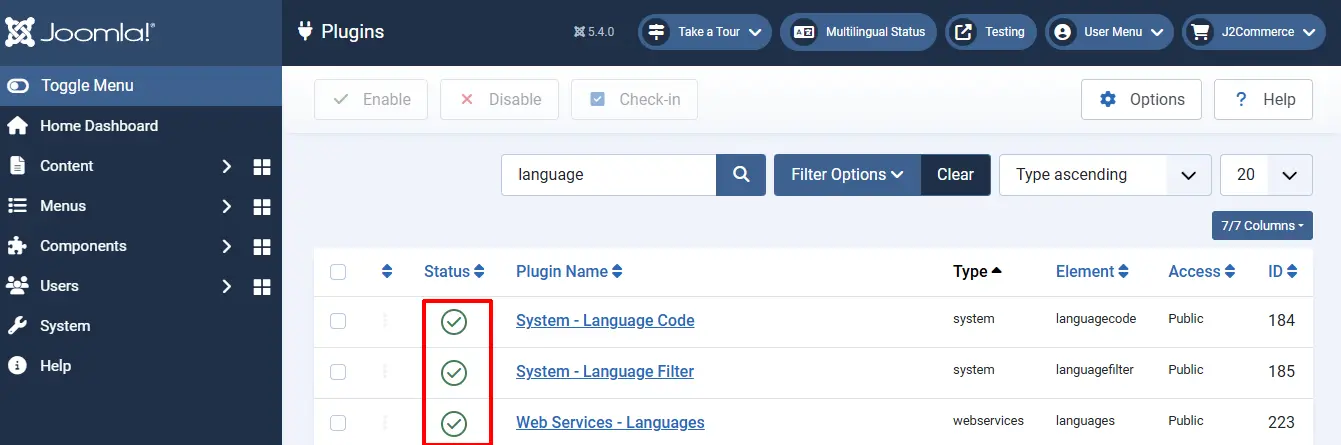
Step 1: Go to System > Manage > Plugin
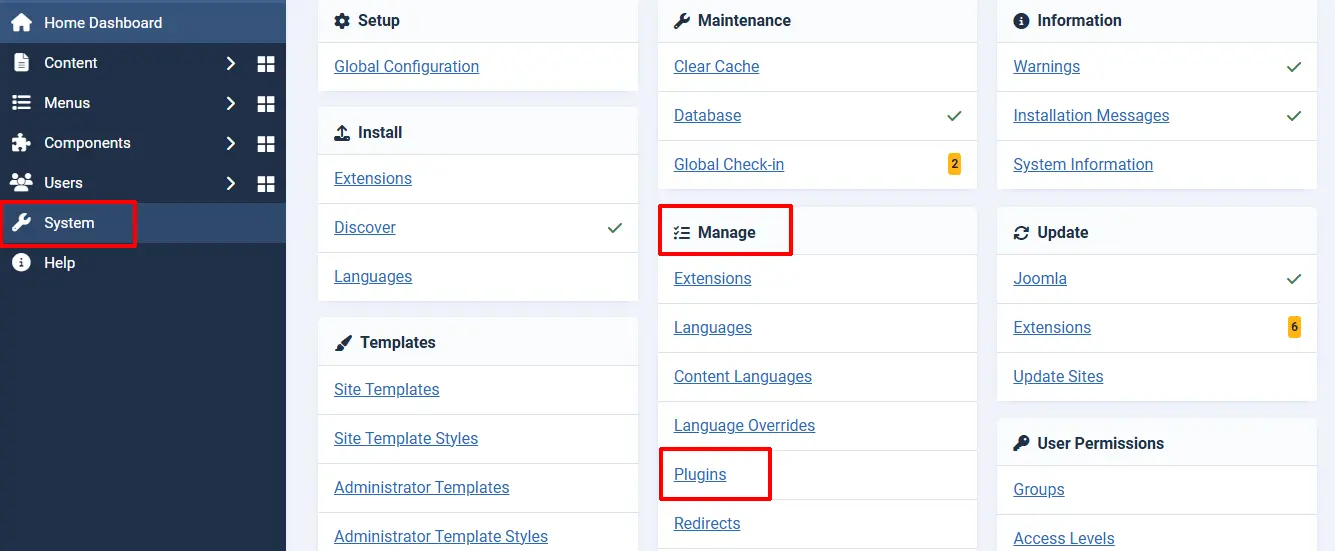
Step 2: Search Language to narrow down your view
Step 3: Make sure all three have a check mark to ensure they are enabled. If any of them have an 'X', click on the X to enable it.
Creating a new Article in a different Language
Each product that you want to show up in a specific language must have a duplicate version in the primary language. Then they need to be attached. The steps below show you how to do that. In the first step, we will choose English as the main language, and then the matching product will be in German.
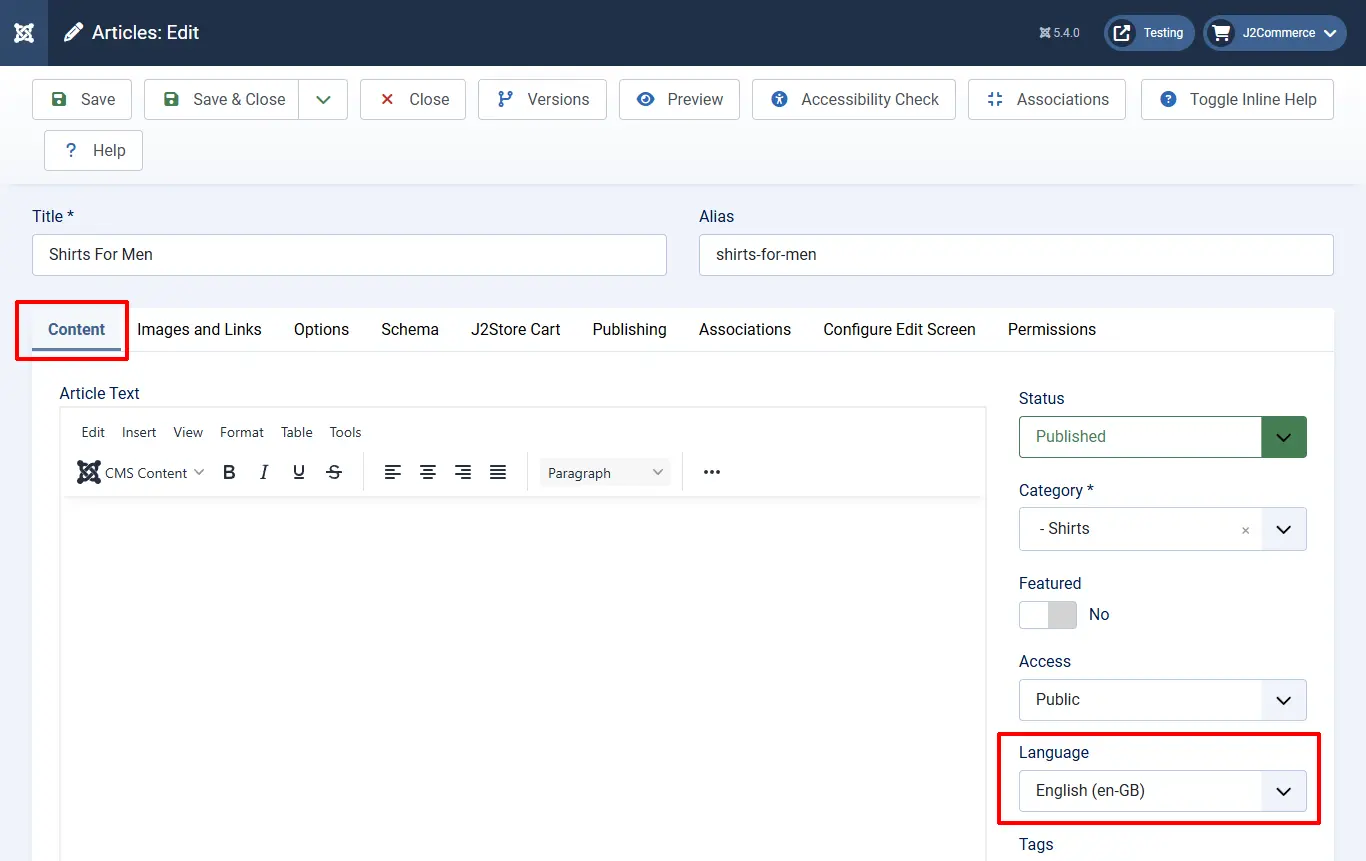
Step 1: Create a product article. Articles > New > Name it
Step 2: Content tab: Choose English as the language in the sidebar. If the Language category doesn't show up, it's most likely because you forgot to enable it in the previous steps.
Step 3: Save > Save & Copy. This will create a duplicate copy. Look at all of the tabs on the duplicate to make sure none of the information is missing
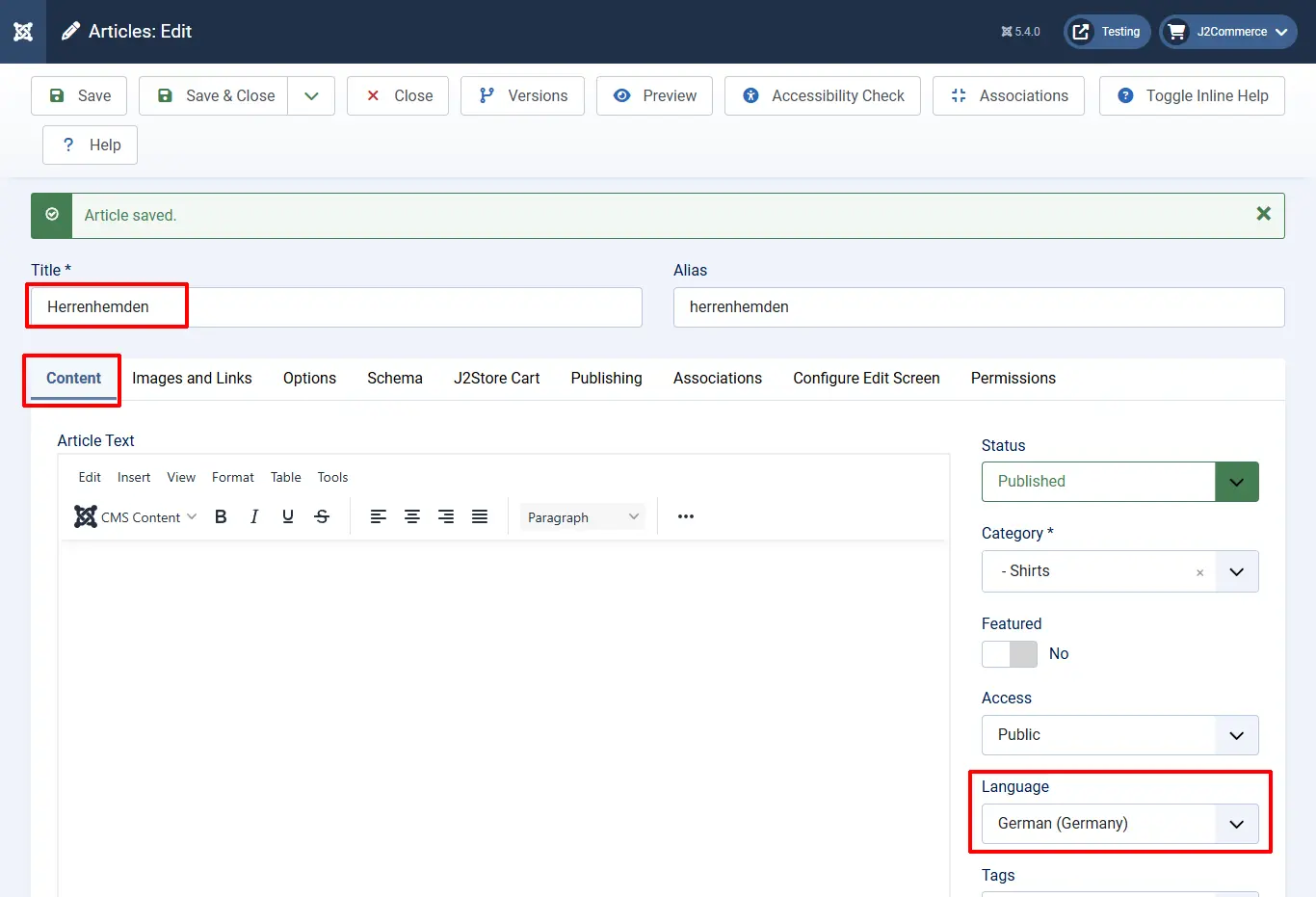
Step 4: Name the duplicate article the same name, but in the language of choice. In this example, we are choosing German.
Step 5: Choose English as the language in the sidebar
Setting Up Multilingual Association:
The next step is linking the two products together.
Step 1: Go to the Primary language product you just created (ie: English).
Step 2: Click in the Associations tab. Click on Select.
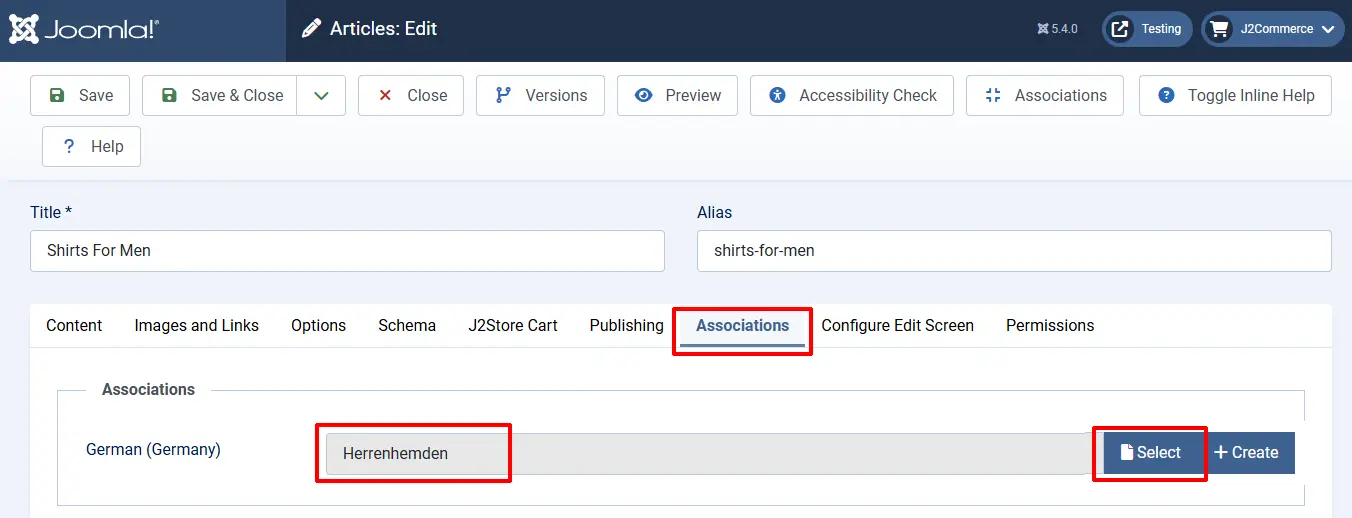
Step 3: Find the product you created in the secondary language (ie: German) and select it. Now both products are linked together.
Note: Articles that are labeled as "ALL" languages will not show up in the window. Only products with specific languages

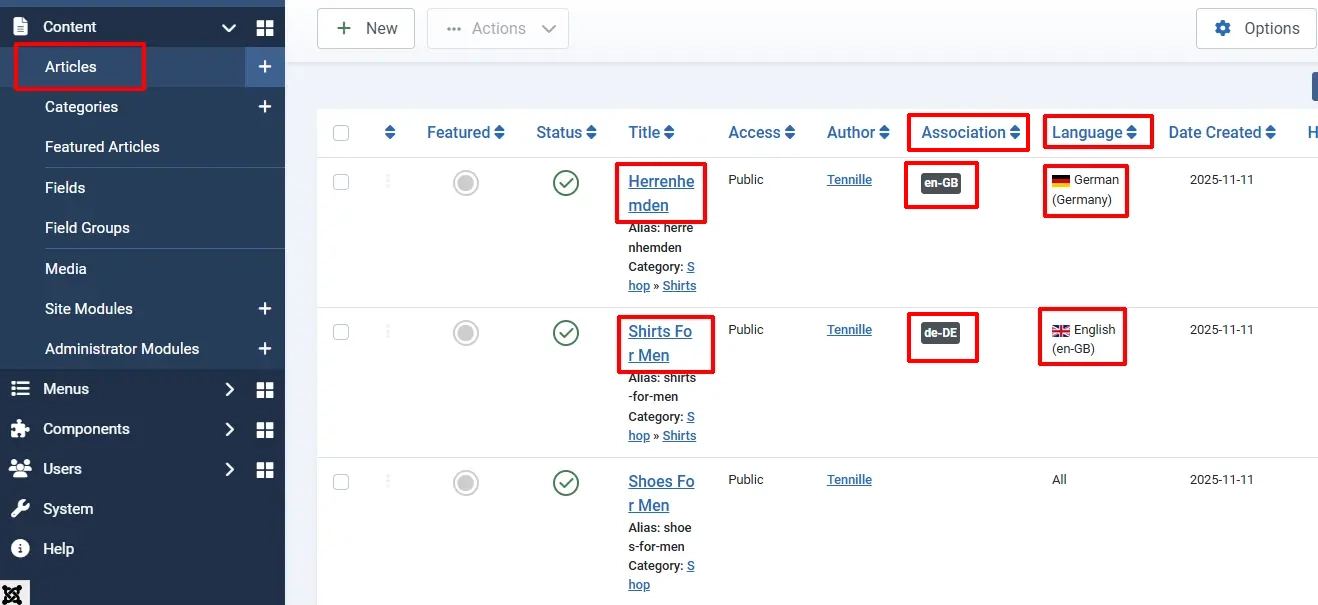
You will know that you did it correctly when you go to the Articles menu and see that the two are linked together.
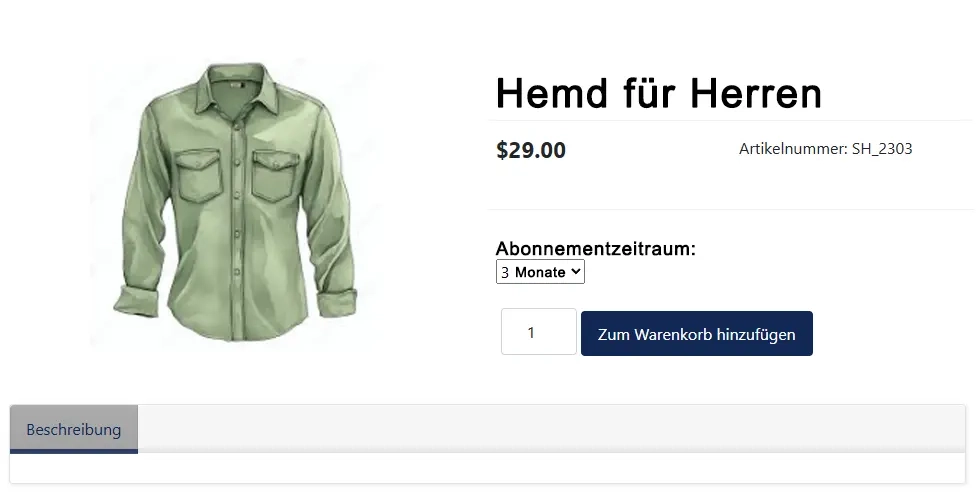
Frontend View of the German Product
Video Tutorial
Here is a video that would help you with setting up your store in your language: