Pdf Invoices
The PDF Invoice App turns your invoice into a PDF in both the email that is sent to the customer and on the Frontend and/or Backend of the site. Your European customers may need the pdf version of the invoice for their records.
Requirements
- PHP 8.1.0 +
- Joomla! 4.x/ Joomla! 5.x +
- J2Commerce / J2Store 4.x +
Purchase the App
Step 1: Go to our J2Commerce website > Extensions > Apps
Step 2: Locate the PDF Invoices App > click View Details > Add to cart > Checkout.
Step 3: Go to your My Downloads under your profile button at the top right corner and search for the app. Click Available Versions > View Files > Download Now
Install the App
Use the Joomla! installer to install the app. Go to System > Install > Extensions > install the app.
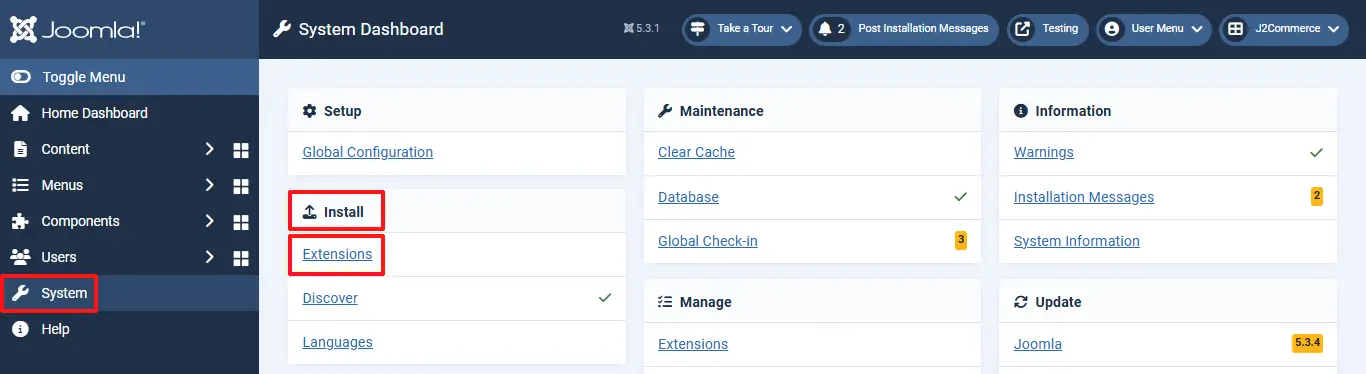
NOTE: When you install the main app, you will receive a message "Click to download the DOMPDF Library". Click on the link > Save it > Install it in the same location as the step above. Once the DOMPDF has been installed, you can now install the main app. If you don't install the DOMPDF then the main app won't work.

Enable the App
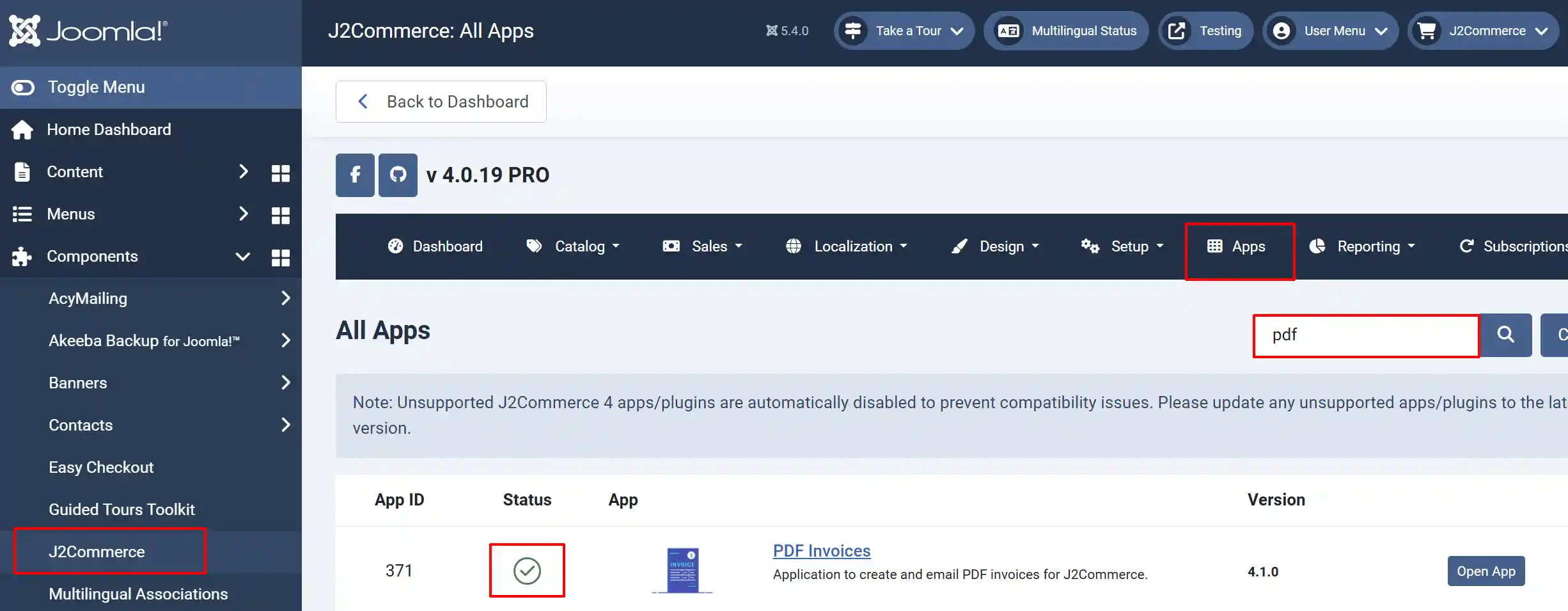
Go to J2Commerce > Apps > search for the PDF Invoices app.
Click on the 'X' under Status to enable it.
Click on "Open App" or the Title to start setting up the app.
Setting up the App
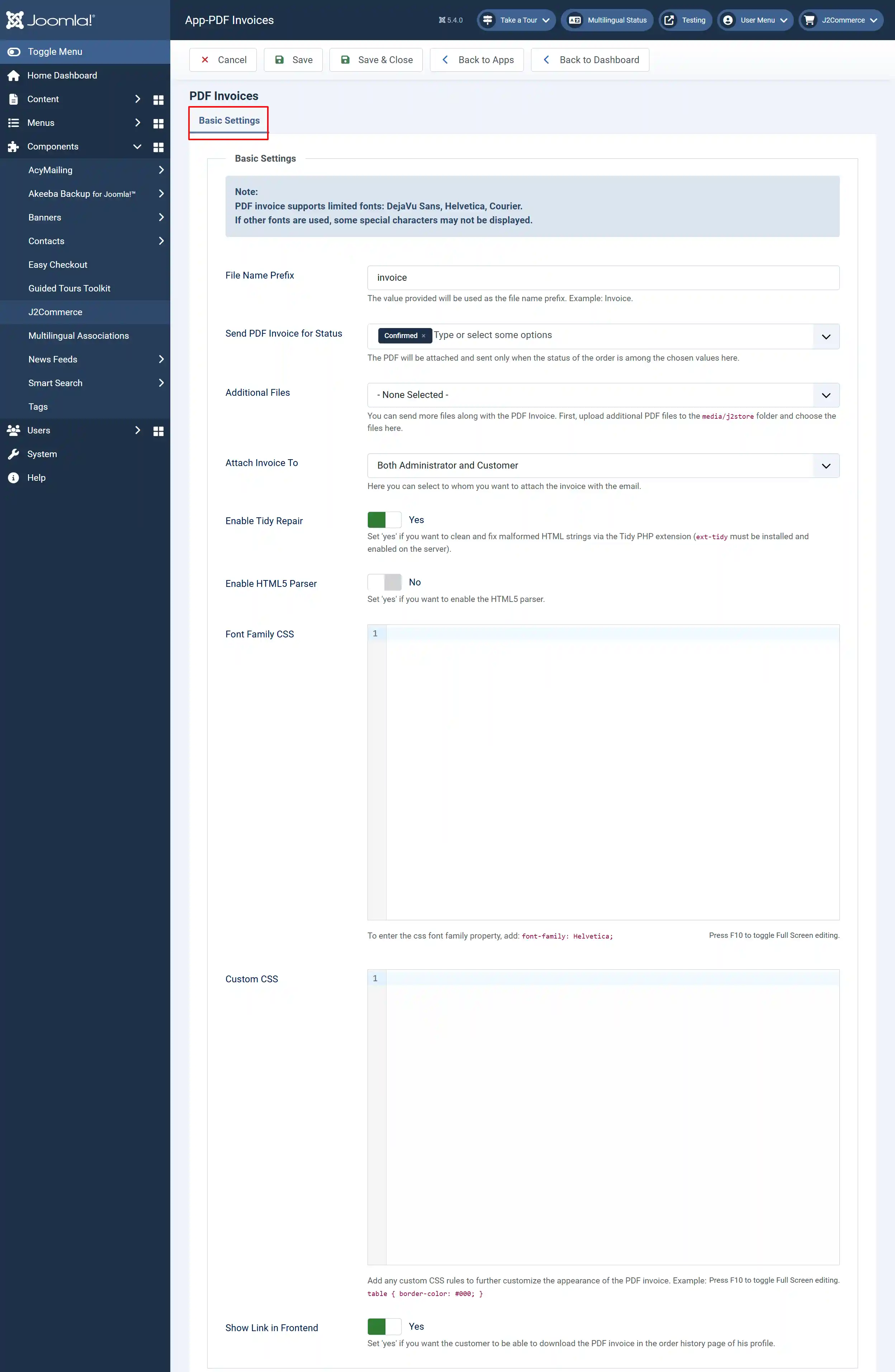
File Name Prefix: The value provided will be used as the file name prefix. Example: Invoice.
Send PDF Invoice for Status: The PDF will be attached and sent only when the status of the order is among the chosen values here. In the example above, the PDF Invoice will only appear after the order has been paid and "Confirmed".
Additional Files: You can send more files along with the PDF Invoice. First, upload additional PDF files to the media/j2store folder and choose the files here.
Attach Invoice To: You can select to whom you want to attach the invoice with the email.
Enable Tidy Repair: Set 'Yes' if you want to clean and fix malformed HTML strings via the Tidy PHP extension (ext-tidy must be installed and enabled on the server.
Enable HTML5 Parser: Set 'Yes' to check the integrity of the HTML code. The parser is a tool that checks that the underlying HTML code is correct. For instance, there is no missing </p> tag after a <p> tag
Font Family CSS: To enter the CSS font family property, add: font-family: Helvetica; Press F10 to toggle Full Screen editing.
Custom CSS: Add any custom CSS rules to further customize the appearance of the PDF invoice. Example: table { border-color: #000; }
Show Link in Frontend: Set 'yes' if you want the customer to be able to download the PDF invoice in the order history page of their profile
Frontend View of Orders
The image below shows an example of how the download button will appear on the frontend if you set the "Show Link In Frontend" to Yes.

Backend View of Orders

The PDF invoice link, in the backend, always shows, even if the status of the order is different from the order status that has been selected in the plugin. The status of the order is only relevant for the invoices on the frontend and the mailing of the invoice.