Bulk discounts
Encourage customers to purchase more by providing bulk discounts depending on the ordered quantity and on the specific product.
Bulk discounts can be defined at site-wide (globally), category-wise, or per product. Provide a fixed per-product discount or percentage of the total purchase. The plugin implements greater flexibility in providing discounts without requiring the customers to apply a coupon.
You can also restrict the application of the discount depending on the customer groups.
Requirements
- PHP 8.1.0 +
- Joomla! 4.x/ Joomla! 5.x +
- J2Commerce / J2Store 4.x +
Purchase the App
Step 1: Go to our J2Commerce website > Extensions > Apps
Step 2: Locate the Bulk Discount App > click View Details > Add to cart > Checkout.
Step 3: Go to your My Downloads under your profile button at the top right corner and search for the app. Click Available Versions > View Files > Download Now
Install the App
Go to System > Install > Extensions > Install the app
-e0515ef561b368cb4d5a053cacb4c525.webp)
Enable the App
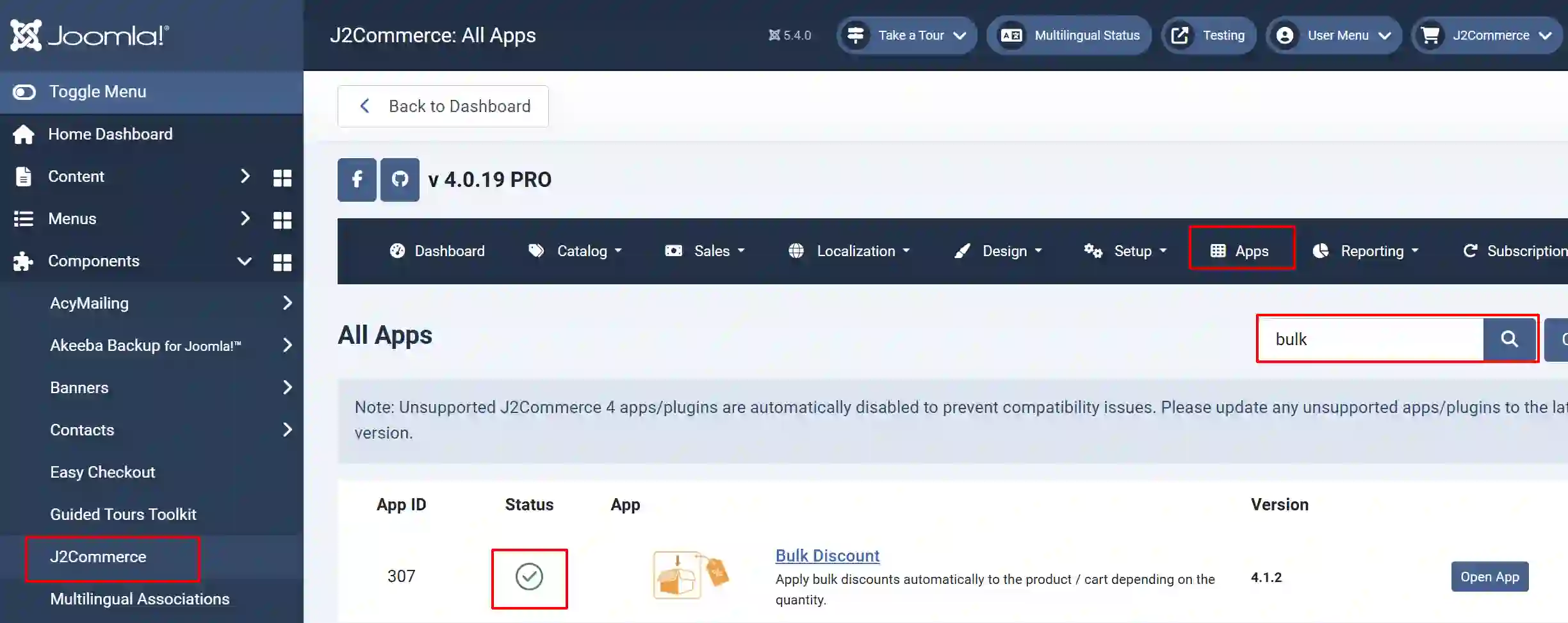
Go to J2Commerce > Apps > search for the Bulk Discount app
Click on the 'X' under Status to enable it.
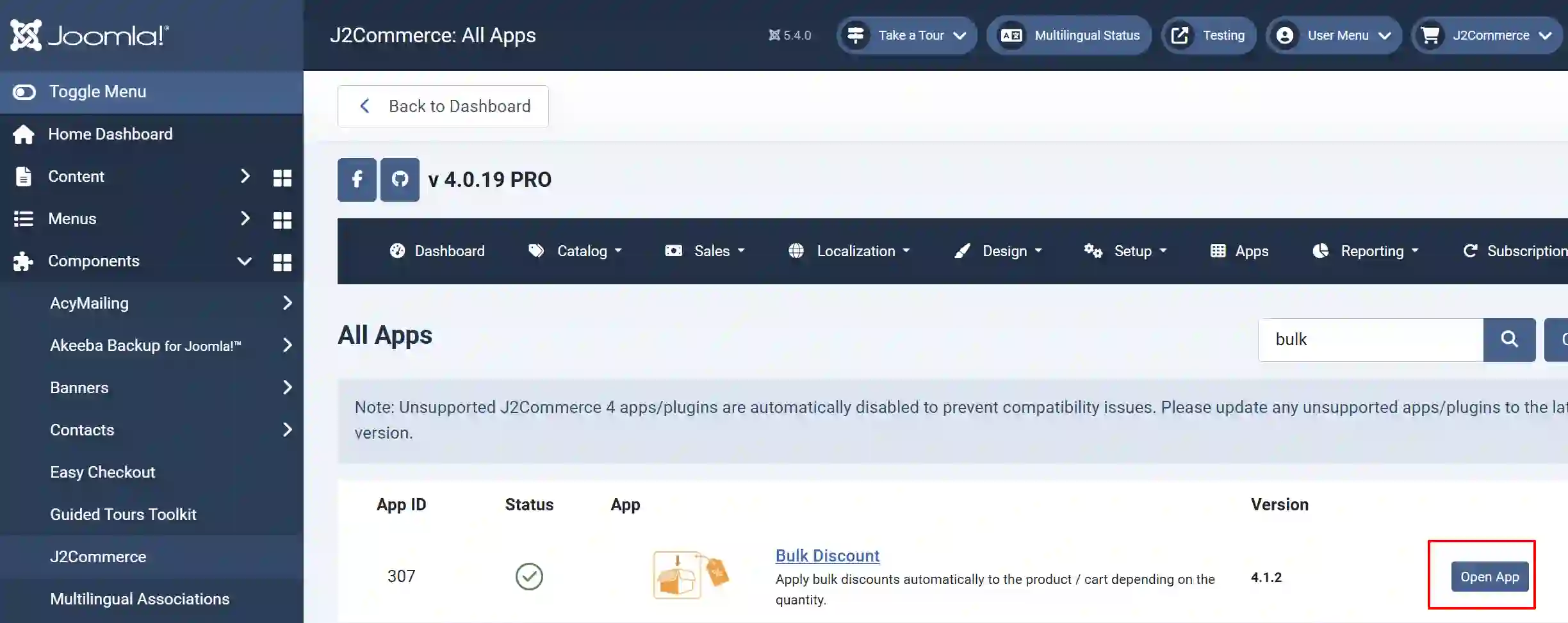
Click on "Open App" or the Title to start setting up the app
Setting up the Parameters
Basic tab
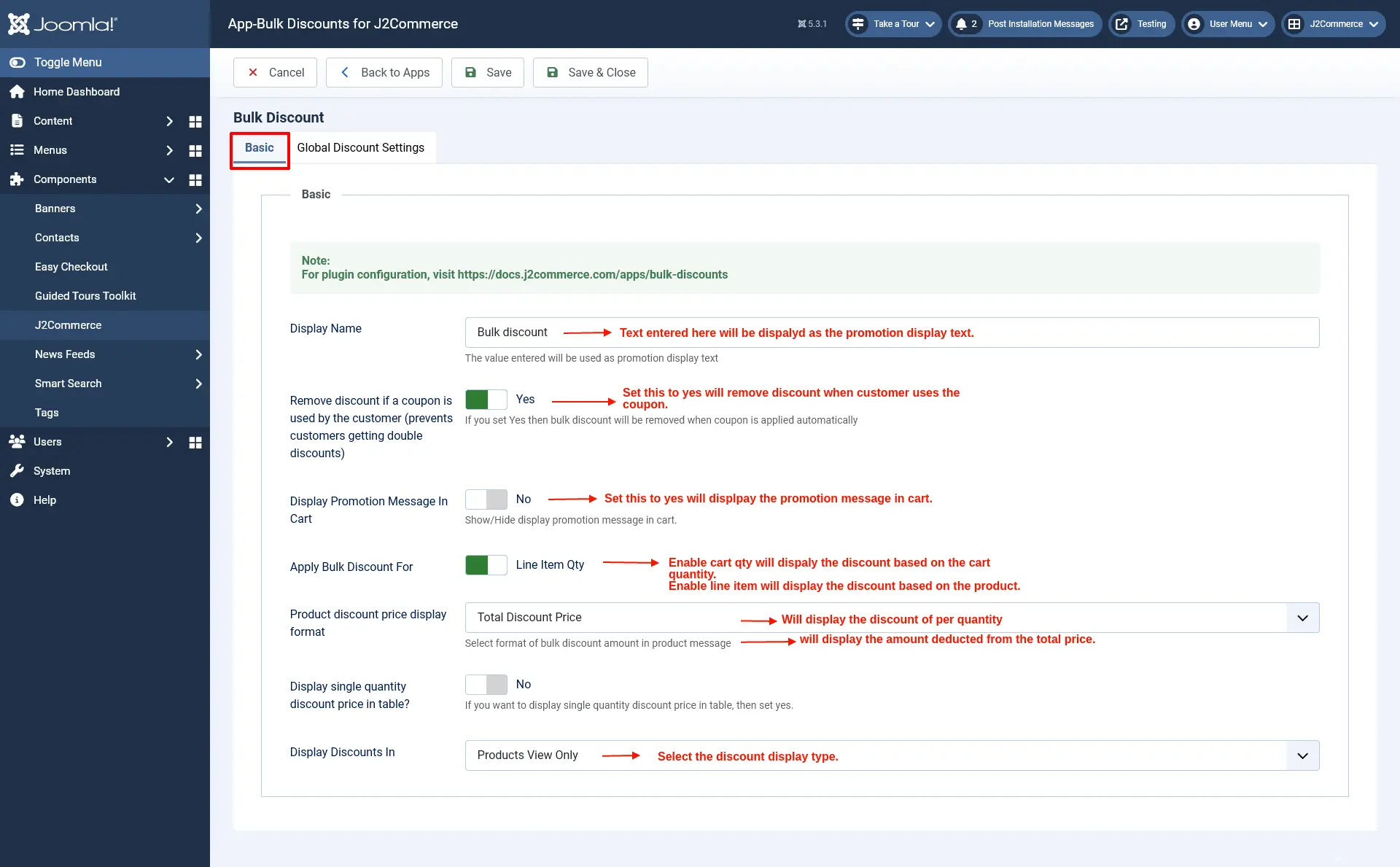
Display name: The value entered will be used as promotion display text
Remove discount if a coupon is used by the customer (prevents customers getting double discounts): Set this to Yes to remove the discount when the customer uses the coupon.
Display promotion Message In Cart: Set this to Yes display the promotion message in the cart if any bulk discount is not applied.
Apply Bulk discount for: Line item Qty: This will apply the discount based on the product. You can set a discount to the product individually on the product by going to the apps tab on the J2Commerce (J2Store cart) section. Once you enable Line item Quantity, the discount will be applied to the individual products. Refer to the image below for setting a discount for the product individually.
Product discount price display format: Select format of bulk discount amount in product message
-
Per quantity Discount: The discount is based on the product.
-
Total Discount Price: Discount is based on the total purchase amount of a particular order, irrespective of the quantity.
Display single quantity discount price in table: Set to Yes. If you want to display a single quantity discount price in a table.
Display discounts in: Display the discount information in any one of the three options(Products view only, Category view only, Both product and category view, Never).
Global discount settings tab
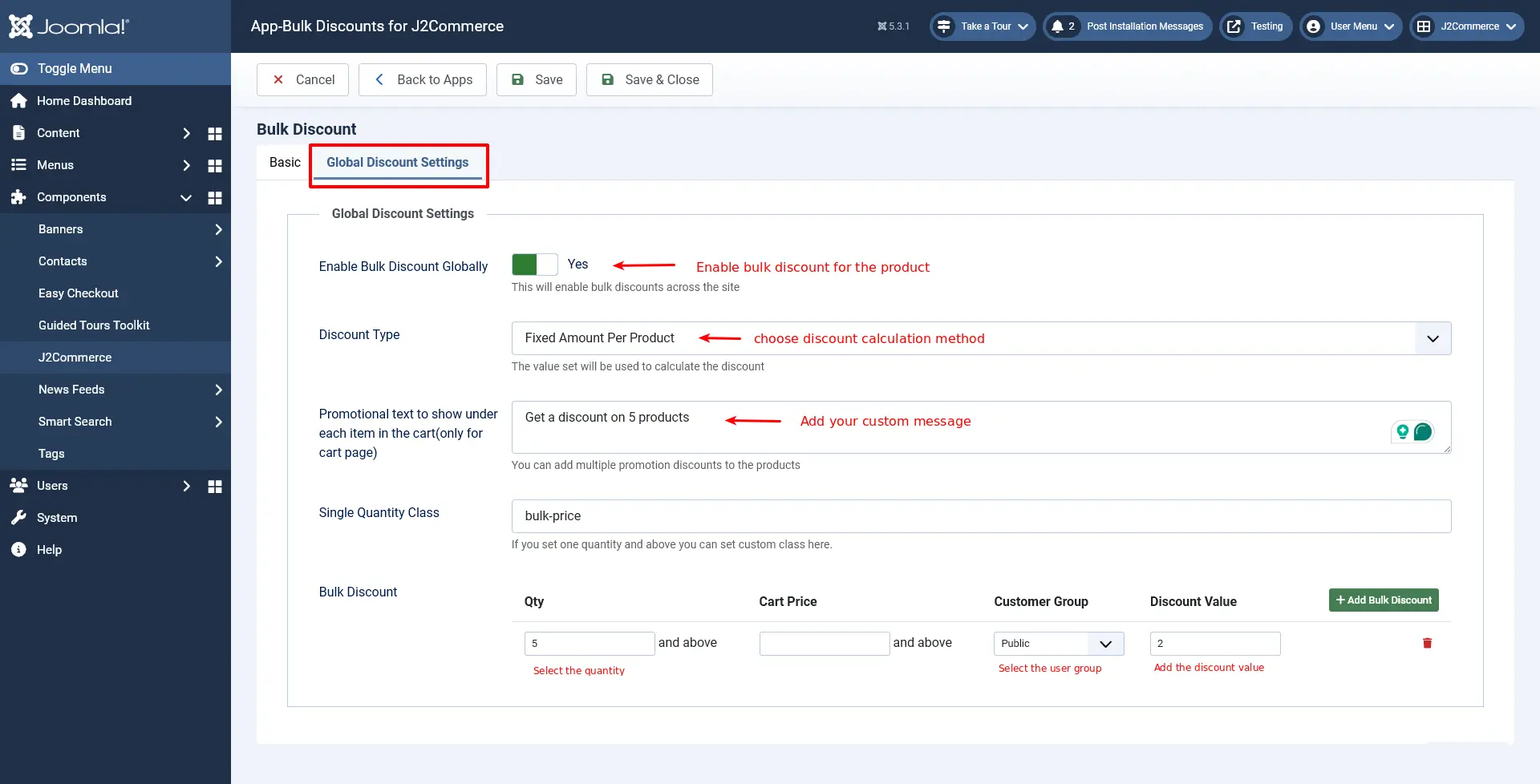
You can use these options when you are trying to offer a site-wide discount on your products.\
Also, when you are trying to set up the same type of discounts for a majority of the products while a very few products require change, then you can define the discount here and override this setting at the product level or the category-level.\
Enable bulk discount globally: Set this to Yes to enable bulk discounts across the site.
Discount type: The value set will be used to calculate the discount
Fixed amount per product: This will calculate the discount on a fixed price.
Cart Percentage: This will calculate the discount based on a percentage.
NOTE: When you set up a cart percentage discount, the discount information will be displayed only on the cart page. A table showing the discount would not be available for the fixed price discounts.
Promotional text to show under each item in the cart(only for cart page): Custom text entered here will be displayed under each product in the cart.
Single Quantity Class: If you set one quantity and above you can set custom class here.
Applying Bulk Discounts to Categories
This app will allow you to set a discount by category.
Go to Content > Categories > Open the category (to which you want to set a bulk discount) > Bulk Discount tab.
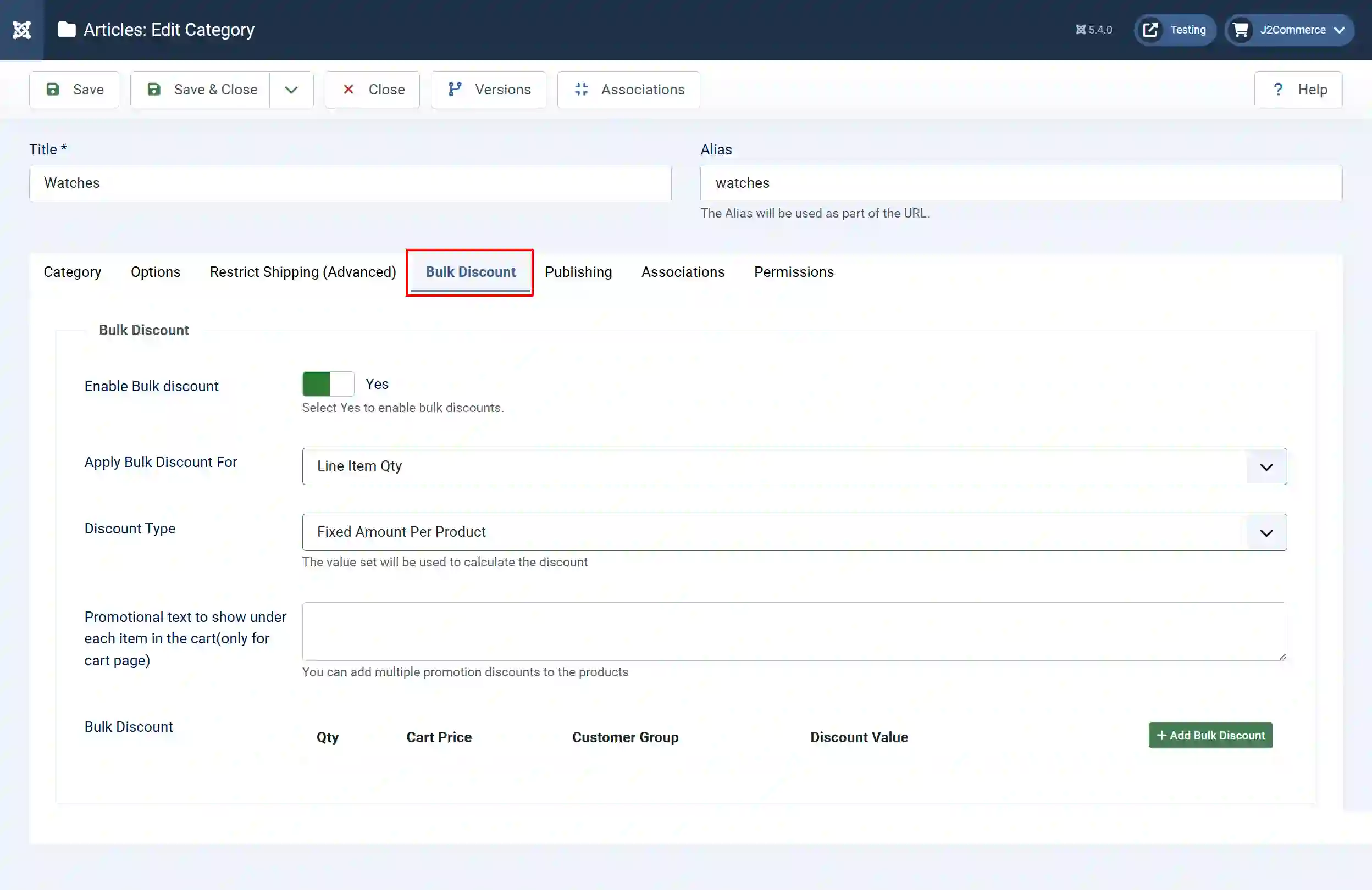
Enable Bulk Discount: Set this to Yes to enable the bulk discount for the category.
Apply Bulk discount for:
-
Total Qnty of products in cart that fall under this category: This will apply the discount globally i.e., based on the cart quantity. This will work only when you enable the bulk discount globally in Global discount settings.
-
Line item Qty : This will apply the discount based on the product. You can set a discount to the product individually in the apps tab on j2store cart. Once you enable Line item Quantity, the discount will be applied to the individual products.
Discount type:
-
Fixed amount per product: Enabling this will calculate the discount on a fixed price.
-
Cart Percentage: Enabling this will calculate the discount based on percentage.
Promotional text to show under each item in the cart (only for cart page): You can add multiple promotion discounts to the products, which will be displayed in the cart.
Applying Bulk Discounts to Products
The bulk discount plugin offers a product-level setting. So, if you are trying to set up product-specific discounts, then that is also possible by following the steps:
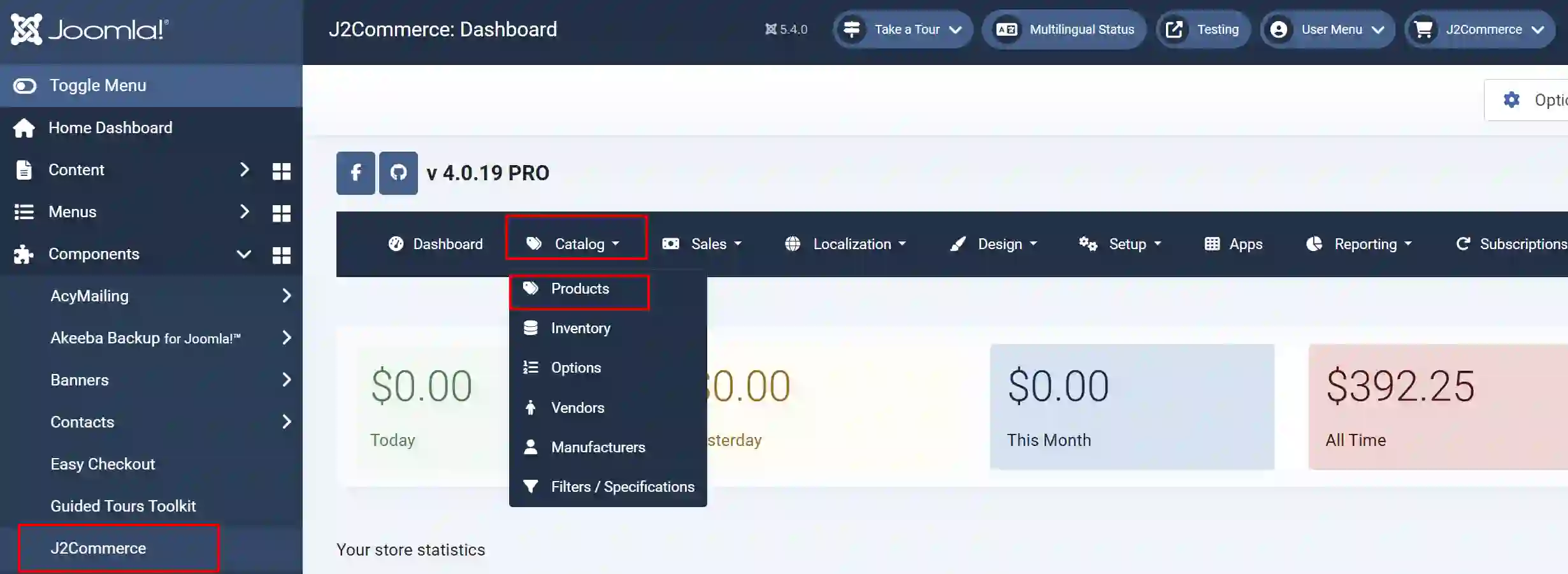
There are multiple ways to find your products. One way is go to J2Commerce > Catalog > Products > choose the product for which you are trying to offer discounts.
Once you find your product, click on the J2Commerce (J2Store cart) tab and select the apps tab.
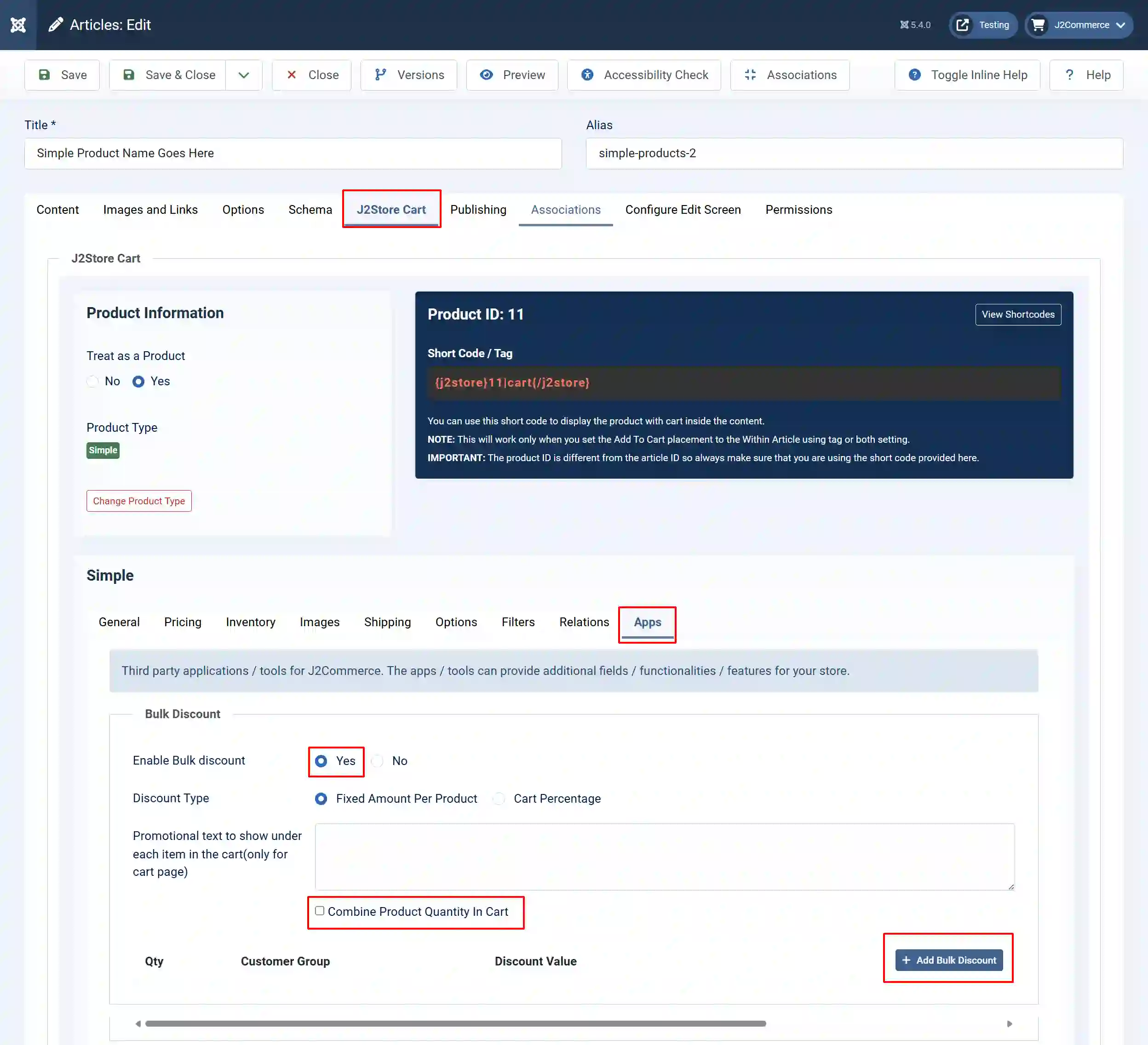
Enable Bulk Discount: Set this to Yes to enable the bulk discounts
Discount type:
-
Fixed-amount per product: To set up a fixed price discount for the product, choose this option. For example: 20$ discount, or a 50$ discount.
-
Cart percentage: To set up a percentage discount at the cart page for a particular product, choose this option. For example: a 20% discount, a 30% discount. As the name suggests, this discount would be applied only at the cart level.
Promotional text to show under each item in the cart(only for cart page): This setting lets you mention a promo message at the cart page alone. The text entered here would be displayed on the cart page.
Combine product quantity in cart: When this option is checked, the quantities of the product would be calculated cumulatively, and a discount would be added accordingly.
For example, if you are setting up a discount for a T-shirt product, and the T-shirt has options, say, size as Small, Medium, and Large. If the user chooses to buy a shirt of size small and one shirt of size medium, then should these two quantities be added?
Next comes the part where you choose the quantity range, user group, and the discount value.

Select the Add Bulk Discount button.
If you wish to have a bulk discount for the products included, then you can make use of this option. This will be really beneficial if you have the Bundled Product App installed. To learn more about the Bundled Product App, visit the Bundled Product Documentation.
QTY: Enter the minimum quantity to be added to avail this discount.
Customer Group: Enter the user group that can avail this discount.
Discount value: Enter the amount to be deducted from the total price as a discount.