Product Categories Module
With the product categories module, you could display an overview of the categories and sub-categories available in your site, on any place you wish. It is possible to display the number of articles, category descriptions present in a particular category, using this module. You could also redirect users to the products present in the categories through this module.
Purchase Module
Step 1: Go to our J2Commerce website > Extensions > Modules
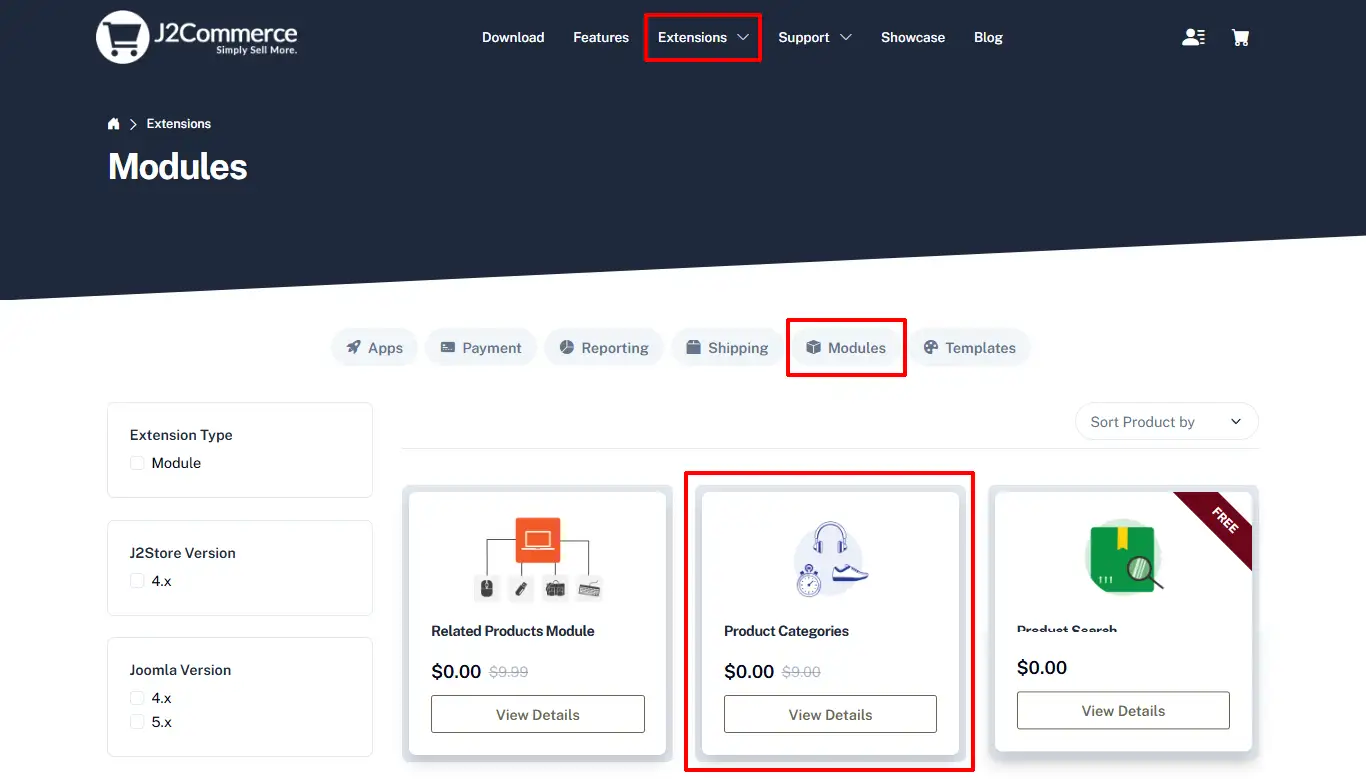
Step 2: Locate the Product Categories module > click View Details > Add to cart > Checkout.
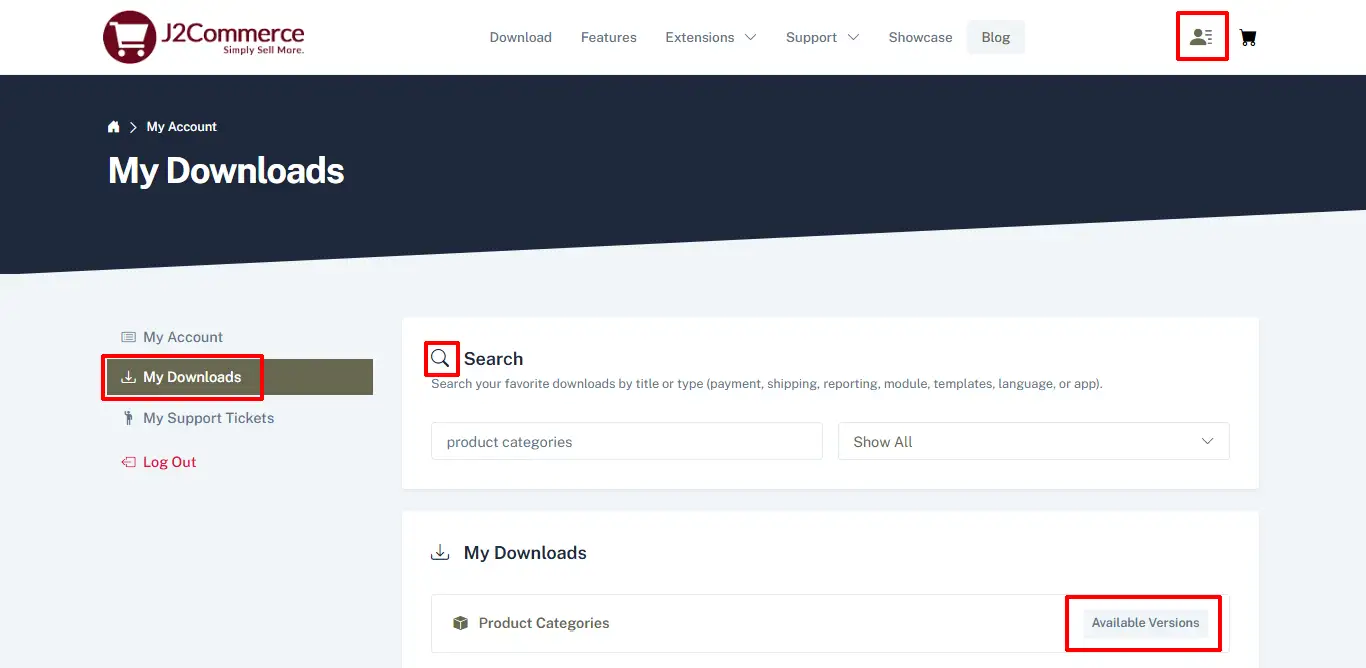
Step 3: Go to your My Downloads or My Account under your profile button at the top right corner and search for the app. Click Available Versions > View Files > Download Now
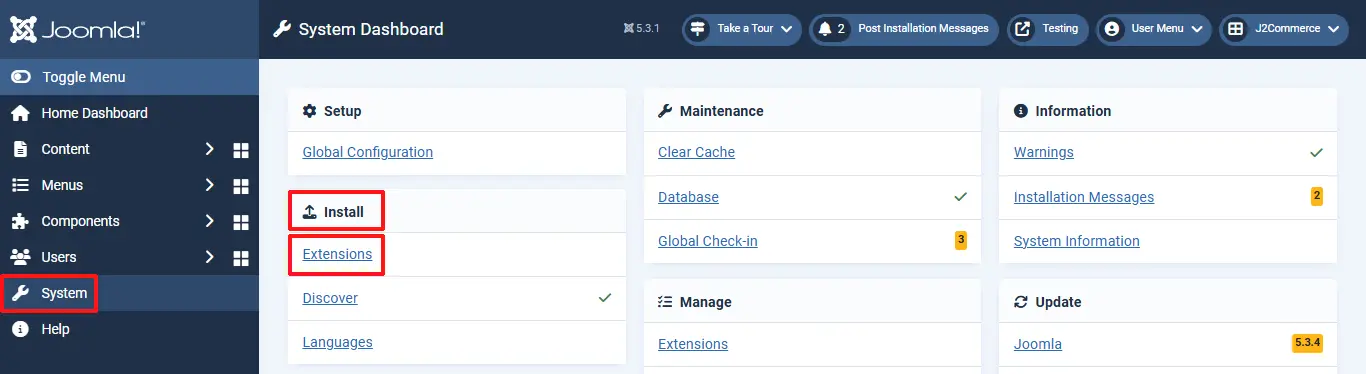
Installation: You can install this Product Categories module, using Joomla installer. The following steps help you for successful installation.
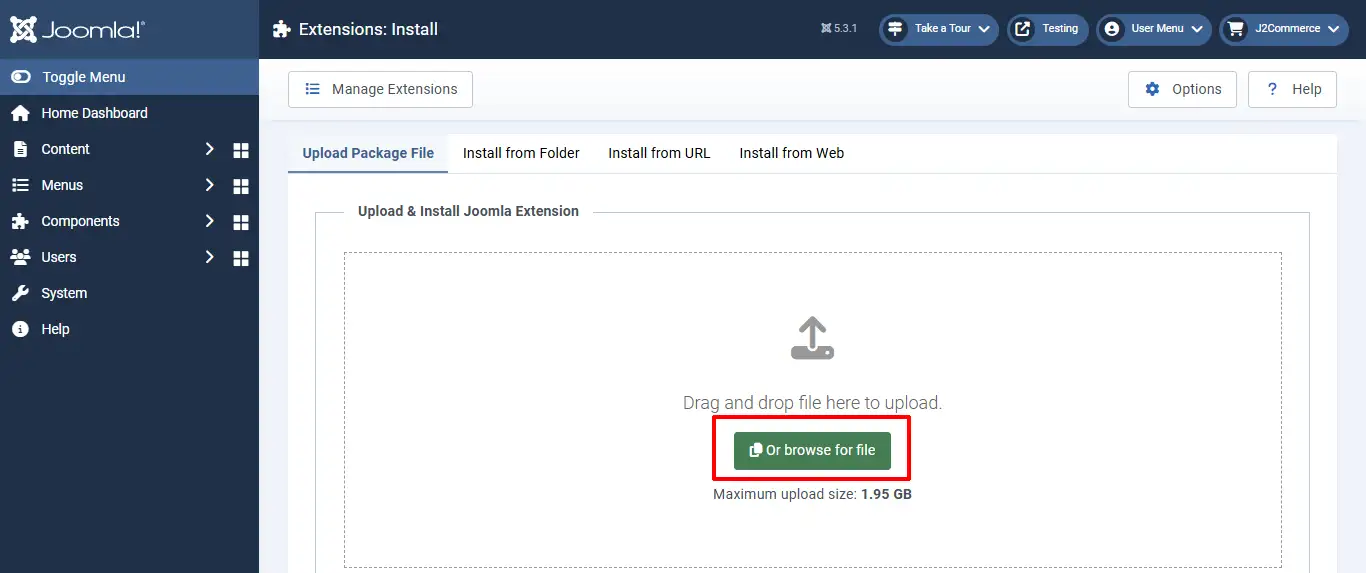
Step 1: In the Joomla admin, go to System > Install > Extensions
Step 2: Click on the Browse button and select the Product Categories zip file you saved during the download process. You will receive a message of success once installed.
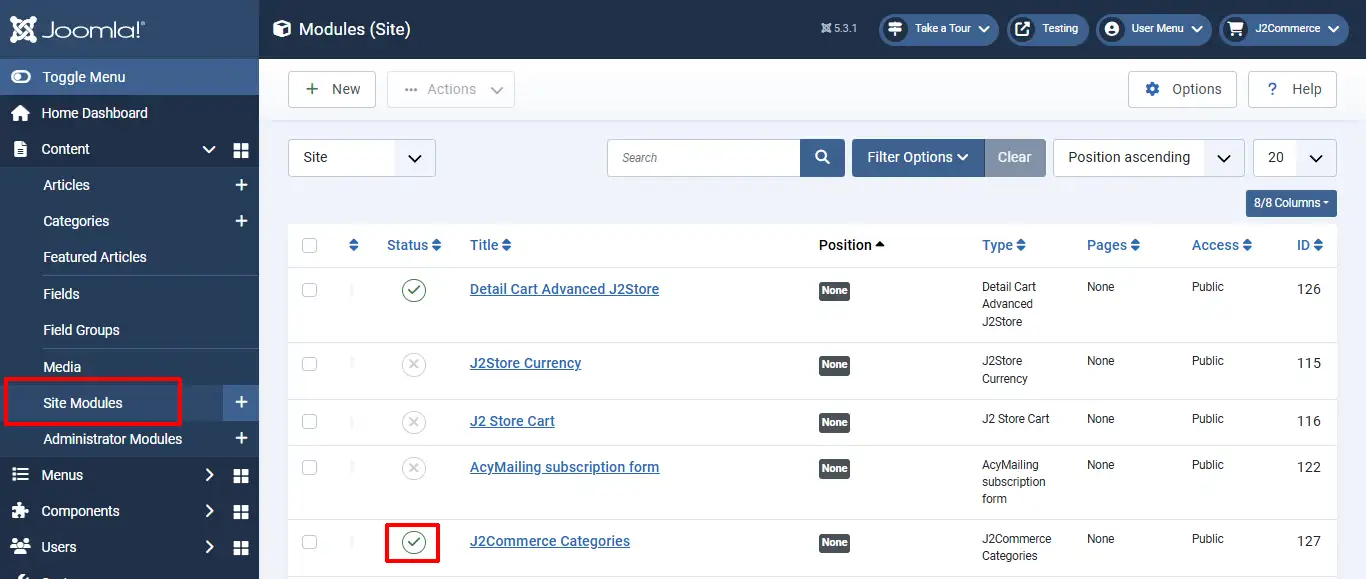
Step 3: Select Content > Site Modules > Product Categories module
Step 4: Enable the plugin by clicking on the 'X'. It will turn into a checkmark.
Step 5: Once it's enabled, click on the module to open it
Parameter Setup:
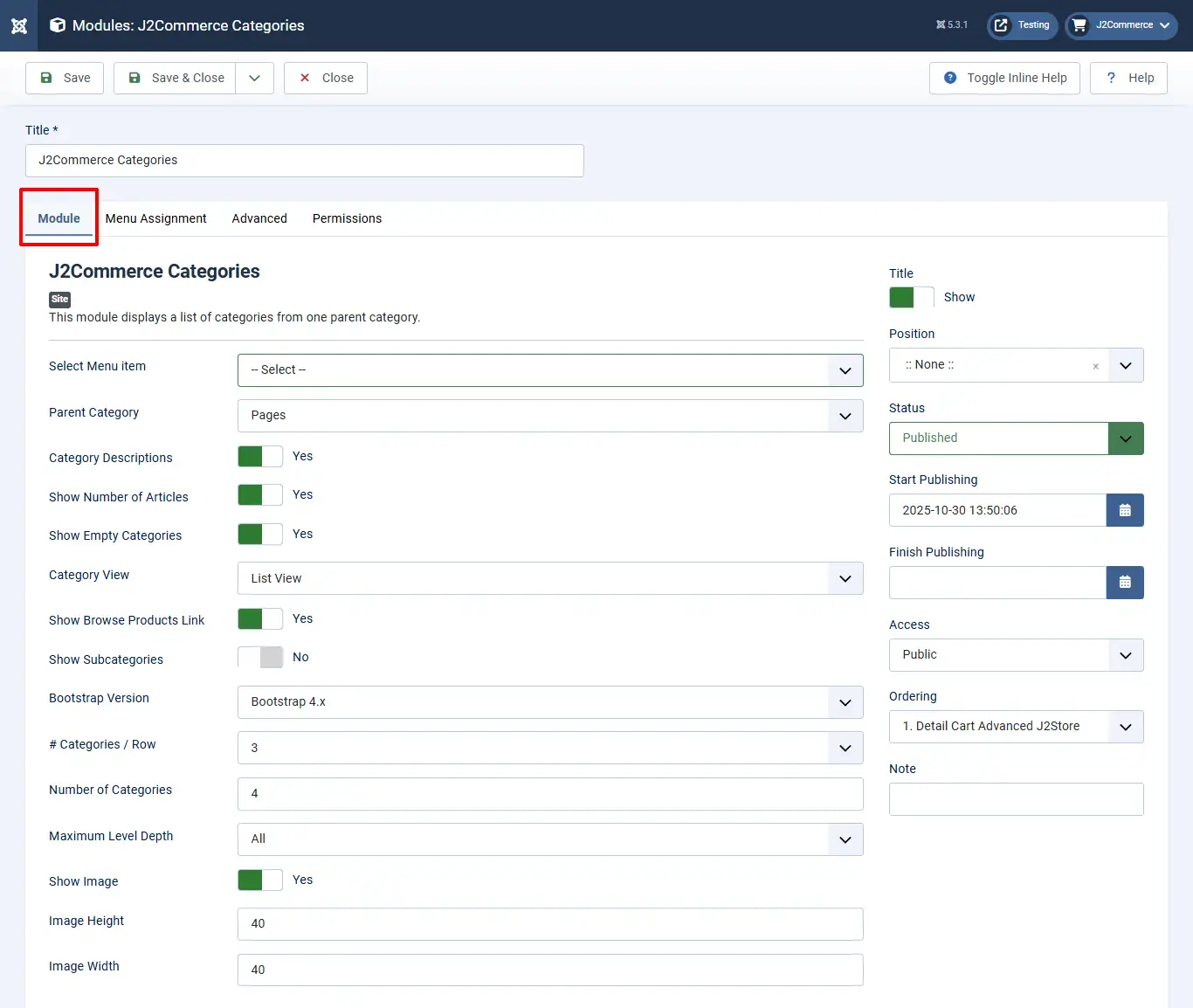
Basic Module settings
Select Menu item: Choose a menu item whose associated categories should be displayed on the module. Please note that you should have a menu item with the J2Commerce layout.
Parent category: Select a parent category whose sub-categories should be displayed (if any). Please note that this option should be chosen, or else no categories would appear on the frontend of the module.
Category Descriptions: If you wish to show the description entered on the category’s article, then you could do so by setting this option to Yes.
Show Number of Articles: To show the number of products/ articles present within a category, set this option to Yes.
Show browse products link: Setting this option to Yes would display a link that redirects users to the list view of products available in the category.
Show Subcategories: To show the sub-categories present within the categories displayed on the module.
First Subcategories: Choose the number of first-level categories that should be displayed on the module. The default setting is All.
Maximum Level Depth: Select the maximum level of sub-categories to be displayed on the module. If the third-level sub-categories have to be displayed, then the number 3 should be chosen here. The default setting for this parameter is All.
Show image: The images set for the image option under the Options tab of the category.
Image Height: You could set the height for the category image here.
Image width: Set the width of the image in this option.
The settings of the module are as shown below:
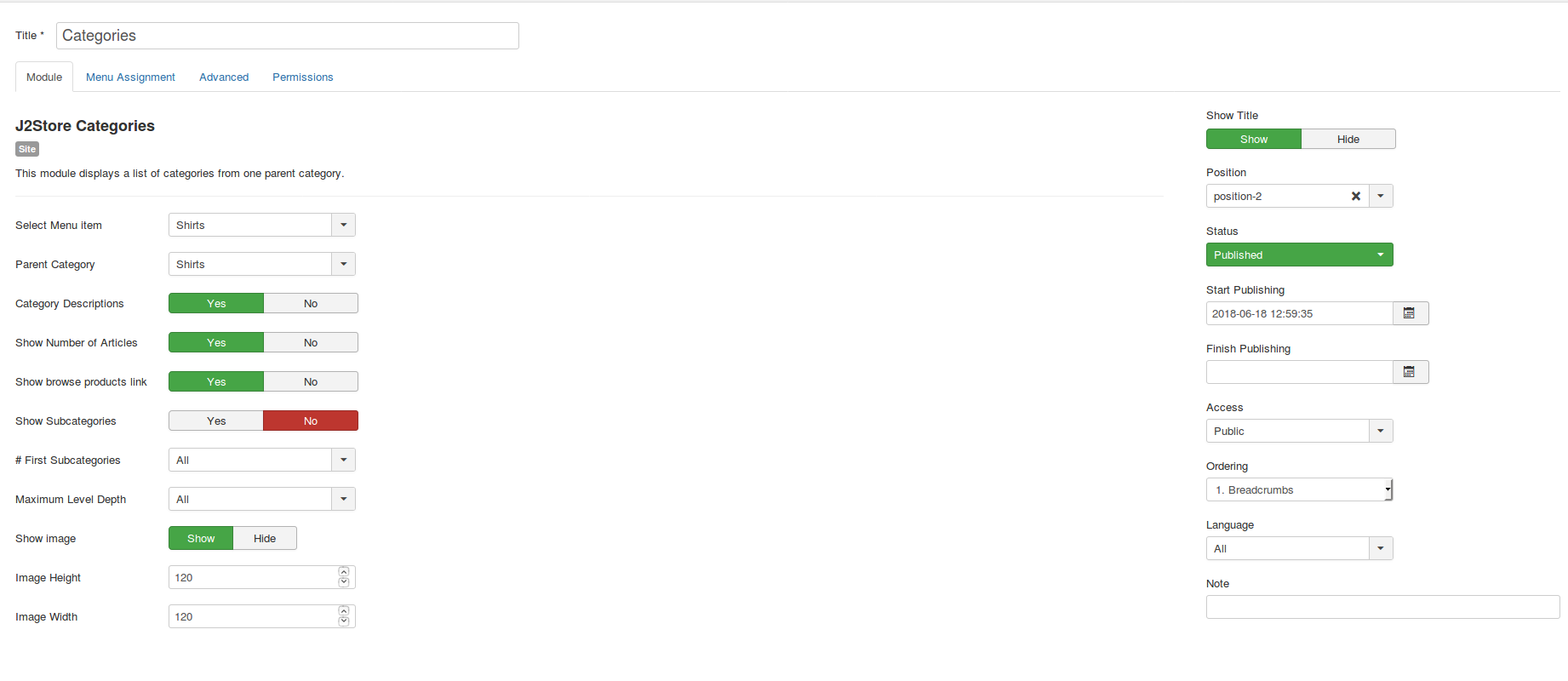
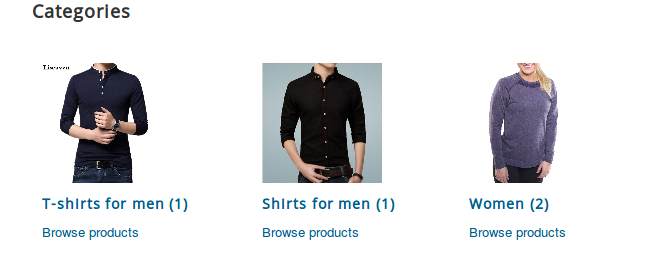
The frontend view of the module would be like this:
Video Tutorial:
The following video tutorial would help you configure the product categories module: