Acymailing
Requirements
- with PHP 8.1.0 +
- Joomla! 4.x/ Joomla! 5.x +
- J2Commerce / J2Store 4.x +
You should already have Acymailing installed on your site before you purchase the J2Commerce Connector. If you follow the steps below without having Acymailing already installed on your website, then you will receive an error message because it has nothing to connect to.
Purchase Acymailing Connector
Step 1: Go to our J2Commerce website > Extensions > Apps
Step 2: Locate the Acymailing App > click View Details > Add to cart > Checkout.
Step 3: Go to your My Downloads under your profile button at the top right corner and search for the app. Click Available Versions > View Files > Download Now
Install the App
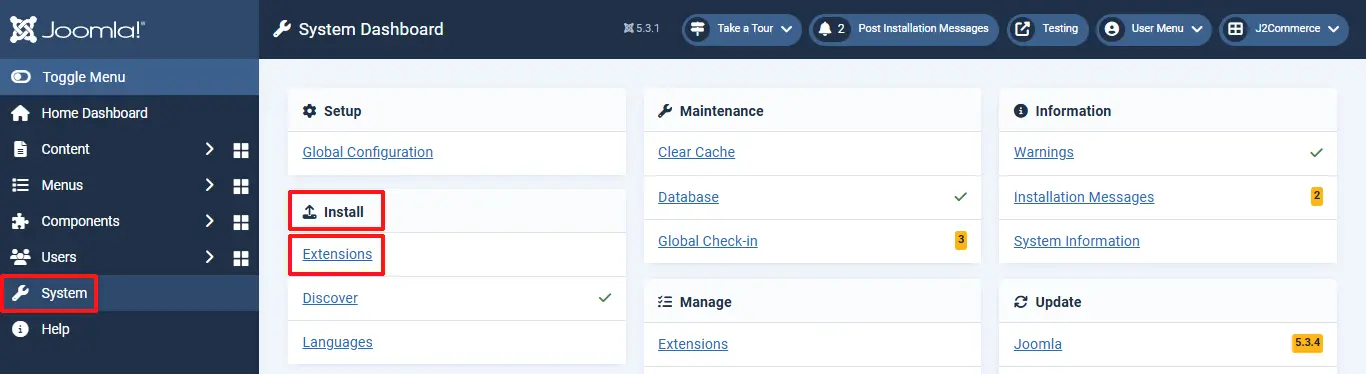
Go to System > Install > Extensions > install the app
Enable the App
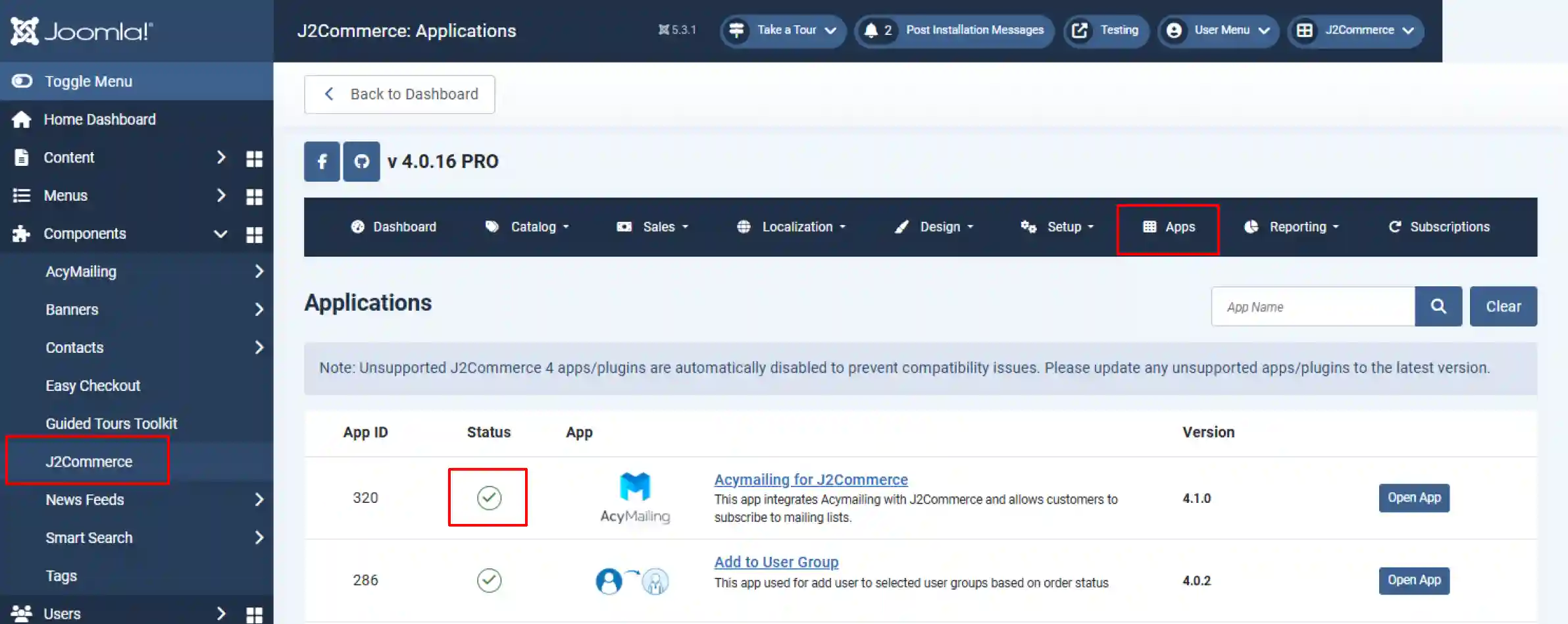
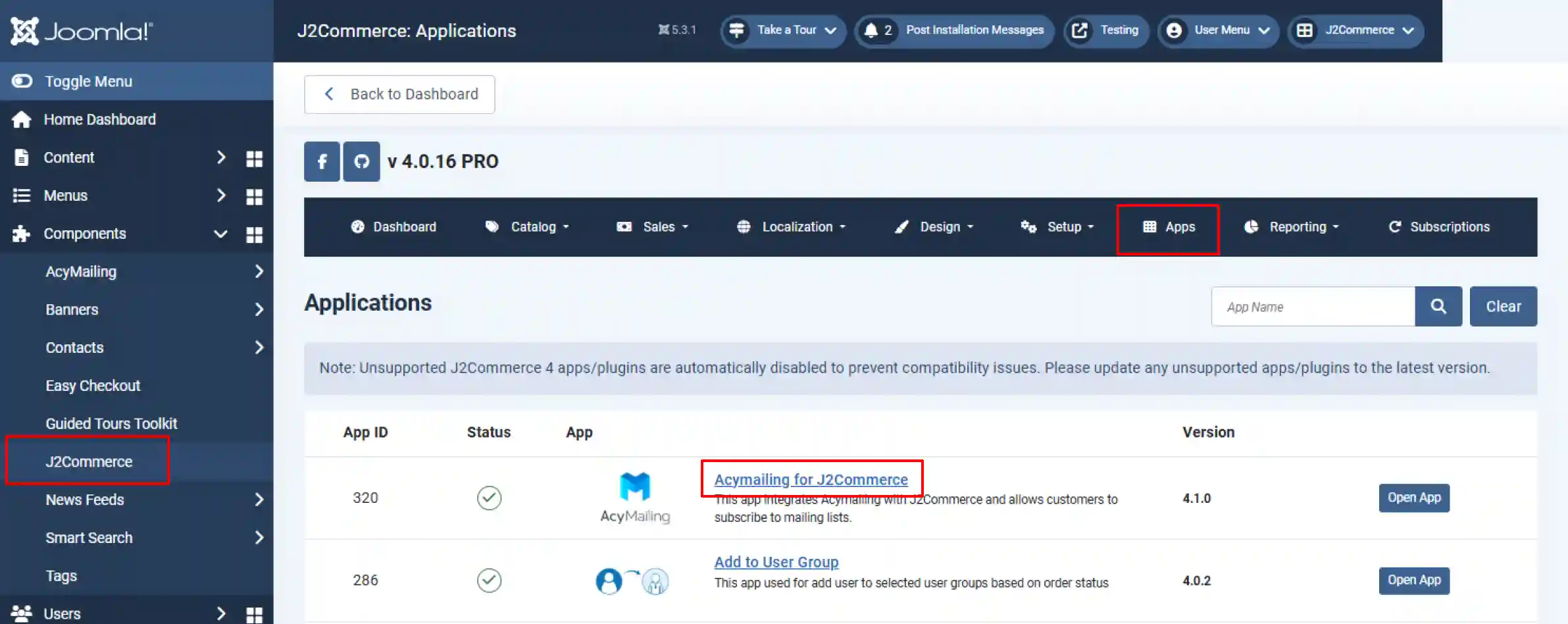
Go to J2Commerce > Apps > search for the Acymailing app.
Click on the 'X' under Status to enable it
Setting up Acymailing Lists
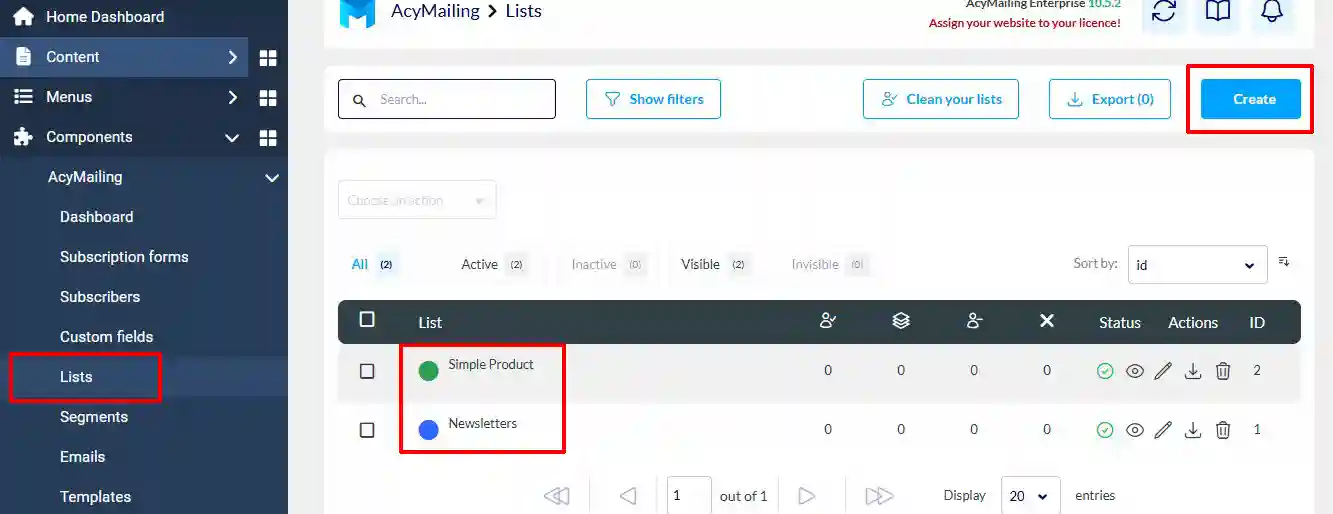
Step 1: Create a new email list by clicking on Acymailing > List > Create
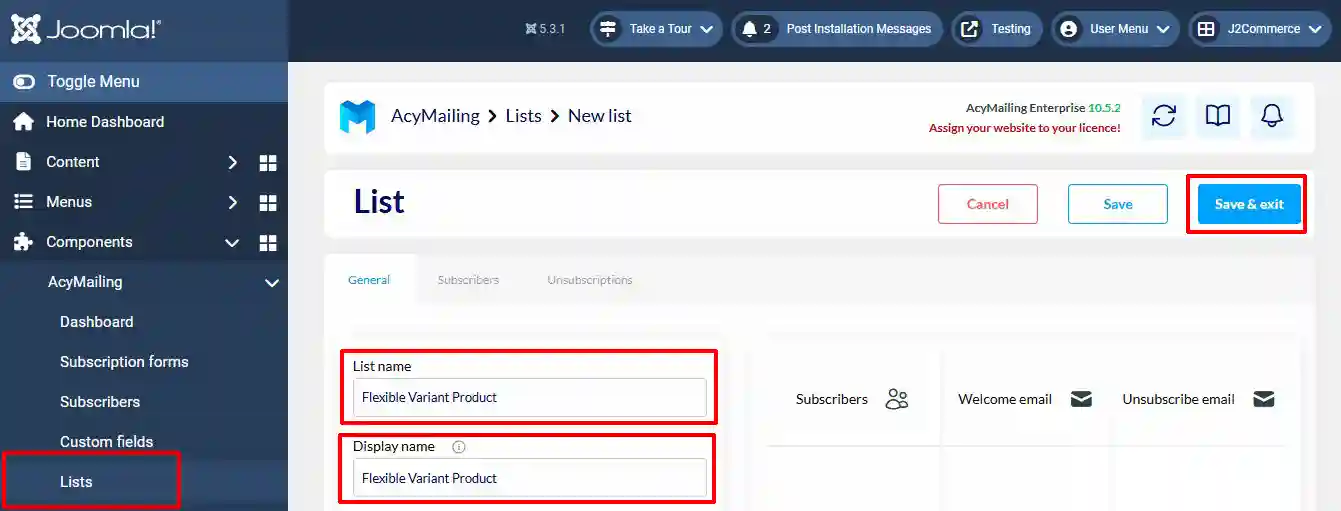
Step 2: Name your list > Save & Exit
Setting up the App Parameters
Go to J2Commerce > Apps > open the Acymailing app by clicking on the Title or Open App
Basic Settings tab
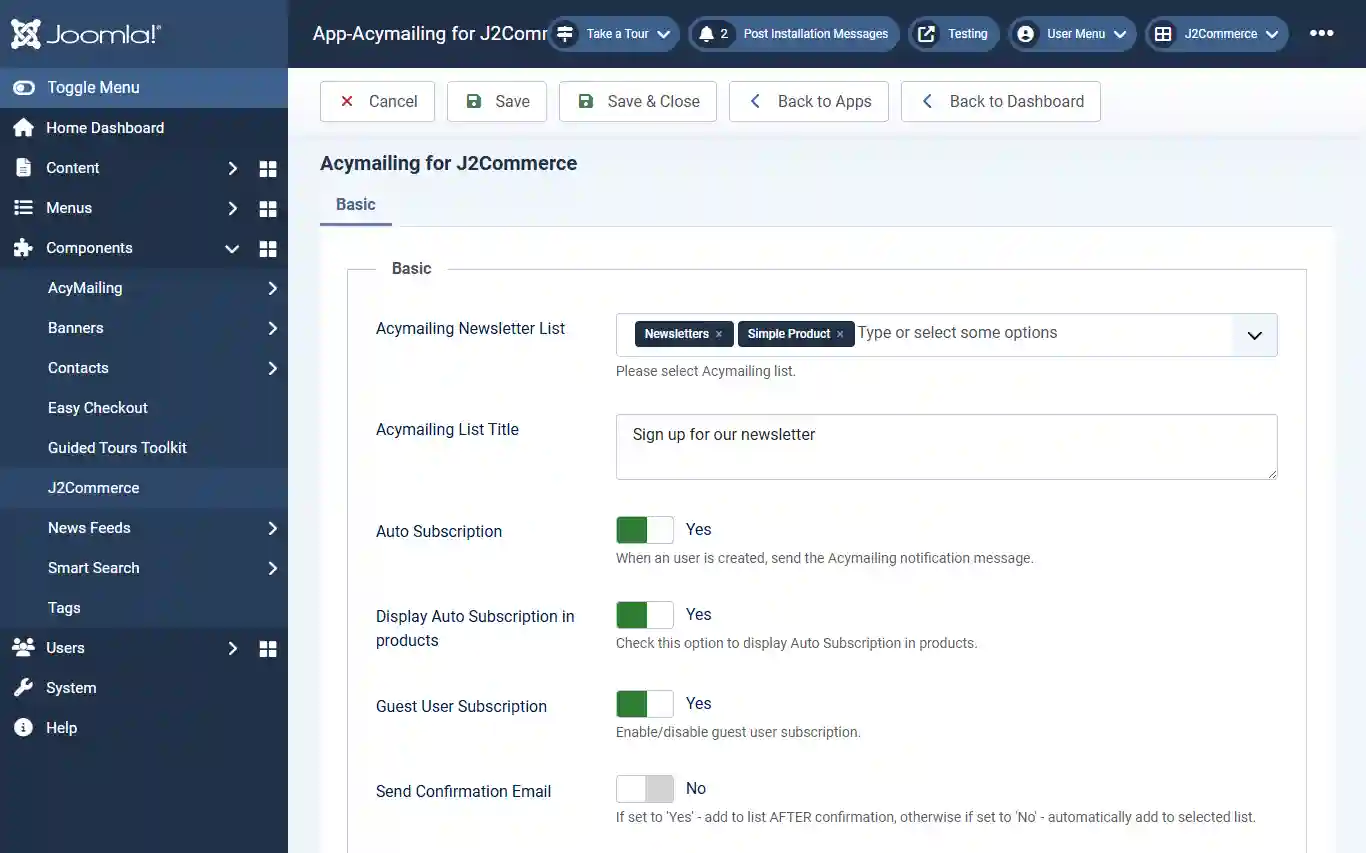
Acymailing Newsletter List: Select the newsletters you want to make available to choose from when assigning them to the specific products you want them sent to.
Acymailing List Title: Name the Title you want to show for customers to click on.
Auto Subscription: Select Yes to send the Acymailing notification message when a user is created.
Display Auto Subscription in products: Set to 'Yes' to display Auto Subscription in products.
Guest User Subscription: Set to 'Yes' to enable guest user subscription.
Send Confirmation Email: Set to 'Yes' to add to the list AFTER confirmation, otherwise if set to 'No' - automatically add to selected list.
Assigning Newsletters to Products
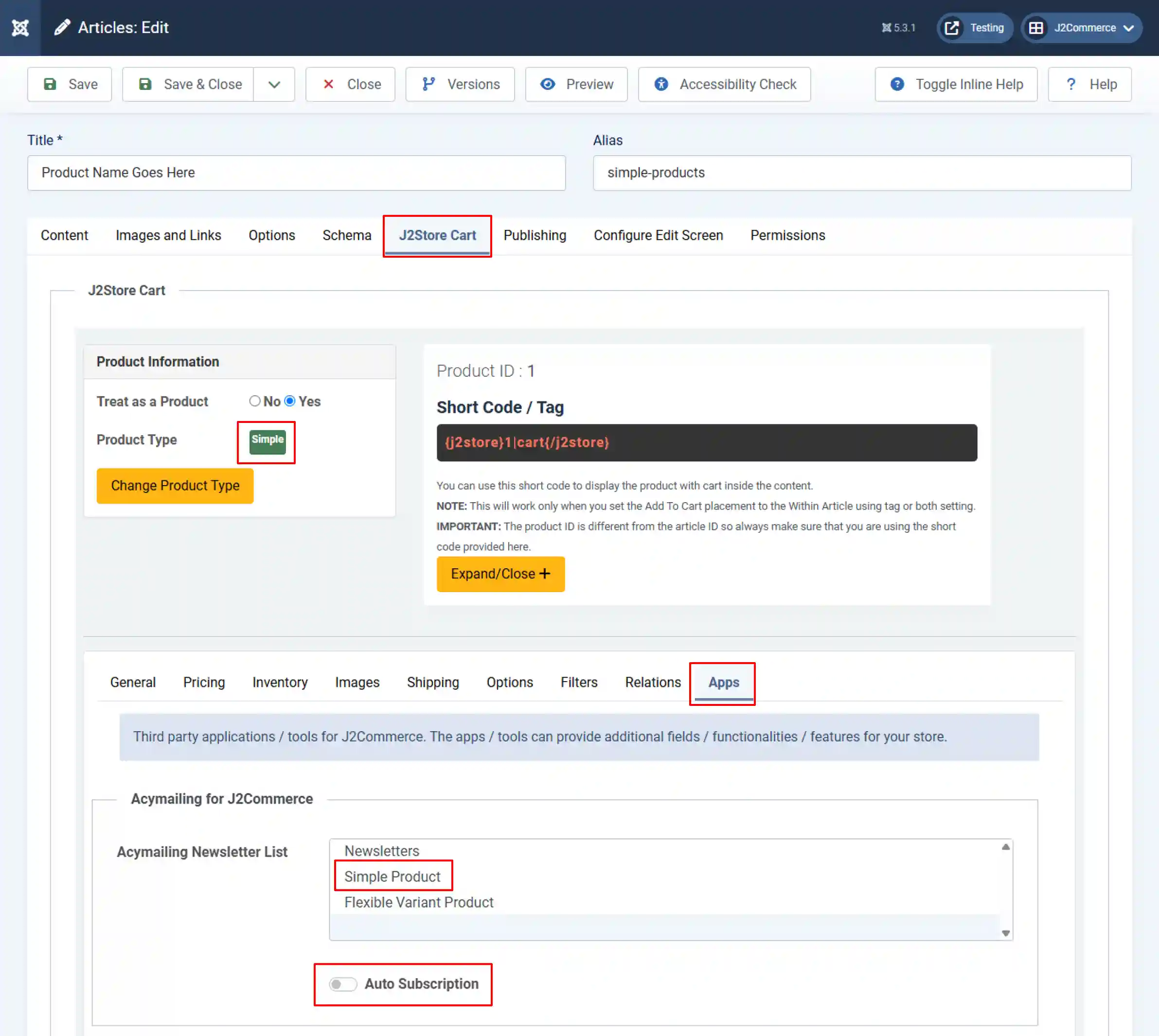
When someone purchases this specific product, they will receive newsletters regarding that product. In the example below, we are assigning the Simple Product Newsletters to the Simple Product.
Open the product in articles > J2Commerce (J2Store Cart) > Apps > Click on all of the newsletters you want to be available for the simple product.
You can also enable the Auto Subscription, which will show up on the front end during checkout, allowing the customer to opt in/out of the newsletters.
Frontend
The screenshot below will show how the customer will have a choice to opt in or out of the newsletter for this product.
