Advanced Tax Rates
The Advanced Tax Rates app lets you create custom tax classes with precise rules for how tax is calculated at checkout. Each rule can match by country, state or zone, postcode (including wildcards), and whether the rate applies to the billing or shipping address.
This is useful when your tax obligations vary by location — for example, applying a different rate for customers in a specific state or postal code range — and when the built-in tax profile system alone is not detailed enough to cover your requirements.
Requirements
- PHP 8.3.0 or higher
- Joomla! 6.x
- J2Commerce 6.x
Purchase and Download
The Tax Rate app is a separate add-on available from the J2Commerce Extensions Store. It is not included with the core J2Commerce 6 component.
Step 1: Go to the J2Commerce website -> Apps.
Step 2: Locate the Tax Rate app -> click View Details -> Add to cart -> Checkout.
Step 3: Go to My Downloads under your profile menu at the top right corner and search for the app. Click Available Versions -> View Files -> Download.
Install the App
You can install this Tax Rate App using the Joomla installer. The following steps help you with a successful installation.
In the Joomla admin, go to System -> Install -> Extensions
Upload the plg_j2commerce_app_taxrate.zip file or use the Install from URL option.
 (1)-a6689f12b23b8e992f5c2a169737672f.webp)
Enable the App
Once you have installed the App, you will need to enable it. There are two ways you can access the extension.
Option A: Go to the J2Commerce icon at the top right corner -> Apps
Option B: Go to Components on the left sidebar -> J2Commerce -> Apps
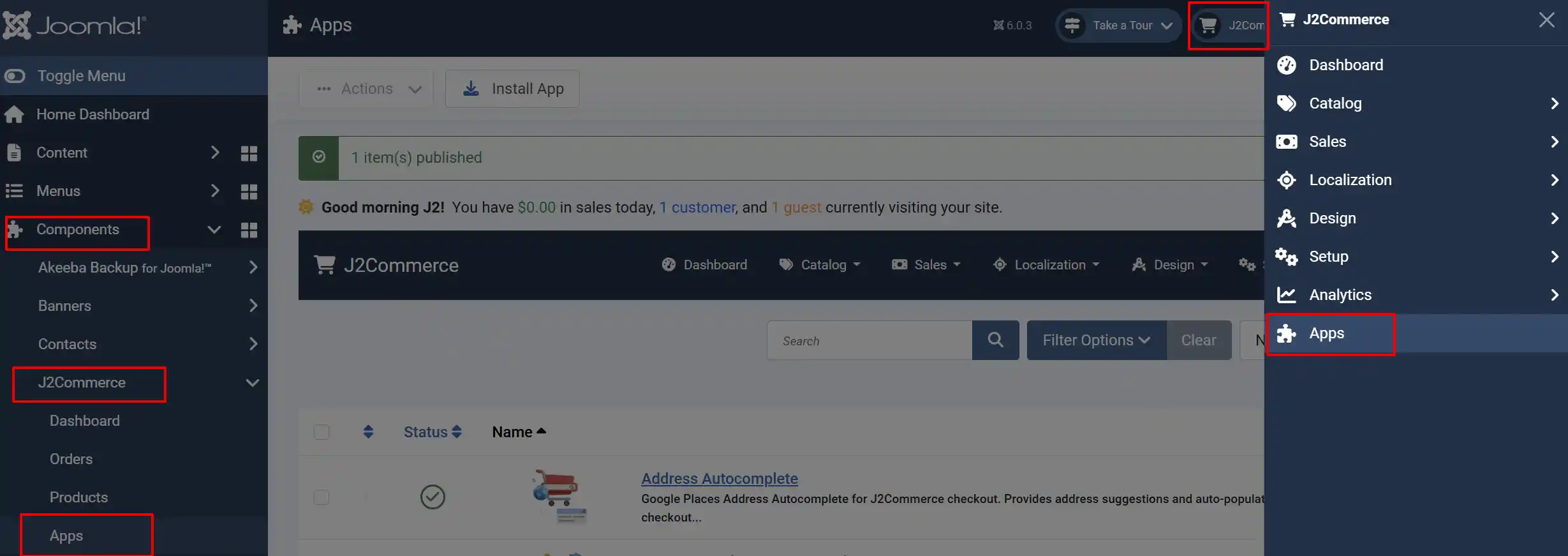
Look for Tax Rate, click the X, and it will turn into a green checkmark. It is now enabled and ready for setup.
Open the Plugin Settings
Click on the Tax Rate title to open the plugin configuration screen
The plugin configuration page contains two sections:
- Tax Classes — where you manage your tax classes and their rates
- Advanced — a postcode suffix option and debug mode toggle
How It Works
The Advanced Tax Rates plugin extends J2Commerce's tax system with a two-level structure:
- Tax Class — a named group (for example, "Standard VAT" or "Reduced Rate"). You assign a tax class to a product the same way you assign a built-in tax profile.
- Tax Rates — one or more rules inside a tax class. Each rule specifies which country, zone, postcode, and address type it applies to, along with the percentage rate.
When J2Commerce calculates tax at checkout, it finds the tax class assigned to the product, then evaluates all the rules inside that class against the customer's address to determine which rates apply.
Managing Tax Classes
Create a Tax Class
- On the plugin configuration page, click the New Tax Class button.
- Enter a Tax Class Name (required).
- Set the Enabled field to Enabled.
- Click Save.
The new class appears in the tax classes table.
Edit a Tax Class
Click the class name in the table to open the edit form. Change the name or enabled state and click Save.
Enable or Disable a Tax Class
Click the toggle icon in the Enabled column of the tax classes table. The icon updates immediately — no page reload required.
Delete a Tax Class
Click the trash icon next to the class. You will be asked to confirm. Deleting a tax class also deletes all its associated tax rates — this cannot be undone.
Assigning a Tax Class to a Product
Tax classes created by this plugin appear in the Tax Profile dropdown when editing a product, alongside any built-in tax profiles.
- Go to J2Commerce -> Catalog -> Products.
- Open the product you want to configure.
- Find the Tax Profile field and select your tax class from the dropdown.
- Save the product.
Managing Tax Rates
Click the View / Edit Rates button next to a tax class to open the tax rates panel.
Add a New Rate
The top section of the rates panel contains the "Add New Tax Rate" form. Fill in the fields and click New:
Country: The country this rate applies to. Select * for all countries.
Zone: The state or zone within the country. Select * for all zones.
Postcode: The postal code. Supports wildcards (see below).
Address Type: Whether this rate matches the Billing or Shipping address.
Rate (%): The tax percentage to apply.
Rate Name: A label shown on invoices and order summaries.
Priority: Determines the order rates are applied when multiple rates match. Lower numbers run first.
Postcode Wildcards
Postcode matching supports partial wildcards. Use an asterisk (*) at the end of a partial postcode to match all postcodes that begin with those characters.
| Postcode value | What it matches |
|---|---|
* | Any postcode |
90210 | Only postcode 90210 exactly |
90* | All postcodes starting with 90 |
SW1A* | All postcodes starting with SW1A |
This lets you define rates for broad regions without listing every individual postcode.
Edit Existing Rates
All existing rates appear in the table below the "Add" form. Edit the fields directly in the table rows. When you are done making changes, click Save All to save every row at once.
Delete a Rate
Click the trash icon at the end of a rate row. Confirm the prompt. The row is removed immediately without needing to save.
Importing Tax Rates from CSV
For large rate tables, you can import rates from a CSV file instead of entering them one by one.
Prepare Your CSV File
The CSV file must have these column headers in the first row:
taxrate_country,taxrate_zone,taxrate_zip,address_type,taxrate_rate,taxrate_name,taxrate_priority
Each subsequent row is one tax rate. Values follow the same rules as the manual entry form — use * for wildcards.
Example CSV content:
taxrate_country,taxrate_zone,taxrate_zip,address_type,taxrate_rate,taxrate_name,taxrate_priority
USA,CA,*,billing,8.25,California Sales Tax,0
USA,NY,*,billing,8.875,New York Sales Tax,0
GBR,*,*,billing,20,UK VAT Standard,0
GBR,*,*,billing,5,UK VAT Reduced,1
Run the Import
- In the tax classes table, click the Import button next to the class you want to populate.
- Either upload a CSV file using the file picker, or enter the file path on the server.
- If your file uses a delimiter other than a comma (for example, a semicolon), enter it in the Delimiter field.
- Click Import.
A confirmation message tells you how many rows were imported successfully. If any rows had formatting errors they are skipped and counted separately.
Importing does not replace existing rates — it adds to them. To reset a class's rates before importing, delete the existing rates manually first.
Exporting Tax Rates to CSV
Click the Export CSV button next to a tax class to download all of its rates as a CSV file. This is useful for:
- Backing up rates before making bulk changes
- Sharing rate tables between stores
- Editing a large rate set offline and re-importing
Advanced Settings
Ignore Postcode Suffix
Some customers enter postcodes with a hyphen suffix, such as 94403-1234. The suffix is the part after the hyphen. When this option is enabled (the default), the suffix is stripped before matching — so 94403-1234 is treated as 94403.
Enable this setting if customers may enter extended postcodes and your rate rules only specify the base postcode.
Debug Mode
Enables detailed logging to administrator/logs/app_taxrate.php. Use this setting when investigating why a particular tax rate is (or is not) being applied to an order. Turn it off when you are done troubleshooting — debug logging adds overhead to every tax calculation.
Troubleshooting
A rate is not being applied at checkout
Cause: The matching rules may not align with the customer's address.
Checklist:
- Confirm the product has the correct tax class assigned in its Tax Profile field.
- Open the tax class and check each rate's Country, Zone, and Postcode values.
- Verify Address Type matches how your store is configured — billing or shipping.
- Enable Debug Mode in the Advanced settings and place a test order. Review the log at
administrator/logs/app_taxrate.phpto see which rates were evaluated.
The tax class does not appear in the product Tax Profile dropdown
Cause: The tax class is disabled.
Solution: Go to the plugin configuration page and enable the tax class using the toggle in the Enabled column.
Import shows 0 rows imported
Cause: The CSV header row does not match the expected column names.
Solution: Ensure the first row of your CSV contains exactly: taxrate_country,taxrate_zone,taxrate_zip,address_type,taxrate_rate,taxrate_name,taxrate_priority — spelling and case must match.